

Messages
Wingman, the assistant
Wingman answers questions in plain words about your own operation and about using the app. It reads; it never changes anything. Wingman is in beta.
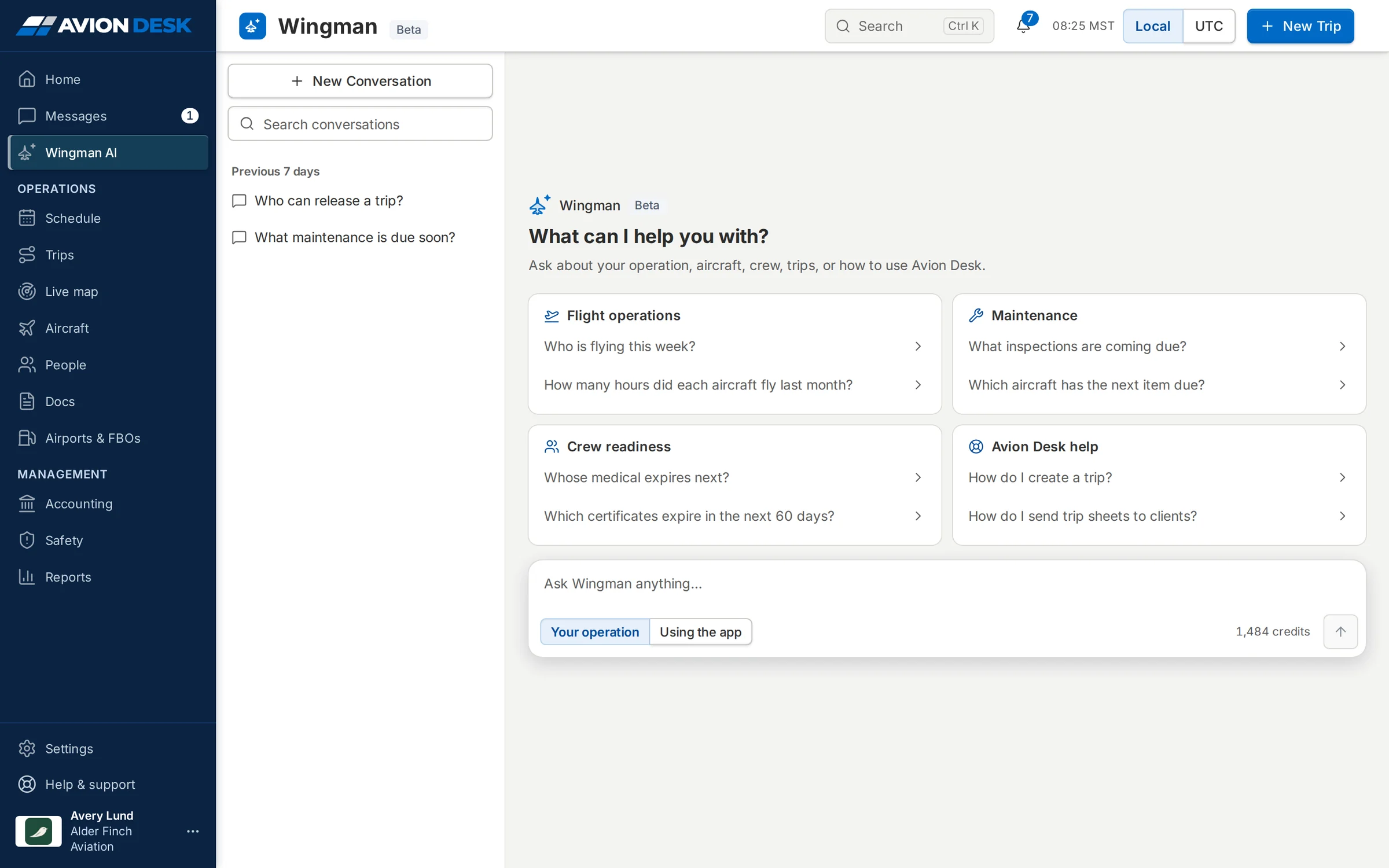
Ask a question
- Click Wingman in the sidebar for the full page, or the airplane button at the top of any page for the side panel.
- Pick the kind of question in the box: Your operation for your trips, hours, aircraft, crew and company documents, or Using the app for how something works. The kind is set once the conversation starts.
- Type your question and press Enter, or click one of the suggested questions. A new conversation on the full page starts with four cards of suggestions, such as flight operations, maintenance and crew readiness, two questions each. You are only offered questions Wingman can answer for you: a pilot gets questions about their own hours, flights and medical; the office gets questions about the whole fleet and crew.
- Ask a follow-up in the same box. Click New Conversation to start over.
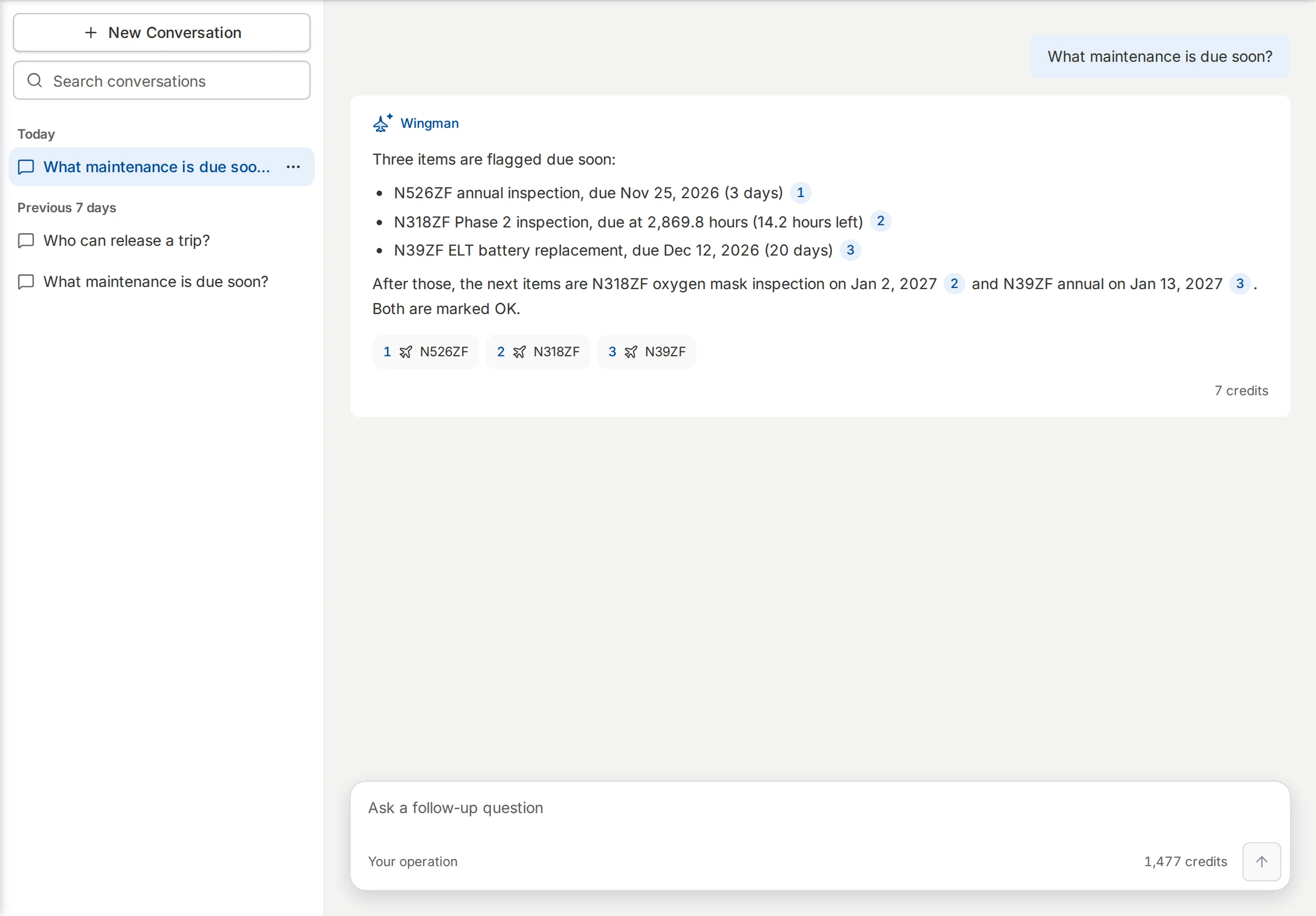
Each answer lists what it read as numbered sources. Click a number to open that aircraft, trip, person, document or help article.
Beside any page
The airplane button at the top of the page opens Wingman as a panel on the right, so you can ask while you work. On a very wide screen the page narrows to make room; otherwise the panel slides over the page, and you can keep working beside it. The panel stays open as you move between pages. Its buttons at the top are History (your past conversations), New Conversation, Open Full Page and Close. On a phone there is no panel: open Wingman from the menu for the full page.
The panel and the full page are one conversation. Click Open Full Page and you carry on where you were, even while an answer is still on its way. Open the panel again later and it shows the conversation you had open.
Asking about the page you are on
In the panel, Wingman knows the page you opened it from. A chip above the question box names it: the section, such as Aircraft or Schedule, or the record on a trip's, an aircraft's or a person's page, shown by its trip number, tail or name. Your question is then about that page, so you don't need to name the trip or aircraft. The suggested questions follow the page too.
To ask about something else, click the x on the chip to remove it. It stays off until you move to another page. Wingman still only reads what you are allowed to see. The full page has no chip, so name the trip number, tail or person in your question there.
What Wingman can see
- Only what you can already see in the app.
- Trips and legs, flight log times, aircraft and the maintenance coming due, and the names and expiry dates of crew certificates and medicals. It doesn't read duty or training records.
- Your company's documents in Docs, for questions such as "what does our ops manual say about crew rest?": only the documents you can open yourself, never archived ones, in PDF, Word or plain text.
- This help center, for questions about how to do something in the app.
- Never passport or traveler numbers, birth dates, medical notes or addresses. Those are not sent.
Your question and the records Wingman reads to answer it go to our AI provider to write the answer.
Your conversations
On the full page, your conversations are listed on the left, under Today, Previous 7 days and Older, with New Conversation at the top. Type in Search conversations to find one by its title. On a phone or a narrower window, and in the panel, the list is behind History.
Only you can see your conversations, and they are kept for 90 days. To delete one for good, open the … menu on its row, choose Delete and confirm.
Credits
Your company gets a number of credits each month, shared by everyone. The count shows beside the send button; click it to see how many are left and when they refill. A short question uses as few as 1 credit; longer answers that read more records use more, and each answer shows what it cost. The monthly amount grows with the number of aircraft on your account, with a minimum for your plan. One day can use at most a quarter of the month's credits, and each person can ask up to 30 questions an hour and 80 a day. When your team reaches the month's or the day's limit, or you ask a lot of questions in a short time, a short note says so and tells you when you can ask again. Everything else in the app works as usual.
Choose who can use Wingman
An Admin chooses under Settings, Company, Who can use Wingman:
| Choice | Who can ask |
|---|---|
| Every member | Everyone in the company. This is how it starts. |
| Admins only | Admins. |
| Only the people you tick | People with Can use Wingman ticked under their roles on their record in People. Admins need the tick too. |
| Off for everyone | Nobody. Wingman leaves the sidebar. |
Someone who isn't allowed sees "Wingman isn't on for you" and who to ask.
Can’t find what you need? Email [email protected] and a person will answer.