

Reports
Reports
Reports answer the questions an operator asks every month, from the records already in the app. Each one says what it counts and who can open it.
Open Reports
Click Reports under Management in the sidebar. It opens on the Summary. Every Reports page has the Reports menu at its left: a Search reports box, the Summary, a group for each family of reports, and All reports at the foot.
Reports are on both plans. There is no separate permission: you see a report when you can see the records it reads. A family shows in the Reports menu only when you can open at least one report in it.
- Flying and client reports: Admin, Scheduler and Trip builder, and Bookkeeping while Accounting is open. Trip requests leaves out Bookkeeping.
- Money reports: Admin, Scheduler and Bookkeeping. Expenses to pay back needs Admin or Bookkeeping.
- Aircraft reports: every role that sees the fleet. Fuel burn from the flight log needs Admin, Scheduler or Bookkeeping.
- Crew reports: Admin and Scheduler. Trip builders also open the block time, limits, duty and days worked reports. A pilot can open Pilot block time and sees only their own.
- Safety: Safety reports for safety managers, and for Admins when the setting below is on. Trip risk scores for Admin, Scheduler and Trip builder.
- Your account: Admin only.
- Reports on Charter plan features, such as quotes and owner statements, follow the plan.
Roles and accessWhat each role can see.
The Summary
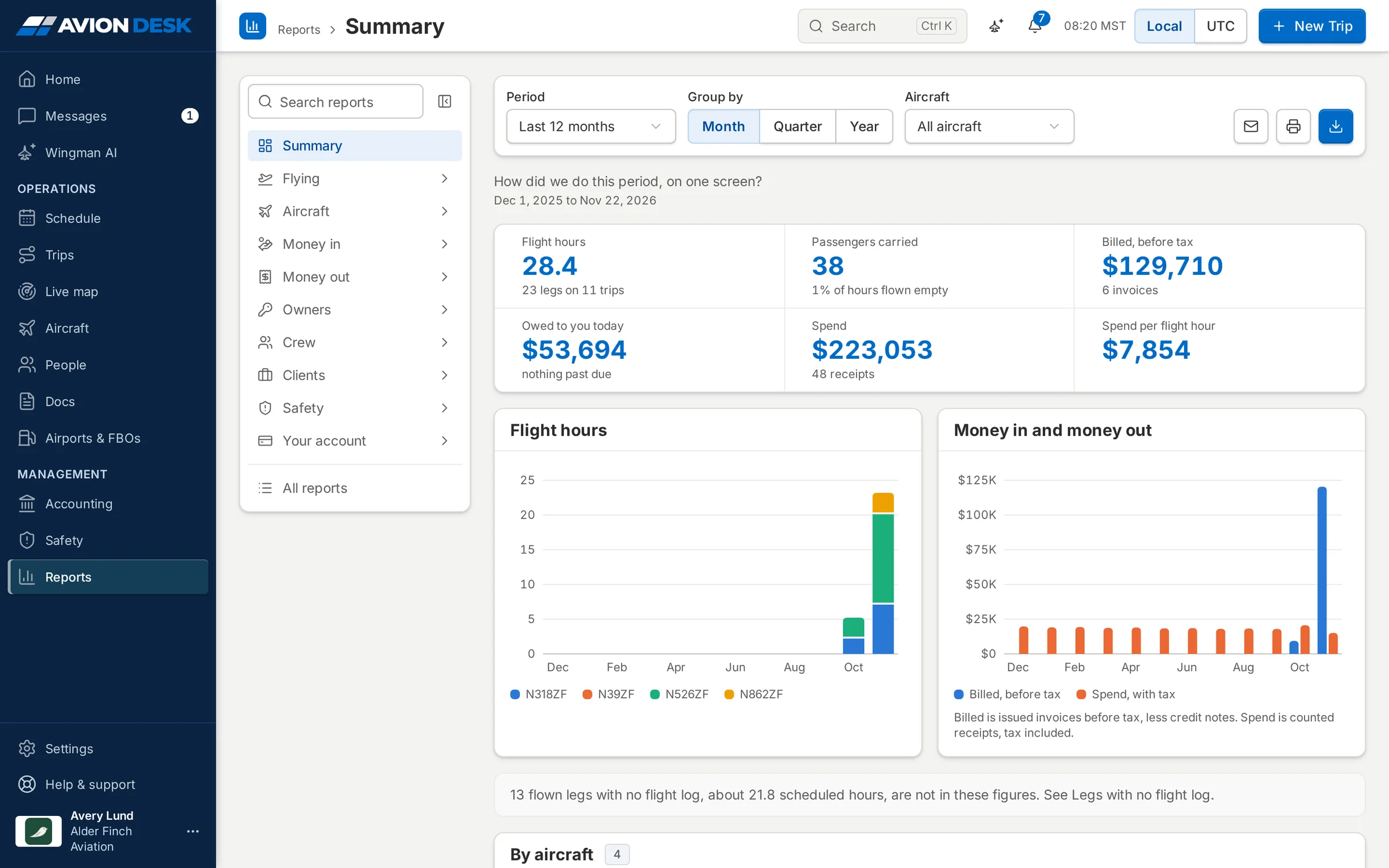
The Summary puts the period on one screen: Flight hours, Passengers carried, Billed, before tax, Owed to you today, Spend and Spend per flight hour, with charts of flight hours by aircraft and of money in against money out. You see only the parts your role can open. Click a figure to open its report with the same filters.
Find a report
- In the Reports menu at the left, click a family such as Flying or Money in to open its group. Click it again to close it. The family of the report you have open starts open.
- Click a report. The menu uses short names, such as Airports & routes or Missing flight logs; the report itself shows its full title.
To find a report by name, type in Search reports at the top of the menu, for example hours, client or canceled. It matches the short name, the full title, the question the report answers and the family. All reports, at the foot of the menu, lists every report you can open by family, each with the question it answers.
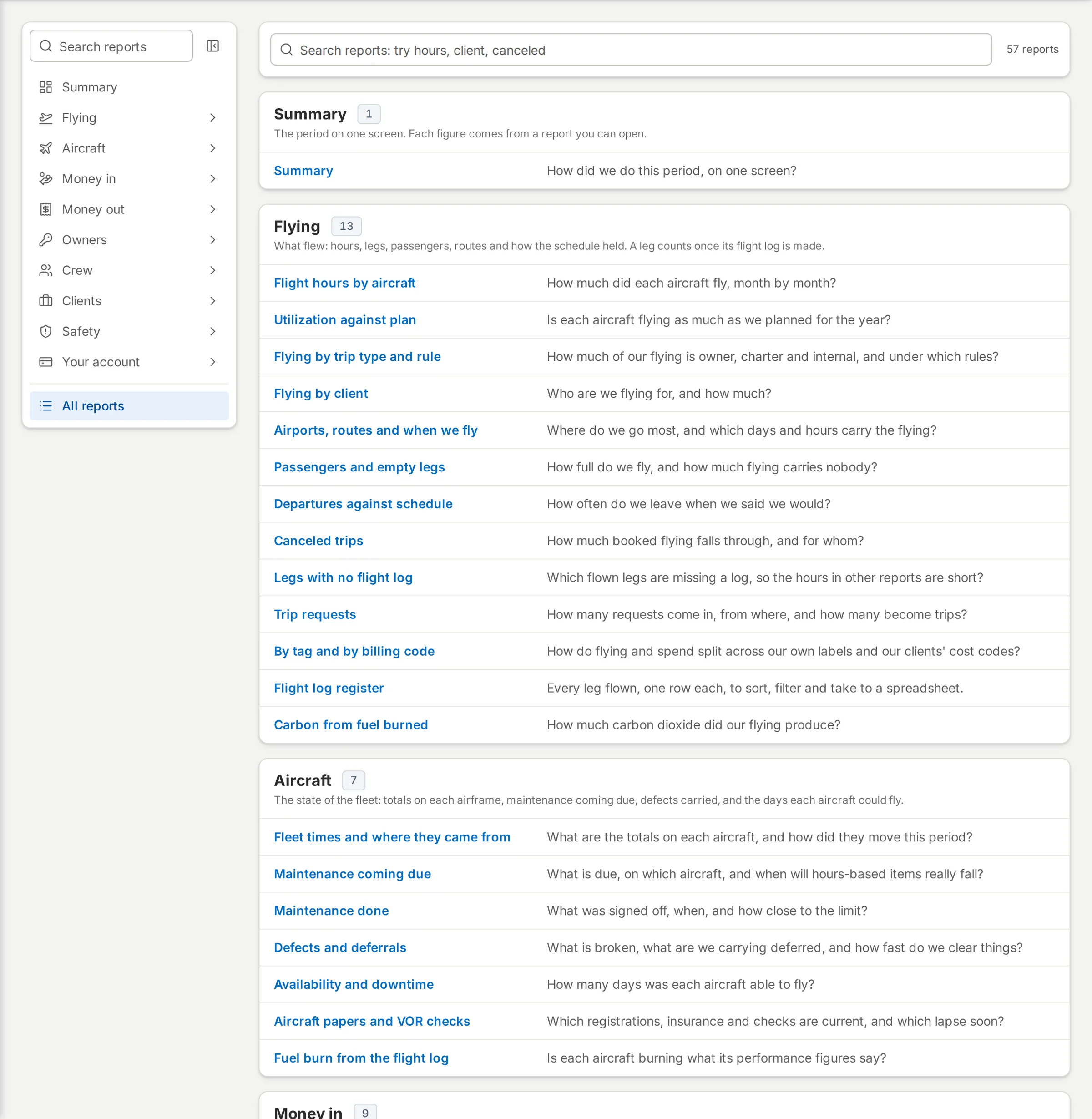
- Hide reports menu, the button beside the search box, gives a report the full width. Show reports menu brings it back. Your browser remembers the choice.
- On a phone or a window under 1024 pixels wide, there is no room beside a report: click Browse Reports to open the menu.
- The period and filters you chose stay with you as you move from one report to another.
Star the reports you use most and they sit in a Starred group at the top of the menu.
| Family | What it covers |
|---|---|
| Flying | Hours by aircraft, use against plan, flying by trip type, rule and client, routes, empty legs, on-time departures, canceled trips, legs with no flight log, trip requests, billing codes and tags, the flight log register, and carbon from fuel burned. |
| Aircraft | Fleet times, maintenance coming due and done, defects and deferrals, availability and downtime, papers and VOR checks, and fuel burn against the aircraft's figures. |
| Money in | Billed revenue, revenue by client and aircraft, who owes you and how old it is, cash received, quotes won and lost, flown but not billed, tax billed, credit notes and voids, and quoted against invoiced. |
| Money out | Spend by category, vendor, aircraft, person and client, fuel bought, cost per flight hour, trip profit, expenses to pay back, a receipts check, and a QuickBooks check. |
| Owners | Aircraft results, owner statements at a glance, who used the aircraft, management fees, and what owners paid on their own card. |
| Crew | Pilot block time, time against limits, duty days and rest, days worked and nights away, records expiring, the training matrix, and pilot currency. |
| Clients | A scorecard for each client, and the passengers you carry. |
| Safety | Safety report counts and trip risk scores. Counts only, never what a report says or who filed it. |
| Your account | How your team uses the app, and what was removed, voided or canceled after the fact. |
Read and filter a report
Reports share one toolbar, at the top of the report. Choose the Period: This month, Last month, This quarter, Year to date, Last 12 months, or Custom with your own dates. Group by sets months, quarters or years. Some reports add an Aircraft, Client or Person picker, and a report about today, such as Who owes us, and how old it is, has no period. Clear Filters puts everything back. Your choices stay in the page address, so a copied link opens the same view.
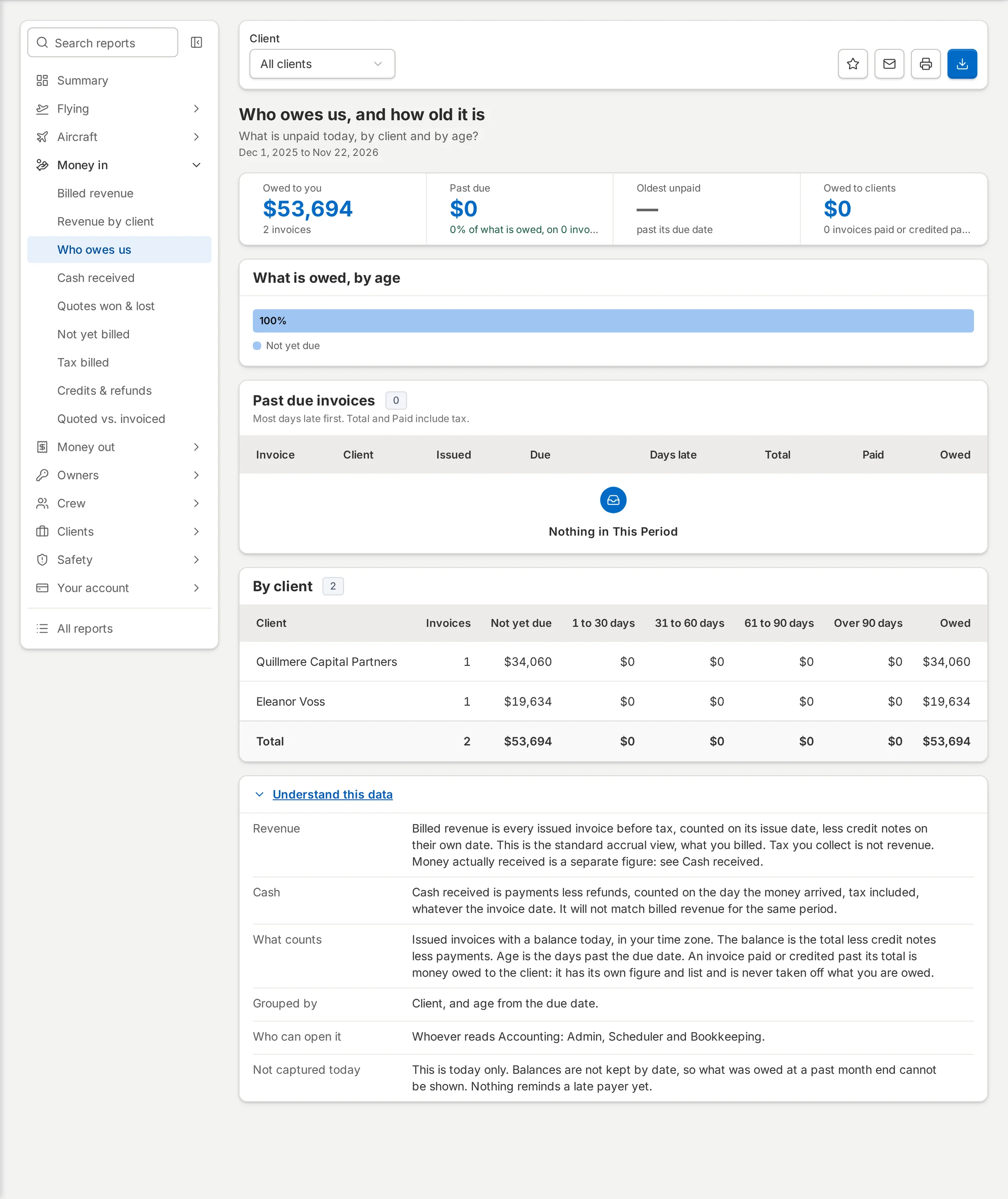
Open Understand this data at the foot of a report for the definitions it uses, what counts, how it is grouped, who can open it, and anything it can't capture yet. A few terms are the same everywhere:
- Revenue is issued invoices before tax, counted on the issue date, less credit notes on theirs.
- Cash is payments received less refunds, on the day the money arrived.
- Spend is every receipt that wasn't voided or rejected, on the receipt's date, tax included. What owners paid on their own card is shown apart, never folded in.
- A flight counts once its flight log is made, in the month it left the blocks. Legs with no flight log lists the ones missing.
Print, export or email a report
- Print prints the report as you see it, with its explanation open.
- Export saves a spreadsheet of every row the filters keep. A report with several tables asks which one.
- Email sends the report to you on a schedule.
- Set the filters you want, then click Email.
- Choose How often: Every day, Every week (and On which day) or On the 1st of each month.
- Choose what it is Covering, such as The month before or The year so far.
- Click Start Emails.
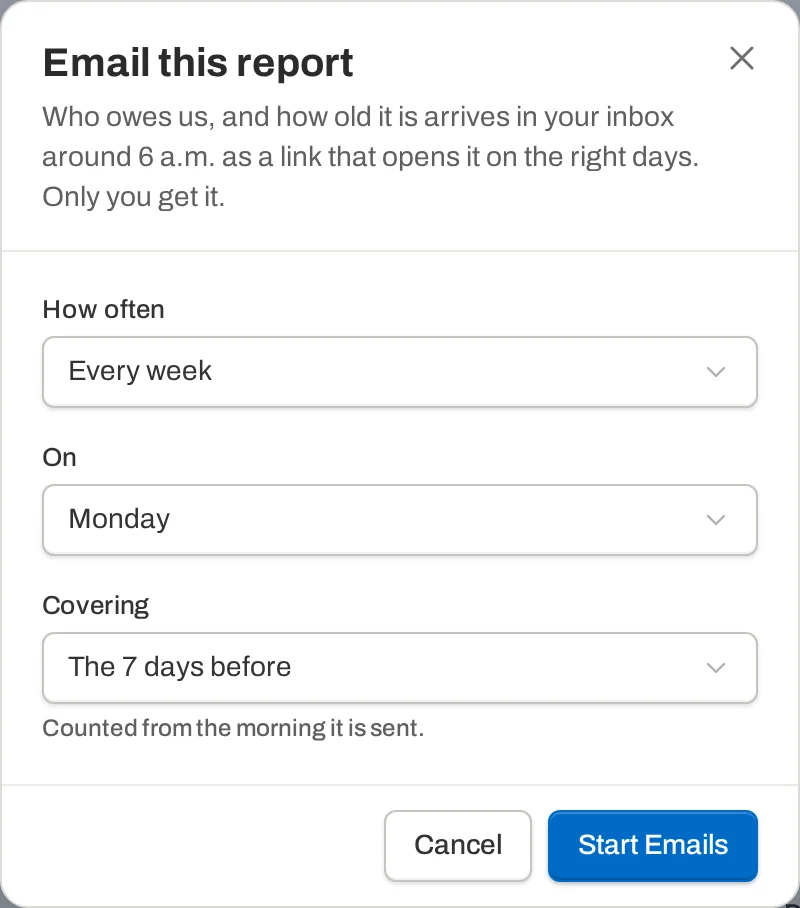
The email arrives around 6 a.m. as a link, with no figures in it. Your access is checked when you open it. Each report has one schedule per person, sent only to you; open Email again to change it or Stop Emails. Safety reports are never emailed.
The month-end owner card summary
When an aircraft owner leaves a card in the airplane, open Owners in the Reports menu, then Owner card (its full title is Owner card or account). Pick last month, then the aircraft, or the owner under Client, to get the list of what was paid on their card, ready to send them. Crew receipts count once the office has reviewed them.
Owner statementsThe owner's full monthly statement.
Safety figures for Admins
Safety managers always see the Safety reports report. An Admin can also show it to Admins with Safety figures in Reports in Settings, Company. It is off at first. Small groups are folded into Other so no one can be picked out.
Company settingsWhere the setting lives.
Can’t find what you need? Email [email protected] and a person will answer.