

Aircraft
The aircraft record
Click a tail anywhere in the app to open its page. The header says how the aircraft stands, and the tabs below hold everything kept about it.
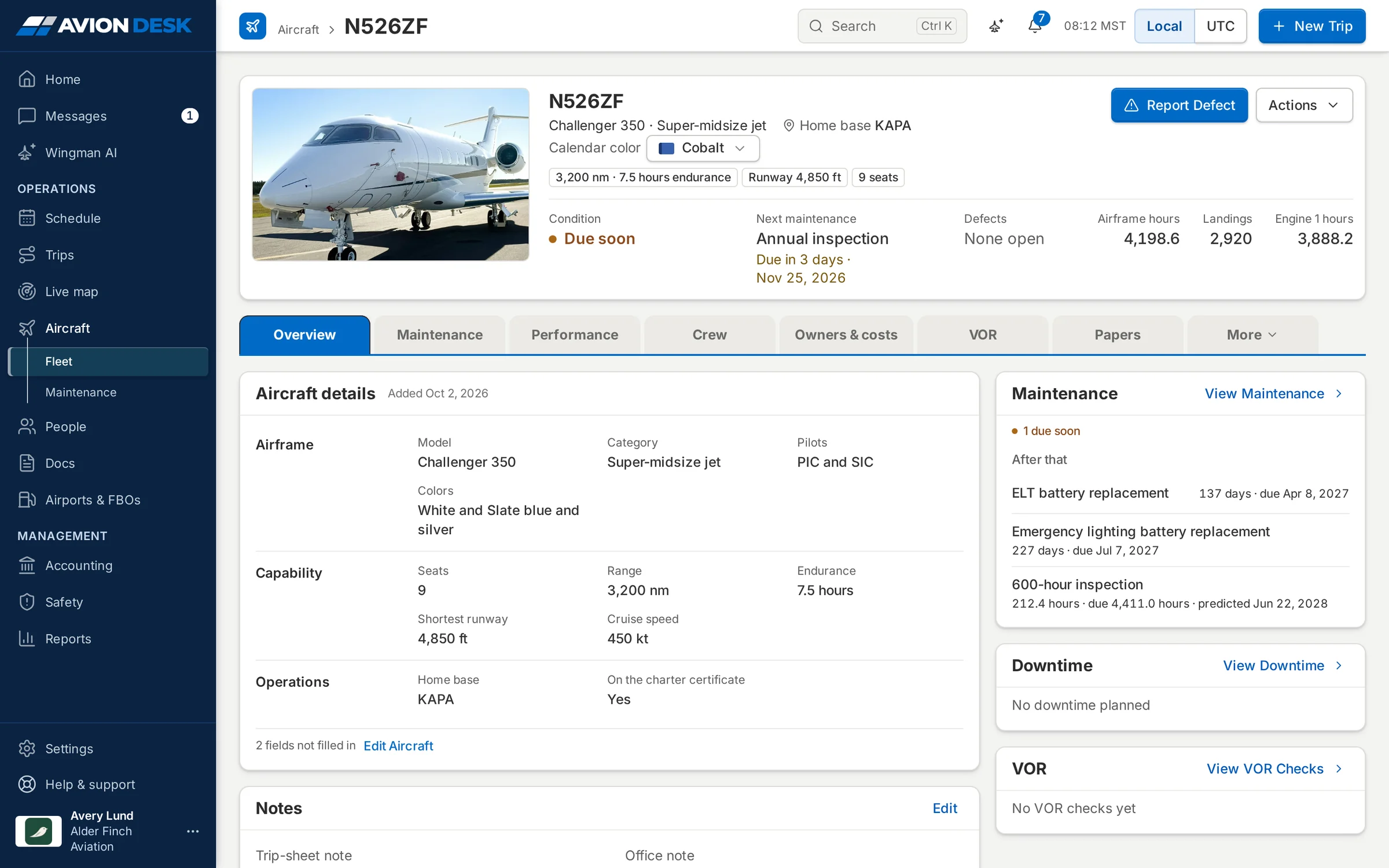
The header
The header shows the photo, model, category and home base, the Calendar color the aircraft's trips use on the schedule, and a row of facts: Condition, Next maintenance, Defects and the current counter readings (hours, landings, engine hours).
Report Defect is the blue button in the header for everyone who may report one. On the Maintenance tab it moves into the Defects section. The Actions menu holds the rest, each shown only to the roles that may use it:
- Edit Aircraft: the details from the add form, plus Tailwheel, which makes pilot currency count full-stop landings.
- Add Photo or Photos: add, replace or remove pictures.
- Add Downtime: plan a maintenance window.
- Maintenance Summary: a printable summary of the aircraft's maintenance you can share.
- Deactivate Aircraft or Reactivate Aircraft (Admins).
The tabs
| Tab | What it holds |
|---|---|
| Overview | Aircraft details grouped as Airframe, Capability and Operations, notes, flight plan fields and customs details, with a side column of maintenance coming due, open defects, downtime and VOR currency. |
| Maintenance | Defects, maintenance items, downtime and counters on one page. |
| Performance | Planning defaults, capability, fuel burn and speed, fuel planning and cruise profiles used to plan legs. |
| Crew | Who crews this aircraft as PIC and SIC. Shown to Admins, Schedulers, Trip builders and Bookkeeping. |
| Owners & costs | Who owns the aircraft and their management fees, and what it costs to run. When your plan has no owners list, or you can't see People, the tab is called Costs and shows the costs alone. |
| VOR | VOR checks and whether the aircraft is inside its 30 days. |
| Papers | Registration, airworthiness certificate, insurance, noise statement, radio station license, CBP user-fee decal and others, with expiry dates and scans. |
| Files | Anything else kept with the aircraft, such as weight and balance. |
| History | Every change to the aircraft, newest first: who made it, when, and any reason given. |
On a narrower window, tabs that don't fit move into More at the end of the row.
Keep papers current
Papers you add with an Expires date are flagged before they lapse. Open Papers, click Add Paper, choose the Paper, then add its Number, Issued by, Issued and Expires dates and attach the scan. Removing a paper stops its reminders and keeps its files and history.
Record a VOR check
Anyone who may report a defect may record a VOR check. Open VOR, click Record a Check, choose the Type of check, and enter the Date, the Station or checkpoint, the bearings or error the type asks for, and any log entry. A check recorded by mistake can be voided, with a reason, by the person who recorded it, an Admin or a mechanic.
Who can do what
| Action | Who |
|---|---|
| See the fleet and the aircraft tabs | Every role. The Crew tab shows only to roles that can see People. |
| Report a defect, mark one as grounding, record a VOR check | Every role except View only |
| Edit details, papers, files, counters, maintenance items and downtime; defer and clear defects | Admins, and people with the Mechanic crew position |
| Add, deactivate and reactivate aircraft | Admin |
| Change who crews an aircraft, add owners | Roles that manage People |
Roles and accessEvery role and what it can do.
Can’t find what you need? Email [email protected] and a person will answer.