

Documents
Company documents
Docs holds your company's manuals, memos and forms. Admins add them and choose who sees each one; everyone else opens Docs from the sidebar to read them.
Who can do what
Admins add, edit, replace and archive documents, and see every document. Every other role, View only included, sees the documents shared with their role. An Admin can turn Docs off under Settings, Sections if your company doesn't use it.
Find a document
Click Docs in the sidebar. Once there are folders, they are listed on the left, with All documents for everything you can see; on a phone, pick a Folder under Filters. Type in Search documents to narrow the list.
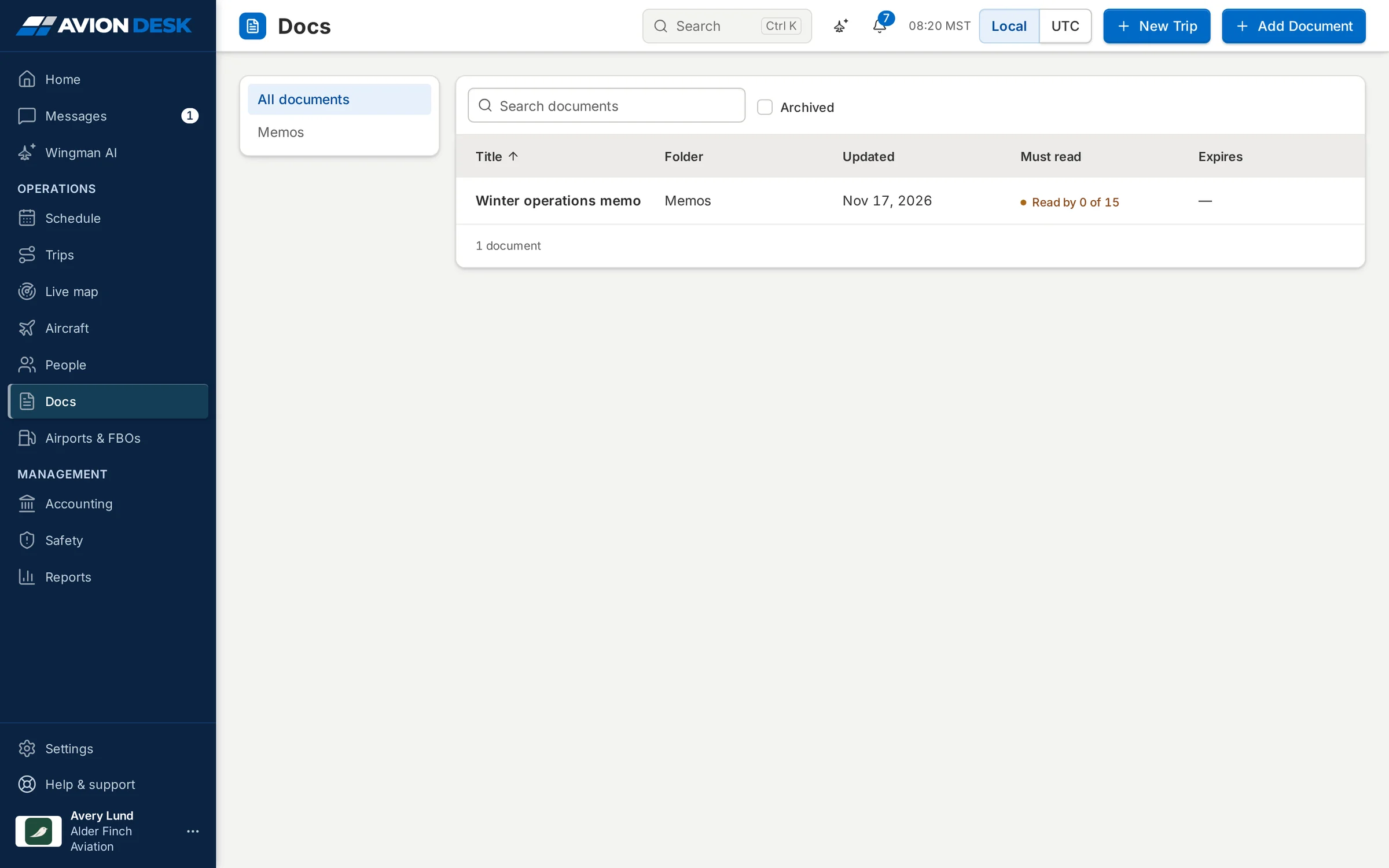
| Column | What it shows |
|---|---|
| Must read | For you: To read until you confirm, then Read. Admins see Read by and how many of the people who can see it have confirmed. |
| Expires | The expiry date with a mark: a green check while it is current, an amber triangle in the last 30 days, a red X once it has expired. |
Click a document to open its page, then Open to read the file in the app. PDFs show their pages and photos fit the window; Download is there when you need a copy.
Add a document
- On the Docs page, click Add Document.
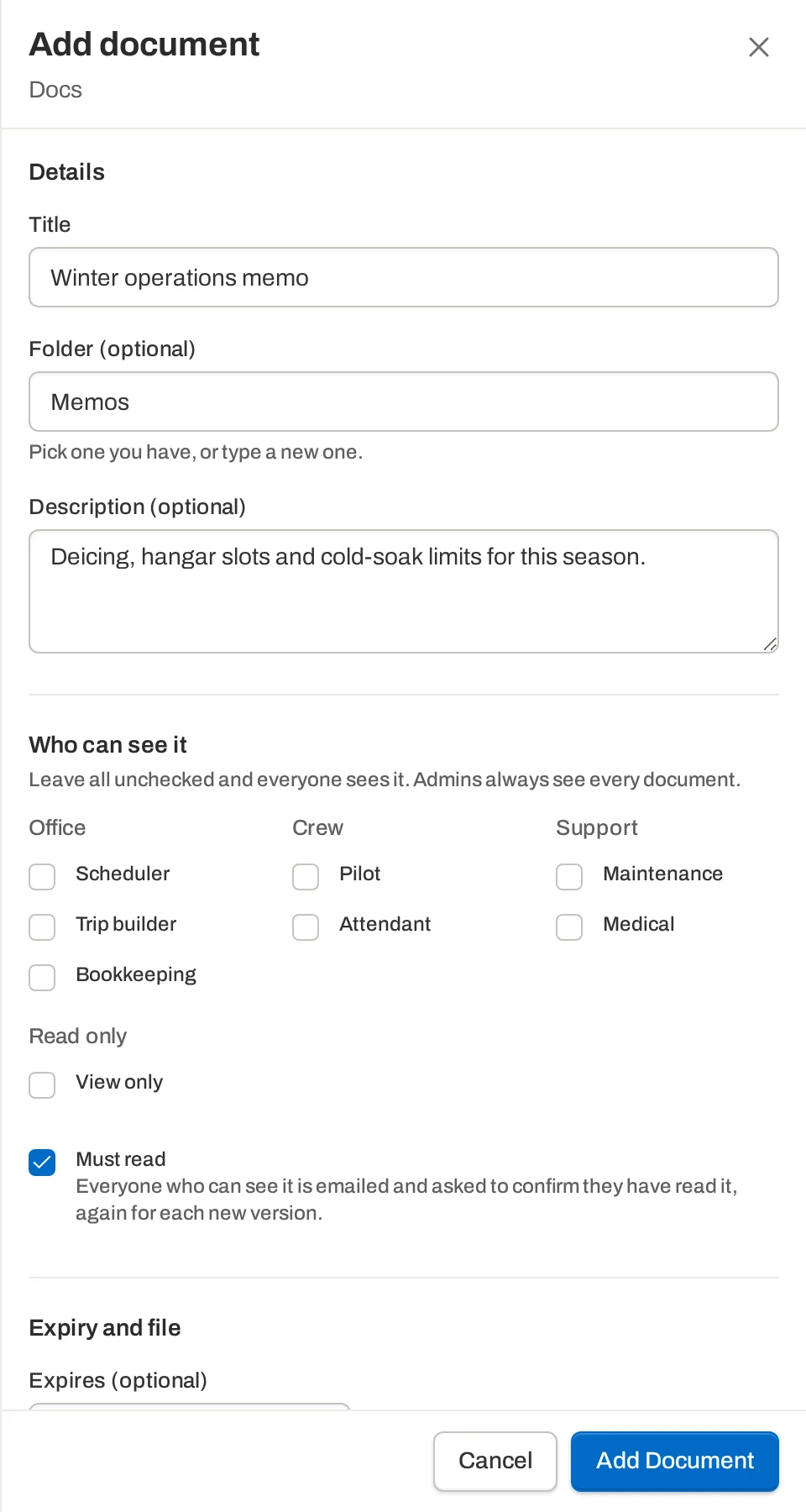
- Give it a Title. Type a Folder or pick one you already have; a new name makes a new folder.
- Add a Description if it helps people know what it is.
- Under Who can see it, tick the roles that should see it. Leave them all unticked and everyone sees it. Crew roles count by crew position, so a person who flies as a pilot sees what Pilot can see.
- Tick Must read if everyone who can see it has to confirm they have read it.
- Pick an Expires date if the document lapses, such as an insurance certificate or a seasonal memo.
- Under File, click Choose the file or drop it in: PDF, image, text, CSV, Word or Excel, up to 25 MB.
- Click Add Document.
Must read
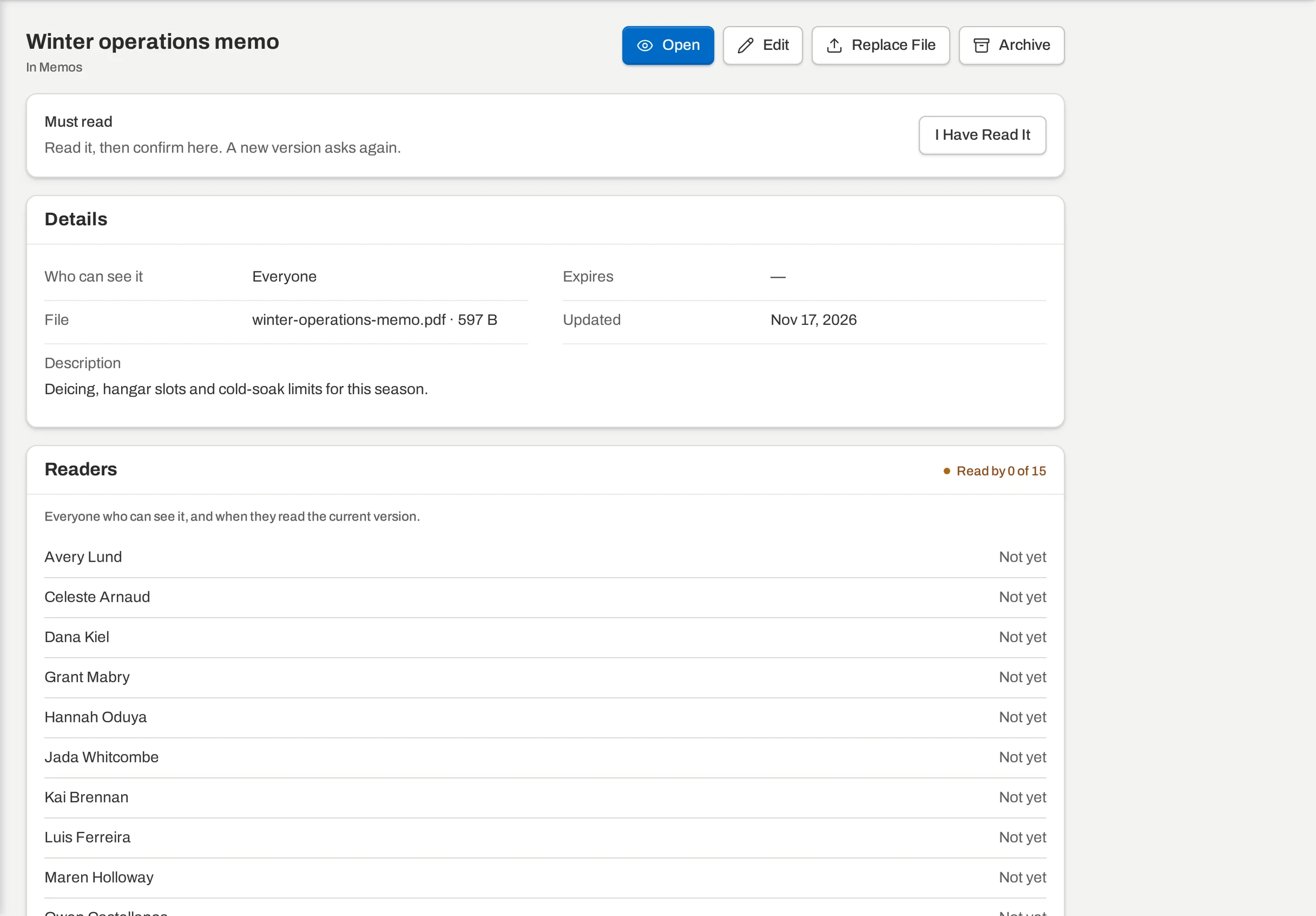
When a must-read document gets its file, everyone who can see it gets an email asking them to read it. On the document's page they read it, then click I Have Read It. Replacing the file asks everyone again. A must-read saved without a file emails nobody until an Admin adds one. Each person can turn these emails off in their own notification settings.
- AddedAn Admin adds the document and its file with Must read ticked. Everyone who can see it is emailed.
- To readThe document shows To read for each person until they confirm.
- ReadThe person opens it and clicks I Have Read It. The Admin's count goes up by one.
- New versionAn Admin replaces the file. Everyone is asked to read it again.
Update or retire a document
Open the document. On a phone, these buttons sit in the menu beside Open.
| Button | What it does |
|---|---|
| Edit | Changes the title, folder, description, who can see it, must read and expiry. |
| Replace File | Uploads a new file. The old one stays under Versions, and a must-read document asks everyone to read it again. A document saved without a file shows Add File instead. |
| Archive | Takes it out of everyone's list. Only Admins see it, by ticking Archived on the Docs page. Restore puts it back. |
Can’t find what you need? Email [email protected] and a person will answer.