

Aircraft
Add an aircraft
Every trip, maintenance item and defect belongs to an aircraft, so the fleet comes first. The Fleet page lists each aircraft with its condition, what comes due next and where it is.
Add an aircraft
Only an Admin can add an aircraft, because each active aircraft changes the subscription price. Admins who manage billing see the price change in the form before they save.
- Open Aircraft. The Fleet tab opens.
- Click Add Aircraft.
- Type the Tail. For a US registration, click Look Up (or press Enter) to fill in the model and category from the FAA registry.
- Check the Model, and set Category, Base, Callsign and Trip number prefix if you use them. All four are optional.
- On a Part 135 operator, tick On the charter certificate for aircraft on your certificate.
- Leave Needs an SIC ticked for aircraft flown with two pilots. Turn it off for single-pilot aircraft; when it is on, a trip needs an SIC before it can be released.
- Click Add Aircraft.
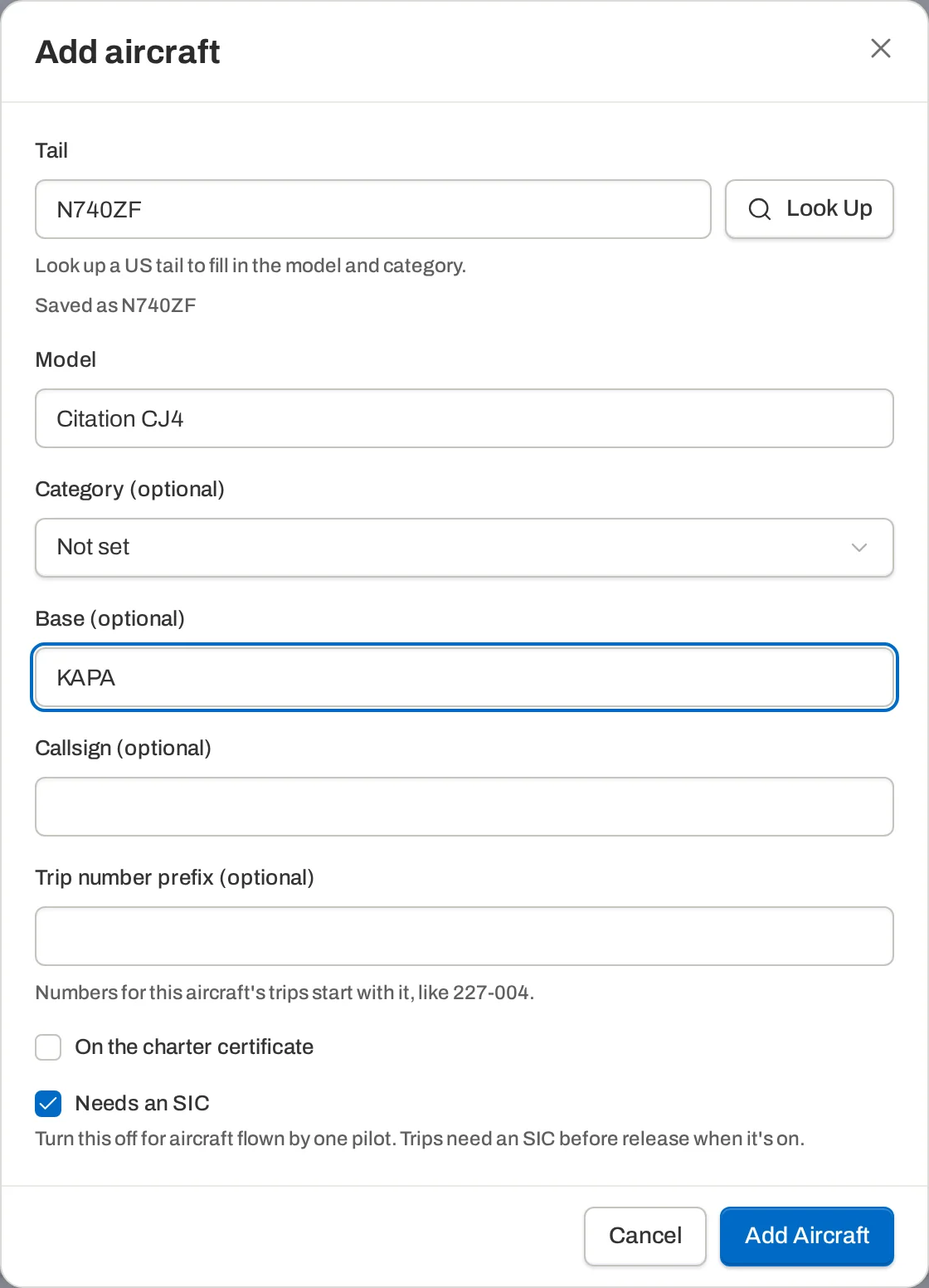
The Trip number prefix starts the trip numbers of this aircraft's trips. With the prefix 227-, its trips are numbered 227-001, 227-002 and so on. Up to 6 letters, digits and hyphens.
A new aircraft shows No data yet until it has maintenance items. Set up its counters and items next, from its Maintenance tab.
Maintenance items and sign-offCounters, maintenance items and sign-off.
Read the Fleet list
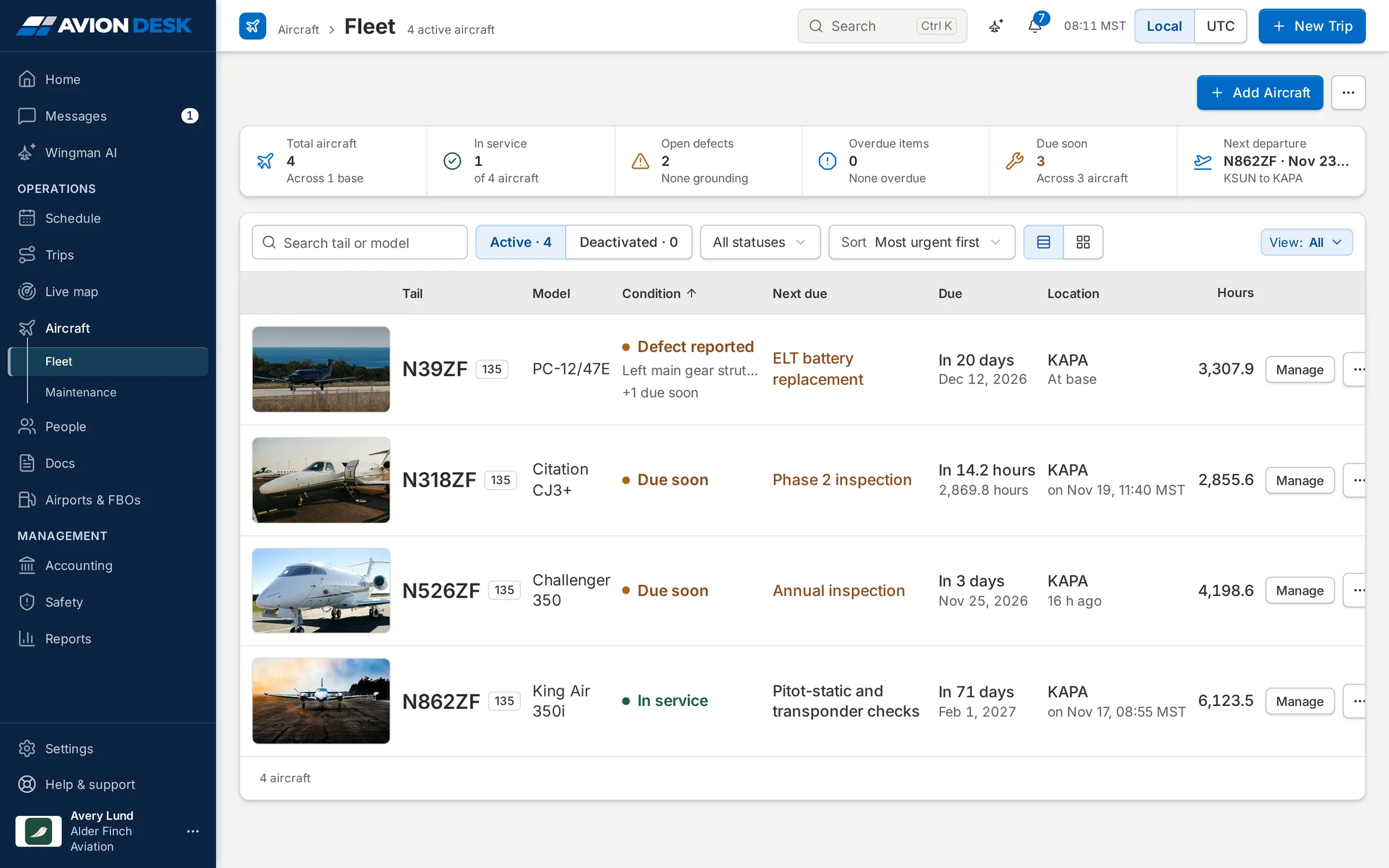
The strip at the top counts the fleet: total aircraft, how many are in service, open defects, overdue items, items due soon and the next departure. Each row shows the aircraft's photo and Tail, its Model, its Condition, the Next due item and when it is Due, its Location and its Hours. On a smaller screen some columns step back; they are all on the aircraft's own page. Manage opens the aircraft.
| Condition | What it means |
|---|---|
| Grounded | A defect grounds the aircraft. It stays grounded until the defect is deferred, cleared or moved back to reported. |
| Overdue | A maintenance item is past due, or a deferred defect's deferral ran out. |
| In maintenance | A downtime window is running now. |
| Defect reported | Someone reported a defect that maintenance hasn't reviewed yet. |
| Due soon | A maintenance item comes due within the operator's due soon limits. |
| In service | Nothing grounding, reported, overdue or due soon is on record. It is not a statement of airworthiness. |
| No data yet | The aircraft has no maintenance items yet. |
Search by tail or model, filter by status, and sort by urgency, tail, hours, landings or category. List and Cards switch the layout; cards show each aircraft's photo. The View menu holds the built-in Expiring in 30 days view and any views you save.
Deactivate an aircraft
When you sell an aircraft or stop flying it, deactivate it instead of deleting it. It leaves the active fleet and the trip pickers, and stays in history, files and reports. Only an Admin can deactivate or reactivate.
- Open the aircraft and click Actions.
- Choose Deactivate Aircraft and confirm.
An aircraft with trips still ahead can't be deactivated; move or cancel those trips first. Deactivated aircraft are listed under Deactivated on the Fleet page. To bring one back, open it and choose Actions, then Reactivate Aircraft. Adding a tail that was deactivated offers to reactivate it instead of making a second copy.
The aircraft recordWhat each tab of an aircraft holds.
Can’t find what you need? Email [email protected] and a person will answer.