

Trips
Trip statuses
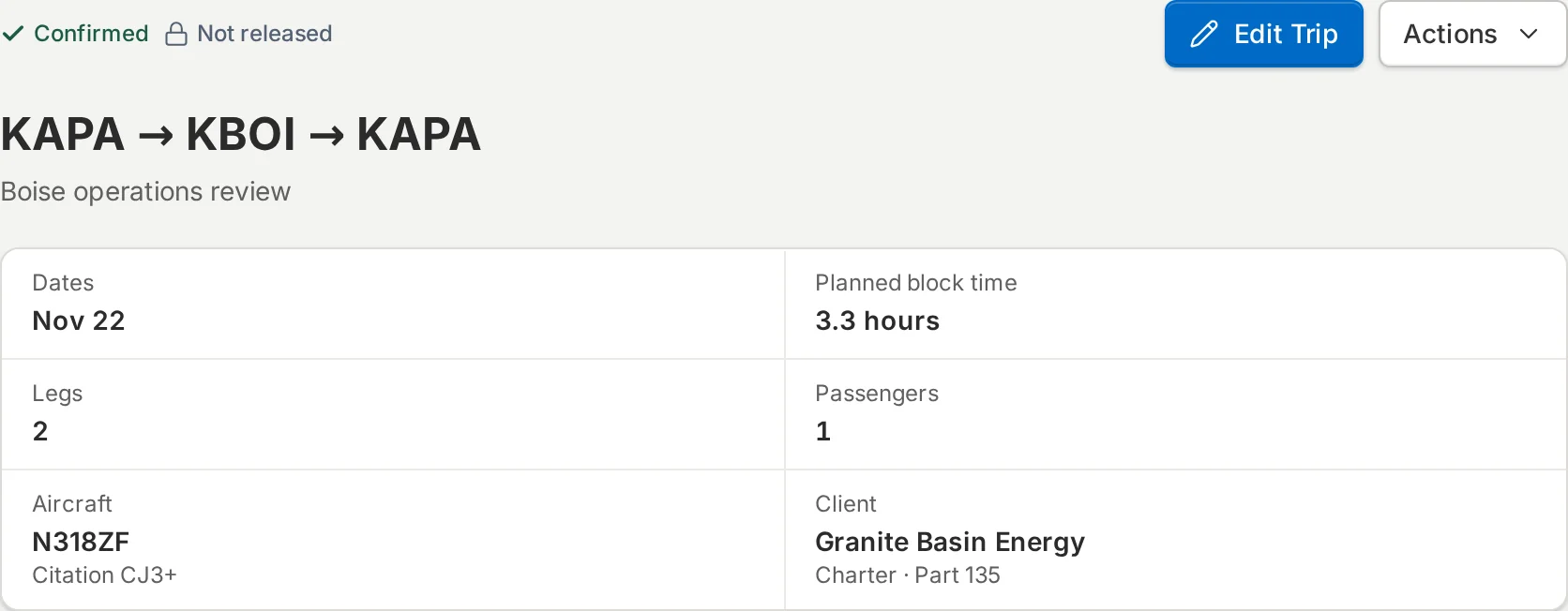
Every trip shows two chips under its number: its booking status and its release status. Together they tell you where the trip stands.
The life of a trip
- OptionHeld for the client but not promised. The office creates it, or makes it from a client's request. An Option can't be released.
- ConfirmedBooked. An Admin, Scheduler or Trip builder sets Status to Confirmed under Edit Trip, or clicks Confirm Trip on the Release tab. The trip shows Confirmed and Not released until it is released.
- ReleasedCleared to fly. An Admin or Scheduler reviews the checks on the Release tab and releases it. Trip builders can't release.
- FlownSet by the app once every leg has landed or been logged but something is still open, such as a leg without a log.
- CompletedSet by the app once every leg is logged and no receipt on the trip is waiting for approval or sent back for a fix. With Accounting on and an invoice on the trip, the invoice must also be issued and paid in full.
Flown and Completed are worked out from the logs and the paperwork. Nobody sets them by hand. Pilots move a trip along by logging their legs; the office finishes it by approving receipts and, where there is one, collecting the invoice.
Release a tripHow to release a trip and what the checks mean.
The flight logLogging legs, which moves a trip to Flown and Completed.
The chips you will see
| Chip | Meaning |
|---|---|
| Option | Held, not promised. |
| Confirmed | Booked. |
| Not released | Not cleared to fly yet. |
| Needs approval | The risk score needs an Admin's approval before release. |
| Released | Cleared to fly. |
| Released with issues | Released, but something has changed since that would hold the release now. Open the trip's Release tab to see what. |
| Flown | Every leg has flown; something is still open. |
| Completed | Logged, and the trip's paperwork is done. |
| Canceled | Off the schedule. Gray, never red. |
| Not booked yet | A trip that only exists inside a quote. It shows on no schedule until the quote's trip is confirmed. |
The next step and the trip stage
When something on a trip needs someone, a slim bar above the trip's tabs names the next step, for example "Release pending" with a Review Release button. Beside it, a button such as "Pre-flight · 3 open" opens Trip stage: Planning, Pre-flight, Flying, then Flown or Completed, each with what is still open there. A trip stays in Planning while it is an Option, has no aircraft, or is missing a PIC or a needed SIC. The office and the crew seated on the trip see the stages.
Change a released trip
Changing a released trip's times, airports, aircraft, crew, passengers or risk answers before its last leg flies affects the release. If you can release trips, the app asks first:
- Keep Released: the release stands. Tick each finding the change brought that the app can't check.
- Take It Back: the trip goes back to Not released and needs a new release.
- Don't Save: nothing changes.
Trip builders can't change a released trip at all; its form says "Released. Ask a scheduler to change it." When a pilot seated on the trip changes the risk answers, the release is taken back. Either way, the trip's distribution list gets the updated sheets.
Cancel or reinstate a trip
- Open the trip, click Actions, then Cancel Trip.
- Write the Reason. It goes into the trip's History.
- Click Cancel Trip to confirm, or Keep Trip to back out.
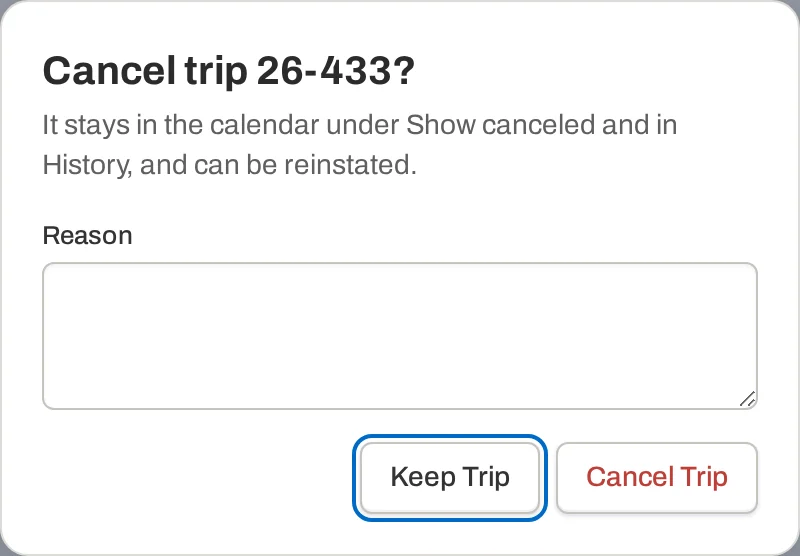
Canceling also takes back a release. A trip with flight logs can't be canceled until its logs are voided, and a released trip with no leg left to fly can't be canceled at all. To bring a canceled trip back, open it, click Reinstate Trip, write the Reason and confirm. It returns as an Option and its checks run again.
Can’t find what you need? Email [email protected] and a person will answer.