

Trips
Trip services
Each leg lists what the office needs to arrange before it flies. Open items count toward the trip's stage and the warning mark on the calendar.
The Services tab appears on a trip once its legs have services. The office and the crew seated on the trip can see it; only the office changes the items. Admins turn leg services on or off for the whole company with Leg services, the first switch on the Leg reminders card in Settings > Trips & duty. The switches below it turn off single items the company doesn't track.
The tab opens with a strip of figures: the trip's Dates, how many Legs, what is left To arrange for crew, passengers and operations (or Nothing left), and how much is Arranged, with a bar. Under it is a card for each leg, headed with its number, its airports, its day and times, and how many items it still has to arrange. Inside, the items are grouped under Crew, Passengers and Operations, side by side on a wide screen, each with its own count.
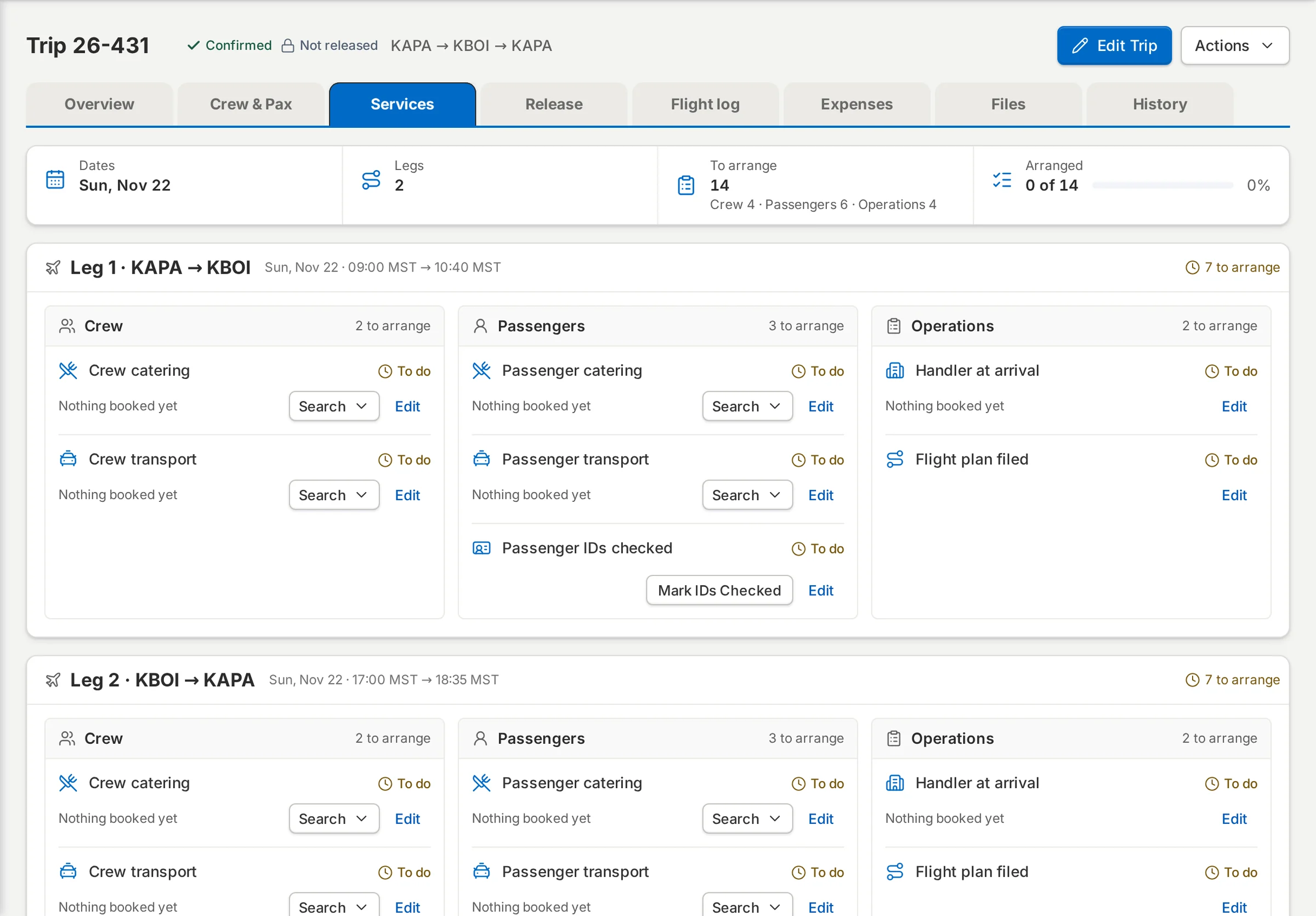
What a leg lists
| Item | When it shows |
|---|---|
| Handler at arrival | Every leg. |
| Crew catering | Every leg. |
| Crew transport | Every leg. |
| Flight plan filed | Every leg. |
| Crew hotel | When the crew stay the night away from base. |
| Passenger catering, Passenger transport, Passenger IDs checked | When the leg carries passengers. |
| Passenger hotel | When the leg carries passengers and they stay the night. |
To drop an item for a whole trip, open the trip's Release tab and, in To-dos, click Not needed beside it, then Not needed on this trip. If the client never takes catering, hotels or ground transport, choose Never for the client instead: those items stay off all of that client's trips until you click Bring back.
Mark an item as arranged
- Open the trip and click Services.
- Click Edit beside the item.
- Set the State: To do, Requested, Confirmed, Done or Not needed.
- Choose the Vendor (the FBO, caterer, hotel or ground company) and add the Reference, such as a confirmation number.
- Write a Note for the crew if they need to know something, then click Save.
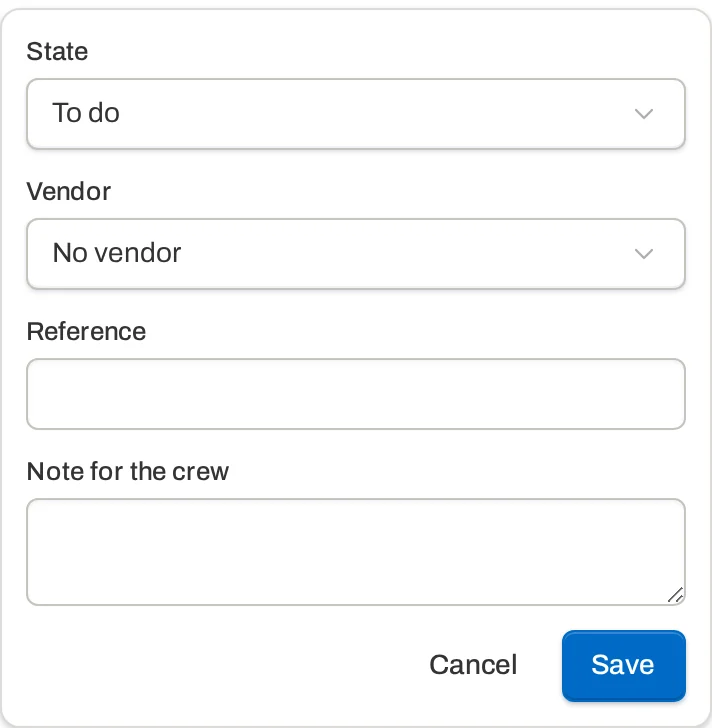
To do and Requested count as open. Confirmed, Done and Not needed close the item. When the leg's airport changes after an item was arranged, the item opens again with a note to check it still works.
Check passenger IDs
Click Mark IDs Checked on the leg. The check is signed with your name. Crew seated on the leg can mark it from 2 hours before departure until a day after arrival; the office can mark it at any time. If the passengers change after the check, the item opens again.
Bookings on a leg
When a hotel or car confirmation is attached to a leg, it shows under the item instead of "Nothing booked yet", with where it came from.
ReservationsForward booking emails and attach them to legs.
Company settingsLeg services and the reminder for each item.
Can’t find what you need? Email [email protected] and a person will answer.