

Aircraft
Set up performance for trip estimates
When you add a leg, the trip form estimates its flight time, arrival and fuel from the aircraft's Performance tab. The more of it you fill in from your own flight manual, the closer the estimate comes to your real block times.
Admins and Maintenance can edit performance. Everyone who can see the aircraft can read it.
Get an estimate quickly
A leg gets an estimate once the aircraft has a cruise speed. The fastest way to get there is to start from generic figures for the aircraft's category.
- Make sure the aircraft has a Category. Open it, click Actions, then Edit Aircraft.
- Open the Performance tab.
- On the Planning defaults card, click Start from Generic Figures and confirm.
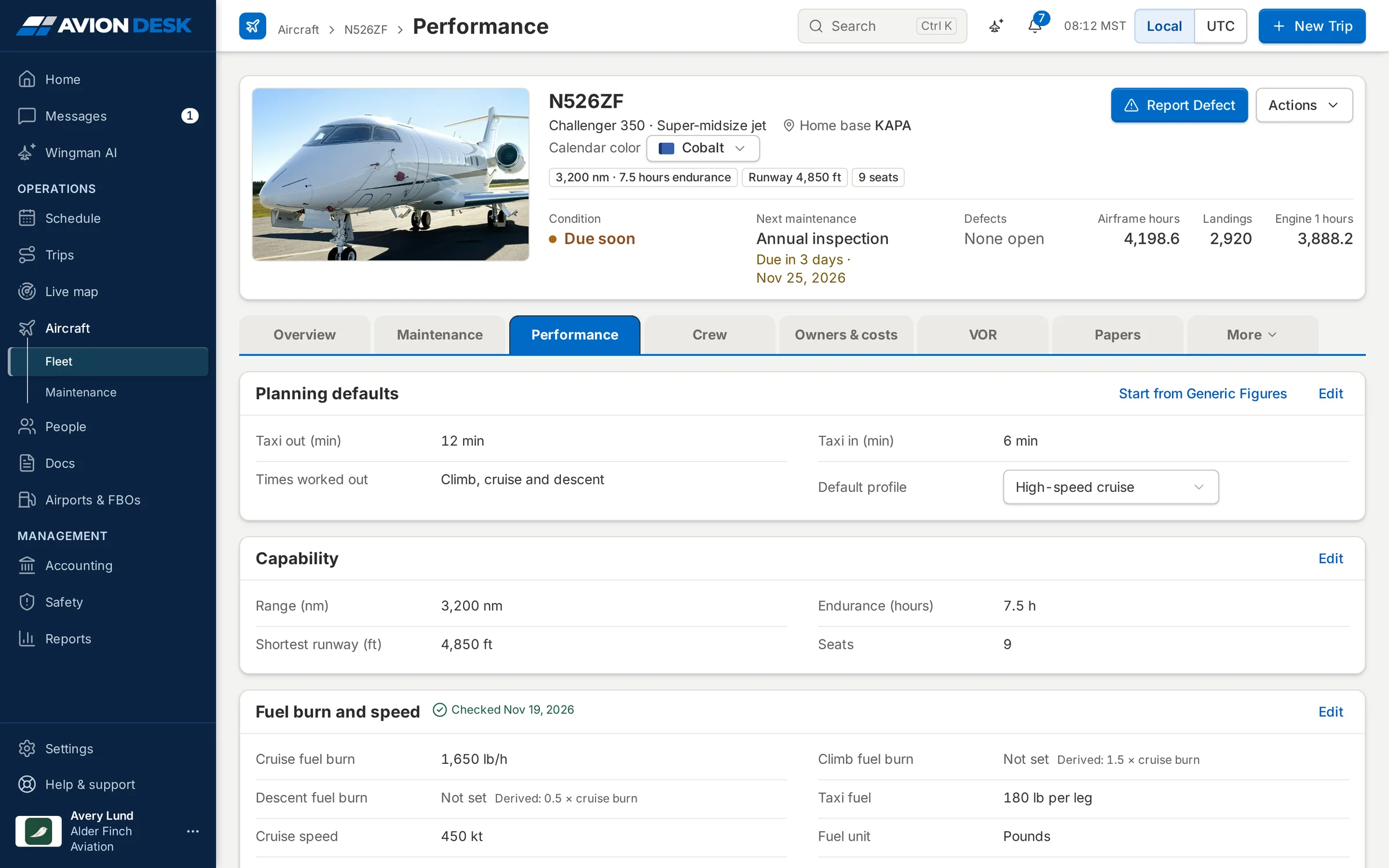
This fills every blank figure and empty built-in profile with typical numbers for the category. Nothing you already typed changes. The figures are for the class, not your airplane, so replace them with your own as soon as you can. Until then, the Calculator says the aircraft plans with generic figures.
Fill in the cruise profile
The default cruise profile matters most. A short hop flies lower and slower than a long leg, so the profile gives a speed and altitude for each band of distances.
- On the Cruise profiles card, choose the profile marked Default. A new aircraft has two built-in profiles, High-speed cruise (the default) and Long-range cruise.
- Click Edit.
- Click Add Band for each distance band you want. Up to 8; the last one covers every longer leg.
- For each band, enter Up to (nm), Altitude (ft), Cruise speed (kt TAS) and Fuel burn per hour. The speed is true airspeed, in knots.
- Click Save Profile.
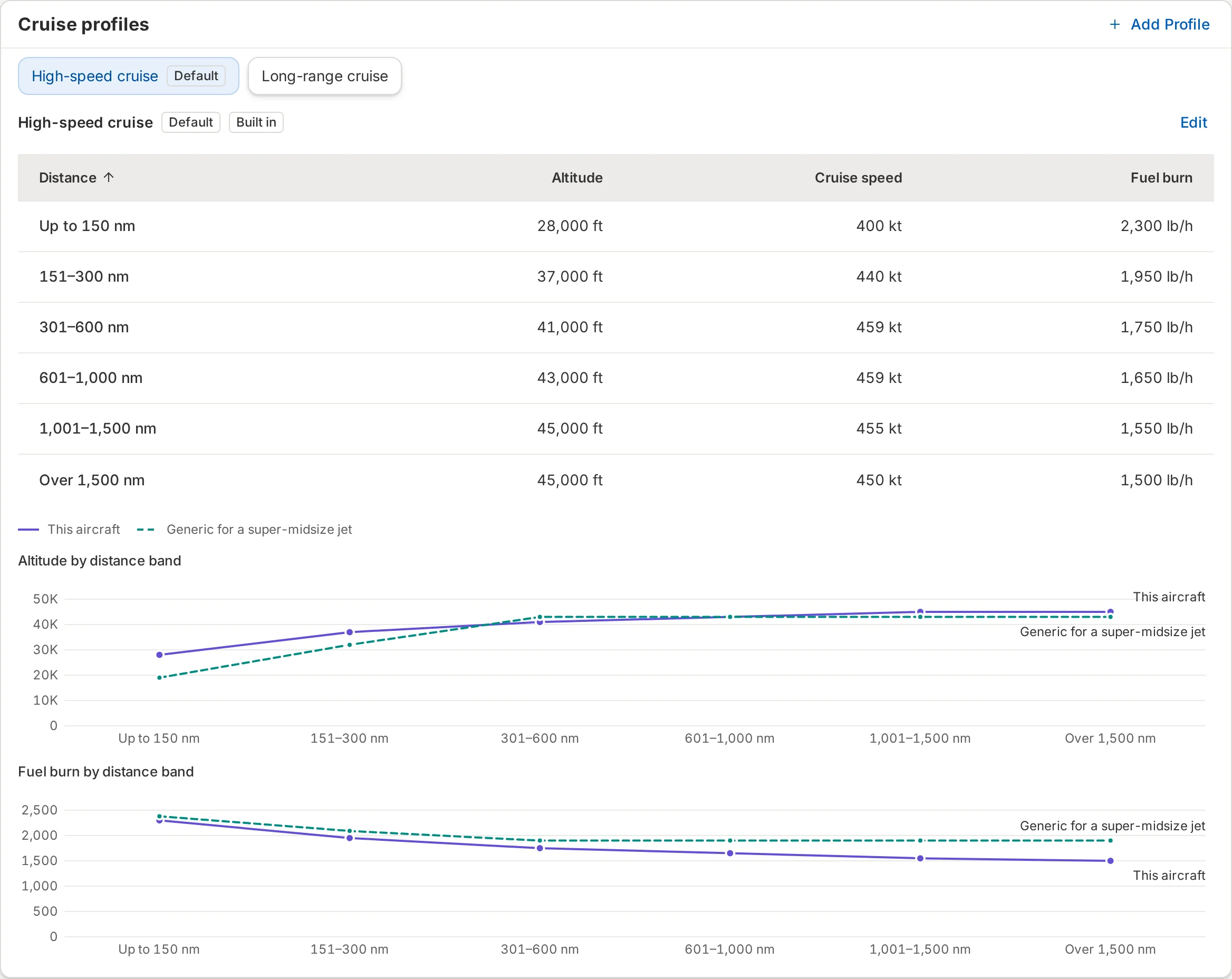
Under the table, two charts plot the profile's altitude and fuel burn by band beside the generic figures for the aircraft's category, so a number typed wrong stands out.
To plan with a different profile, pick it under Default profile on the Planning defaults card.
Without any bands in the default profile, every leg uses the single Cruise speed on the Fuel burn and speed card.
Add climb, descent and taxi
| Figure | Card | What it does |
|---|---|---|
| Times worked out | Planning defaults | Choose Climb, cruise and descent to plan the climb and descent separately. Cruise only flies the whole leg at cruise speed, which makes short legs look too quick. |
| Climb rate and Climb speed | Fuel planning | Your average climb to cruise altitude. |
| Descent rate and Descent speed | Fuel planning | Your average descent. The climb and descent are planned only when all four are filled in. |
| Taxi out and Taxi in | Planning defaults | Minutes added to every leg, so the estimate runs block to block. Generic figures never fill these. |
Add fuel figures
A leg's fuel estimate is trip fuel plus taxi fuel, never the reserve. It needs a fuel burn. The Calculator also warns when a leg needs more fuel than the tanks hold or lands too heavy. Warnings never stop you saving a trip.
| Figure | Card | What to enter |
|---|---|---|
| Fuel unit | Fuel burn and speed | The unit your crews plan in. Set it first; every fuel figure uses it. |
| Cruise fuel burn | Fuel burn and speed | Your average burn per hour. A profile band with its own burn uses that instead. |
| Climb and descent burn | Fuel burn and speed | Optional. Left blank, they are 1.5 and 0.5 times the cruise burn. |
| Taxi fuel | Fuel burn and speed | Fuel per leg for taxi, added to every leg. |
| APU fuel burn and APU time | Fuel planning | Per hour, and minutes per leg. Added to the taxi fuel. |
| Reserve | Fuel planning | Your reserve policy in minutes. The Calculator adds it to the fuel to depart with. |
| Usable fuel | Fuel planning | From the flight manual. A leg needing more is flagged. |
| Max landing weight | Fuel planning | From the flight manual, in pounds (kilograms when fuel is in kg). |
| Zero fuel weight | Fuel planning | Your usual weight with crew and passengers but no fuel. It must be less than the max landing weight. With both weights in, a leg that lands heavier than the max landing weight is flagged. For fuel in gallons, set the fuel type so it can be weighed. |
When your figures are in, open Edit on the Fuel burn and speed card and tick I've checked these figures against the aircraft's manuals.
How the estimate is worked out
- DistanceThe straight line between the two airports.
- BandThe default profile's band for that distance gives the altitude and true airspeed.
- Climb and descentThe time to climb to that altitude and come back down. A short leg climbs only as high as its distance allows.
- CruiseThe rest of the distance at the true airspeed.
- TaxiTaxi out and taxi in are added. The arrival shows in the arrival airport's local time.
To check your setup, add a leg you fly often and compare the estimate with your usual block time.
The aircraft recordWhat each tab of an aircraft holds.
Can’t find what you need? Email [email protected] and a person will answer.