

Accounting
Expenses
Every receipt goes in Accounting, on the Expenses tab. How a receipt was paid decides what happens next: a company card receipt is only recorded, while a personal card receipt waits for the office to approve it and pay it back.
Who records what
- Everyone except View only records their own receipts. Crew see only their own on the Expenses tab.
- Admin, Scheduler and Bookkeeping see every receipt, with the totals at the top of the page.
- Admin and Bookkeeping review receipts, pay people back, and can record a receipt for someone else with Who spent it.
Admins can turn off the Crew expenses section under Sections in Settings when the operator doesn't track crew receipts. The Expenses and Reimbursables tabs and the Categories page then go away, and Accounting opens on Vendors.
Roles and accessEvery role and what it can open.
Add a receipt
- Open Accounting and click Add Expense. From a trip, use the trip's expenses instead and the trip is filled in for you.
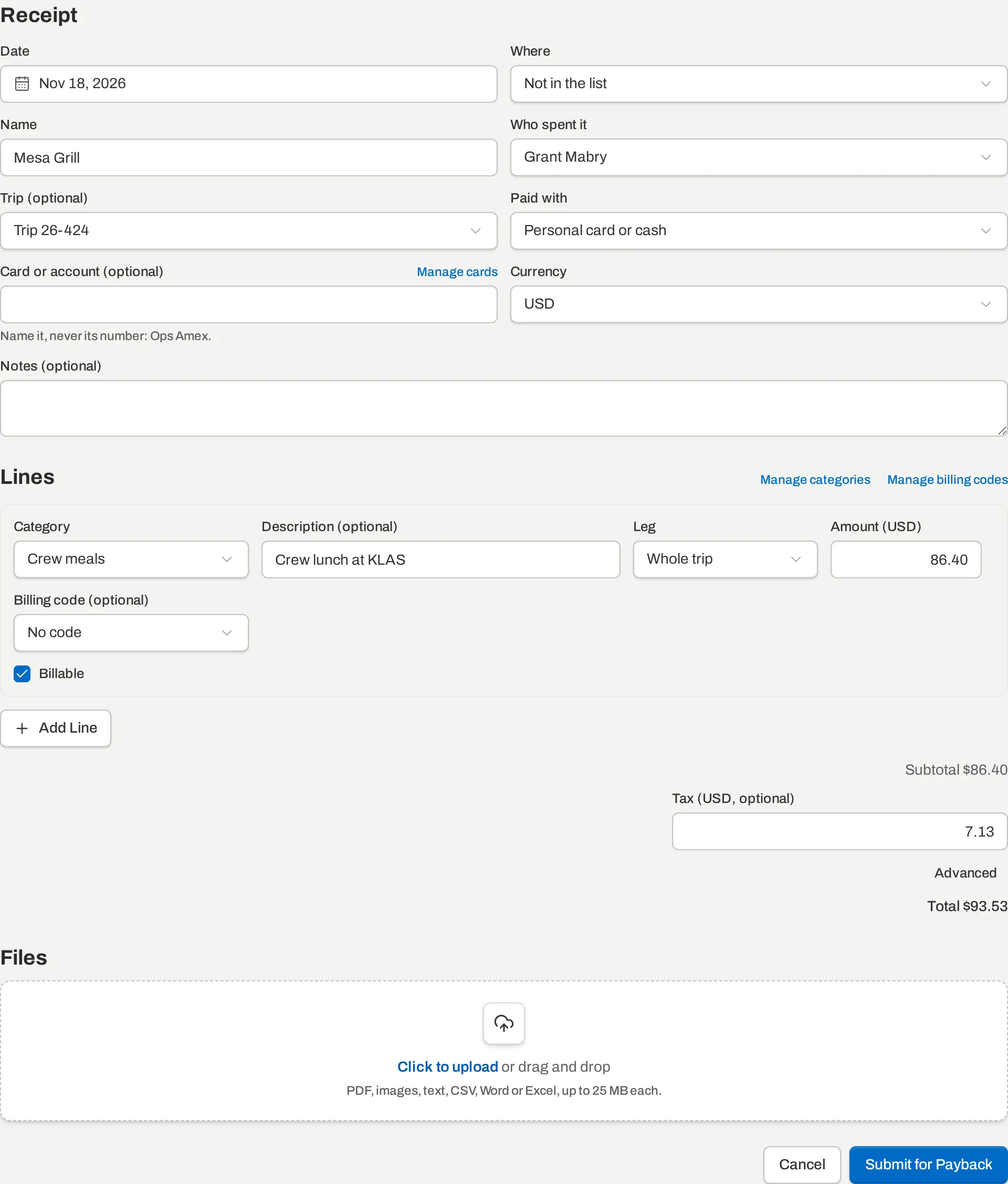
- Check the Date (it can't be more than a day ahead) and choose Where: a vendor from your list, or Not in the list and type its Name.
- Pick the Trip (optional) if the money was spent on a trip, or leave No trip (general) for office spending such as hangar rent.
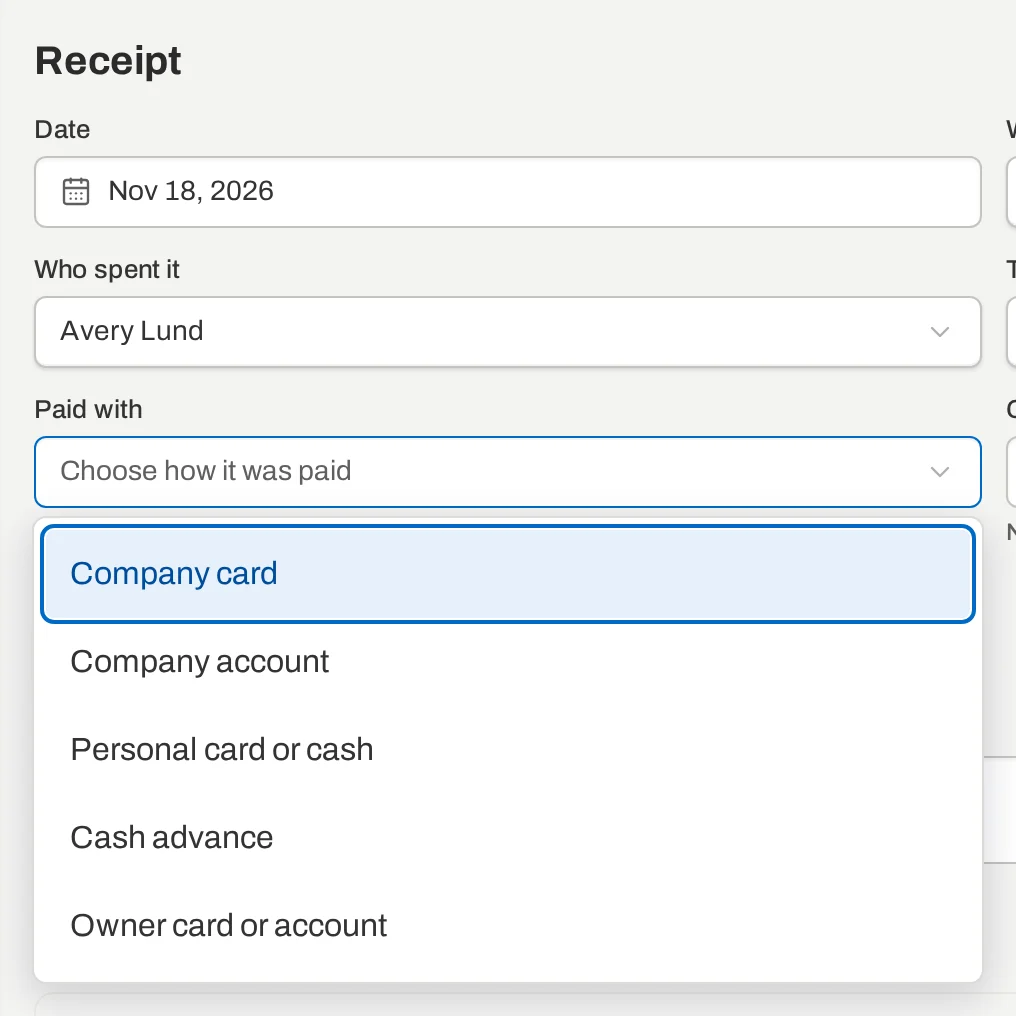
- Choose Paid with (see the table below). Under Card or account (optional) you can name the card, such as Ops Amex. Never type a card number; the form refuses one.
- Change Currency if you paid abroad, and enter the Rate from your card statement.
- Under Lines, choose a Category and enter the Amount. A fuel category adds Quantity and Unit. On a trip, pick the Leg. Admin, Scheduler and Bookkeeping also see Billable, which puts the line on the client's invoice. Click Add Line to split one receipt across categories.
- Enter the Tax from the receipt, if any. Advanced lets each line carry its own tax.
- Attach the receipt photo or PDF under Files, up to 10 files.
- Click the button at the foot. It reads Submit for Payback for a personal card or cash, Submit for Review when someone outside the office used the owner's card, and Save otherwise.
| Paid with | What happens |
|---|---|
| Company card, Company account, Cash advance | The company paid. The receipt is Recorded and needs no review. |
| Personal card or cash | The person paid. It waits for the office to approve it, then it's paid back. |
| Owner card or account | The aircraft owner paid, for example with a card kept in the airplane. Never paid back, never billed and never counted as your spending. |
Let someone use the owner's card
Owner card or account is always offered to Admin and Bookkeeping. Anyone else, such as a contract pilot who carries the owner's card, sees it only once the office turns it on for them:
- Open People, then the person.
- On the Overview tab, find the Owner card or account card.
- Turn on May pay expenses with the aircraft owner's card or account. It saves as you switch it.

Their receipt saves only when its trip or aircraft has an owner on record on the receipt's date. It then waits for the office to review it, like a personal claim, but it is never paid back.
What happens to a receipt
- WaitingSubmitted for payback. The office gets an alert.
- ReturnedThe office sent it back with a note saying what to fix. The person fixes it and clicks Submit for Payback, or Send Again if nothing needed changing.
- ApprovedAdmin or Bookkeeping approved it. The company now owes the person the amount.
- Paid backThe office recorded the payment and its date.
A reviewer can also reject a receipt. Rejected is final: it is never paid back or billed. Company-paid receipts stay Recorded, and so do owner card receipts the office records itself. One a crew member filed shows Reviewed once the office accepts it.
Billable lines on a trip go on the trip's invoice when the office bills it, each at the amount paid, with the receipt's tax on a line of its own. A receipt with a line on a live invoice can't be rejected or voided.
ReimbursablesReviewing receipts and paying people back.
Trip expensesReceipts recorded from a trip.
Read the Expenses list
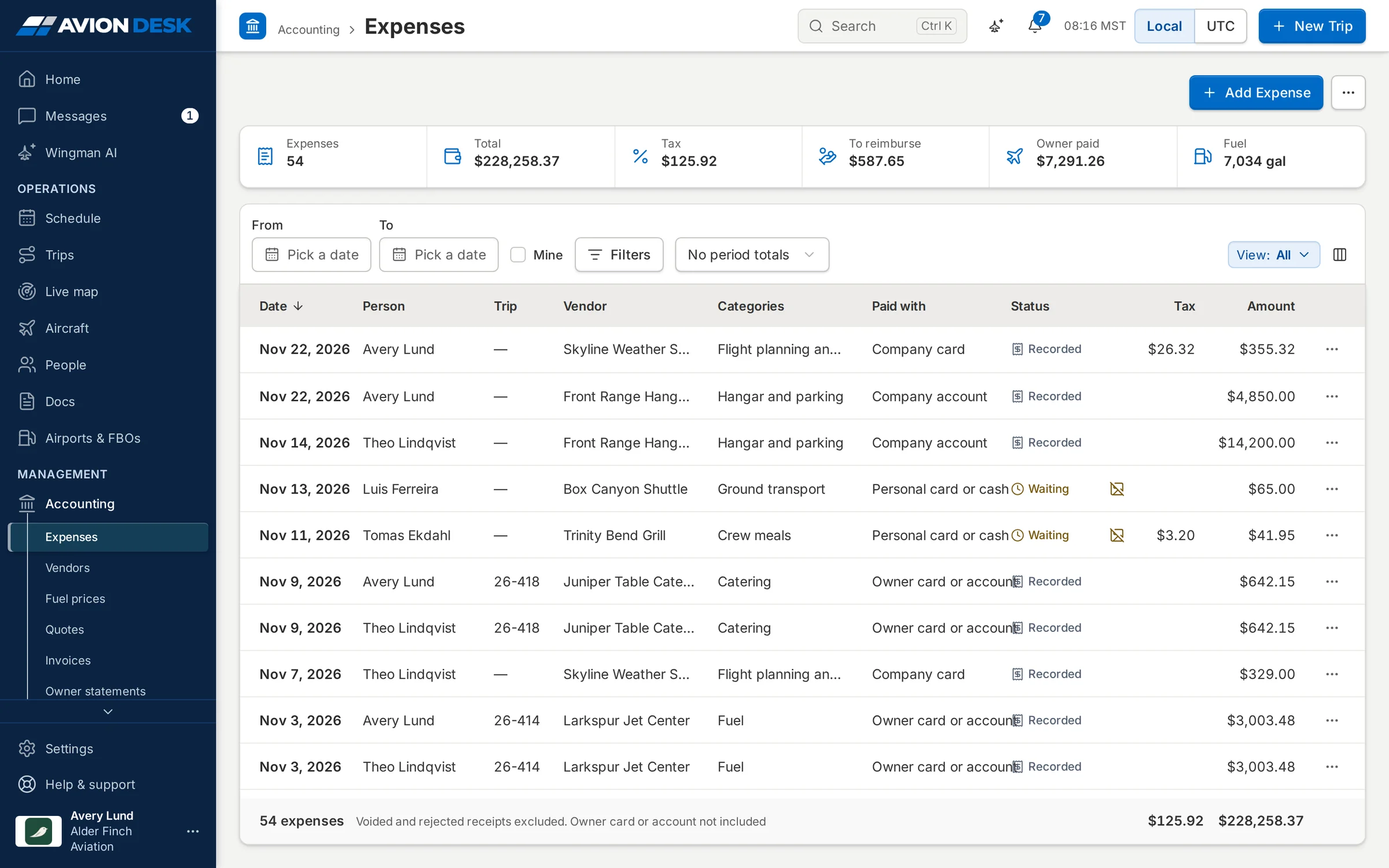
The strip at the top counts Expenses and shows the Total, the Tax, what is left To reimburse and the Fuel bought. When owners paid for anything, Owner paid shows on its own and is never part of the Total. Voided and rejected receipts are left out.
- Set From and To dates, tick Mine, or open Filters for trip, aircraft, category, billing code, status, person, how it was paid, reimbursable or not, vendor, client and tag.
- View holds Missing receipt and This month. The column button chooses what shows.
- The … menu has My Reimbursements and, where Email-in is on, Email Receipts. Admin, Scheduler and Bookkeeping also get Download CSV there.
Change or void a receipt
You can edit your own receipt until it is approved. The office can edit any receipt that isn't rejected, and gives a reason once it is approved. To change who paid for an approved receipt (the company, the person or the owner), use Take Approval Back first. Switching between Company card, Company account and Cash advance needs no undo.
To remove one, open it, choose Void and say why. A voided receipt leaves every total and stays in history; Include voided in Filters shows it. A receipt that has been paid back can't be voided.
Email a receipt in
Where Email-in is on, Email Receipts shows your own receipts address. Send a photo, a PDF or the receipt email to it from your own email. The app reads the vendor, lines and tax into a draft, and a banner on the Expenses page says how many emailed receipts are waiting. Click Check, compare what was read with the receipt, and save. Nothing becomes an expense until you save it.
Email-inSetting up the company's email addresses.
Can’t find what you need? Email [email protected] and a person will answer.