

Getting started
The setup guide
Two things help a new operator get going: a step-by-step setup guide, and a Get set up checklist on Home that ticks itself as your data comes in.
Both are for admins: only someone who can invite people and set roles sees them.
The setup guide
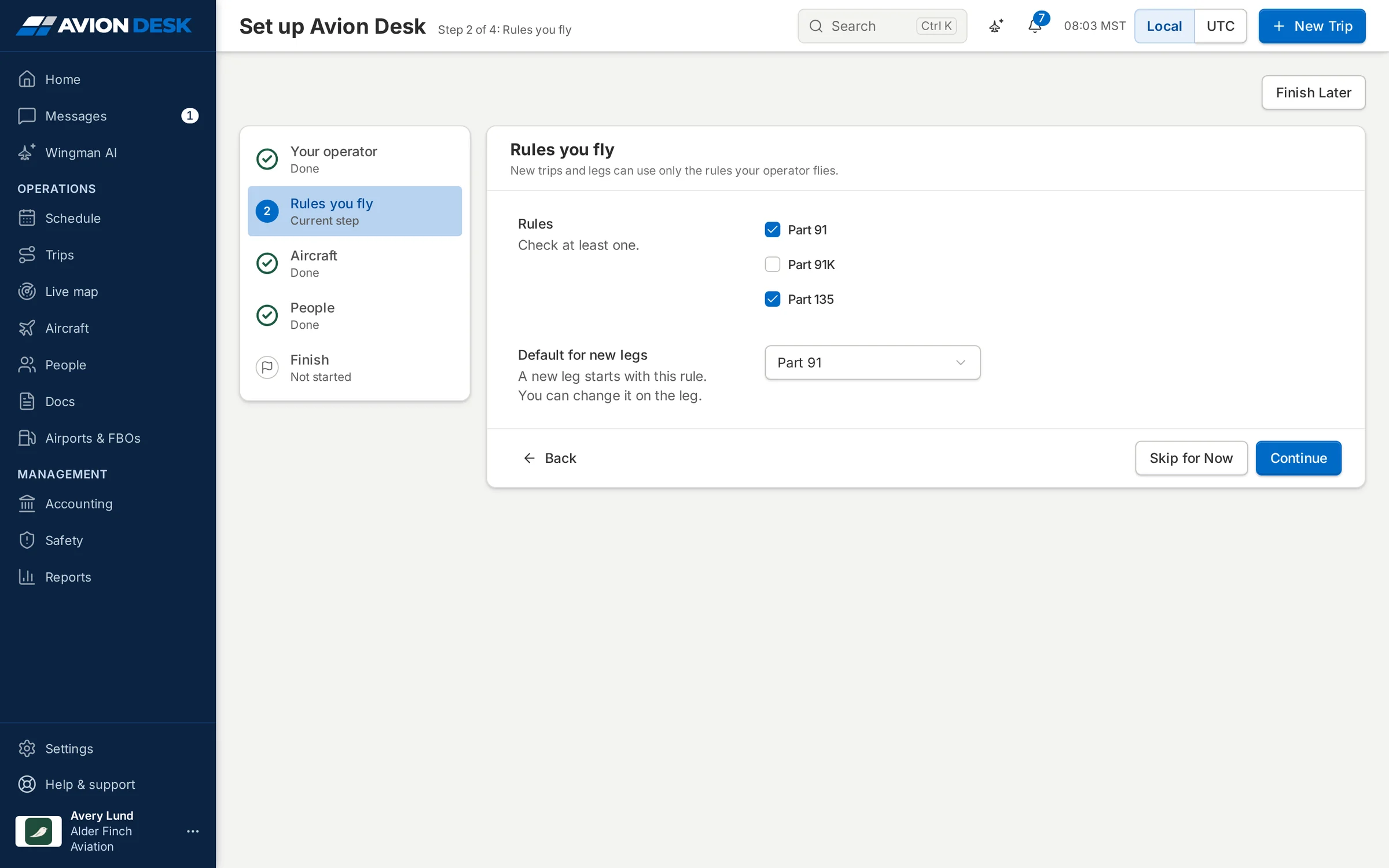
Whoever creates the operator lands in the guide after Create Operator. It keeps opening for them until they finish it or click Finish Later. Any other admin opens it from Home with Open the setup guide. Its place is saved, so another device opens on the same step.
| Step | What you do |
|---|---|
| Your operator | Check the operator name and add your logo. Clients see both on quotes, invoices and trip sheets. |
| Rules you fly | Tick at least one of Part 91, Part 91K and Part 135, and pick the Default for new legs. New trips and legs can use only the rules ticked here. A rule your plan doesn't include shows Not in your plan. |
| Aircraft | Type the Tail number. A US tail fills in from the FAA registry with Look Up; for any other tail, fill in Model yourself. Category, ICAO type and Base are optional. Click Add (the button shows the tail) for each aircraft. |
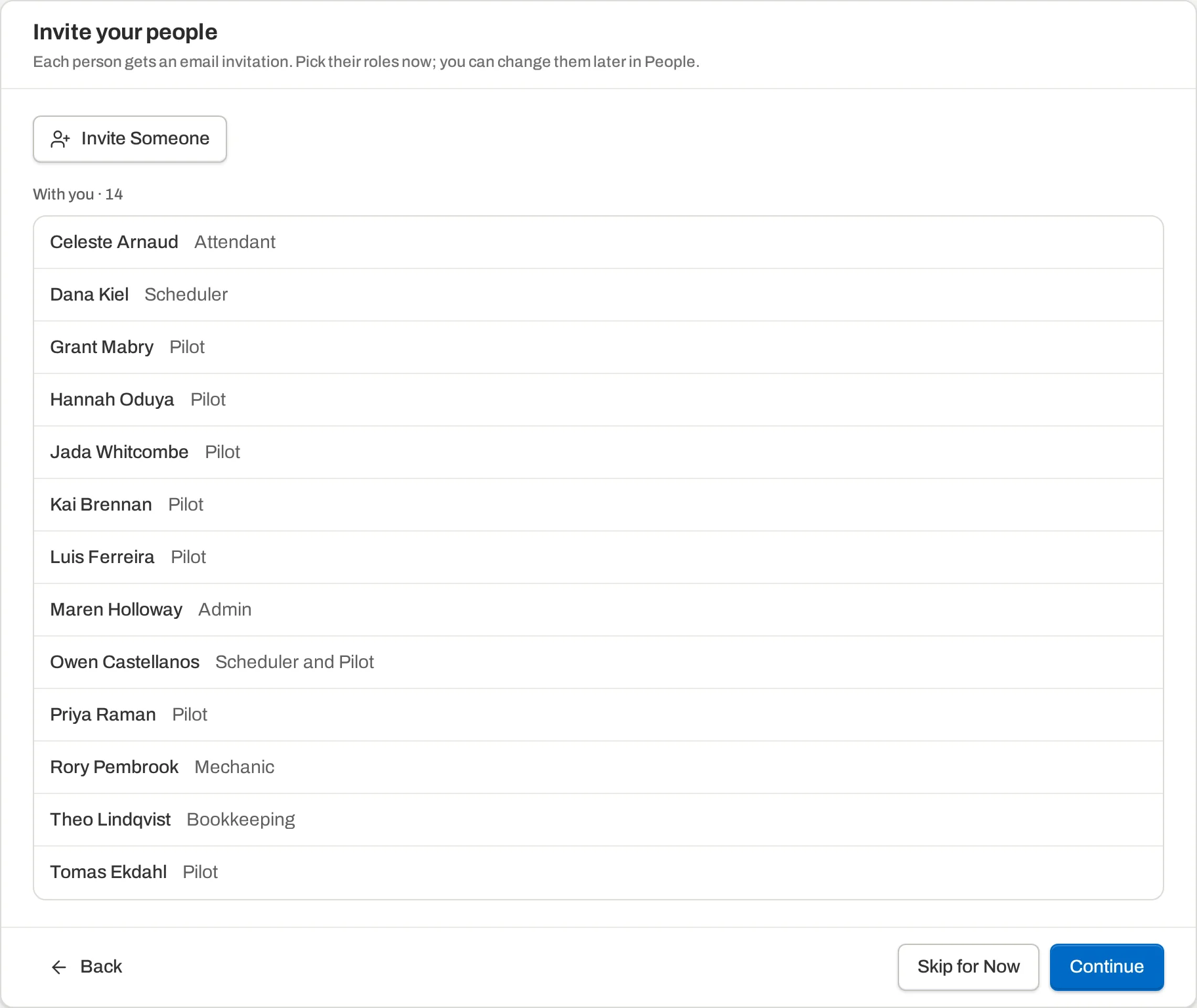
| People | Click Invite Someone for each person. Each gets an email invitation. Pick their crew position and office roles now; you can change them later in People. |
| Finish | A summary of what's done and what's left. Click Go to Home. |
At the foot of each step: Continue saves what you entered and moves on, Skip for Now marks the step skipped, and Back goes to the step before. Continue on the Aircraft or People step with nothing added counts as a skip. A skipped step that you later complete some other way (say, you add an aircraft from the Aircraft page) shows as done.
The Get set up checklist
Home shows a Get set up card with a count, like 5 of 6. Each line ticks itself from your real data, so you never tick anything by hand.

| Line | Ticks when |
|---|---|
| Add your first aircraft | The operator has any aircraft. |
| Invite your crew | Someone besides you is a member, or has an open invitation. |
| Set everyone's roles | Someone has a role other than Admin. |
| Add the aircraft each pilot flies, so the crew pickers can check them | Any person has an aircraft on their record. |
| Schedule your first trip | The operator has a trip. |
| Connect QuickBooks | QuickBooks Online is connected, even if it's paused or needs attention. |
A line whose section is off for your operator isn't shown. The card goes away once every line is ticked. To put it away sooner, click the X beside Open the setup guide. That hides it for you, in this browser only.
Qualifications and trainingAdding the aircraft each pilot flies.
Can’t find what you need? Email [email protected] and a person will answer.