

Accounting
Vendors and fuel prices
Vendors are the businesses you buy from. FBOs and fuel suppliers can carry fuel prices, which trips use to estimate a leg's fuel bill and show where it's cheapest.
Everyone with Accounting can see Vendors and Fuel prices. Admin, Scheduler and Bookkeeping add and change vendors and prices.
Add a vendor
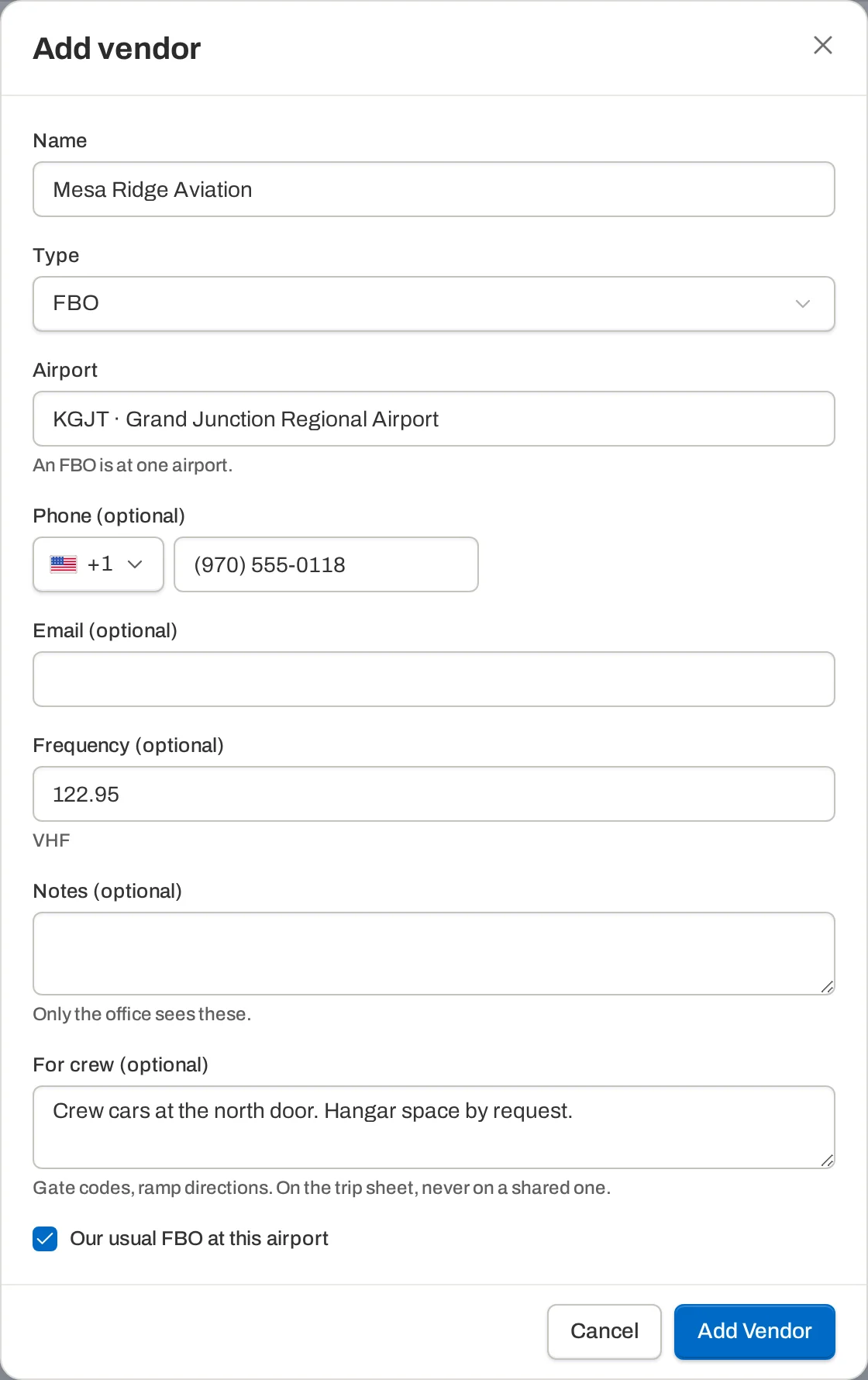
- Open Accounting, then Vendors, and click Add Vendor.
- Enter the Name and choose the Type: FBO, Fuel supplier, Hotel, Ground transport, Catering, Maintenance, Handling or Other.
- Choose the Airport. An FBO needs one; for other types it is optional.
- Add Phone, Email and, for an FBO or handler, its Frequency.
- Use Notes for the office and For crew for gate codes and ramp directions. For crew prints on the trip sheet, never on a shared one.
- For an FBO, tick Our usual FBO at this airport if it is the one you normally use there. One FBO per airport can be the usual one; ticking it moves the mark from the FBO that had it.
- Click Add Vendor.
A vendor's type and airport can't change once saved; deactivate it and add another instead. Deactivating takes it out of the lists you pick from, out of Fuel prices and out of trip estimates, and removes its usual FBO mark. Its prices and the legs that name it are kept for when you reactivate it. The usual FBO shows a green check beside its name on both tabs.
Look up fuel prices
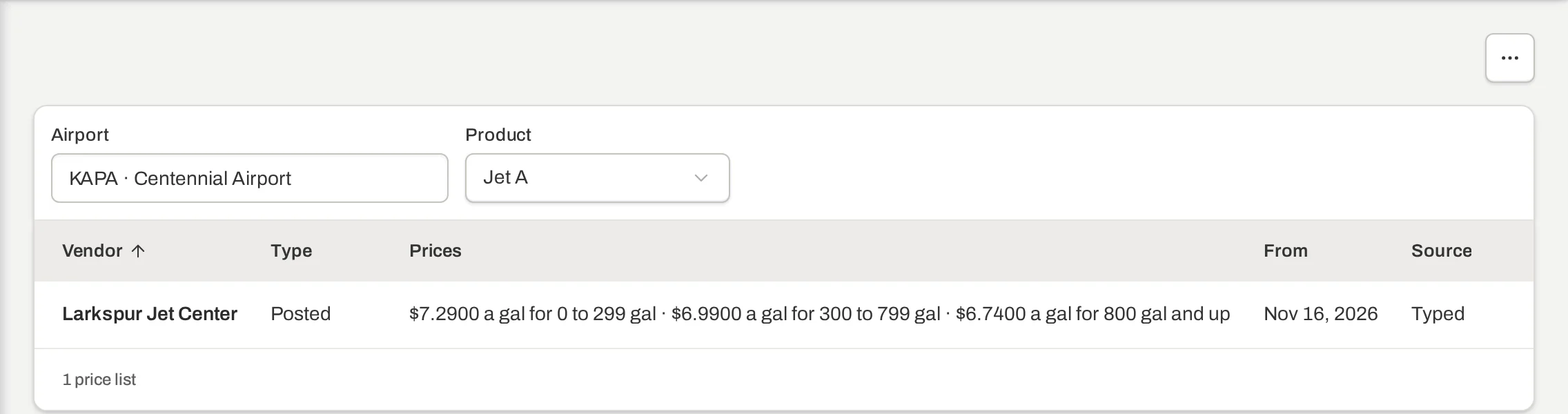
Open Fuel prices, choose an Airport and a Product (Jet A, Avgas or SAF). Each row is one vendor's live price list for today: Posted or Contract, the price for each quantity, the date it applies From, and its Source: Typed by hand, Uploaded CSV for a price sheet you loaded, or Emailed CSV for one sent to your Emailed Sheets address.
Add prices by hand
- Open the vendor from Vendors. FBOs and fuel suppliers have a Prices card.
- Click Add Prices, or Change Prices on a list you already have.
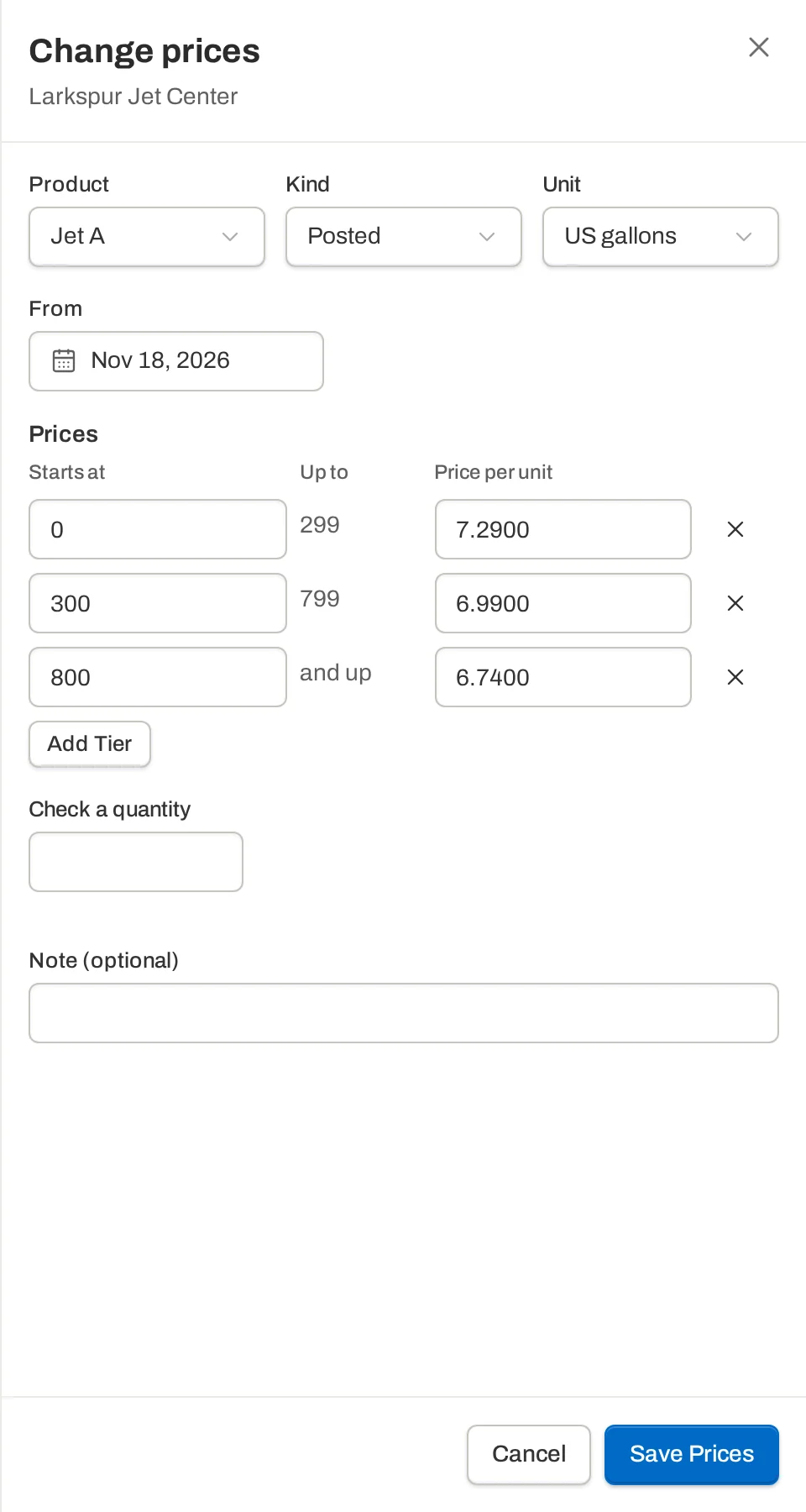
- Choose the Product, the Kind (Posted or Contract) and the Unit (US gallons or liters). A fuel supplier also needs the Airport.
- Set the From date.
- Under Prices, enter each tier: where it Starts at and its Price per unit. Up to fills itself in. Add Tier adds another, up to 20.
- Type a number in Check a quantity to see what that uplift would cost, then click Save Prices.
A list with a later From date takes over from the one before on that day. To end a price without a new one, click Stop This Price and choose the day it stops. Old lists stay in the vendor's history.
Load a price sheet
Suppliers who send a spreadsheet of prices don't need retyping. In Fuel prices, the … menu has two ways in:
- Upload Price Sheet: choose the Vendor and its CSV file. The first time, click Set Up Columns to say which column is the airport, the price, the starting quantity, the start date and so on, and how dates are written. The next sheet from that vendor is read the same way.
- Import Prices: a CSV import with What to import set to Fuel prices.
Where Email-in is on, Emailed Sheets gives you an address vendors can send their sheets to. Each sheet waits for you to check and apply it. To skip the check for a supplier, list its exact addresses under Sender addresses in Set Up Columns and tick Apply sheets from these addresses without a check. A sheet from one of those addresses then applies by itself when the sender is verified and every row reads cleanly.
Fuel prices on a trip
On a trip's leg, Fuel Prices estimates the fuel needed at the arrival airport and prices it at every live list there for that date, cheapest first. When another vendor is cheaper than the arrival FBO, it says how much you would save. The leg needs an aircraft whose Performance tab has its fuel type, cruise speed and cruise fuel burn. Prices show to the office and to the leg's own crew.
Airports and FBOsThe FBO directory and airport details.
Email-inEmail addresses for price sheets.
Can’t find what you need? Email [email protected] and a person will answer.