

Trips
Trip requests
Trips > Requests collects what clients ask for: new trips, changes and cancellations. Requests come from your public request forms and from the client portal.
The Requests tab is for Admins, Schedulers and Trip builders, and shows only while trip requests are turned on for your company. An Admin can turn the feature off.
How a request becomes a trip
- SentSomeone fills in your form and presses send. Nothing reaches you yet.
- Email confirmedThey open the link we email them within 48 hours. Until then you don't see the request.
- Waiting for approvalOnly if the form names an approver. The request shows on Requests with this status while the approver approves or declines it from an emailed link. After 7 days without an answer it reads "Approval not given in time", and the office can still make it a trip or decline it.
- SubmittedApproved, or no approver needed. The people the form notifies get an alert.
- Became a trip, or DeclinedThe office clicks Make a Trip (or Make a Quote), or Decline with a note the requester reads. A client who asked through the client portal can also withdraw it.
Set up a request form
- Go to Trips > Requests and click Forms (or Set Up a Request Form the first time).
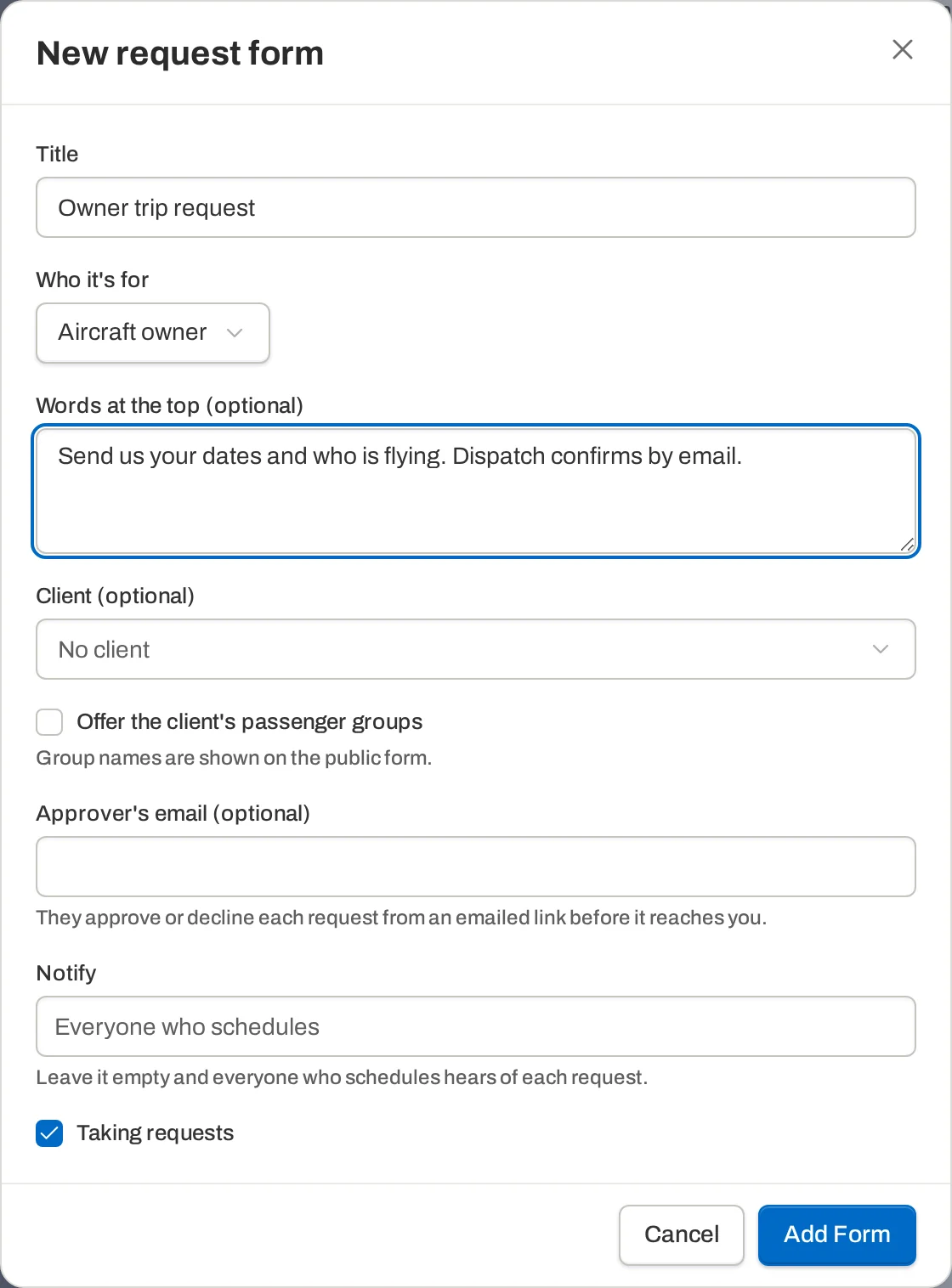
- Click New Form.
- Give it a Title and choose Who it's for: Aircraft owner, Passengers or Charter customers.
- Add Words at the top (optional), the line people read before they start.
- Pick a Client (optional) to tie every request to one client. With a client chosen, Offer the client's passenger groups lets people pick a group by name.
- Add an Approver's email (optional) if someone must approve each request before it reaches you.
- Under Notify, choose who hears of each request. Leave it empty and everyone who schedules does.
- Keep Taking requests ticked and click Add Form.
Each form gets its own link. Copy Link copies it to send or post. Embed on Your Site gives you code to put the form inside your own website. Under More, Edit changes the form and Make a New Link replaces the address. The old link stops working at once, so update anywhere you posted it.
What the requester sees
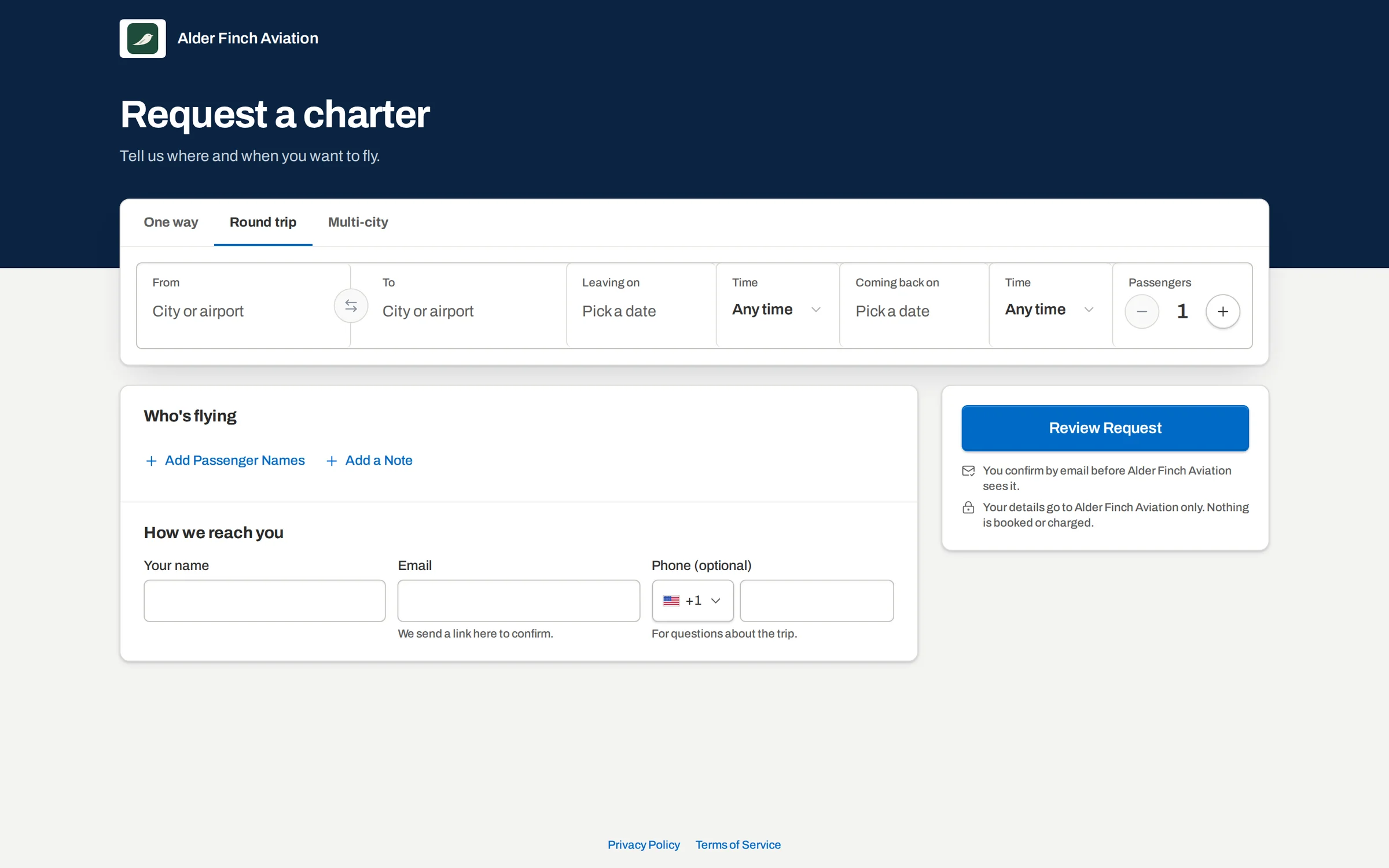
The form needs no sign-in. People choose One way, Round trip or Multi-city, enter airports or cities, dates and times, the number of passengers, optionally their names and a note, and their contact details. Review Request shows a summary before anything is sent.
Answer a request
- On Trips > Requests, click a row with the status Submitted to open it.
- Read the legs, the passengers and the notes.
- Click Make a Trip. The full trip editor opens with the legs filled in, departure times at the departure airport and the head count on each leg. Check the airports, set the arrival times and save. The trip starts as an Option.
- Or click Make a Quote to price it first. This needs Accounting, a plan with quotes, and a role that makes quotes (Admin or Scheduler).
- Or click Decline, write Why, for the client, and confirm.
Use All types to show only Trip request, Change or Cancel rows.
Change and cancel requests
Clients using the client portal can ask to change or cancel a booked trip. The request shows on Requests and as a Change request banner on the trip itself. Click Accept or Decline, add a note for the client, and confirm with Accept Request or Decline Request. Accepting changes nothing by itself: edit or cancel the trip as asked.
Email-inTrip requests that arrive by email.
Can’t find what you need? Email [email protected] and a person will answer.