

Connections
Connections
Connections send your records to services you already use, or bring them back. Today Avion Desk connects to QuickBooks Online, Google Drive and Dropbox.
Where they are and who can use them
Open Settings, Connections. The page lists what you use under Connected and what you can add under Available. Each row shows the service, what it is for (such as Accounting or File storage), a line on what it last did, and a button at the end: Manage for one you use, Connect for one you don't.
- Narrow the list with All, Connected, Available or Needs attention. Each shows how many connections it holds.
- Type in Search connections to find one by name.
- Add Connection shows the whole list and takes you to Available.
- On a wide screen, Recent activity at the right lists the latest runs across your connections: what each one sent or fetched, and whether it worked.
- Admins connect, pause and disconnect.
- Bookkeeping can see connections and map how records go to QuickBooks.
- Schedulers and Mechanics can see connections and their activity.
- An unpaid or read-only account holds every connection until billing is sorted out.

What the status means
| Status | Means |
|---|---|
| Off | Not connected. |
| Connected | Working. The line under it says what it last did and when. |
| Paused | An admin paused it. Nothing is sent or fetched until Resume. |
| Needs attention | Something failed, or a document needs you. The Settings item in the sidebar carries a mark too, and anyone who chose A connection needs attention under Notifications gets an email. |
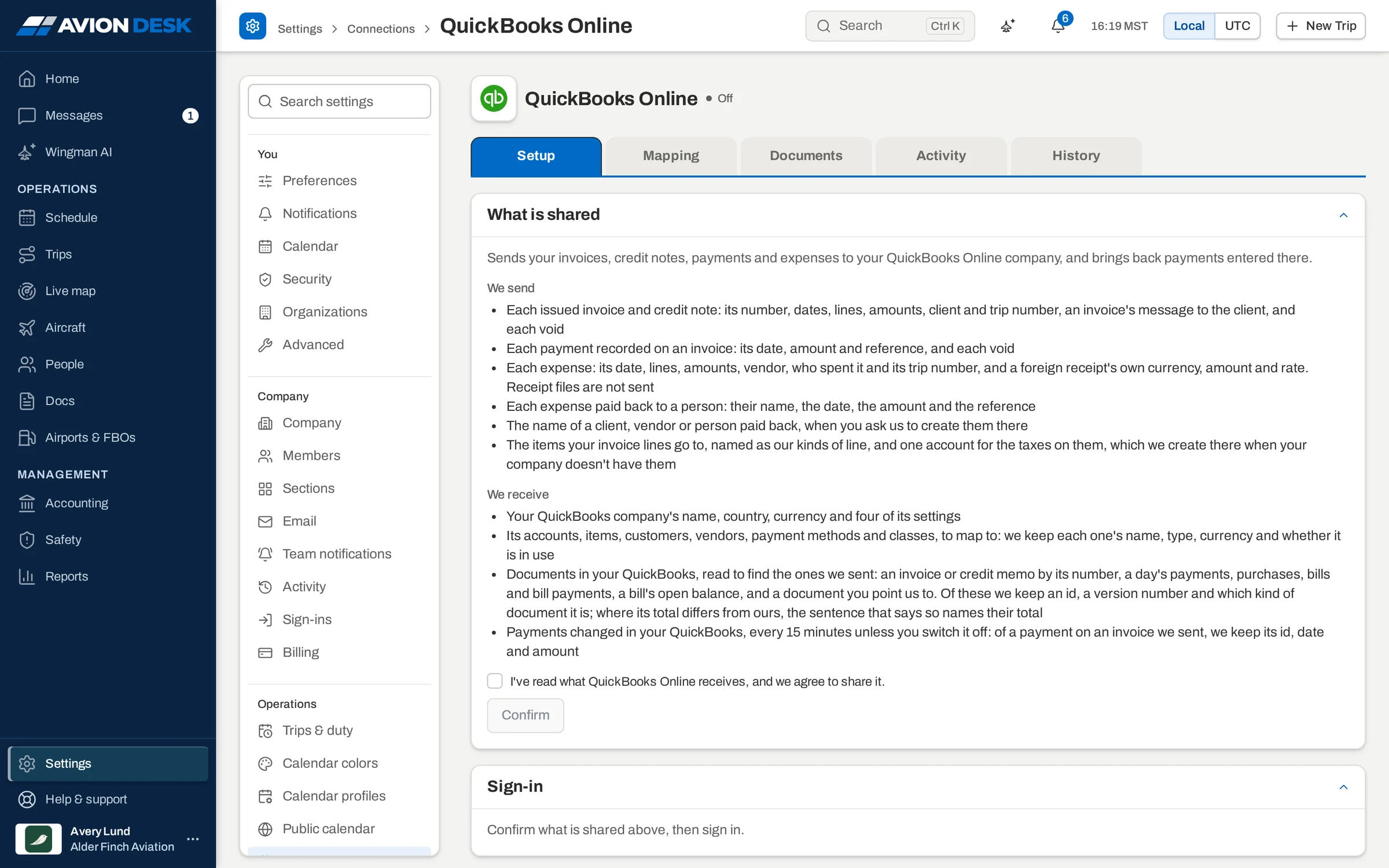
Connect QuickBooks Online
QuickBooks Online gets your issued invoices, credit notes, payments, expenses and paybacks. Payments entered in QuickBooks come back to the invoice here within about 15 minutes. Only a US QuickBooks company that keeps its books in your currency can connect.
- Open Settings, Connections and click Connect beside QuickBooks Online, under Available.
- On the Setup tab, read What is shared: what we send and what we receive. Tick the box to agree and click Confirm.
- Click Connect to QuickBooks and sign in to QuickBooks to allow it.
- Open the Mapping tab and choose where each kind of line, expense category, payment method, client and vendor goes in QuickBooks.
Once connected, What is sent, and from when on the Setup tab has two switches: We pay people back through payroll, and Bring payments in from QuickBooks.
Something QuickBooks can't take, like an expense whose category isn't mapped yet or a payment for more than the invoice owes, waits on the Documents tab until you fix it. Expense tax goes to the account you pick under Tax on expenses on the Mapping tab; until you pick one, expenses with tax wait there.
Keep a copy of your files in Google Drive or Dropbox
Every file saved in the app is copied to your own storage, sorted by receipts, trips, aircraft, invoices and more. Files already here are copied too. You can use one storage service at a time.
- In Settings, Connections, click Connect beside Google Drive or Dropbox, under Available.
- Read What is shared, tick the box and click Confirm.
- Click Connect Google Drive or Connect Dropbox and sign in. Google Drive then asks which folder to use. Dropbox keeps the copy in the app's own folder under Apps and sees nothing else in your Dropbox.
- To copy passports, certificates and training records too, tick Also copy personal documents.
Confidential and anonymous safety reports are never copied.
Activity, pause and disconnect
Click Manage on a connection's row to open it.
- Activity lists every run: tests, sends and fetches, and whether each worked.
- History (admins) shows who connected, paused, changed or disconnected it.
- The actions menu beside the name has Test Now, Pause and Resume.
- Disconnect ends the connection. It is beside that menu on the connection's page, and in the … menu at the end of its row on the Connections list. Connecting again asks you to agree to what is shared again.
Can’t find what you need? Email [email protected] and a person will answer.