

Aircraft
Maintenance items and sign-off
An aircraft's **Maintenance** tab holds four sections in the order they matter: defects, maintenance items, downtime and counters. The strip at the top says how each stands and jumps to it.
Set up counters first
Counters are the readings everything else is measured against: Airframe hours and Landings on every aircraft, plus engine hours and cycles, APU hours and cycles, and Hobbs hours when you track them. Flight logs add to them as trips are logged.
- Open the aircraft, then Maintenance, and scroll to Counters.
- Click Set Up Counters, choose the number of engines and whether there is an APU, and enter today's readings.
To correct a reading later, click Change Counters and give a Reason. History keeps each change, who made it and why. Add Counter in the … menu adds one you didn't set up at first. Airframe hours and landings can't be removed.
Add a maintenance item
A maintenance item is an inspection or time limit the aircraft tracks: an annual, a phase inspection, a battery replacement. Admins and mechanics add and edit them.
- In Maintenance items, click Add Maintenance Item.
- Enter a Title and, if you use them, a Task reference.
- Under Limit, choose what it is Tracked by: Date, or one of the aircraft's counters such as Airframe hours.
- Set the Interval (for example every 12 months or every 300 hours), or tick Once only for a one-time item.
- Enter when it is Next due.
- Under Last done, add the date or reading if you know it.
- Click Add Maintenance Item.
Changing an item's next due date by hand asks for a Reason, which History shows. Remove also asks for one; a removed item stops counting toward the aircraft's status and its past stays in History.
Read the list
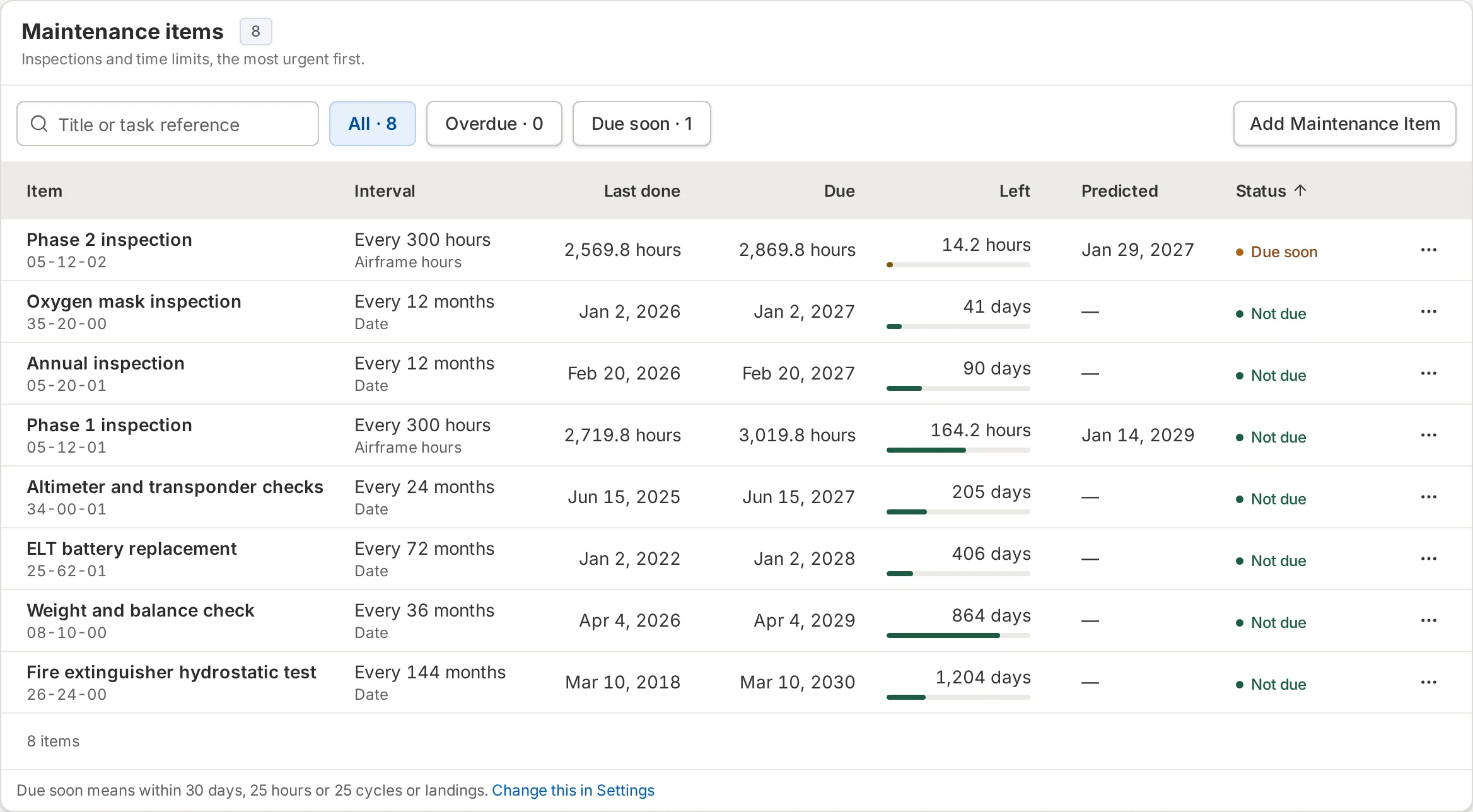
Each row shows the Interval, when it was Last done, when it is Due, how much is Left with a bar, and a Predicted date for hour and cycle limits, worked out from how much the aircraft flies. Status is one of three:
- Overdue: past its due date or reading. The aircraft shows as Overdue.
- Due soon: inside the due soon limits named under the list, for example 30 days, 25 hours or 25 cycles or landings. An Admin changes these limits in Settings.
- Not due: nothing to do yet.
The All, Overdue and Due soon buttons filter the list. To see the whole fleet at once, open Aircraft, then the Maintenance tab.
Sign off an item
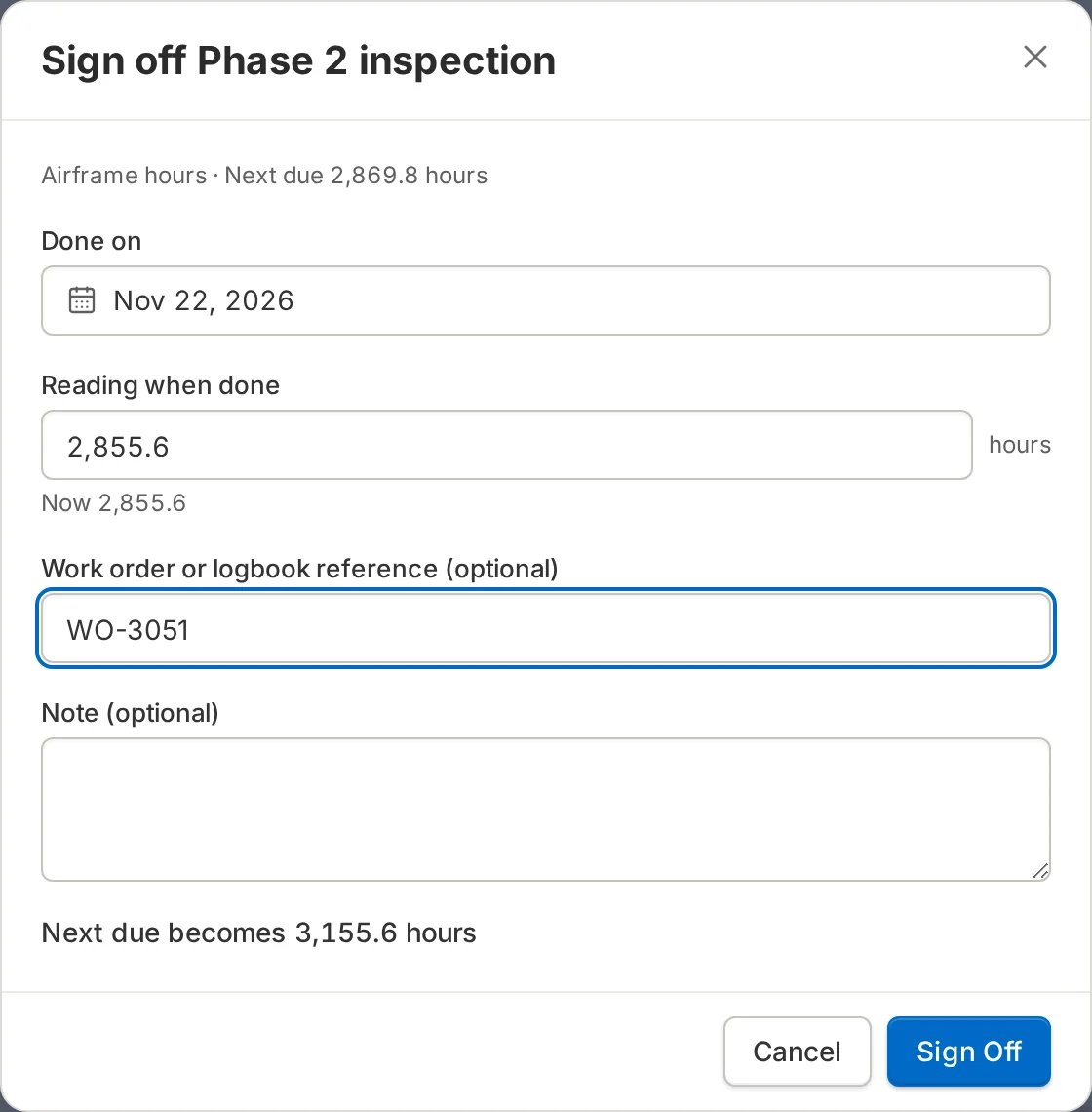
When the work is done, sign the item off. That records the work and rolls the next due date or reading forward by the interval.
- In the item's row, open the … menu and choose Sign Off.
- Set Done on. For an hours or cycles item, check Reading when done; it starts at the counter's current reading.
- Add a Work order or logbook reference and a Note if you like.
- Check the line at the bottom, for example "Next due becomes 3,155.6 hours", then click Sign Off.
- Not dueAdded with its interval and next due point.
- Due soonInside the due soon limits. The aircraft shows Due soon on Fleet.
- OverduePast due. The aircraft shows Overdue until it is signed off.
- Signed offAn Admin or mechanic records the work. The next due point moves on by the interval and the item is Not due again. A once-only item closes.
Date intervals in months run to the end of the month: an annual signed off on March 12 is next due at the end of the following March.
Plan downtime
Downtime is a window when the aircraft is out for maintenance. It shows on the schedule so nobody books the aircraft, and while it runs the aircraft shows In maintenance.
- In Downtime, click Add Downtime, or use Actions and Add Downtime in the header.
- Enter a Title and, optionally, a Location.
- Set Starts and Ends. If you don't know the end yet, tick End not known yet.
- Click Add Downtime.
A window that is running has End Now in its menu for when the aircraft comes back early. An upcoming window can be removed; past windows stay listed under Past downtime.
The fleet's maintenance
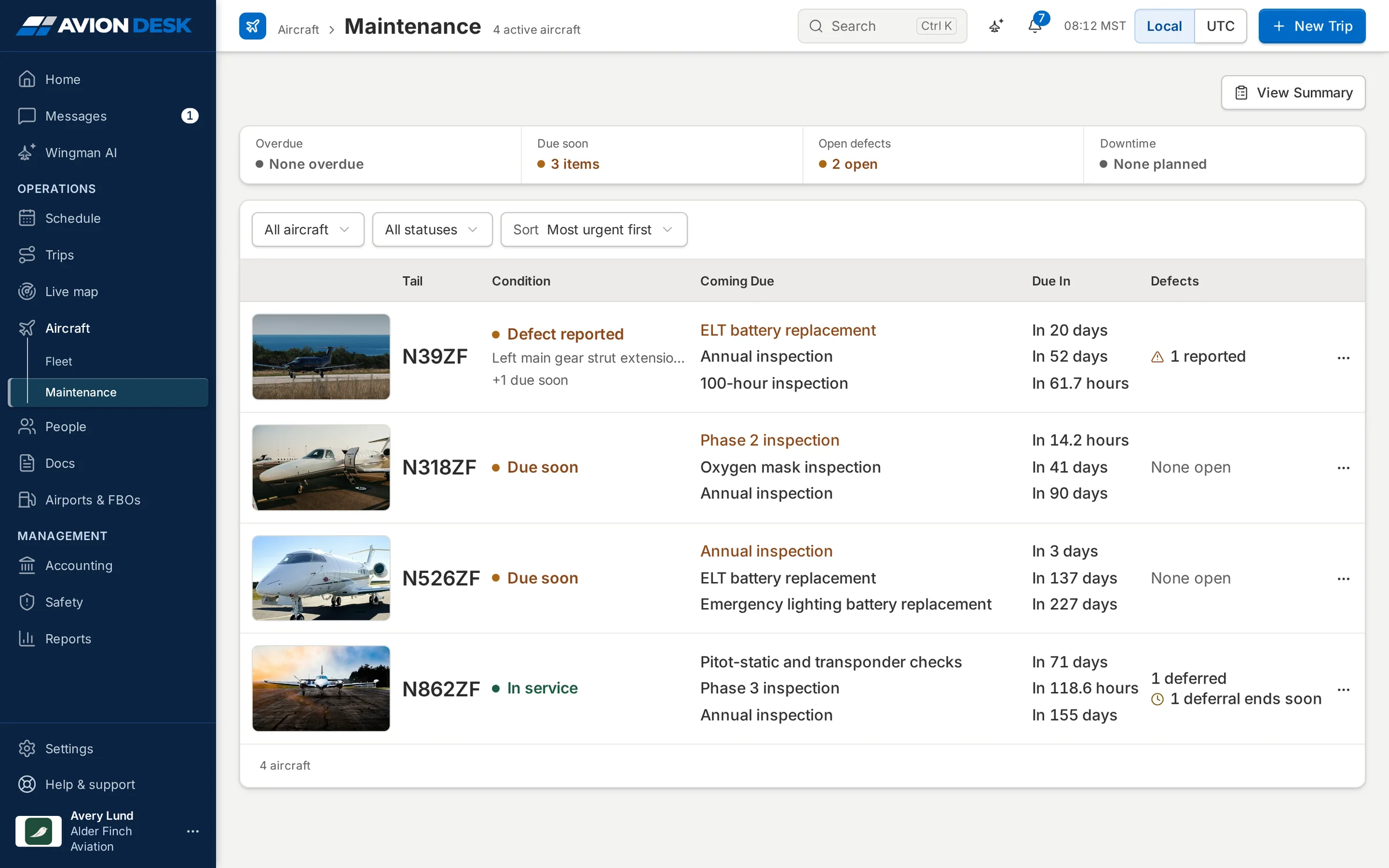
The Maintenance tab under Aircraft lists every active aircraft with its condition, the next items coming due and its open defects. Filter by aircraft or status, and click View Summary for a printable maintenance summary of the whole fleet.
Defects and deferralsReport, defer and clear a defect.
The flight logLogging a flight adds to the counters.
Can’t find what you need? Email [email protected] and a person will answer.