

People
Passenger groups
A group is a saved list of passengers who usually fly together, in the order they go on a leg. Adding the group to a trip adds everyone in it at once.
Create a group
Admins and Schedulers create and edit groups. Anyone who can see People can look at them.
- Open People, then the Groups tab.
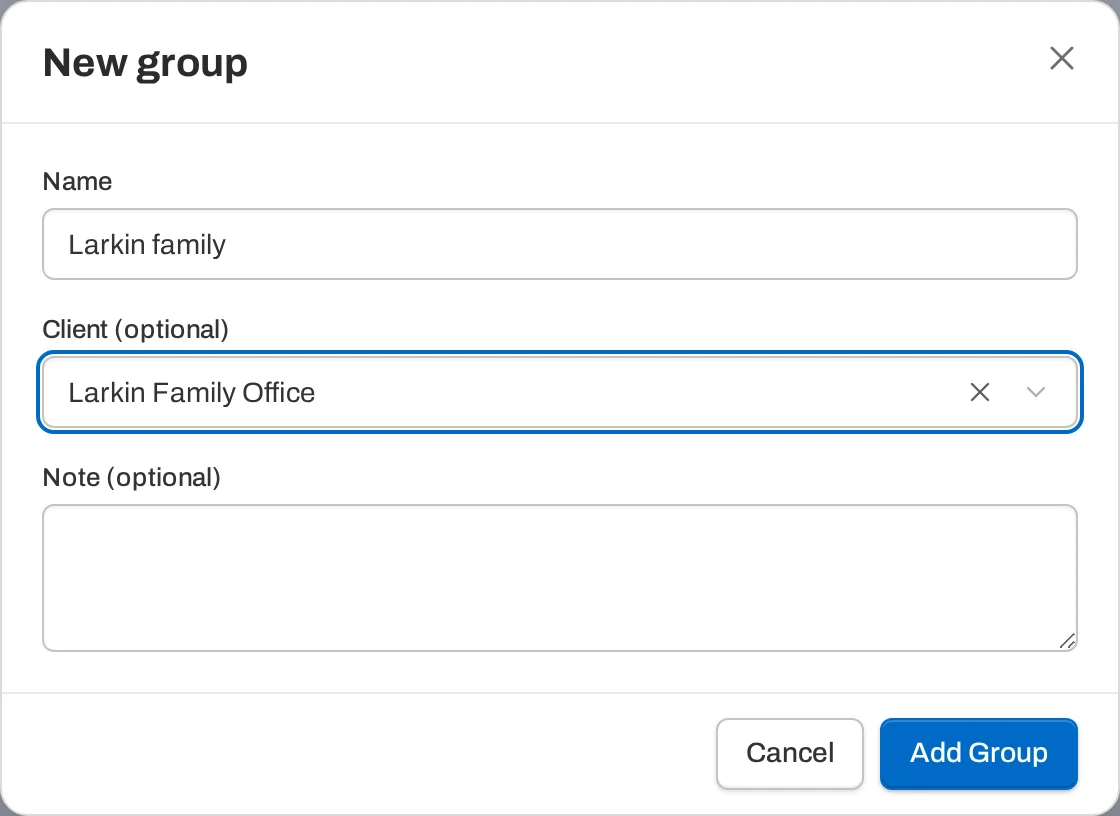
- Click New Group.
- Enter a Name, such as "Larkin family".
- Pick a Client if the group belongs to one, and add a Note if it helps.
- Click Add Group. The group's page opens so you can add its people.
Add people and set the order
- On the group's page, under People, search in Add people and pick each person. Anyone in People can join, up to 100 per group.
- Use the up and down arrows to set the order. People go on a leg in this order.
- Remove someone with the remove button on their row.
- Click Save People.
If someone in the group is deactivated, they stay in the list, grayed out, and are skipped when the group goes on a trip.
Put a group on a trip
- On the trip, open Add Passengers.
- Choose the group under Add a group.
- Everyone in it is ticked. Untick anyone who isn't flying this time.
- Save as you would any passengers.
The usual checks still run for each person. Someone already on the trip, or crew on every leg, isn't added twice.
Search, edit and deactivate
The Groups tab lists each group with its client and how many people are in it, and search finds a group by its name or its client. On a group's page, Edit changes the name, client or note. Under More actions, Deactivate Group stops it from being put on a trip; its people stay in it, and Reactivate Group brings it back.
Can’t find what you need? Email [email protected] and a person will answer.