

People
Qualifications and training
A crew member's Qualifications tab holds their certificates, medical, training and the aircraft they crew. The app works out from the dates whether each item is current, and warns you before it lapses.
What each status means
| Status | Meaning |
|---|---|
| Current | On file and in date. |
| No expiry | On file with no expiry date, such as a pilot certificate. |
| Expires in 12 d | Inside the warning window, 30 days unless you change it. |
| Expired | Past its expiry date. |
| Not on file | Required of this person, with nothing recorded. A pilot with no medical or no pilot certificate counts here too. |
| Nothing tracked | No certificates or training apply to them yet. |
The warning window is Crew records: warn before expiry in Settings. Passports and visas have their own, Travel documents: warn before expiry, 6 months unless you change it. Expiring and expired records also show up in alerts, and on a trip the crew checks warn about anyone whose records have lapsed.
Admins and Schedulers manage everyone's qualifications and record training. Crew see their own and can add or edit their own certificates and medical.
Certificates and medical
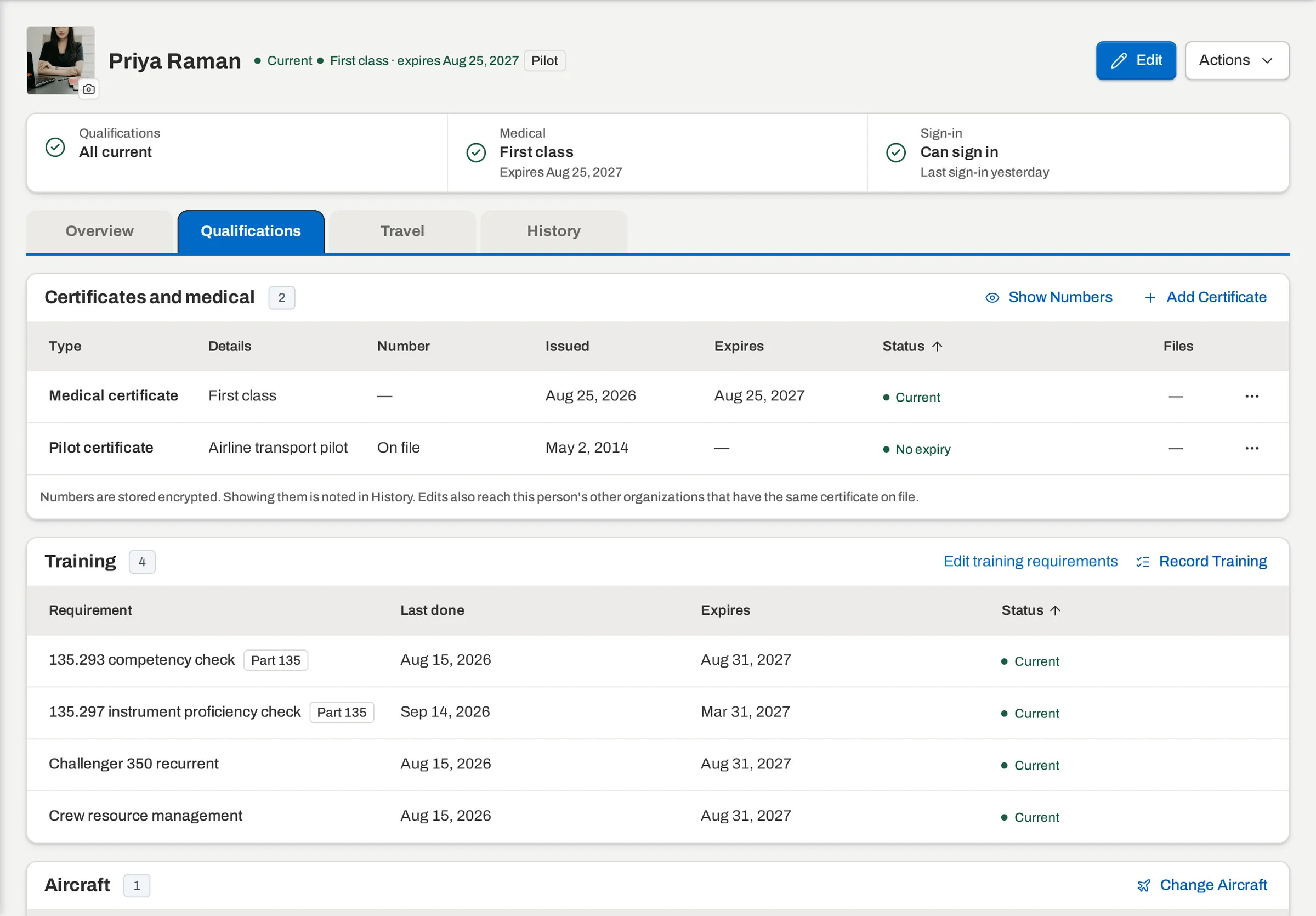
- Open the person and the Qualifications tab.
- Under Certificates and medical, click Add Certificate.
- Choose the Kind: pilot certificate, medical certificate, type rating, mechanic certificate (A&P), inspection authorization or other.
- Fill in Details (for a medical, the class, such as First class or BasicMed), the certificate number if you want it on file, Issued by, and the dates. A medical needs its Expires date.
- Attach a scan if you have one, then click Add Certificate.
Certificate numbers are stored encrypted. Click Show Numbers to see them; they hide again after 5 minutes, and each look is noted in the person's History.
Set up training requirements
Training requirements are the courses and checks your crew must keep current, and how often. Set them up once on the Training tab of People; each crew member's Qualifications tab then lists the ones that apply to them.
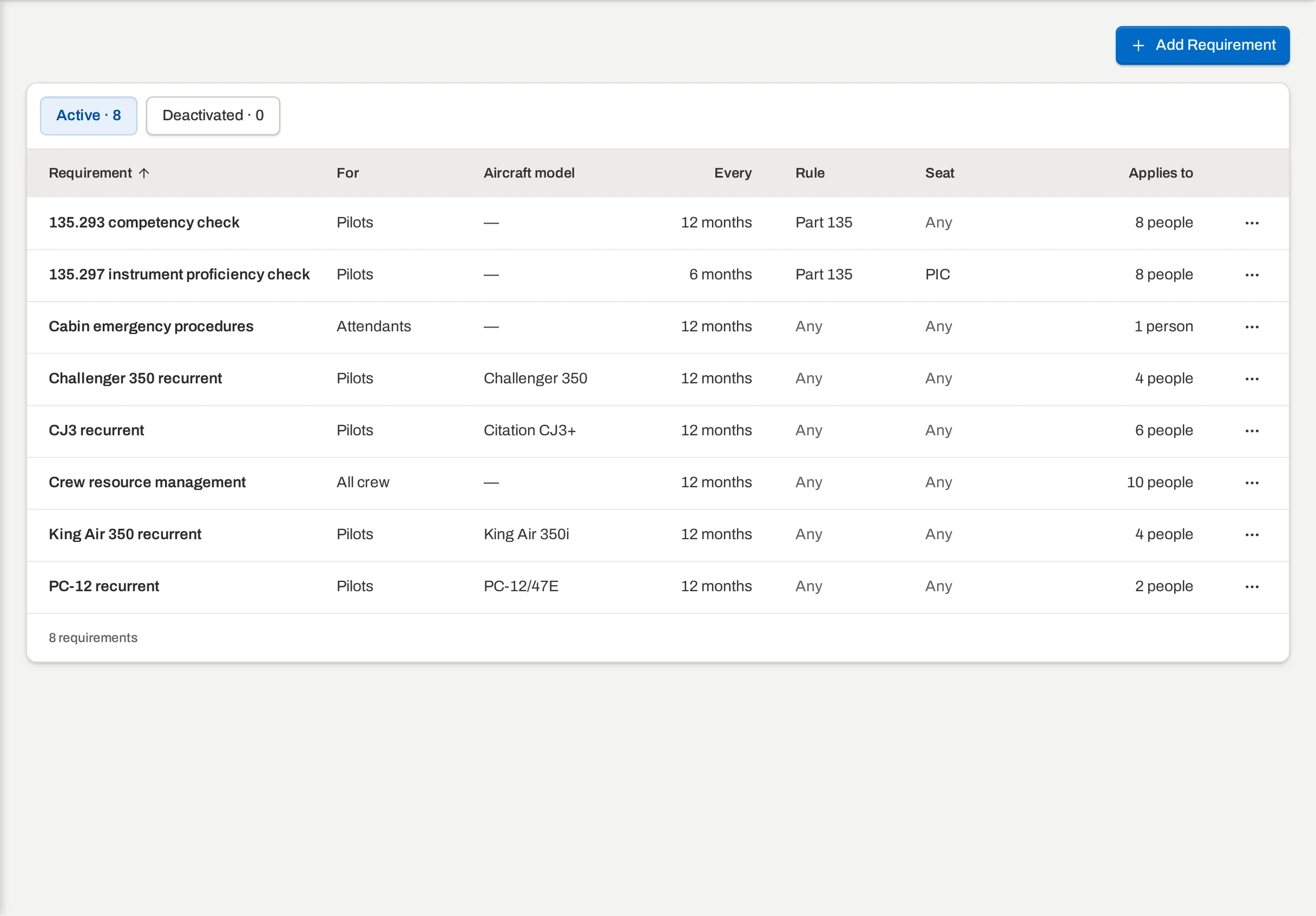
- In People, open the Training tab and click Add Requirement.
- Give it a Name, such as "Challenger 350 recurrent".
- Set Every how many months. Leave it empty for a one-time item.
- Under For, choose All crew, Pilots, Attendants, Mechanics or Medical crew. For pilots, Seat can limit it to PIC only.
- To tie it to one type, choose the aircraft under Only for crew of.
- If you fly Part 135, tick Part 135 check for checks the rules require. It is checked only for the pilots on Part 135 legs. Done in the month before or after it's due, it counts as done in the month it was due.
- Click Add Requirement.
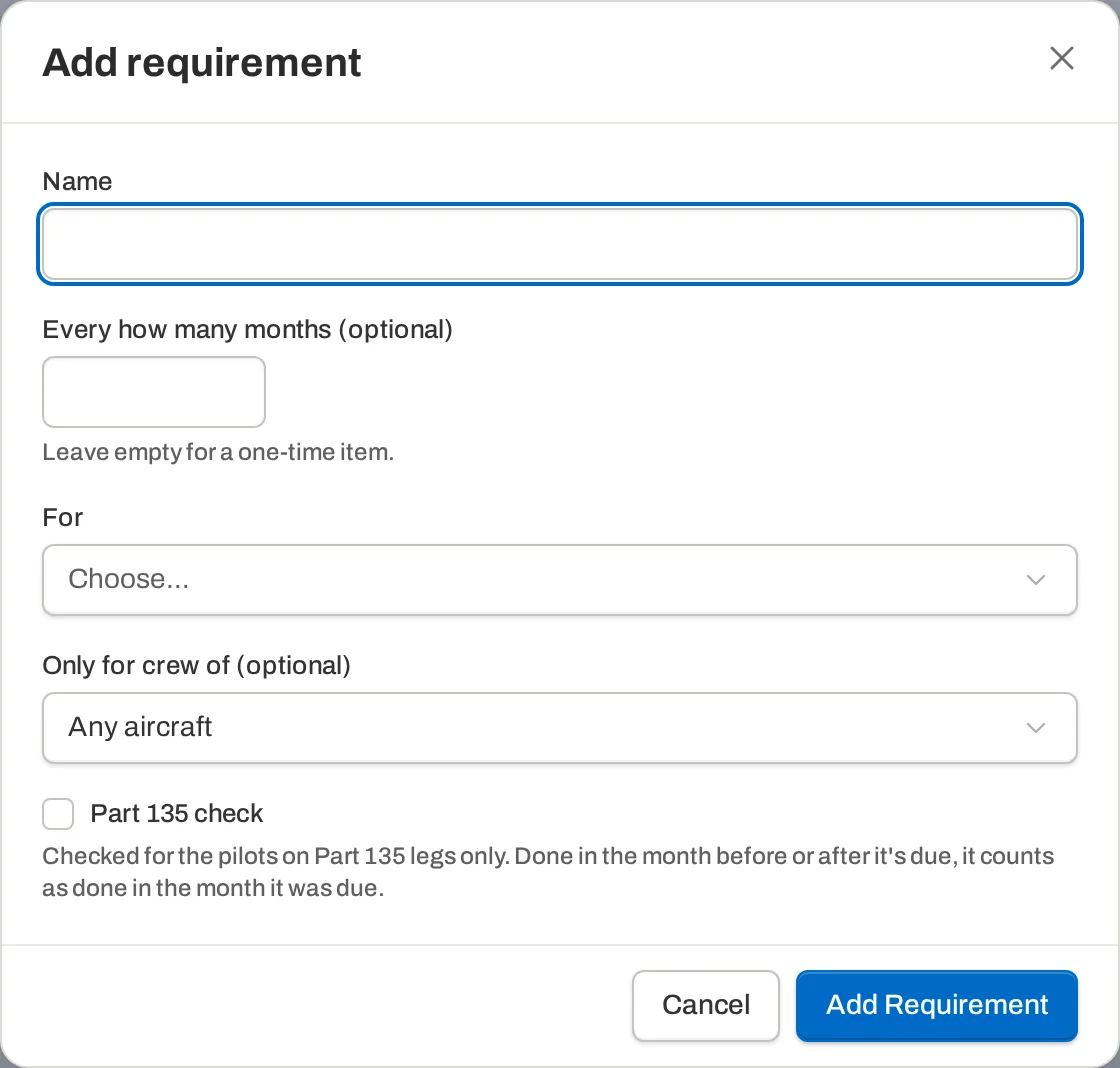
A requirement you no longer use can be deactivated from its ... menu. Records already on file keep their dates.
Record training
- Open the person and the Qualifications tab.
- Under Training, click Record Training.
- Choose the Requirement and the day it was Done on. The form shows the new expiry date before you save.
- Add a note or the certificate of completion if you like, then click Record Training.
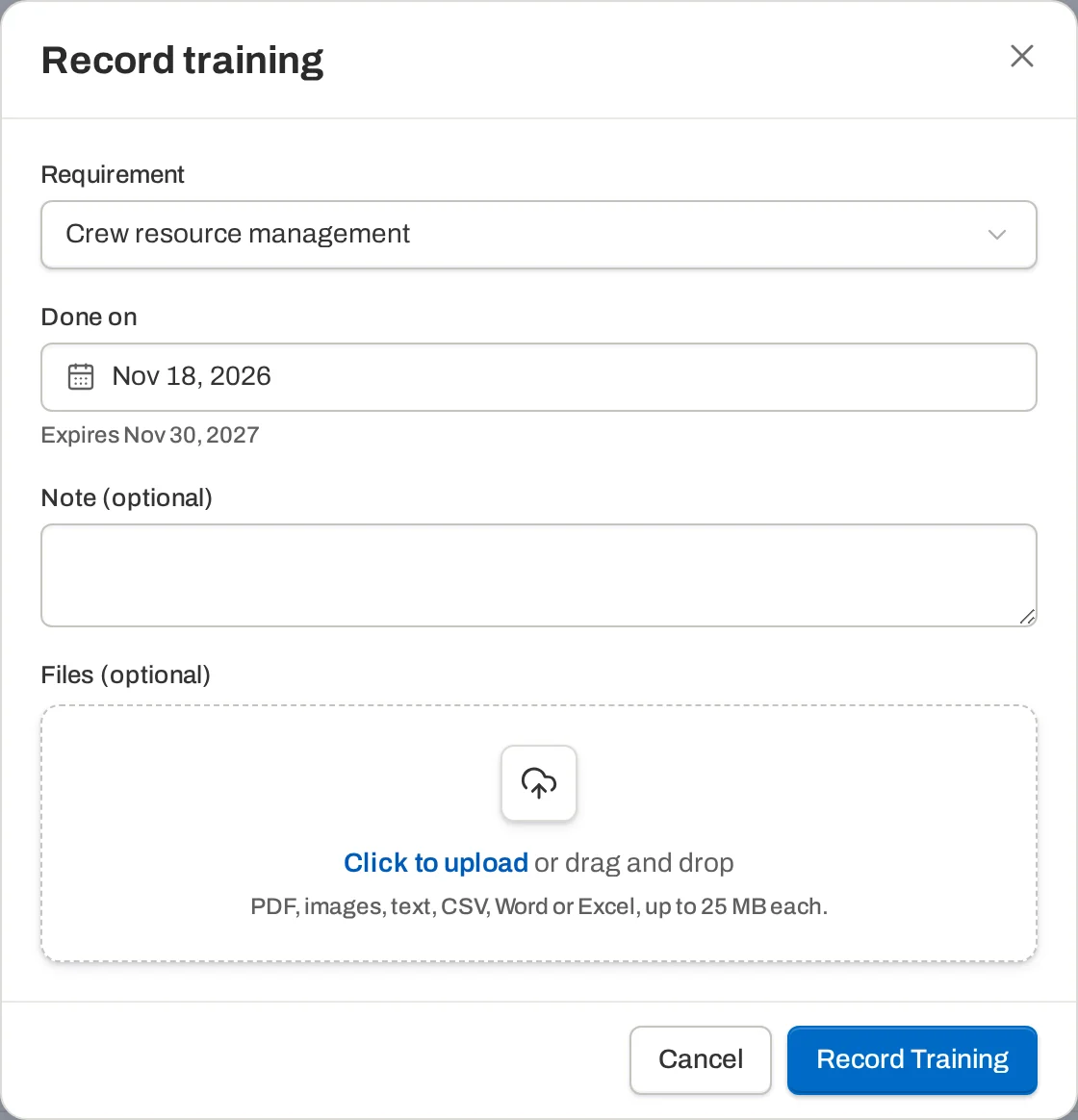
Recording an older date than the latest one on file adds it to the history without changing what is current.
- Not on fileThe requirement applies to this person and nothing is recorded yet.
- CurrentAn Admin or Scheduler records the training.
- ExpiringThe warning window opens. The item shows on the People list and in alerts.
- ExpiredThe date passes. Trips the person is on show a warning until new training is recorded.
- Current againRecord the new completion and the next expiry is set.
Find who needs attention
Admins and Schedulers can set Status to Needs attention on the People list. It lists everyone with an expired or expiring record, or missing details, worst first, with a Needs attention column saying what is wrong. Ready to fly abroad counts the details an international trip needs: a passport, birth date, nationality, sex and country of residence, and for crew a current medical and certificate.
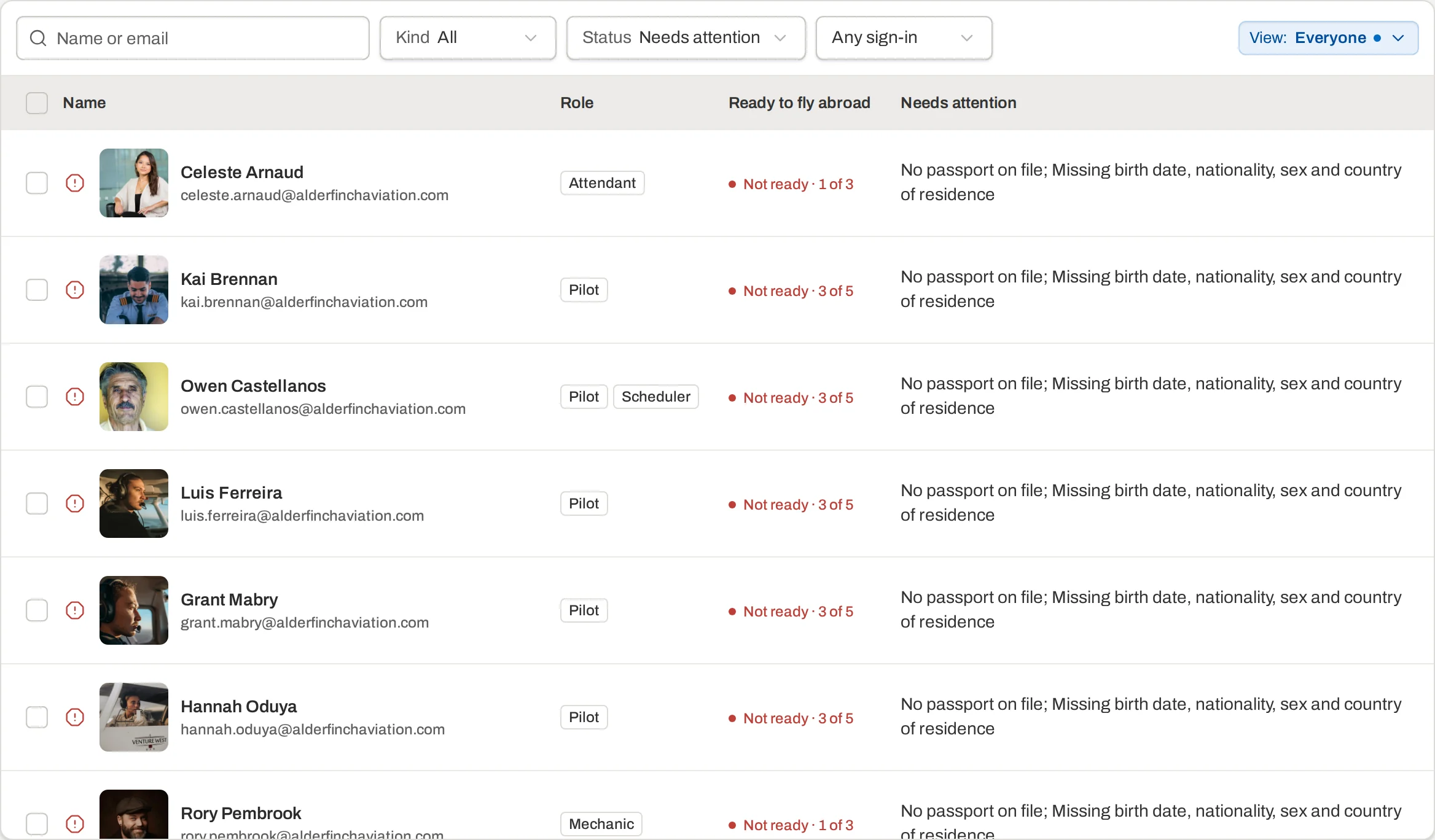
For crew, the Expiring in 30 days view and the Most urgent first order do the same job for certificates and training.
Aircraft and currency
The Aircraft card lists the aircraft a crew member flies and, for pilots, whether as PIC, SIC or both. Click Change Aircraft to edit it. The trip's crew picker uses it.
Where your company has currency tracking on, pilots also get a Currency card with their recent landings, approaches and checks. It counts flying with their other organizations too, and it never blocks a trip.
A guide for pilotsWhat pilots see of their own records.
Can’t find what you need? Email [email protected] and a person will answer.