

Trips
Calculator, Board and hangar screens
Three tools sit beside the schedule: the Calculator for quick route estimates, the Board for today's flying, and hangar screen links for a TV.
Estimate a route with the Calculator
Everyone who can see trips can use the Calculator. Nothing you enter is saved.
- Go to Trips, open Tools and click Calculator.
- Choose One of our aircraft and pick it, or choose A generic category to compare classes of aircraft. Pick a Profile if the aircraft has more than one.
- Enter Stop 1 and Stop 2. Add Stop adds more; Reverse the Stops turns the route around.
- Under Assumptions, set Wind (kt) and Ground time per stop (min). Departure (optional) gives arrival times and ramp fees; Fuel at departure (optional) shows fuel on landing.
- Click Calculate.
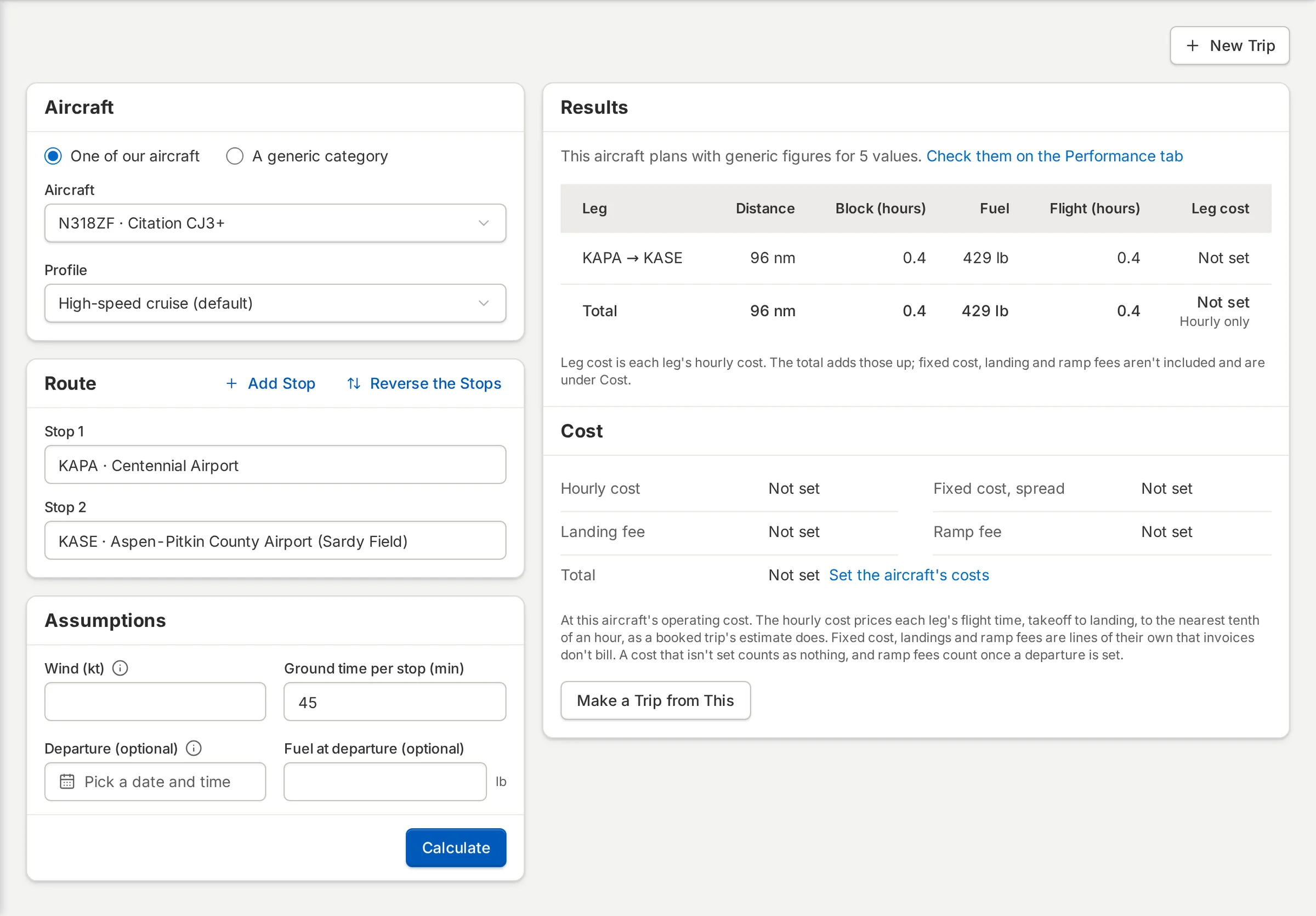
The Cost card prices the route at the aircraft's operating cost. Set the aircraft's costs takes you to the aircraft if they are missing. If the aircraft still plans with generic figures, a line above the results says so and links to its Performance tab. Office staff can click Make a Trip from This to open a new trip with the route filled in.
The aircraft recordPerformance and costs on the aircraft.
Follow the day on the Board
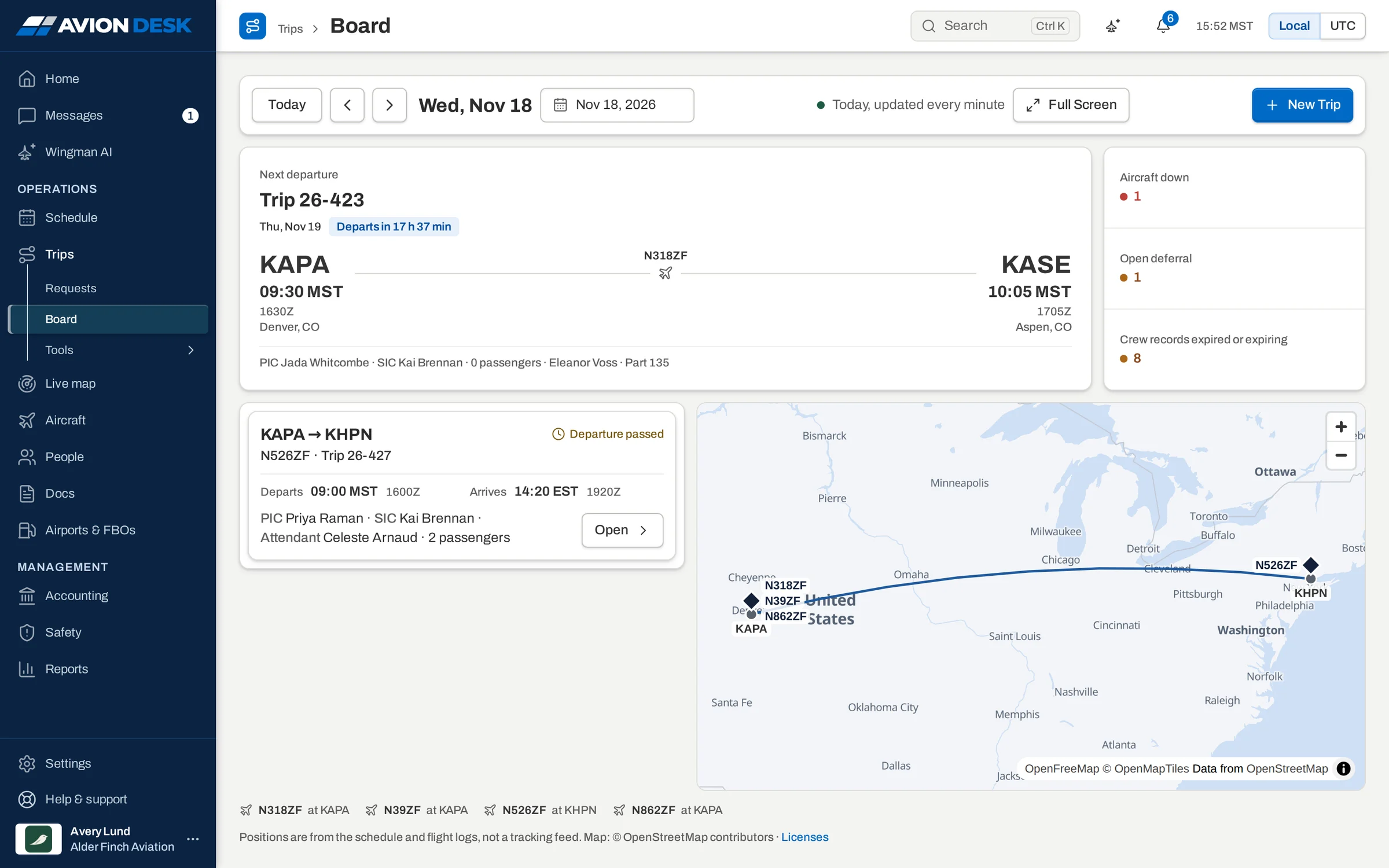
The Board tab shows the next departure in large type, every leg of the day with its crew and status, counts of aircraft down, open deferrals and crew records expiring, and a map of where each aircraft is. It updates every minute. Positions come from the schedule and the flight logs, not a tracking feed. Full Screen hides everything else.
Put the schedule on a hangar TV
A screen link shows today's flights and the week ahead on a TV in your hangar or lobby. It needs no sign-in, updates every minute and never shows prices. Admins, Schedulers and Trip builders make the links.
- Go to Trips, open Tools and click Hangar screen.
- Click New Screen Link.
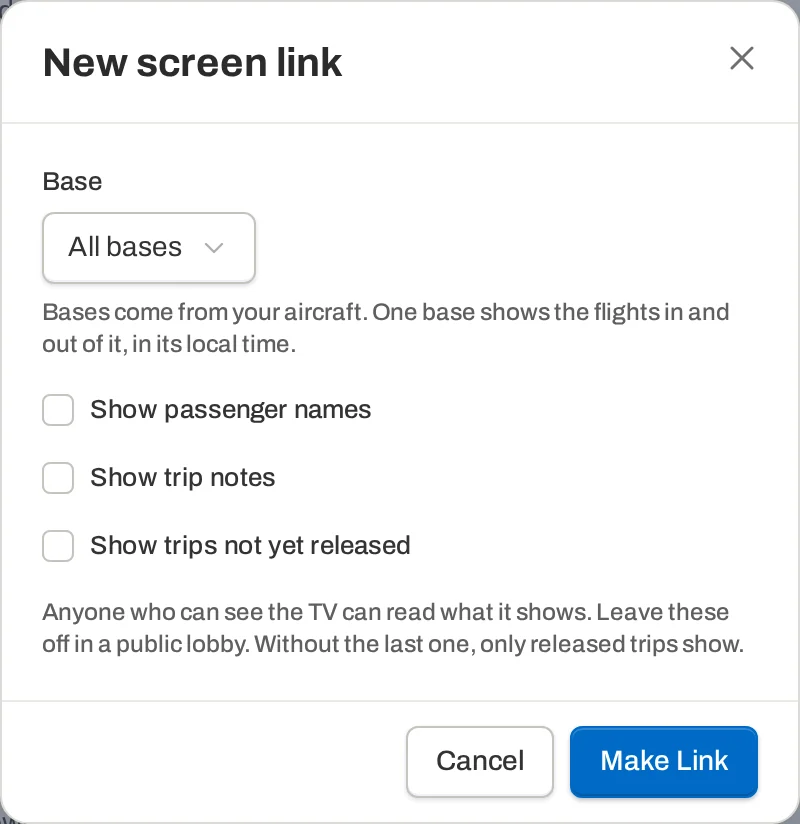
- Choose the Base, or All bases. One base shows the flights in and out of it, in its local time.
- Tick Show passenger names or Show trip notes only for a screen the public can't see.
- Tick Show trips not yet released if the hangar should see trips before release. Without it, only released trips show.
- Click Make Link, then open the link in the TV's browser.
Each link's More menu offers Edit, Make a New Link (the old address stops working at once) and Revoke, which blanks the TV at its next update.
Can’t find what you need? Email [email protected] and a person will answer.