

People
Clients
A client is a company or a person you fly for or bill. Trips, quotes, invoices and aircraft owners all name a client, and the people linked to it are who gets the trip sheet.
The client list
Open People, then the Clients tab. Each row shows the client, whether it's a Company or an Individual, its email and phone, and how many people are linked to it. Search finds a client by name, email or phone. Active and Deactivated switch between the two lists.
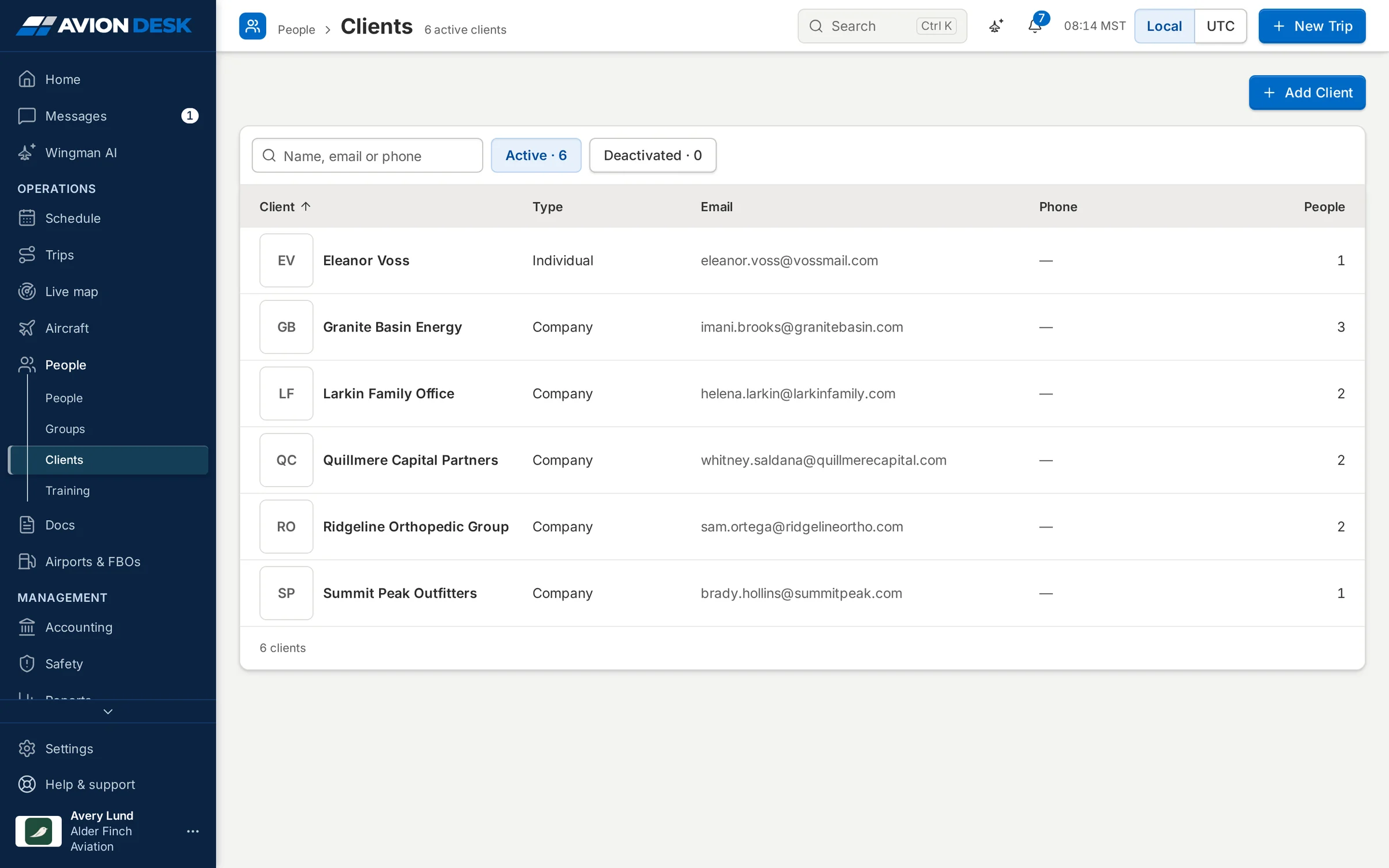
Admins and Schedulers add and edit clients. Trip builders and Bookkeeping can look.
Add a client
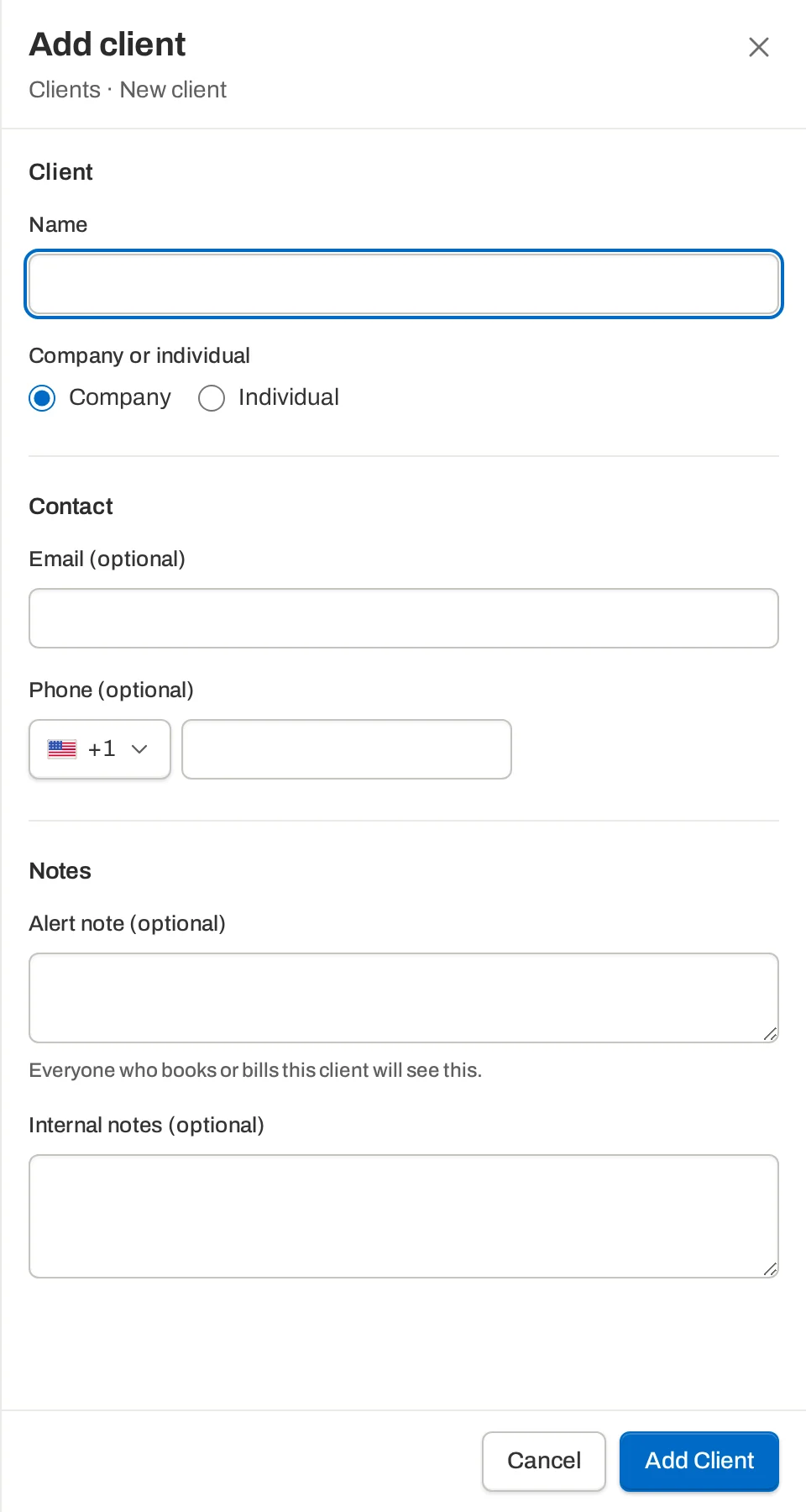
- On the Clients tab, click Add Client.
- Enter the Name and choose Company or Individual.
- Add an email and phone if you have them.
- Write an Alert note if everyone working with this client should know something, such as "Always confirm catering with the assistant". Use Internal notes for anything else.
- Click Add Client.
You can also add a client without leaving a trip: New Client…, the last row of the client list on a new trip, saves it and picks it.
The client's page
Click a client to open it. Key facts shows how long they've been a client, how many people are linked and, for people who see accounting, what they owe. The page has Overview and History tabs.
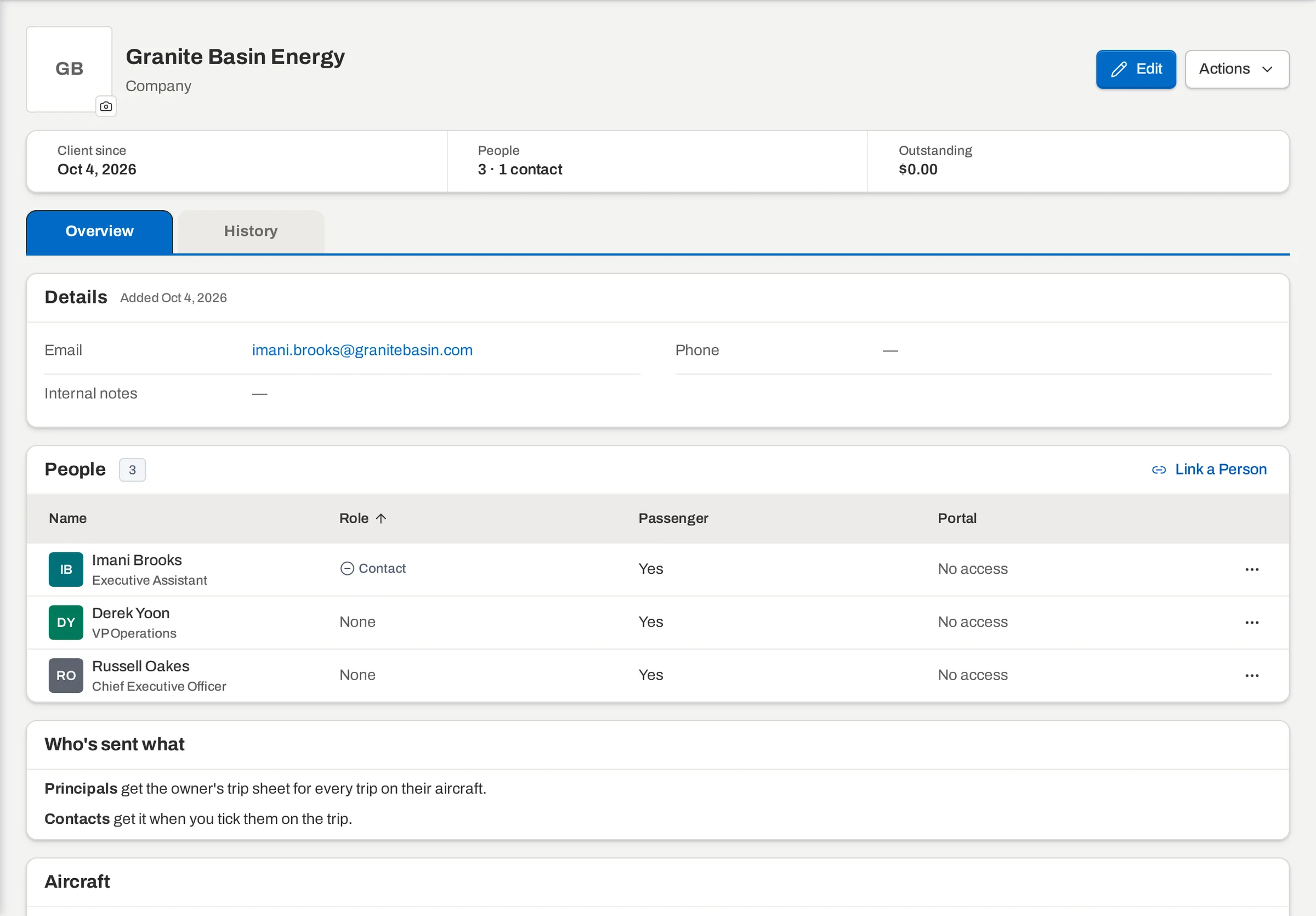
- Details: email, phone and internal notes.
- People: who is linked to the client, as Principal, Contact or None, whether they fly as a passenger and whether they have portal access.
- Aircraft: aircraft this client owns. Add owners from the aircraft's Owners & costs tab.
- Portal: who can use the client portal, and invitations waiting to be accepted.
- Request forms: links to the trip request forms you can send this client.
- Billing: billing email, payment terms, billing address and what is outstanding.
Principals and contacts
How someone is linked decides what they are sent:
| Linked as | Gets |
|---|---|
| Principal | The owner's trip sheet for every trip on their aircraft. |
| Contact | The trip sheet when you tick them on a trip. |
| None | Nothing by default. Useful for a passenger who belongs to the client. |
- On the client's page, under People, click Link a Person.
- Under Who, choose someone already in People. Add them in People first if they aren't there.
- Choose their Role and, if you like, a Title such as "Executive Assistant", then click Link Person.
- To change it later, use Change in the row's ... menu. Unlink removes them from this client but keeps them in People.
Give a client portal access
Portal access lets a client's people sign in and see their own trips. What else they see, such as the client's aircraft and bills, depends on your plan and on what you turn on for each person. A person needs to be a Principal or Contact of the client first.
- On the client's page, find the Portal card and click Invite to the Portal. Admins and Schedulers can do this.
- Under Contact, choose the person. Only linked people with an email who don't have access yet are listed.
- Tick Can ask for trips and accept quotes and Can see prices and invoices if they should.
- Click Send Invitation. Until they accept, the People table shows "Invited, waiting" with Resend.
An Admin can also switch a person to The client portal with Change roles on their record, or tick Give client portal access when adding them.
- LinkedAn Admin or Scheduler links the person to the client as Principal or Contact, with an email on their record.
- InvitedAn Admin or Scheduler sends the invitation. The People table shows "Invited, waiting" until the person accepts.
- Signed inThe person accepts and signs in to the client portal with that email.
The client portalWhat the client's people see when they sign in.
Deactivate a client
Under Actions on the client's page, Deactivate Client moves it to the Deactivated list so it no longer comes up for new trips. Its trips, invoices and history stay. Reactivate Client brings it back. If you try to add a client with the name of a deactivated one, the form offers to reactivate it instead.
Aircraft owners and costsClients who own an aircraft you manage.
Can’t find what you need? Email [email protected] and a person will answer.