

Trips
The schedule
Schedule shows every trip three ways: a month calendar, a table and a crew board. The toolbar is the same in all three, so a filter you set stays when you switch views.
Switch between the calendar, the table and the crew board
Open Schedule in the sidebar, right above Trips. Its three views sit right under it in the sidebar: Calendar, Table and Crew. Everyone who can see trips gets the calendar and the table. The crew board is for the office and for pilots and attendants.
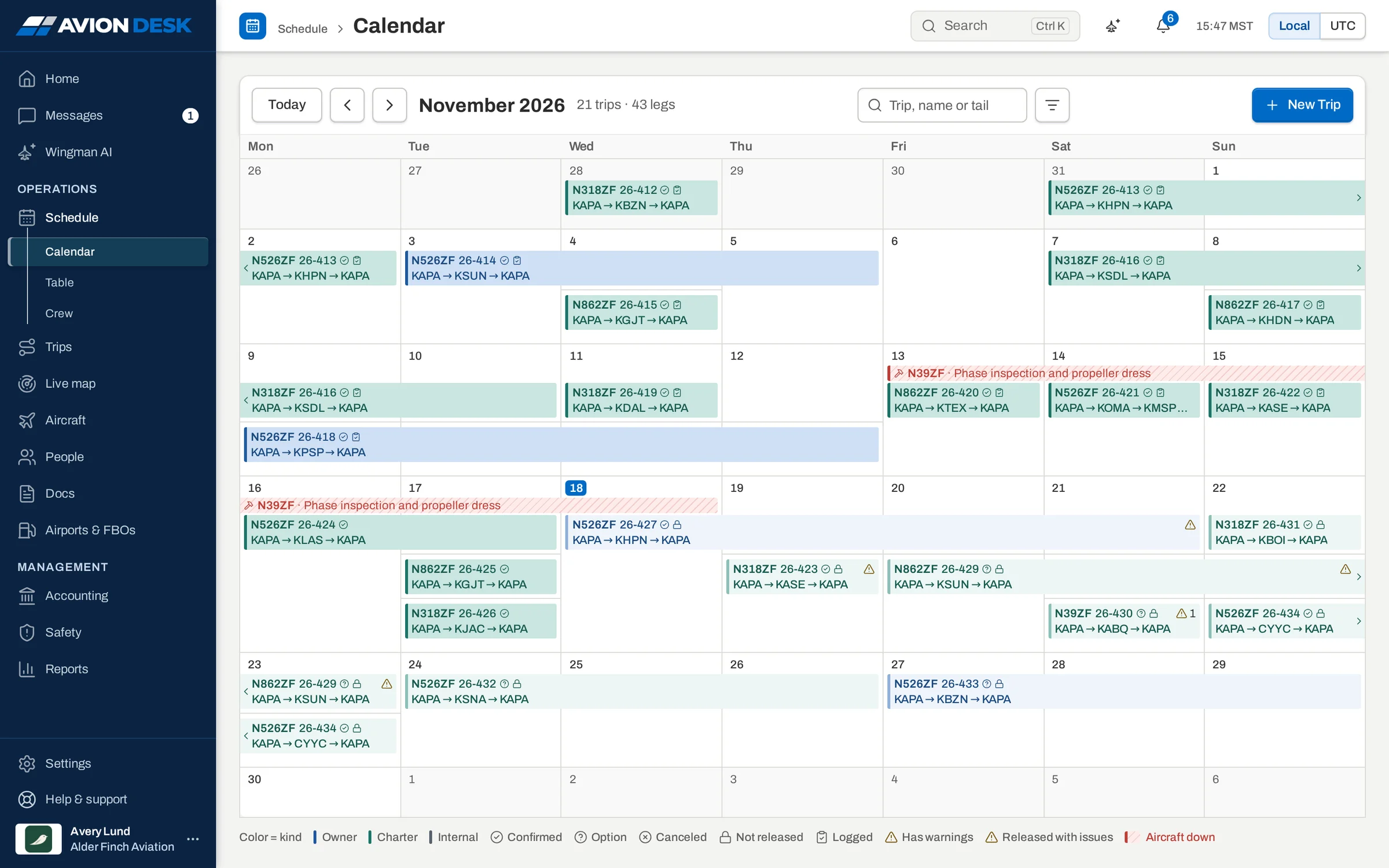
The calendar
Each trip is a bar across the days it covers, with its tail number, trip number and route. Click a bar to open the trip. Today, the arrows and the month name move you through time. A red hatched bar means an aircraft is down for maintenance on those days.
| Mark | What it means |
|---|---|
| Check in a circle | The trip is Confirmed. |
| Question mark in a circle | The trip is an Option: held for the client, not promised. |
| Padlock | Not released yet. |
| Clipboard | At least one leg has a flight log. |
| Warning triangle | The trip has warnings to look at, or it was released with issues. A number beside it counts them. |
The bar color follows the trip kind (Owner, Charter, Internal) unless an Admin or Scheduler chose to color by aircraft or by status. The legend under the calendar always says which.
Calendar settingsChoose what the calendar colors mean.
The table
The table lists trips as rows: number and name, first departure, aircraft, route, client, block time in hours, the booking Status and the Release status. Upcoming and Past switch the range. Click a column heading to sort. The foot of the table counts the trips and totals their block time, leaving canceled trips out.
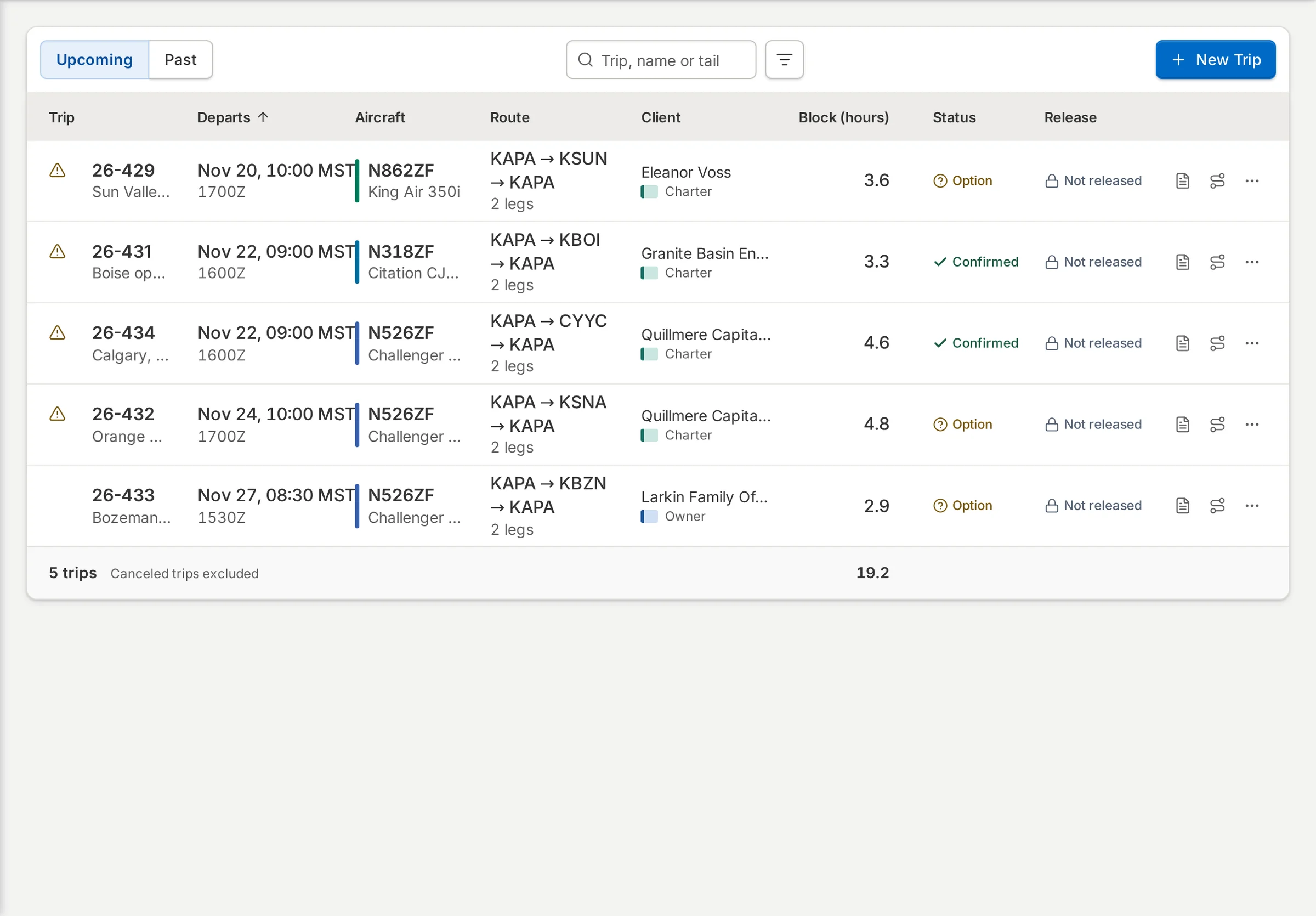
The mark before a trip number sums up the trip: a warning triangle when something needs attention, a green check when it is released and nothing is open, or a green check once it is Completed. Hover it, or tab to it, to read why.
The crew board
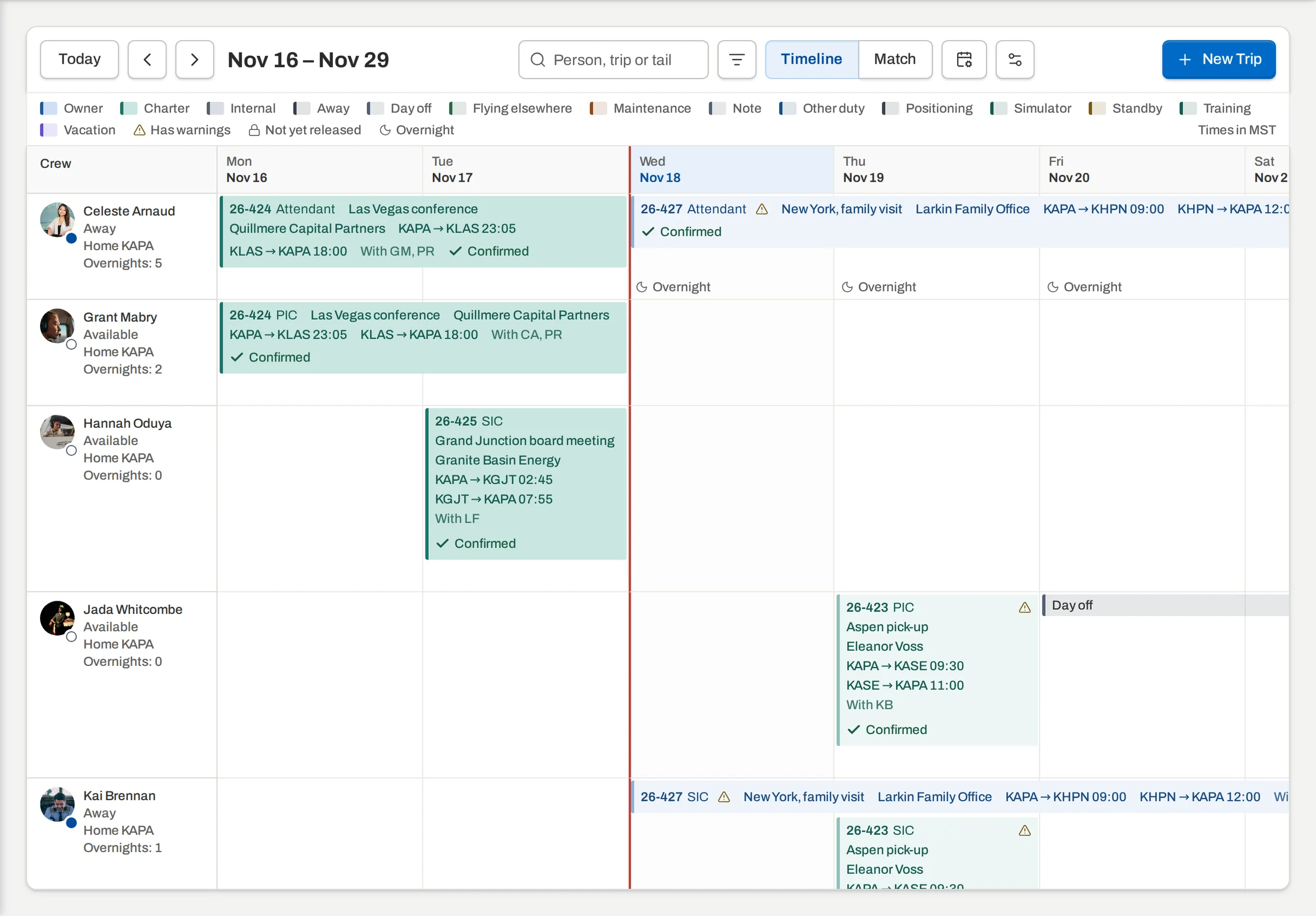
The crew board puts each crew member on a row and their trips and duty days across two weeks. Office staff switch between two modes: Timeline shows who is where, and Match lists legs still missing a PIC or an SIC beside the pilots free to fly them, so you can fill the gaps. Office staff also get Day Types, the list of kinds of days you mark on the board (training, office, standby). The sliders button opens View options, where you choose how the board looks for you.
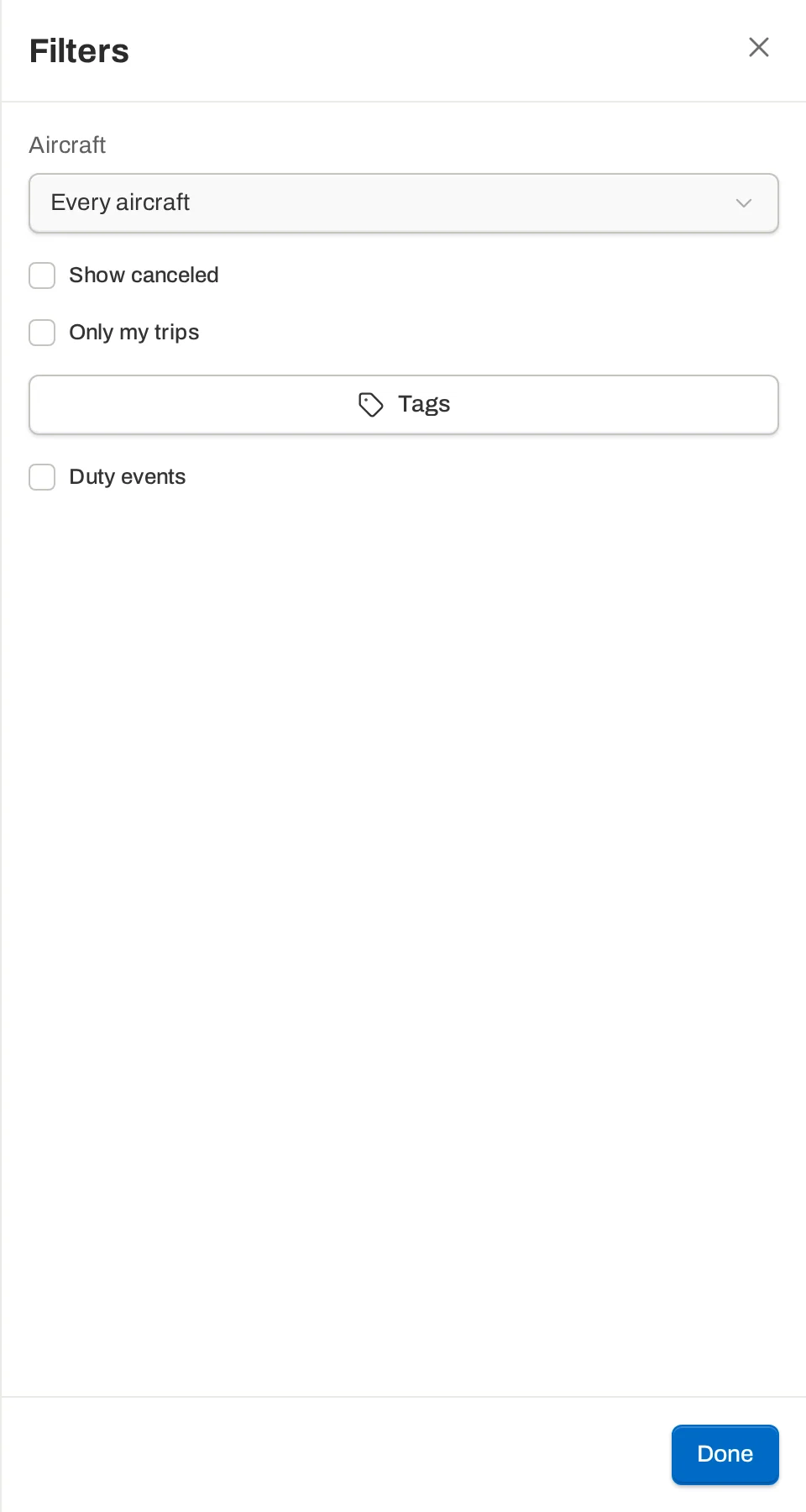
Filter the schedule
- Type a trip number, a name or a tail in the search box.
- Click the filter button beside the search to open Filters.
- Pick one aircraft under Aircraft, or leave Every aircraft.
- Tick Show canceled to bring canceled trips back into view.
- Tick Only my trips to see only the trips you are seated on. It is on by default for crew who are not office staff.
- Click Tags to show only trips with the tags you choose.
- In the calendar, tick Duty events to show crew events such as days off. Click Done.
On a phone
On a phone the calendar has two layouts: Month and Agenda, a day-by-day list that is easier to read on a small screen. The filters move into the Filters sheet, and you pick the view from the menu.
Trip statusesWhat Option, Confirmed, Released, Flown and Completed mean.
Can’t find what you need? Email [email protected] and a person will answer.