

Accounting
Quotes
A quote prices a trip for a client before you fly it. The client accepts it in the client portal, or you record their answer, and the accepted quote can become the invoice.
Quotes come with the Charter plan. Admin, Scheduler and Bookkeeping make and send them. The trip needs a client and the Charter or Other billing basis. A Charter quote also needs an aircraft with a rate card and fills its lines from it; on an Other trip you type the lines.
- DraftThe office makes the quote from the trip. On a Charter trip, lines fill in from the aircraft's rate card.
- SentThe office sends it. It can no longer change, and the client gets an email.
- AcceptedThe client accepts in the portal, or the office clicks Record Acceptance.
- TripAn Admin or Scheduler confirms the trip and it is flown.
- InvoiceAdmin or Bookkeeping bills the trip from the accepted quote or from what was flown, then issues the invoice.
- PaidThe office records the payment.
Make a quote
There are three ways in:
- On a trip, the Billing card has Make a Quote.
- In Accounting, Quotes, New Quote prices a trip that isn't booked yet. Choose the Client, the Aircraft and the legs, then click Draft the Quote. The trip stays off the schedule, listed as Not booked yet, until the client accepts and you confirm it.
- On a trip request, Make a Quote opens the trip form, and Make the Trip and Quote saves both.
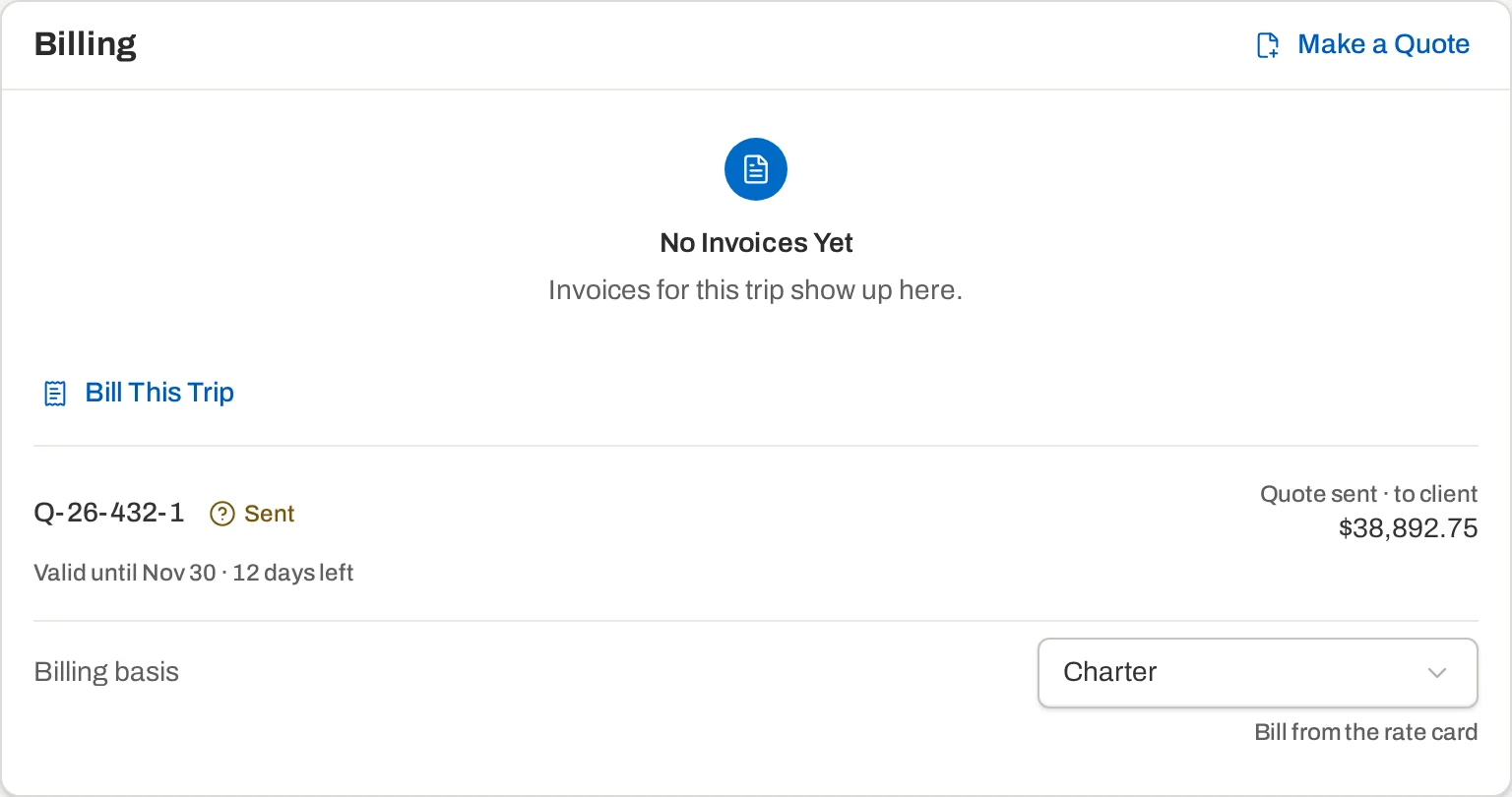
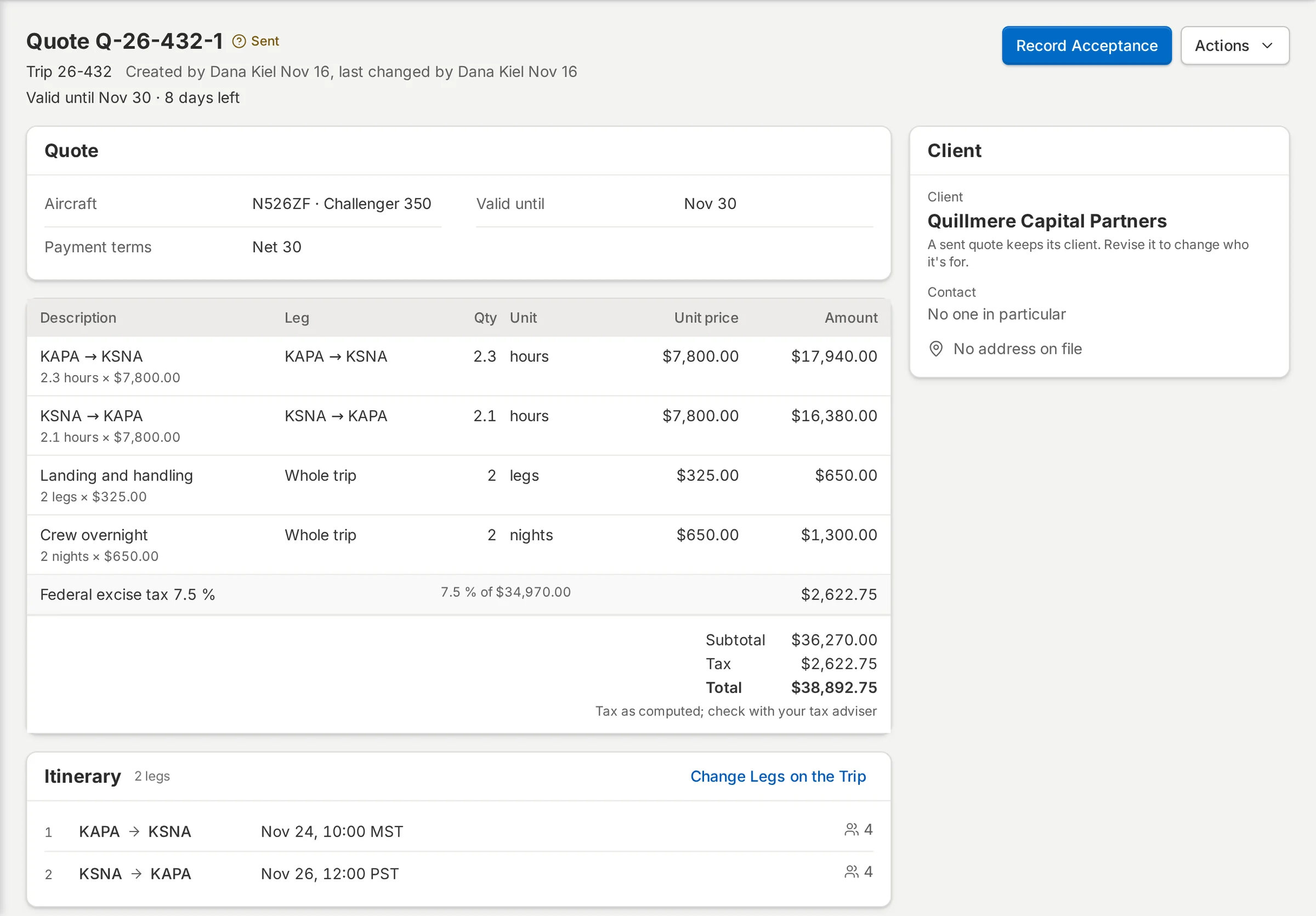
Check the draft's lines: the flying for each leg, positioning, minimums and fees from the rate card, then federal excise tax and passenger fees from your tax settings. Add Line adds your own; Switch Off This Tax drops a tax that doesn't apply. Set the Payment terms, a Message to the client and any Internal remarks, which never leave the office.
Send it
- On the draft, click Send and confirm. The quote gets its valid-until date and is frozen.
- The client gets an email with Review the quote: the contact named on the quote, or every contact who books trips when none is named. A Billing email on the client's record gets a link too.
- To send it some other way, open Actions and choose Copy Link or Download PDF.
Quote numbers are the quote prefix, the trip number and a count: Q-26-432-1 is trip 26-432's first quote.
Record the client's answer
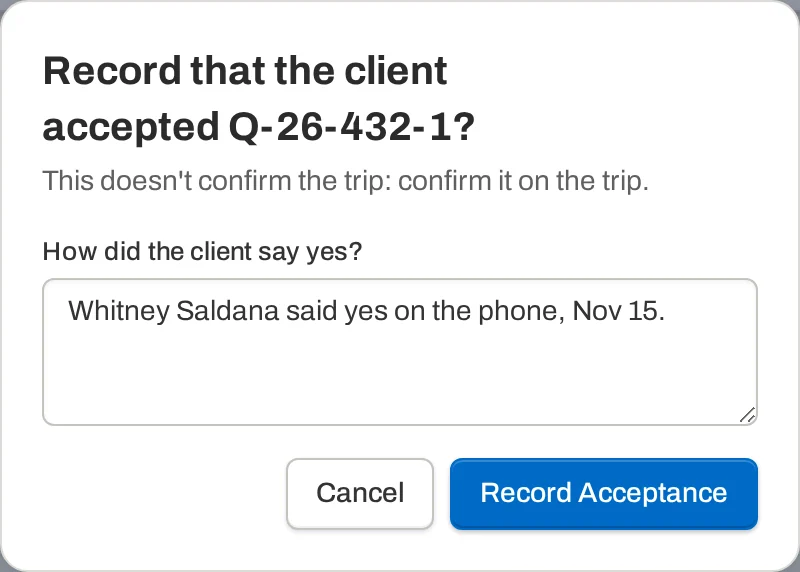
A client with portal access accepts by ticking the box and typing their name. When they say yes by phone or email instead, click Record Acceptance and note how they said yes. Record Decline and Withdraw each ask for a reason.
Acceptance never puts the trip on the schedule by itself. For a quote made with New Quote, an Admin or Scheduler clicks Confirm the Trip on the accepted quote. For a trip that is an option, confirm it on the trip.
Trip statusesOptions, confirmed trips and the rest.
Quote statuses
| Status | What it means |
|---|---|
| Draft | Still in the office. Editable, and Discard Draft removes it. Discarding the only draft of a New Quote also removes its not-booked-yet trip. |
| Sent | With the client and frozen. |
| Lapsed | Sent, but past its valid-until date. Neither the client nor the office can accept it; revise it to send another. |
| Accepted | The client said yes. Bill This Quote (Admin and Bookkeeping) drafts the invoice from it; for a New Quote, once the trip is confirmed. |
| Declined | The client said no. |
| Withdrawn | You took it back. Canceling the trip withdraws its sent quotes. |
| Replaced | A revision was sent in its place. |
Revise a quote, or follow a trip change
A sent quote never changes. Revise in Actions makes a new draft from it; sending the new one marks a sent or accepted old one Replaced.
When the trip changes after a quote is sent, the quote shows what changed and offers Update Quote, which makes the revision for you to check and send. On an accepted quote, if the price, aircraft, terms and currency stay the same, the revision's button reads Send Update: the acceptance carries over and the client gets a notice. If the price changes, or the aircraft changes even at the same price, the client accepts again. When the accepted quote is already billed, the prompt offers Open Invoice instead.
The Quotes list
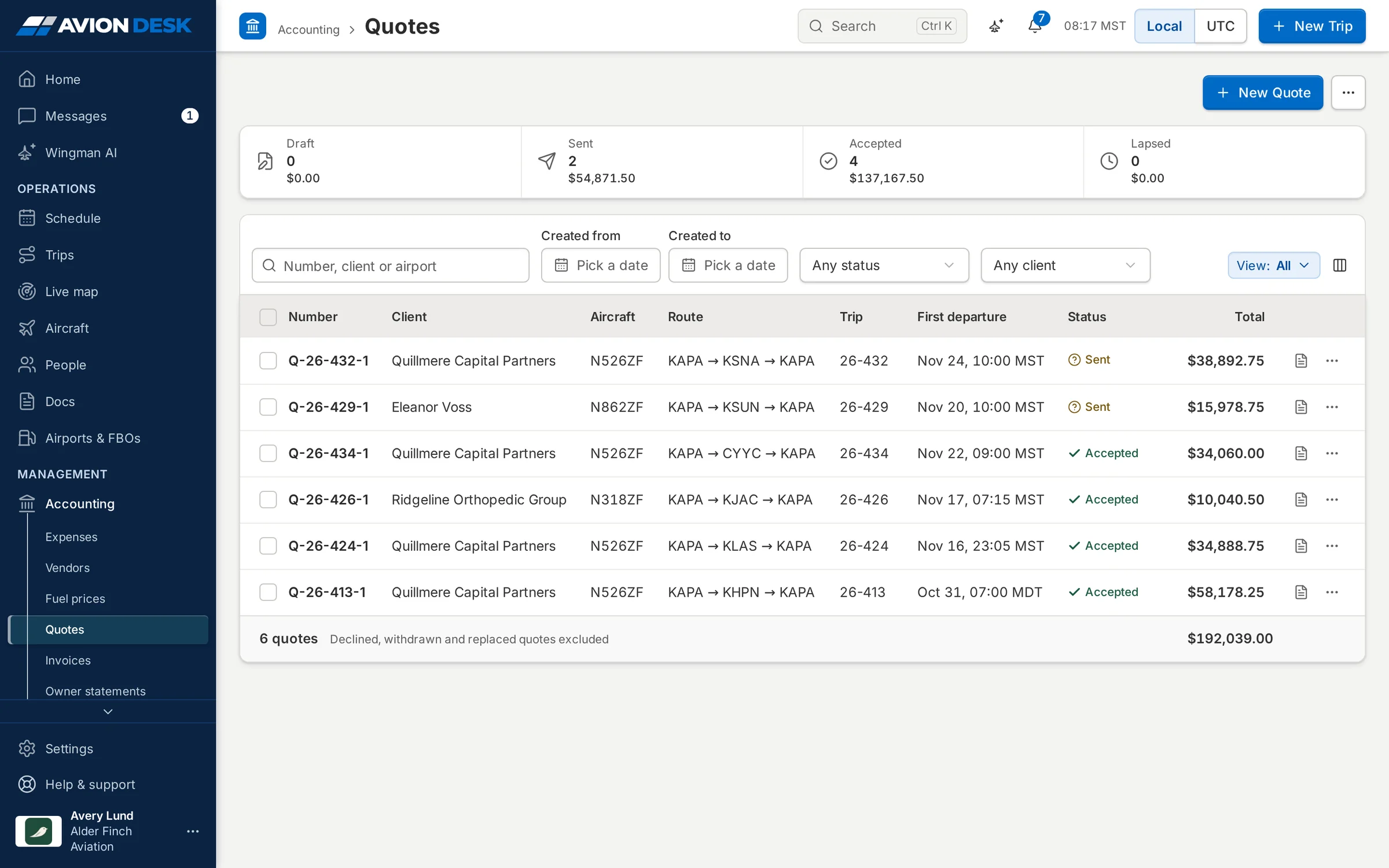
The strip counts Draft, Sent, Accepted and Lapsed quotes and their value. Search by number, client or airport, or filter by created dates, status and client. The footer total leaves out declined, withdrawn and replaced quotes. A row's menu has View as the Client Sees It and opens its trip. Download CSV is in the … menu.
Rate cards and billing codesThe rate card a quote is built from.
Invoices and paymentsBilling the trip.
The client portalWhat the client sees.
Can’t find what you need? Email [email protected] and a person will answer.