

Settings
Activity log
The activity log records every change to your company's records, who made it and when. Admins only.
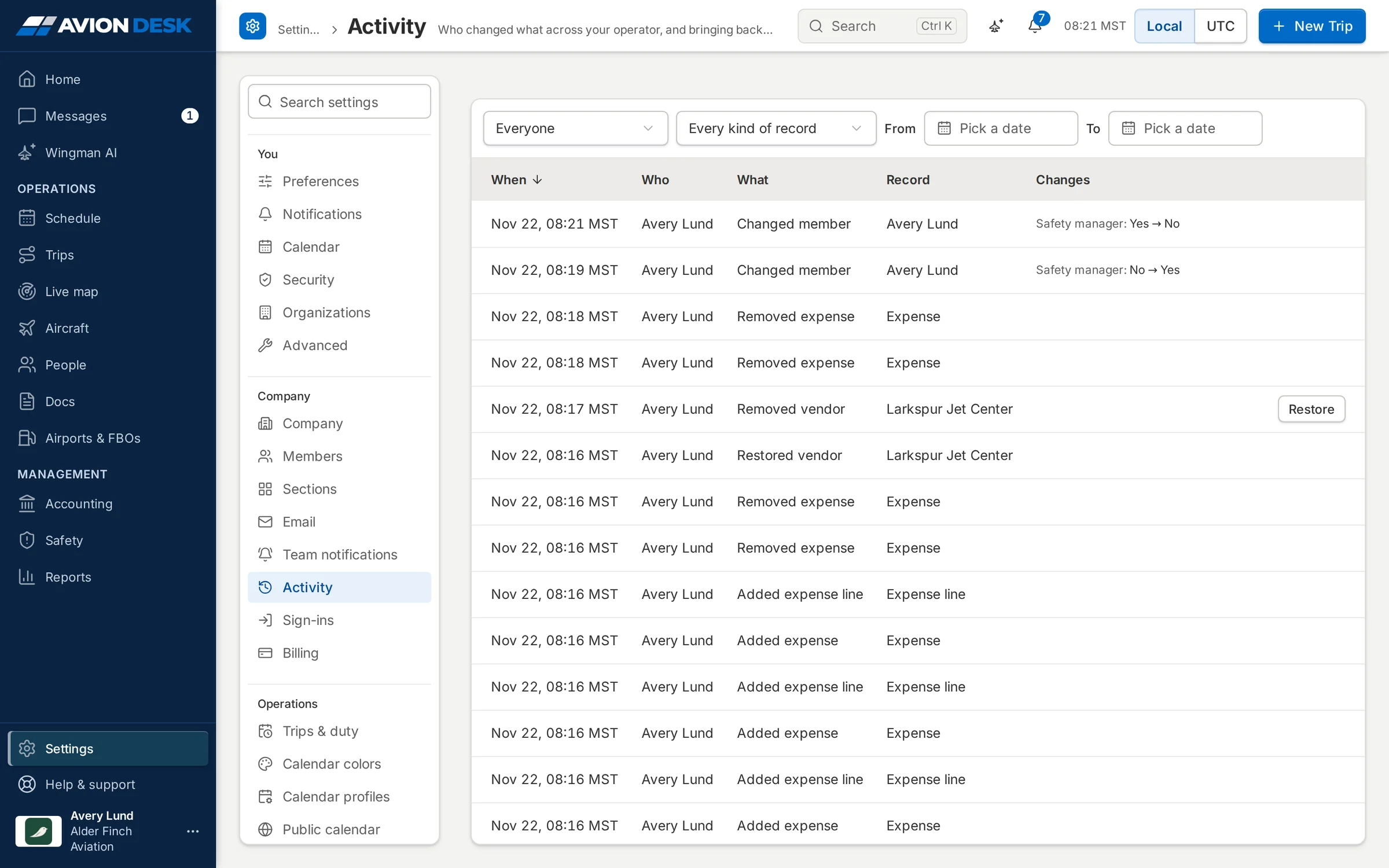
Read the log
Open Settings, Activity. Each row shows When, Who, What (added, changed, removed or restored), the Record, and the Changes. Click Show details to see the old and new values. Where the record still exists, its name links to it.
- Narrow the list with the person menu (Everyone until you pick), the record menu (Every kind of record), and From and To dates.
- Every view of protected details, like a passport number, is logged too.
- Confidential safety reports and Wingman conversations aren't in the log.
Questions it answers
- Who moved a trip's departure time: set the record menu to legs and open Show details on the change.
- Who has been looking at protected details: pick the person in the person menu and look for the views.
- What changed in a setting, and when: every company setting change is a row, with the old and new value.
- Where an aircraft or a person went: a deactivation is a row you can undo with Restore.
A change no person made, like one from a scheduled job, shows Avion Desk under Who.
Restore something removed
- Find the row where it was removed.
- Click Restore.
Restore works for files, maintenance due items, defects, VOR checks, aircraft downtime and client notes, and brings back deactivated aircraft, people, client accounts, members, vendors, expense categories and training requirements. Other rows have no Restore button; add the record again instead. The button also shows only while the record is still removed.
Sign-ins
Sign-ins have their own page next to Activity.
Can’t find what you need? Email [email protected] and a person will answer.