

Messages
Messages
Messages is your team chat: group rooms, one-to-one conversations, and a chat for every trip and leg. It lives in the sidebar and on the phone bottom bar.
Who can use Messages
Every role except View only can read and send messages. An Admin can turn Messages off for the whole company under Settings, Sections; it then leaves the sidebar for everyone.
The Messages page
The list of conversations sits on the left and the open conversation on the right. On a phone or a narrow window you see one at a time; Back to conversations returns to the list. The count beside Messages in the sidebar is the number of conversations with something you haven't read; the one beside the page title, like 5 unread, counts the messages themselves. People show with their photo, or their initials if they have none, in the list, in conversations and when you pick people for a new message.
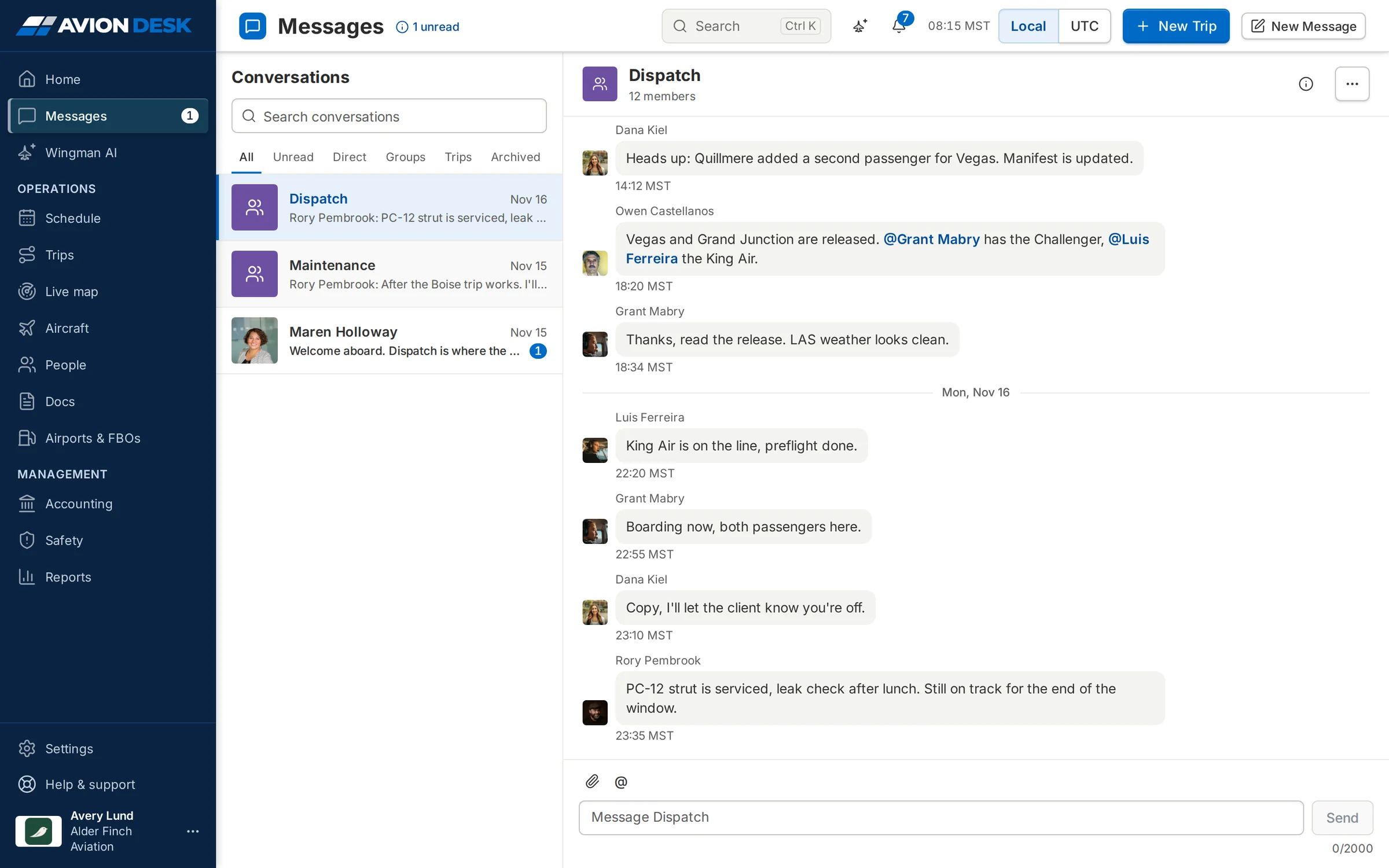
The tabs above the list filter it:
| Tab | Shows |
|---|---|
| All | Every conversation you are in, except archived ones. |
| Unread | Conversations with messages you haven't read. |
| Direct | Your one-to-one conversations. |
| Groups | Named groups you belong to, such as Dispatch or Maintenance. |
| Trips | The chats for trips and legs you are in. Shown when your company uses Trips. |
| Archived | Groups someone has archived, and the chats of canceled trips and removed legs. |
Use Search conversations to find one by name or by the people in it.
Start a conversation or a group
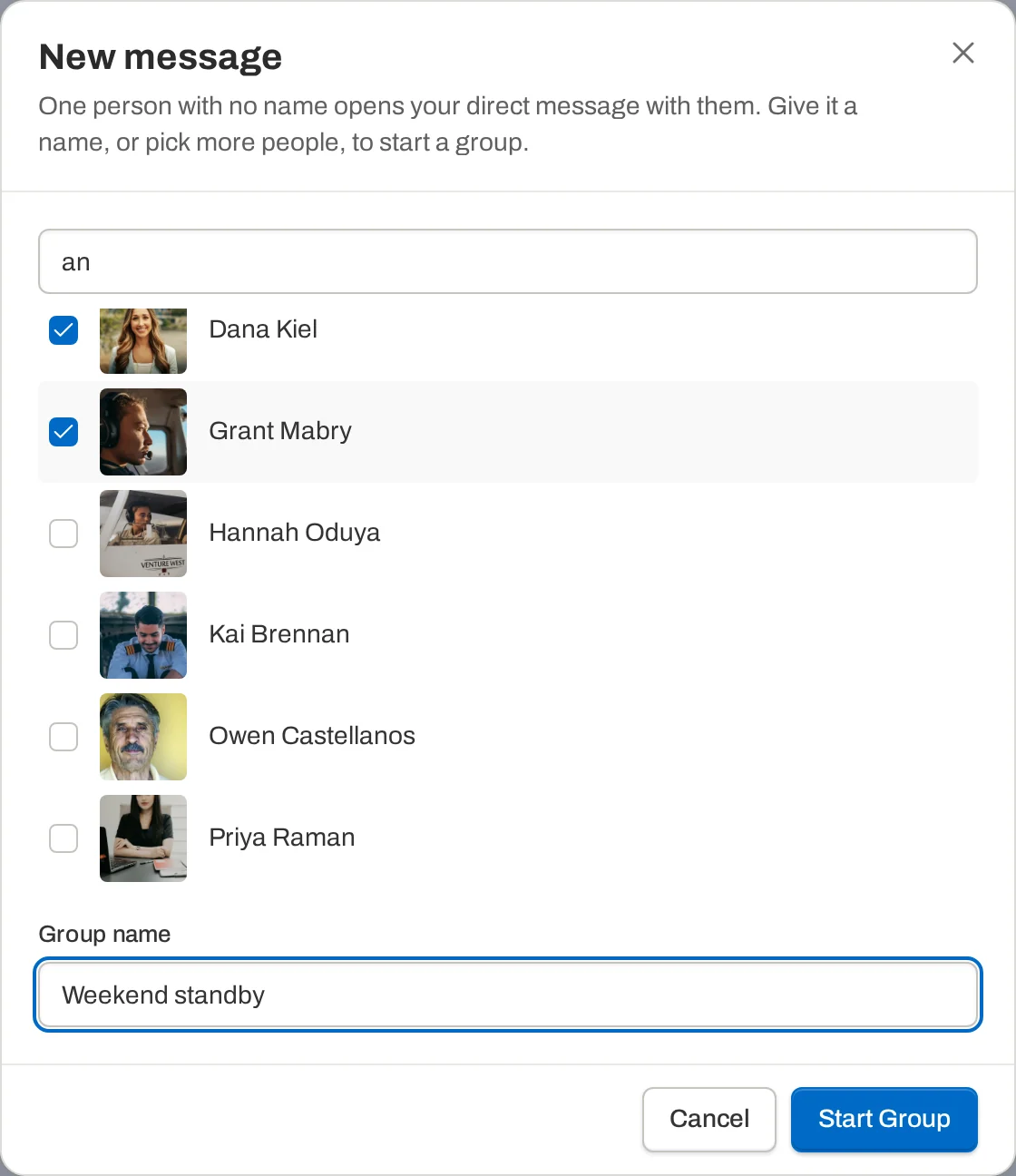
- On the Messages page, click New Message at the top.
- Search for people and tick them.
- For a direct message, tick one person and leave Group name empty, then click Open Conversation. If you already have a conversation with them, it opens that one.
- For a group, tick more people or type a Group name, then click Start Group.
Write, mention and attach
- Enter sends. Shift+Enter starts a new line. A message can be up to 2,000 characters; the counter under the box shows how many you have used.
- Type @ or click the @ button to mention someone in the conversation. Their name shows highlighted in the message.
- Click the paperclip to attach files: Upload from this device, Choose from Google Drive or Choose from Dropbox, which picks from your own account. You can also drag files onto the message box. Photos show in the conversation; tap one to see it full size.
To change or remove your own message, hover over it and open Message actions. You can edit a message during the first 15 minutes after you send it. Delete works any time except in an archived group: everyone sees "Message deleted" in its place, and its files go with it.
Manage a group
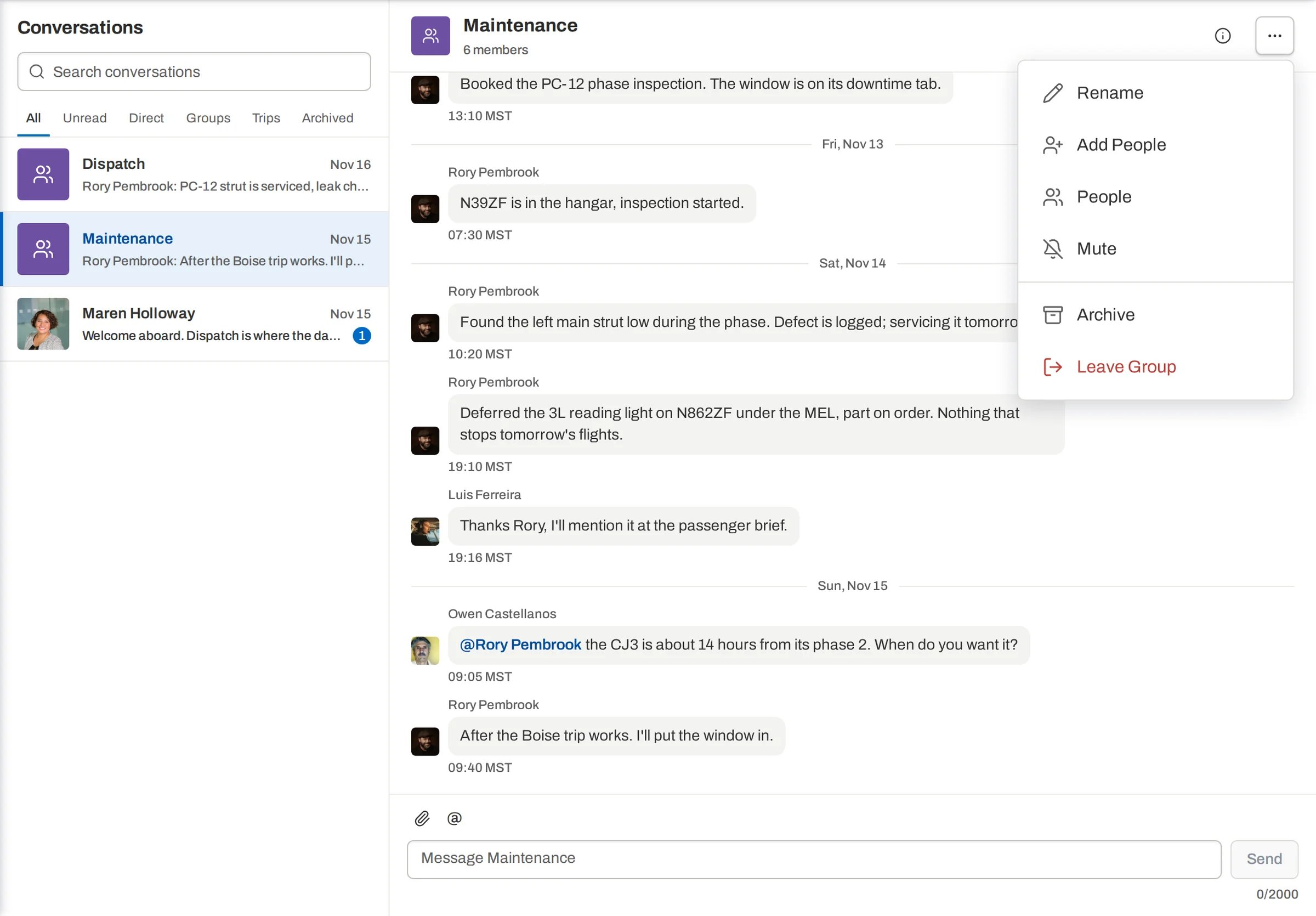
Open the group and click the ... button at the top right (Conversation menu).
| Item | What it does |
|---|---|
| Rename | Changes the group's name for everyone. |
| Add People | Adds anyone who can use Messages. |
| People | Lists who is in it. Whoever started the group, or an Admin, can remove someone; everyone in the group sees that they were removed. |
| Mute | For you only: the conversation stops counting toward the number beside Messages in the sidebar and stays out of the unread messages email. Its row still shows how many messages you haven't read. A bell with a line through it marks it in the list. Unmute undoes it. Direct messages and trip chats can be muted too. |
| Archive | Moves the group to the Archived tab. An archived group is read only until someone clicks Reopen. |
| Leave Group | Takes you out. Anyone still in it can add you back. |
Trip and leg chats
Every booked trip has its own chat. Each leg can have one too, started the first time someone opens it. On the trip, choose Messages in the Actions menu for the trip chat (some people see a Messages button instead), and Chat in a leg's Actions menu for that leg.
- Crew seated on a leg are in the trip's chat as soon as they are seated, and in the leg's chat once it has been started. If your company hides unreleased trips from crew, they join when the trip is released. Crew taken off every leg leave.
- Whoever created the trip and whoever released it are in its chats without opening them.
- Other office staff join a trip or leg chat by opening it.
- Passengers and client contacts are never added. Nobody can leave a trip chat; mute it to quiet it.
Next to a trip or leg chat, the details column shows the aircraft, the dates, the route with each stop's FBO, the crew, the passengers and the client, with a link to open the trip. On a smaller screen, click the i button at the top of the conversation to see it. Office staff who schedule trips also see who requested the trip.
The chat window
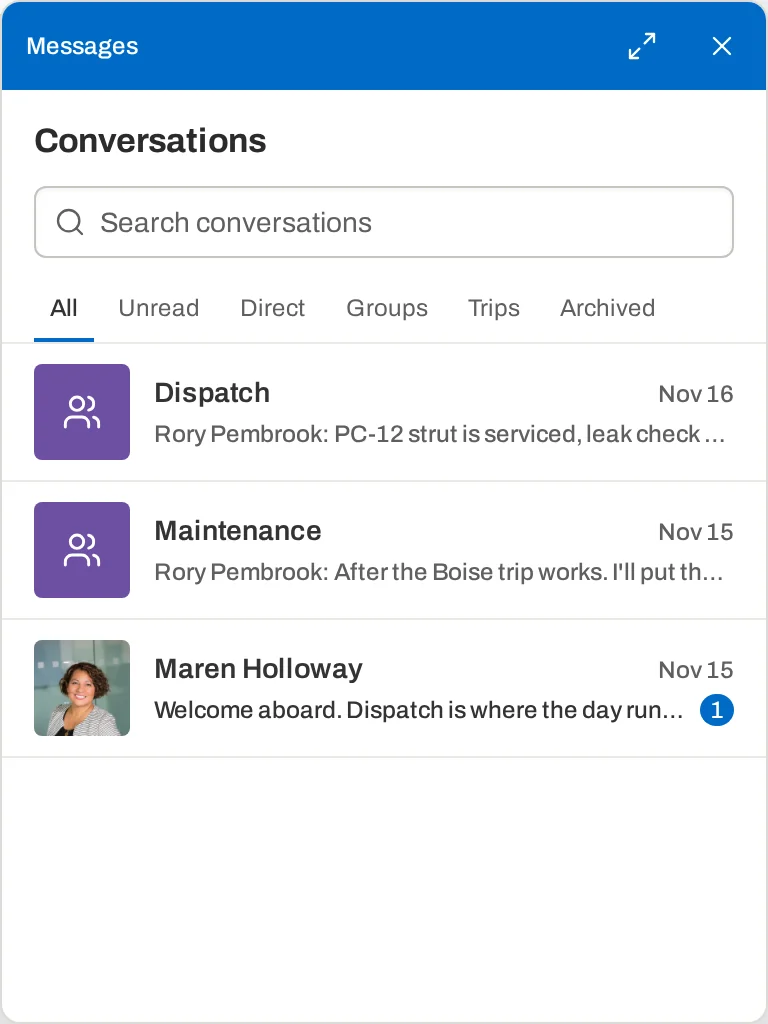
On a computer or tablet, the round Messages button at the bottom right of every page opens your conversations in a small window. The page behind it keeps working, and the window stays open as you move between pages. Opening a trip or leg chat from a trip opens it here too. Use the arrows at the top to open the conversation on the full Messages page. On a phone, Messages is on the bottom bar instead.
Notifications for unread messages
An Admin can turn on an hourly email that lists the conversations each person hasn't read, under Settings, Team notifications. Each person can turn it off for themselves, and quiet hours under Settings, Notifications hold these emails until morning.
Can’t find what you need? Email [email protected] and a person will answer.