

Settings
Security and sign-ins
You sign in with a code we email you. A password and Google sign-in are optional extras.
How you sign in
Enter your email on the sign-in page and click Continue with Email. If you have a password, type it and click Sign In; otherwise we email a 6-digit code. Email Me a Code skips the password at any time. On a new device, we may also email a code after your password, to check it's you. Continue with Google works once Google is connected to your account.
Forgot your password? Click Forgot Password? on the password step. We email a code, you choose a new password, and every other device is signed out.
Your sign-in settings
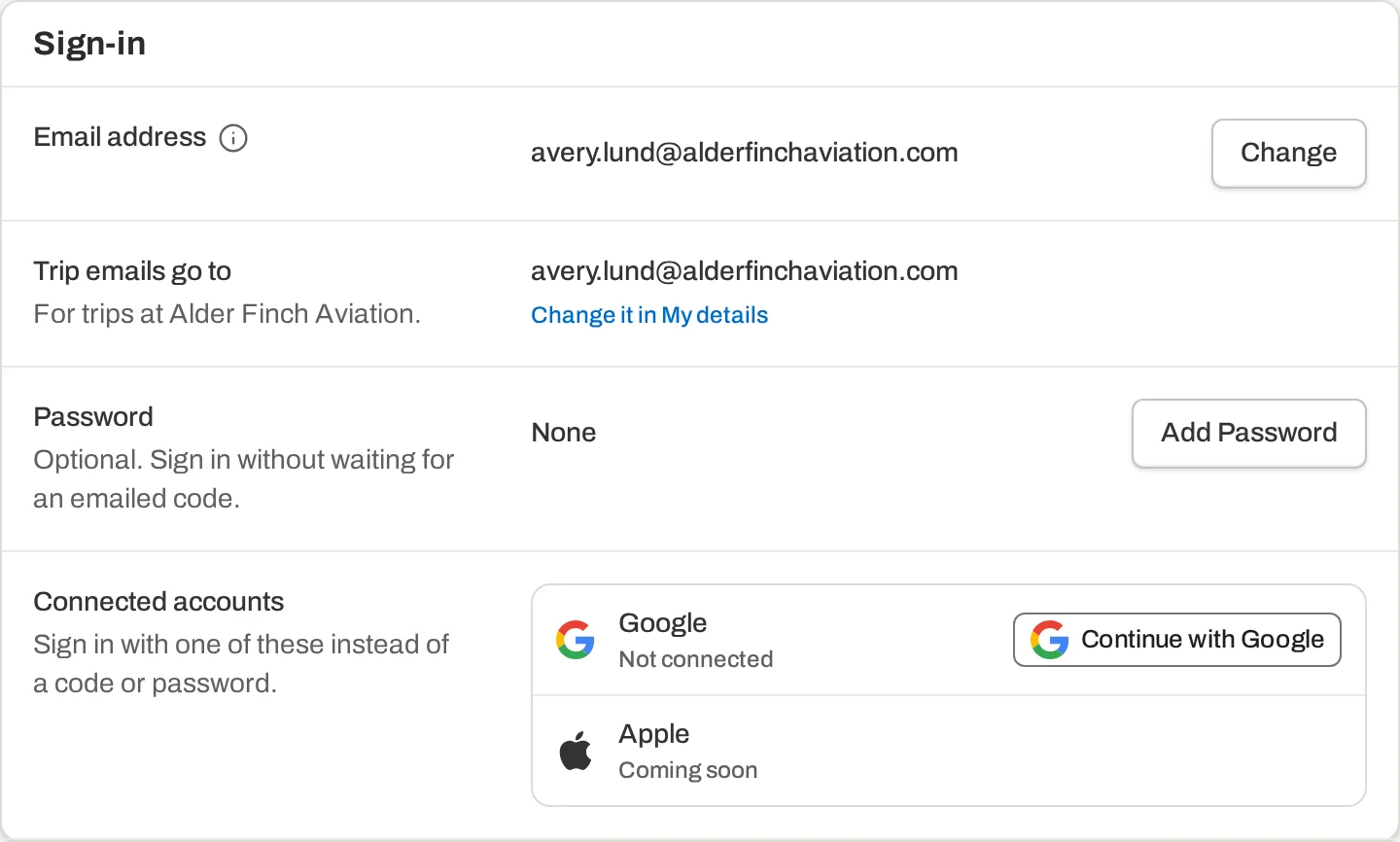
- Email address: click Change, enter the new address, Send Code, then Confirm with the code we send it. The old address works until you confirm.
- Trip emails go to: where trip sheets and other trip emails reach you. It can differ from the address you sign in with; change it in My details.
- Password: optional. Add Password or Change Password. At least 12 characters.
- Connected accounts: click Continue with Google to sign in with Google from then on, or Disconnect to stop. Some changes first ask you to confirm it's you, with your password or an emailed code.
- Where you're signed in: every device signed in to your account. Sign Out of one, Sign Out Everywhere Else, or Sign Out Everywhere.
- Sign-in history: your own sign-ins at this operator for the last 13 months, failed ones included, with Download CSV.
Every sign-in to your operator (admins)
Settings, Sign-ins lists who signed in, when, whether it worked, how and from which device, the account used, and the IP address and place. Failed attempts show the reason, three or more in a row are flagged, and so are new devices and new countries. Filter by Person and Period, then Print or Download CSV. Sign-ins are kept for 13 months.
A sign-in from a new device or country also shows as a New sign-in alert, on the Alerts page.
Can’t find what you need? Email [email protected] and a person will answer.