

Settings
Members and invites
A member is anyone who signs in to your operator. Admins invite them, pick their roles, and can remove their access at any time. Who can sign in is listed in People.
- InvitedAn admin sends an invitation. It's good for 7 days.
- AcceptedThe person opens the email link, signs in or creates an account, and clicks Accept Invitation.
- ActiveThey sign in with the roles and crew position the admin picked.
- DeactivatedAn admin removes their access, or they go inactive. Their records stay, and an admin can restore them.
Invite someone
Admins only. Most people already have a record in People (crew you schedule, office staff). Invite them from there so the sign-in joins their record:
- Open People and find the person. They need an email address on their record.
- Open the … menu on their row, or Actions on their page, and choose Invite to Sign In.
- Under How does [name] sign in?, choose The app, as staff or crew.
- Pick their Staff role and tick their Crew positions, then click Save. The invitation goes out.
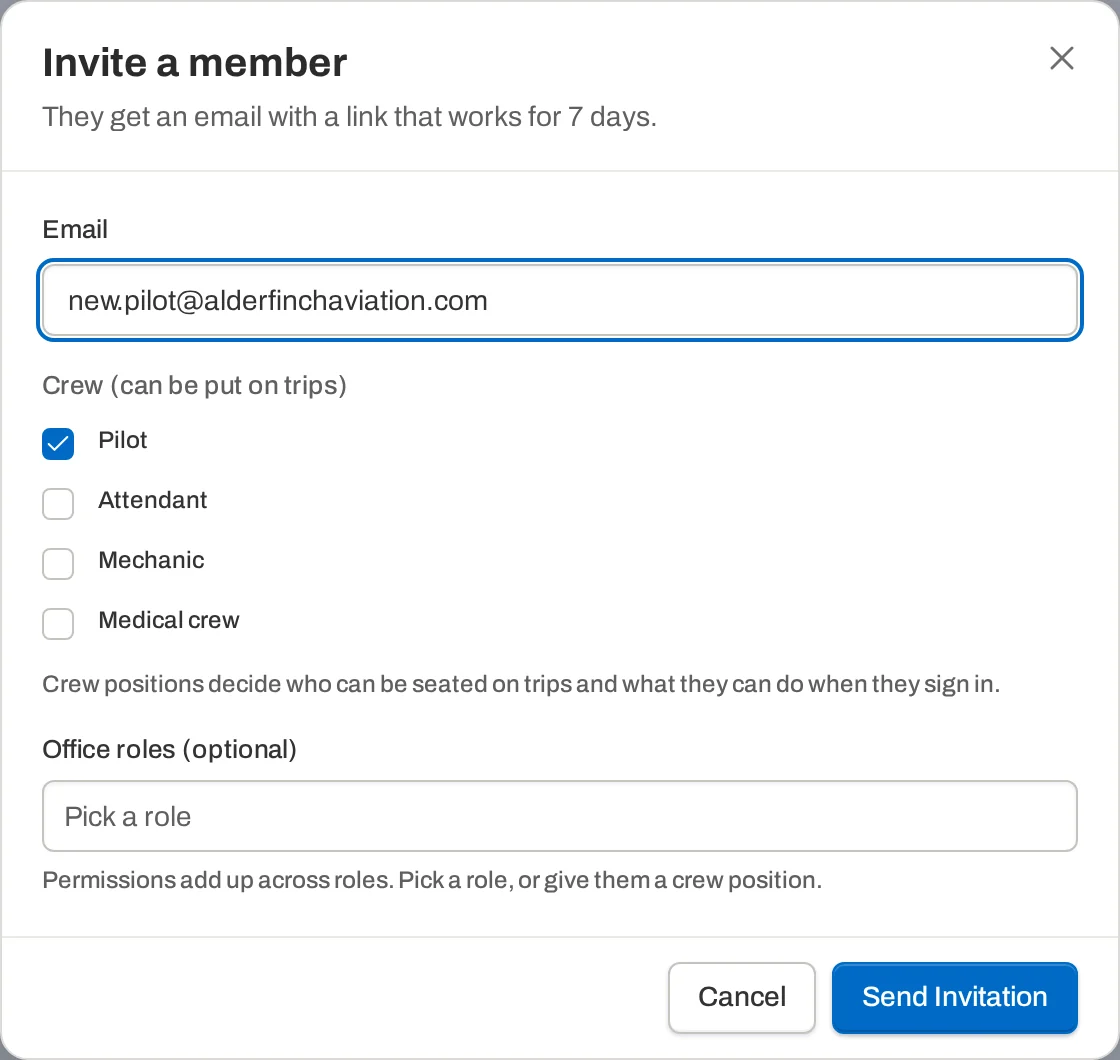
In the setup guide, the People step has Invite Someone, which opens the Invite a member dialog: an Email, their Crew positions and Office roles (optional). Click Send Invitation.
Roles and accessWhich role to give.
Accepting an invitation
The invitee gets an email with a link that works for 7 days. The link opens a page that signs them in, or creates their account with a code sent to the invited address. They click Accept Invitation. A box, ticked by default, shares their certificates, medical and travel documents with your operator.
If the link fails, the page says why: already a member, already used, expired, or no longer valid because it was revoked or replaced. Send a new one.
Sign-in statuses
The People list shows where each person stands. Its Can sign in and Invited views list members and open invitations.
| Status | Means |
|---|---|
| Invited | The invitation is open. Resend Invitation sends it again (not within 10 minutes of the last one); Revoke cancels it. |
| Invitation expired | Seven days passed. Invite them again. |
| Email not delivered | The invitation bounced. Check the address. |
| Asked to join | They used your invite link and are waiting for an admin to Approve or Deny them. |
| Can sign in | They are a member. |
| Deactivated | Their access was removed, or they went inactive. |
| No sign-in | A record in People who has never been invited. They can still be put on trips. |
The invite link
Instead of inviting each person, share one link. Under Settings, Members, Invite link, choose how long it works (1 to 90 days) and click Turn On. Anyone who opens it can Ask to Join. They wait, with no access, until an admin chooses Approve or Deny. Requests show on the admin's Home under To do. Replace makes a new link and stops the old one; Turn Off stops it.

Remove or restore access
- Open People and the person's record.
- On the Roles card, under Signs in to, click Remove Access.
- Click Remove Access again to confirm.
They can't sign in to your operator any more, and their calendar feed stops. Their trips, logs and records stay, and they can still be booked on trips and sent trip sheets by email. Their record says Their access was removed. You can't remove your own access, and an operator always needs one active admin, so make someone else an admin before removing the last one.
To restore access, open their record and click Restore Access in the same place. They can sign in again right away, with no new invitation.
Someone who has left for good can come off the People list in the same step: under Actions on their record, choose Deactivate Person, then Deactivate and Remove Access.
Make members inactive automatically
Under Member inactivity, turn on Make members inactive automatically and choose Inactive after (90 days by default). Members get an email a week before, and another when it happens. When they sign in again decides whether they stay inactive until an admin reactivates them, or come back on their own. Admins, anyone seated on a trip still to depart, and people who never signed in are never made inactive.
Can’t find what you need? Email [email protected] and a person will answer.