

Client portal
The client portal
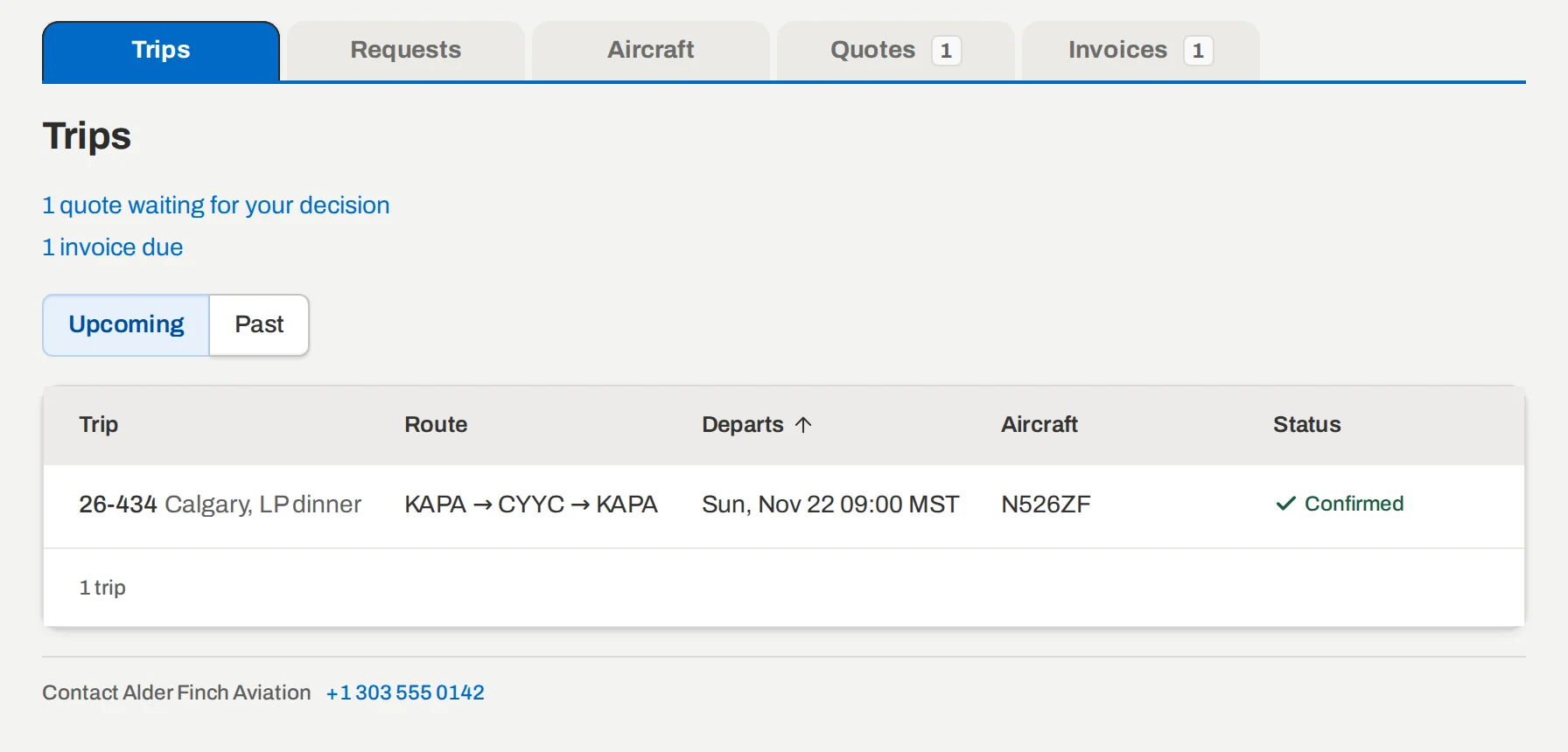
The client portal is where your clients see their own trips with you. You decide which of a client's contacts get in, and whether they can book and see prices.
What clients can do there
| Tab | What they see and do |
|---|---|
| Trips | Their confirmed trips, Upcoming and Past, plus confirmed trips that were later canceled: route, departure, aircraft and status. Each trip shows its legs and times, the aircraft and their own passengers. A contact who books trips can Ask for a Change or Ask to Cancel on a confirmed trip. |
| Requests | A contact who books trips can Request a Trip with up to 8 legs, dates, times, passengers and notes. Every contact can follow the client's requests until they become trips. |
| Quotes | The quotes you sent. Contacts who book trips and see prices accept or decline them; others see them without totals. The tab counts the ones waiting for an answer. |
| Invoices | Issued invoices with their payments and credit notes, what is still owed, and Pay Online when you have set a pay link. |
| Aircraft | For contacts of an aircraft owner, while the ownership lasts: the aircraft's status, its flights month by month, and the published owner statements. |
Trips and requests are on both plans, and the portal needs your Trips section on. Quotes, invoices and the Aircraft tab come with the Charter plan. A contact sees only their own client's trips and papers, never your internal notes, crew details or other clients.
Invite a client contact
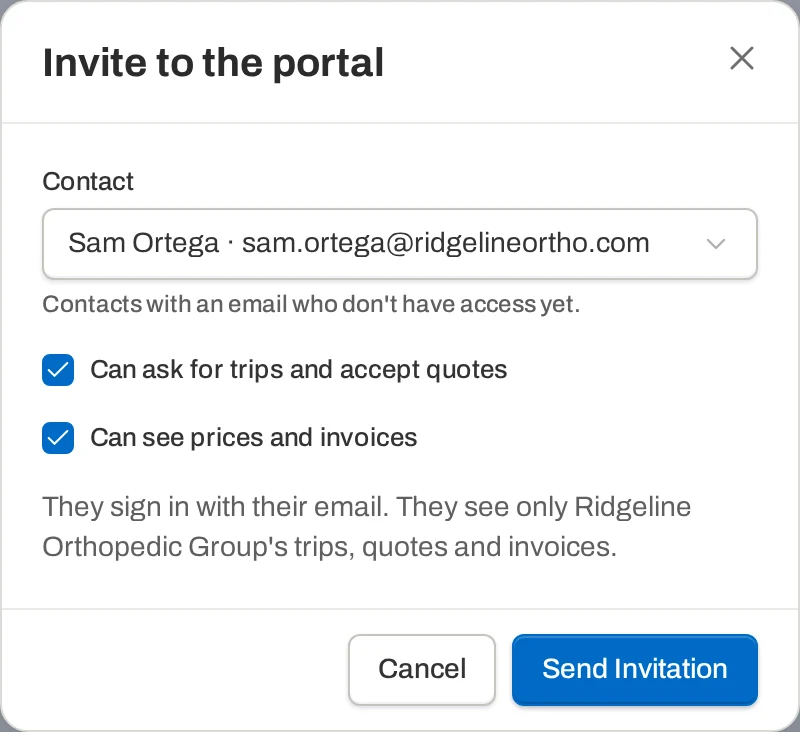
Admin and Scheduler give portal access. The contact needs an email address on their record and can't already be a member of your operator.
- Open People, then the client.
- On the Portal card, click Invite to the Portal.
- Choose the Contact. Only contacts with an email who don't have access yet are listed.
- Tick what they may do: Can ask for trips and accept quotes (on at first) and Can see prices and invoices (off at first).
- Click Send Invitation.
Can see prices and invoices can only be given by someone who sees the accounts, on the Charter plan. Contacts who have it are the client's billing contacts: issued invoices are emailed to them, and so is a link to each owner statement you publish for an aircraft owner. The Billing email on the client's record gets a link to each invoice as well, portal or not.

Each contact is listed on the card with where their access stands (Invited, Active, Lapsed when the invitation ran out before they accepted, or Revoked), what they may do (Books trips, Sees billing, or Sees trips only) and when they were last seen. The row's … menu has Change, Resend Invitation while they haven't accepted, and Revoke.
Aircraft owners
When you add an owner on an aircraft's Owners & costs tab, tick Give the principal client portal access. The owner's contacts then see the aircraft on the Aircraft tab: its flights month by month, with their own trips in full and other clients' flights as date, route and hours only. To see the owner statements you publish, their access also needs Can see prices and invoices, which you can change on the client's Portal card.
Aircraft owners and costsAdding an owner.
Owner statementsPublishing statements owners see here.
- InvitedThe office sends the invitation. The contact gets an email with a link that works for 7 days.
- AcceptedThey open the link, click Sign In to Accept, sign in with the same email address and click Accept Invitation.
- Signed inThey sign in with an emailed code, Google, or a password if they set one. A contact for more than one client chooses which to open.
- EndedThe office revokes access and the contact sees that their access has ended.
How a client signs in
The portal is at app.aviondesk.com/portal. Clients sign in with the email address the invitation went to. An invitation opened under any other address is refused. The portal shows your logo and name, and their client's name beneath it.
A trip in the portal
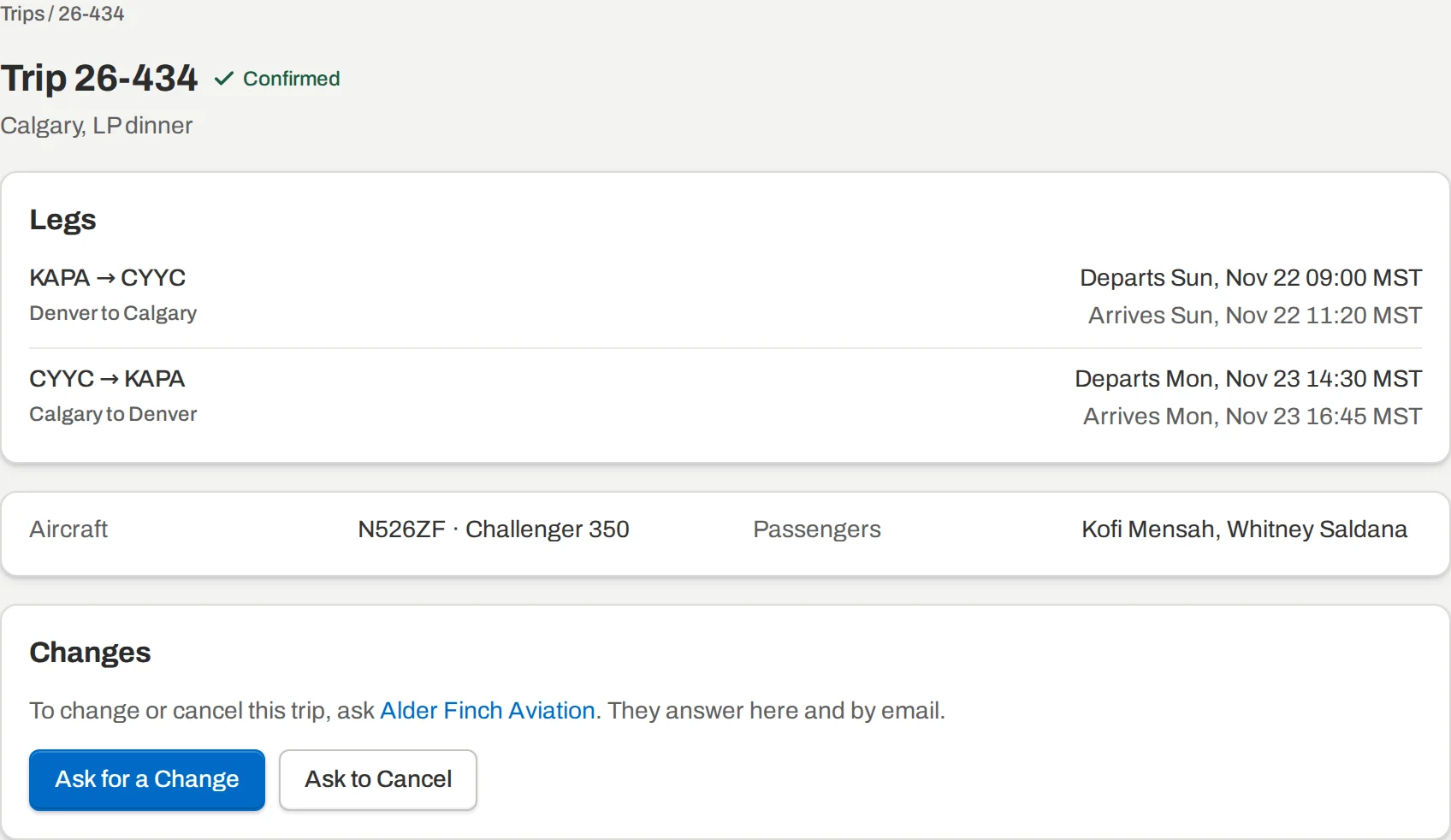
A trip's page shows each leg with its departure and arrival in local time, the aircraft and the passengers. Under Changes, a contact who books trips can Ask for a Change or Ask to Cancel.
Quotes in the portal
A contact who can book trips and see prices decides on quotes. Under Your decision they tick I accept this quote on behalf of the client, type their full name and click Accept Quote. Their name and the time are recorded. Decline asks for an optional reason. The quote itself comes first: legs, lines and total, with Print, and the decision under it.
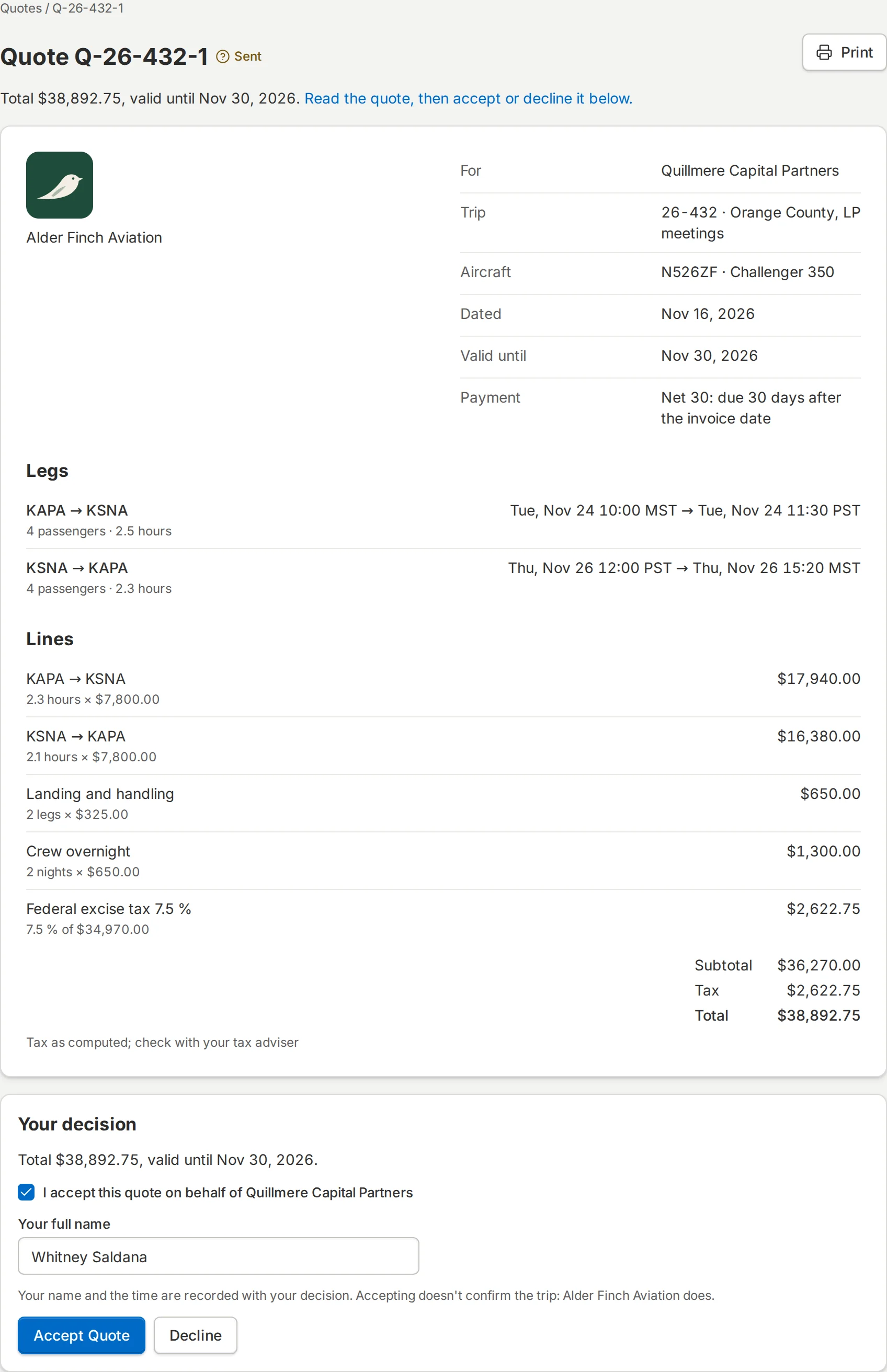
Accepting doesn't confirm the trip; your office does. A quote that has lapsed, been withdrawn or replaced, or whose trip changed after it was sent, can't be accepted. For a lapsed quote or a changed trip, the page tells the client to ask you for a new one; for a replaced or withdrawn quote, it points them to the Quotes tab.
QuotesSending a quote and confirming the trip.
Requests and changes
On the Requests tab, Request a Trip opens the form: each leg's From, To, Date and Time (empty for any time), with About the time for something like "after 2 pm", Add Leg for more, the number of Passengers, Who is flying and Notes. Send Request sends it.
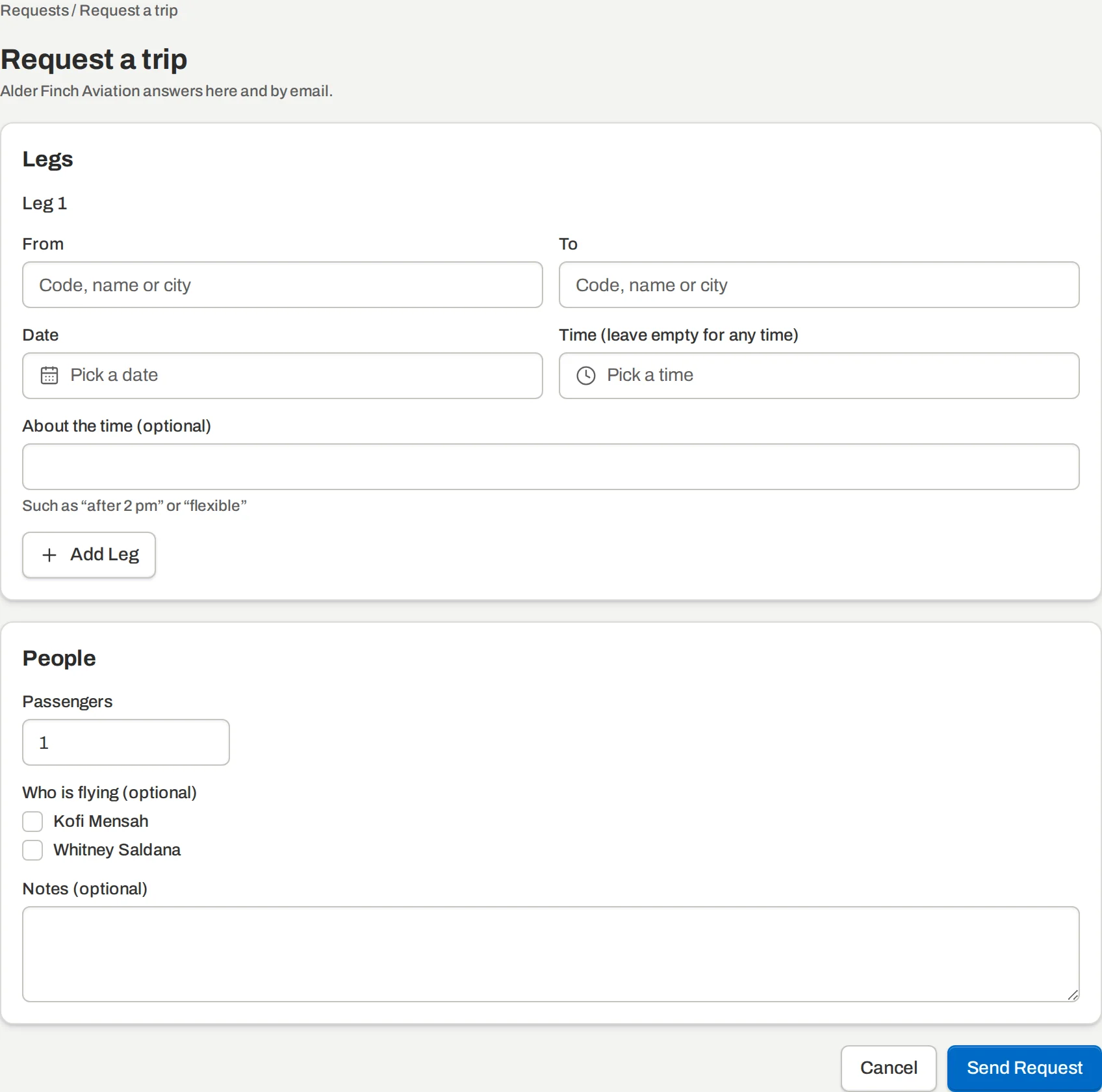
A trip request from the portal lands in Trips, Requests, and the portal lists it as Submitted until you answer. When you turn it into a trip the request says so; when you decline, your note shows. A request for a change or a cancel on a trip comes to the office too. Nothing changes on the trip until someone in the office makes the change, and the client is answered in the portal and by email.
If the Trip requests section is off, clients can't send new requests.
Trip requestsAnswering requests.
Invoices and payment
Contacts who see billing find each issued invoice with its lines, credit notes and payments, and the Pay to details while something is owed. The portal takes no card payments itself. If you set a Pay link under Settings, Accounting, Pay Online sends the client to your own payment page. Record the payment in the app when it arrives.
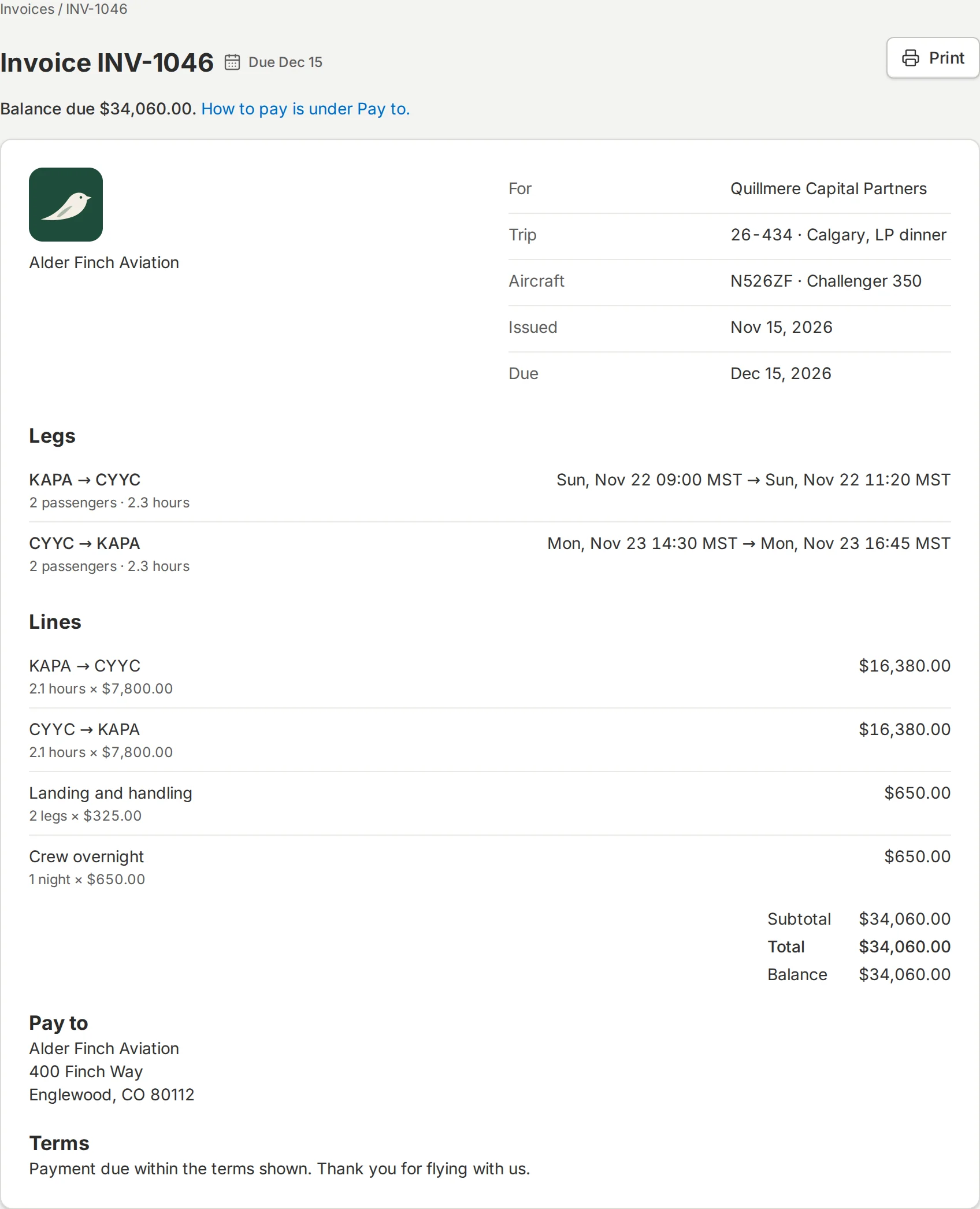
Invoices and paymentsIssuing invoices and recording payments.
Can’t find what you need? Email [email protected] and a person will answer.