

Flying
A guide for pilots
The office runs the schedule. As a pilot you mostly read your trips, log what you flew and send in receipts, often from your phone.
What you can do comes from the Pilot crew position on your People record. If the office also gave you an office role, such as Scheduler, you can do what that role does too. As a pilot you see the trips you're seated on, released trips on the aircraft you're qualified on, the fleet, company documents, messages and your own expenses. You can file safety reports and report a defect on an aircraft.
Roles and accessExactly what a pilot can see.
Your sidebar
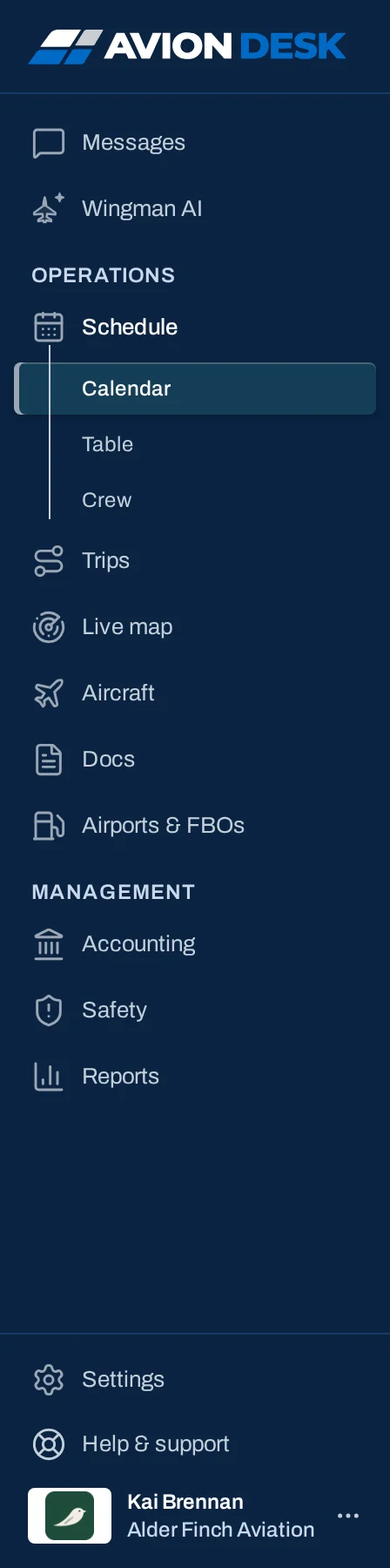
On a computer the sidebar holds Messages, Wingman (when your company lets you use it), Schedule, Trips, Live map, Aircraft, Docs, Airports & FBOs, Accounting (your expenses, the vendors and fuel prices), Safety, Reports, Settings and Help & support. Settings for a pilot are your own: preferences, notifications, calendar and sign-in security. On a phone the bar at the bottom has Schedule, Trips, Messages and More.
The Schedule
You have no Home. You open on the Schedule, the calendar, table and crew board of every trip you can see. Your own trips, with To log and Next 14 days, are under Trips, My trips. My expenses is under Accounting, and your record is under your name at the foot of the sidebar, My details. If the office also gave you an office role, such as Scheduler, you keep Home.
My trips
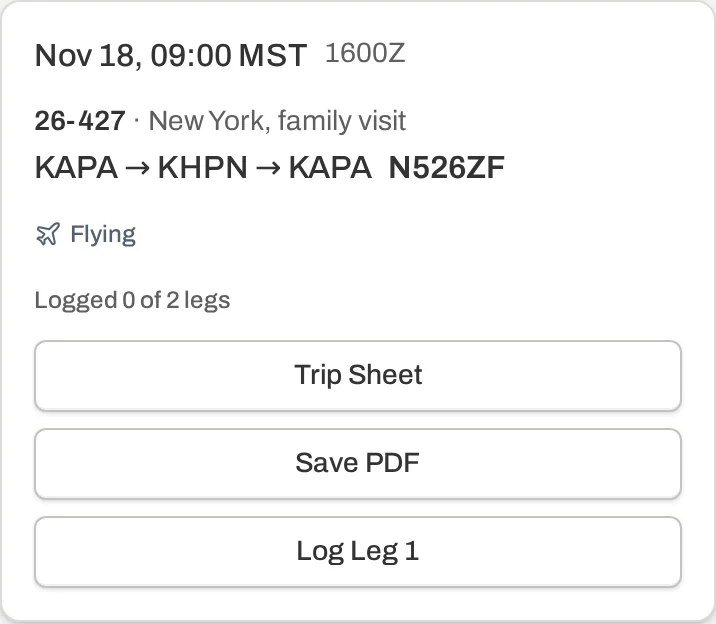
Open Trips, My trips. To log lists trips with a leg you still have to log. Next 14 days lists what's coming. Each card has the departure time, trip number, route and tail, where the trip is, and how many legs are logged, with Trip Sheet, Save PDF and a Log leg button for each leg waiting on you.
If your company tracks currency, a Currency card sits at the top. The Offline card shows how many trip sheets and flight logs this device holds; once it reads Ready to Go Offline you can open them with no signal.
On your phone
On a phone, My trips opens on your next leg: route, tail, passengers, planned time, ETD and ETA, and the FBO handling your departure with a copy button when the office has one on the trip. Crew also get an Available switch at the top. Turn it off to show the office you're off duty.
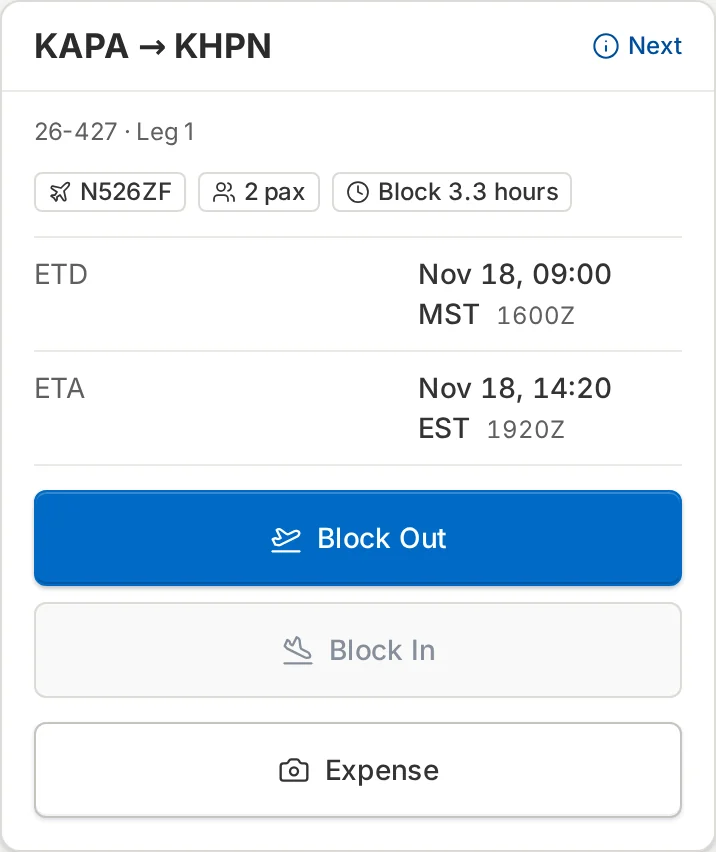
Block Out opens when the leg's flight log does: 24 hours before departure, or earlier if your company set Start flight logs early. Until then, a line under the button says when it opens.
- Tap Block Out as you leave the chocks.
- Tap Block In when you arrive. Both times show under the button.
- Tap Close Leg. The flight log opens with both times filled in; check them, add the rest and save.
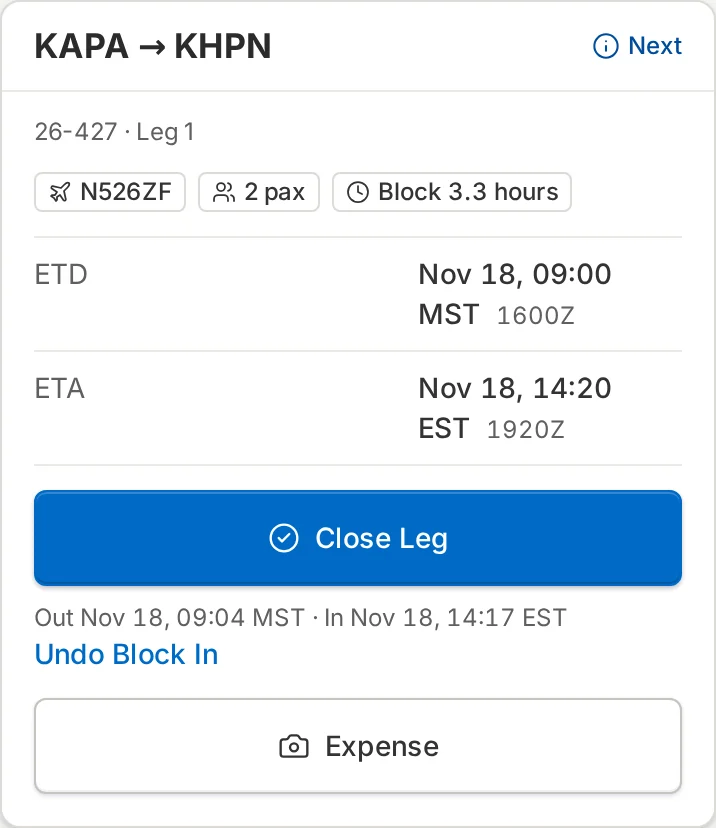
The taps stay on your phone until you save the log, so nothing reaches the office until then. Only the PIC and SIC get these buttons; other crew on the leg see Expense only.
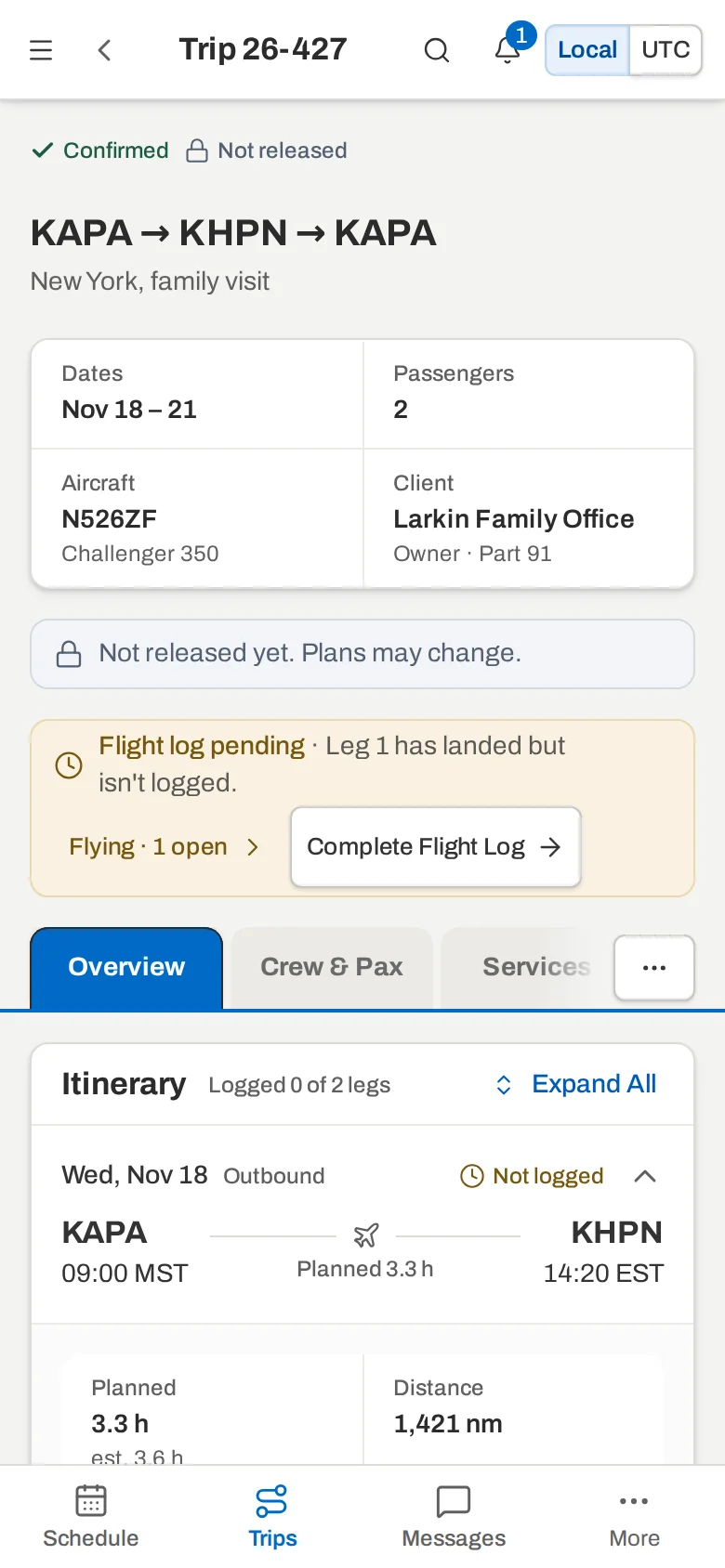
Finding your wayThe phone layout in general.
Before you fly
- The trip's chip says whether it's Released. Whether you see a trip before it's released depends on your company.
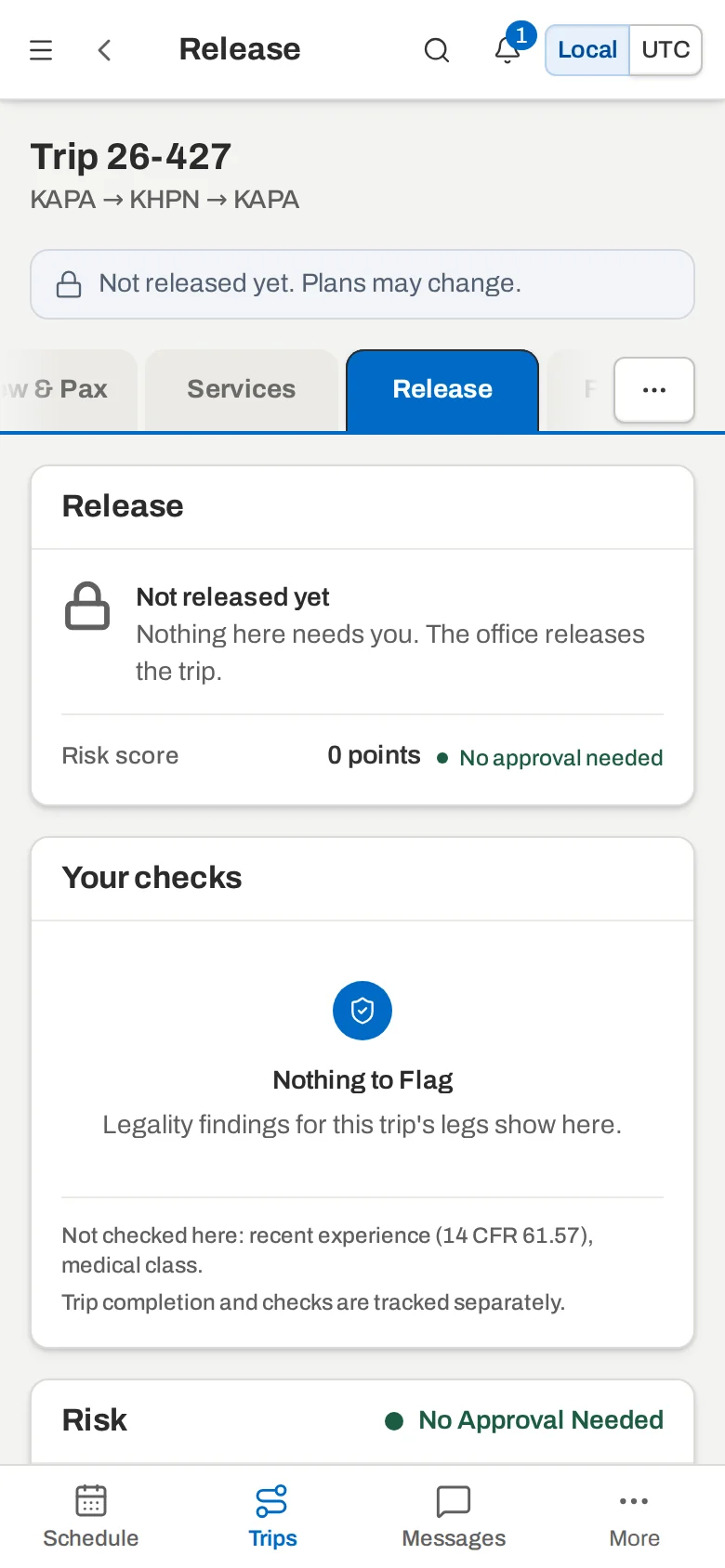
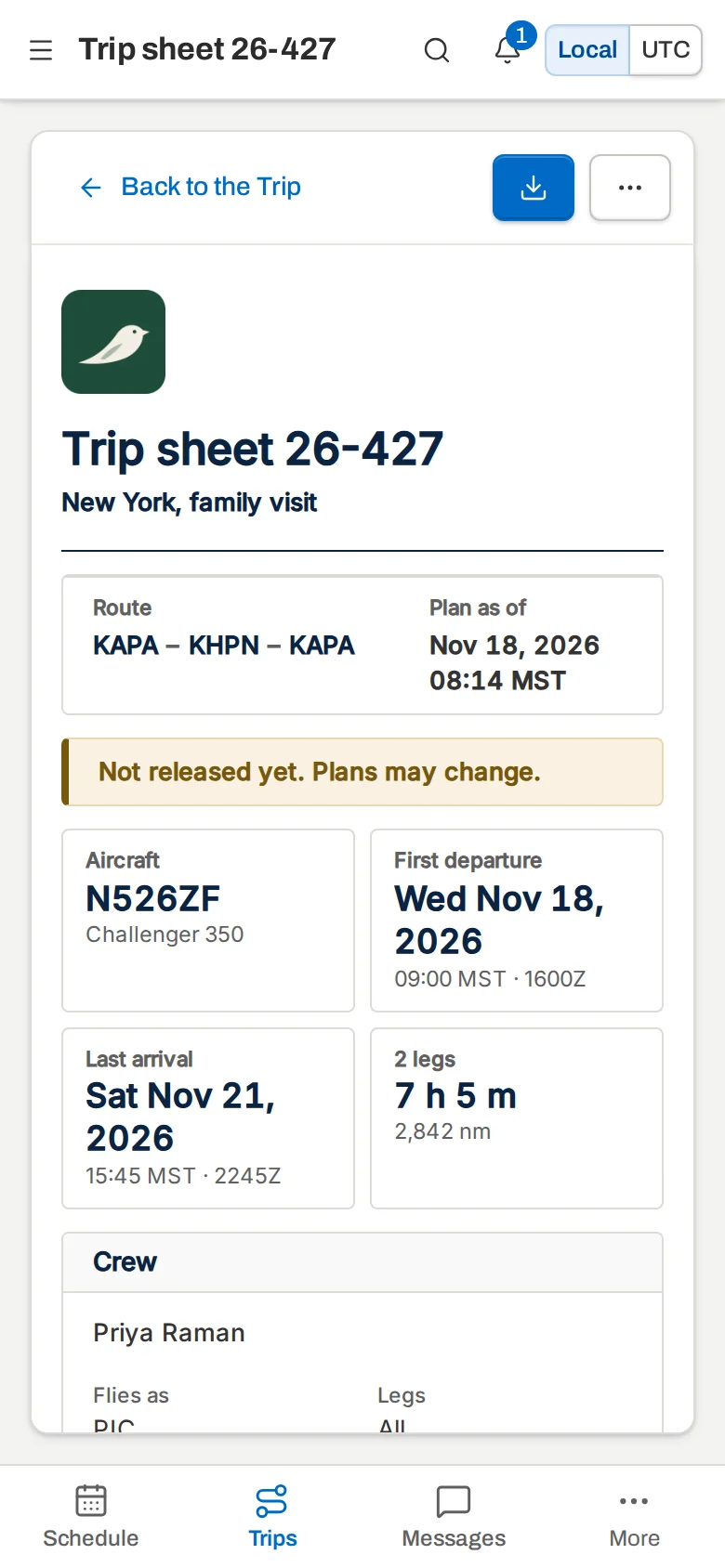
- Until the office releases the trip, its page says Not released yet. Plans may change. and the trip sheet carries the same notice. Once it's released, the Release tab shows who released it and when, with the risk score. There's no Release Trip button for a pilot.
- The Release tab's Your checks lists the findings about you on this trip's legs, such as your duty time or a qualification a leg needs. Nothing to Flag means none.
- The office may ask you to answer the risk questions. On the Release tab, answer each in the Risk card and click Save Answers.
- Open the Trip Sheet for the full picture: times, crew, FBOs, services and notes. Download PDF keeps a copy.
- Each leg has a chat, under Chat, with everyone seated on it.
Log your flight
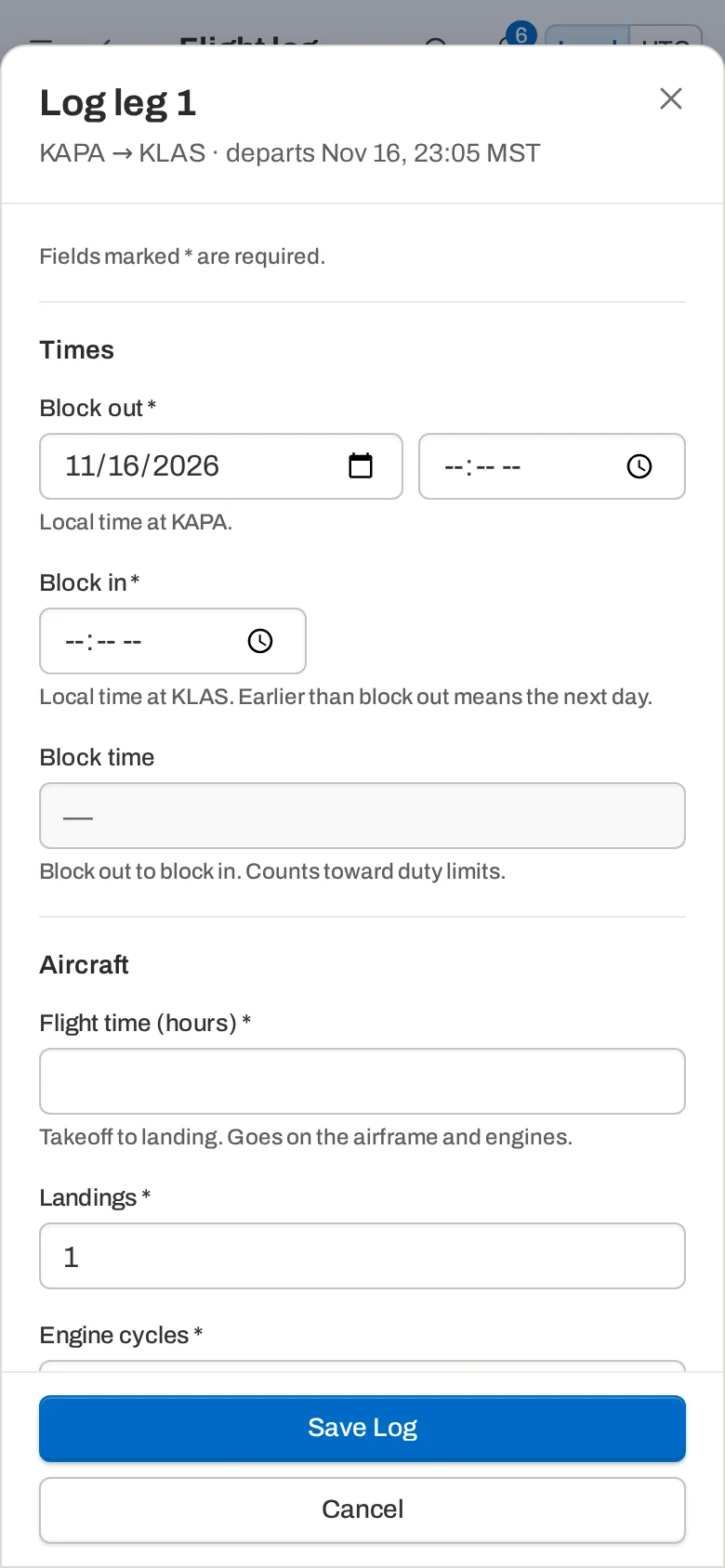
As the leg's PIC or SIC, you log it from Close Leg, from My trips or from the trip's Flight log tab: block times, flight time, landings and cycles, then Save Log. Then record who flew the takeoff and landing, your approaches and holds, and instrument time under Pilot flying. If your aircraft asks for a signature, sign with Sign This Log. No signal? Log anyway: it's sent when you're back online.
Add a receipt
The quickest way is from your next leg: tap Expense on the card and photograph the receipt. A short New expense form opens with the photo and the trip already filled in. Add the amount, a category and Paid with, then tap Send for Review (your own card or cash, which the office pays back, or the aircraft owner's card) or Save Expense (the company's card).
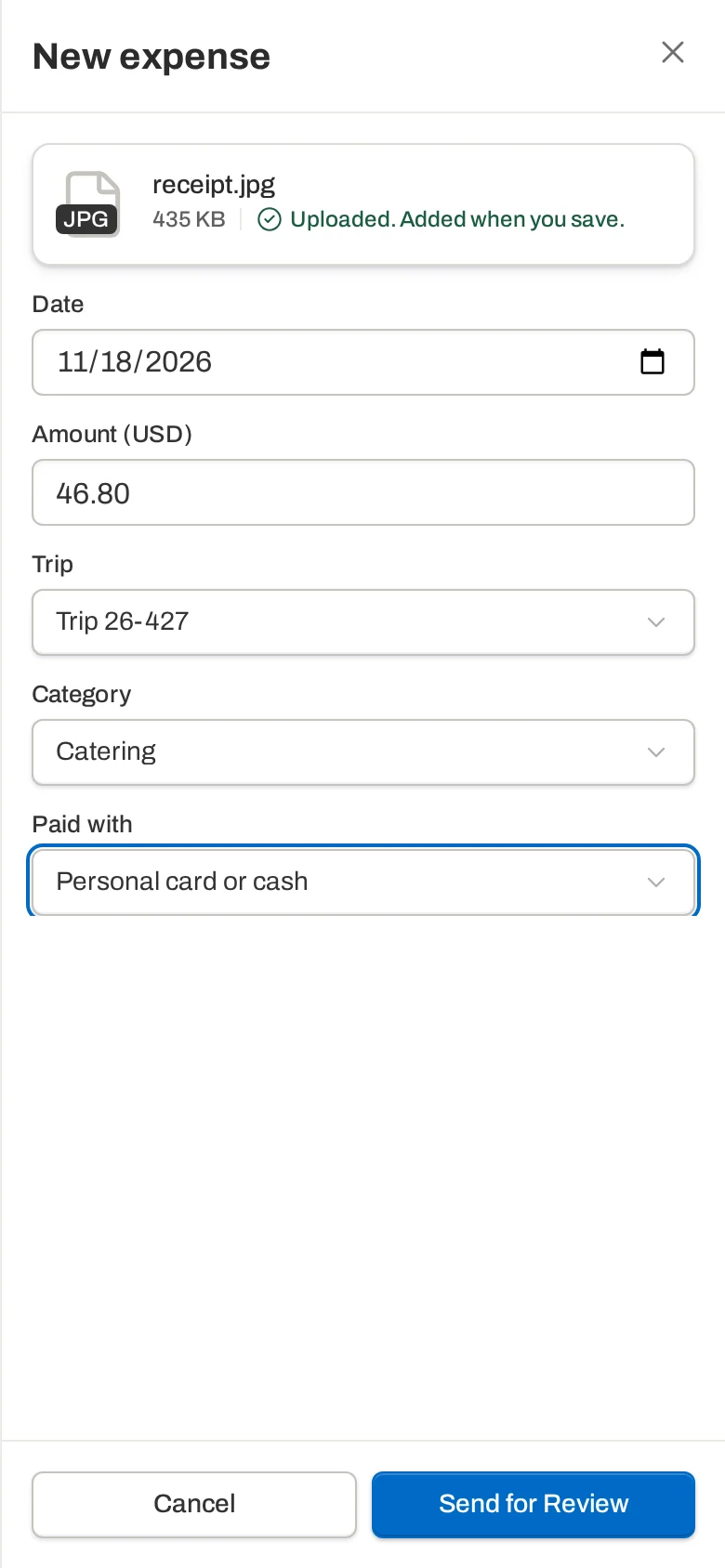
For any other trip, or for more than one line on a receipt, use the full form:
- On the trip, open Expenses and tap Add Expense.
- Tap Take Photo and photograph the receipt.
- Pick Paid with. Your own card or cash is Personal card or cash; the company's card is Company card.
- Add the category and amount, then tap Submit for Payback, Submit for Review or Save, whichever the form shows for how you paid.
If your company uses email-in, you can also email a receipt to your own receipts address. My expenses under Accounting lists yours. You get an email when the office approves, returns or pays one back.
Your currency and records
Click your name at the foot of the sidebar and then My details, to see your record. The Qualifications tab has your certificates and medical, your training and the aircraft you're qualified on; Travel holds your passport and travel details. You can fix your own details there.
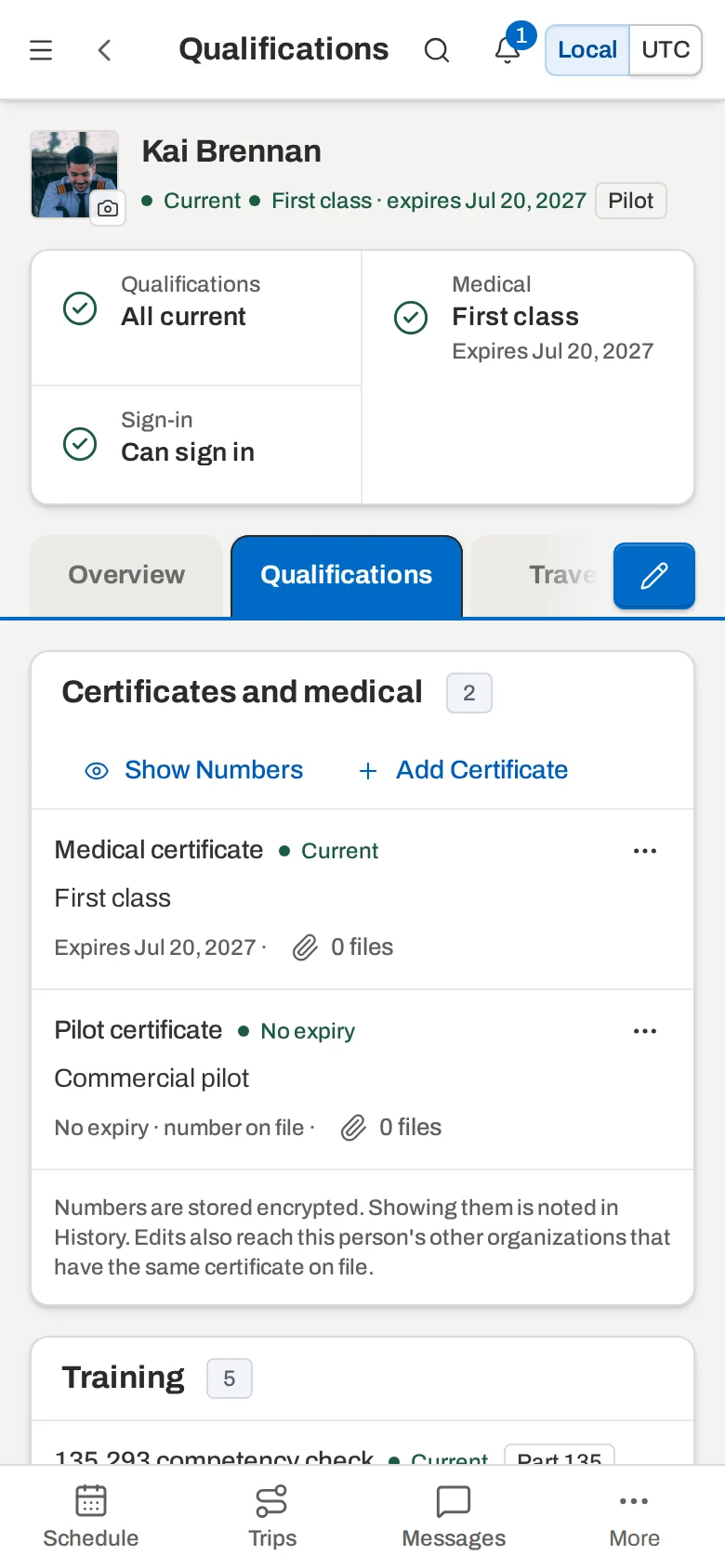
Currency is off unless your company turns it on. When it's on for you, it counts landings, approaches and holds from your logs, across every operator you share with, and the Currency card on My trips links to it with Your record. If your company lets each pilot choose, tick Track my currency on the Qualifications tab. It's advice only and never stops a trip.
Can’t find what you need? Email [email protected] and a person will answer.