

Settings
Company settings
Settings has two halves: pages for you alone, and pages for the whole company. Most company pages are for admins.
Find a setting
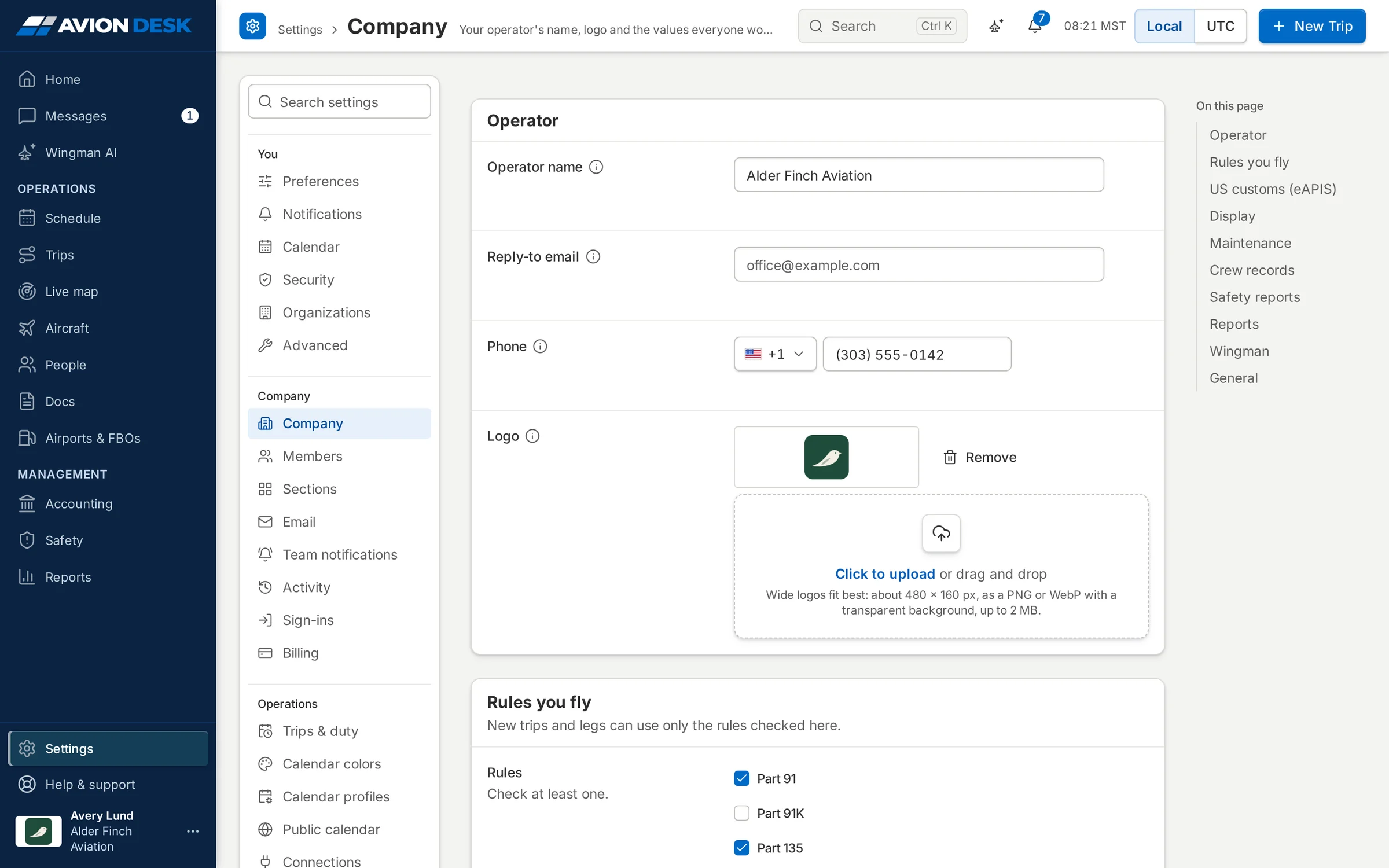
Click Settings at the foot of the sidebar. The menu beside the page groups the pages under You, Company, Operations and Accounting. Type in Search settings to find a setting by name or by what it does. You see only the pages your role can open.
Most settings save as soon as you change them. On your own pages, a choice that reads Default or Operator default follows the company's value until you pick your own. A greyed-out setting with a note that your administrator set it for everyone comes from a locked calendar profile.
Company
Admins only. The values everyone works to.
- Operator: Operator name, Reply-to email (where replies to your document emails go; blank means the first admin's email) and Logo (a PNG or WebP up to 2 MB, wide works best).
- Rules you fly: Part 91, Part 91K and Part 135, and the Default for new legs.
- US customs (eAPIS): your company's eAPIS details, when your plan includes eAPIS.
- Display: Time display, the Local or UTC default for anyone who hasn't picked their own.
- Maintenance and Crew records: how far ahead items count as due soon and papers as expiring.
- Safety reports: whether members can file anonymously.
- Reports: whether admins see safety figures in Reports, or only the safety manager does.
- Wingman: Who can use Wingman: every member, admins only, only the people you tick, or off for everyone.
- General: pilot currency, quote payment terms and whether people may approve their own expenses, among others.
Sections
Turn off what your operator doesn't use. A section that is off disappears from the menu, Home, search and phones for everyone. Nothing is deleted: turn it back on and everything is where you left it. Each switch asks you to confirm before it turns a section off.
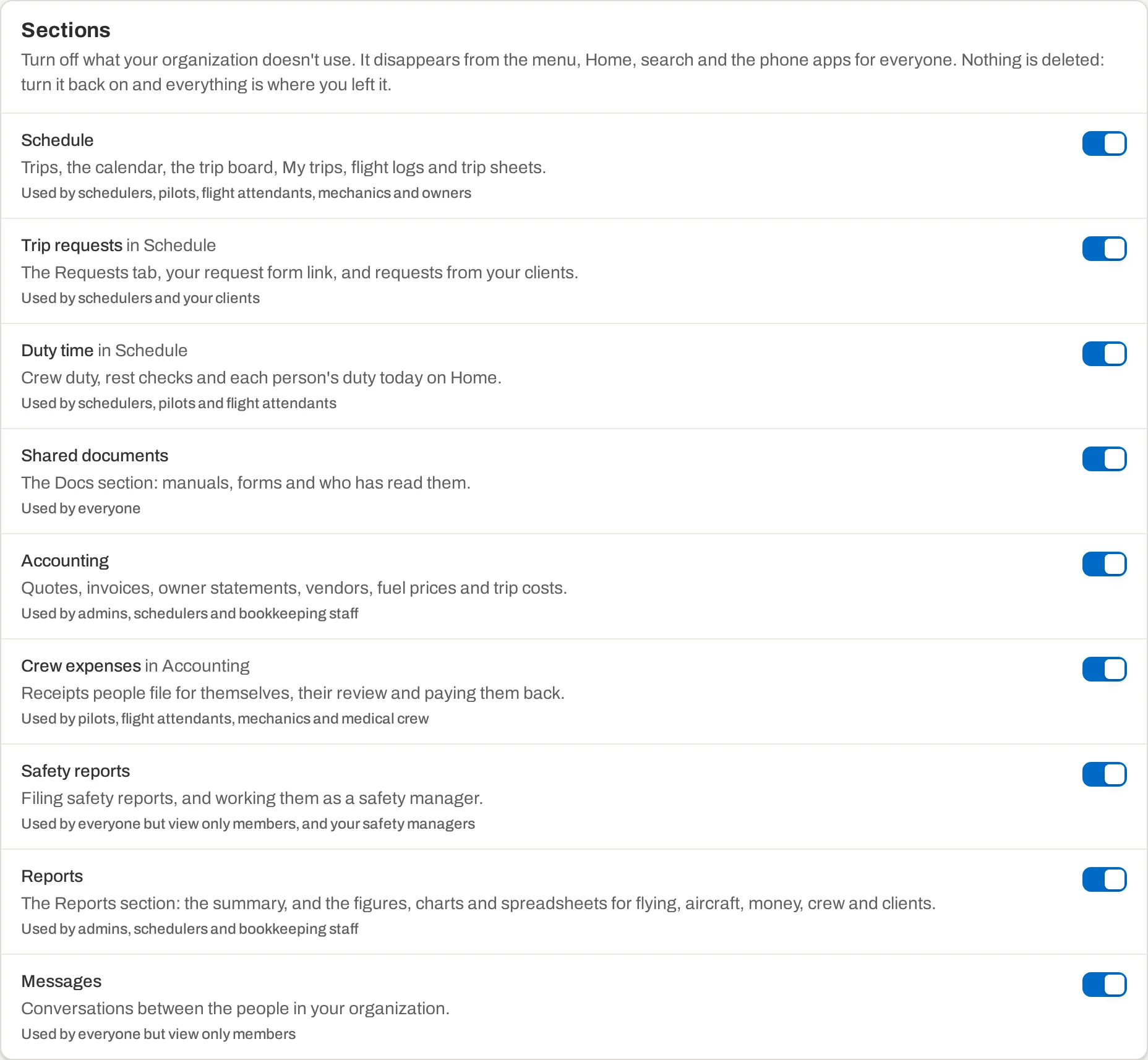
Trip requests and Duty time sit under Schedule, and Crew expenses under Accounting: turning the parent off closes them too. A section your plan doesn't include shows Not in your plan. Aircraft, People and Settings can't be turned off.
The emails that carry your documents. Under Email for, pick Crew trip sheet, Passenger itinerary, Quote or Invoice, then edit its Subject and Message. Placeholders insert details like the trip number or first departure date. Preview fills the email from one of your trips. Reset to Default puts back our wording. Under Signature and replies, add a signature and choose whether replies go to the person who sent the email or to your company reply-to address. Click Save Email Settings when you're done.
Trips & duty
Admins set how trips work here: automatic trip numbers, the reminders shown on each leg (handler, crew hotel, flight plan, passenger IDs and more), When crew see a trip (whether seated crew see a trip before it's released), whether the trip board shows crew and passenger names, when flight logs can start, the risk points that need approval and that refuse a trip, report and release times, and duty rules. The Part 135 duty track shows for Part 135 operators; a company duty policy can be set for Part 91.
The other Operations pages have their own articles: Calendar colors and Calendar profiles, Public calendar, and Connections.
Calendar feedsYour own calendar feed and the public calendar.
Your own preferences
Under You, Preferences holds three choices that affect only you: Time display (Local or UTC), Clock (24-hour or 12-hour) and Theme (Light, Dark or Match device). Printed pages and emails stay light.
Organizations lists every operator you belong to, your roles and status there. Make Primary picks the one that opens when you sign in. The switch Share my certificates, medical and travel documents decides whether that operator sees them. Switch between operators from your name at the foot of the sidebar.
Advanced shows Support details to copy into a message to support, lets you download your own data, and has Deactivate My Account.
Rate cards and billing codesAccounting settings, rate cards, categories, cards and billing codes.
Can’t find what you need? Email [email protected] and a person will answer.