

Accounting
Owner statements
An owner statement shows one owner's month on one aircraft, built from the receipts, invoices and flight logs already in the app. It is a report, not a bill.
Owner statements come with the Charter plan. Admin, Scheduler and Bookkeeping can read them; Admin and Bookkeeping publish them. Owners come from each aircraft's Owners & costs tab.
Aircraft owners and costsAdding owners and management fees.
Find a statement
Open Accounting, then Owner statements. It opens on last month; the arrows step through months. There is a row for every owner who held an aircraft on the month's last day, with their Share and the statement's Status. When an aircraft has more than one owner, each needs a share on the Owners & costs tab before its statements open.
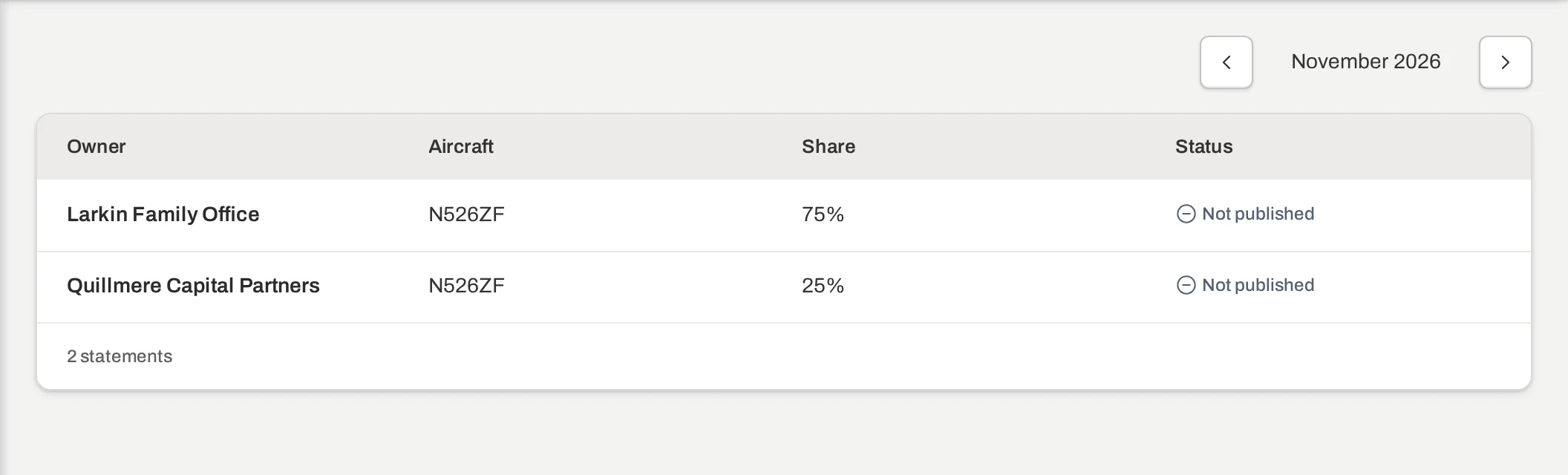
| Status | What it means |
|---|---|
| Not published | The owner can't see this month yet. |
| Published | The owner sees it in the portal. Later versions say Published, version 2 and so on. |
| Out of date, publish again | Something changed after you published, such as a receipt added late. The owner still sees the published figures. |
What a statement holds
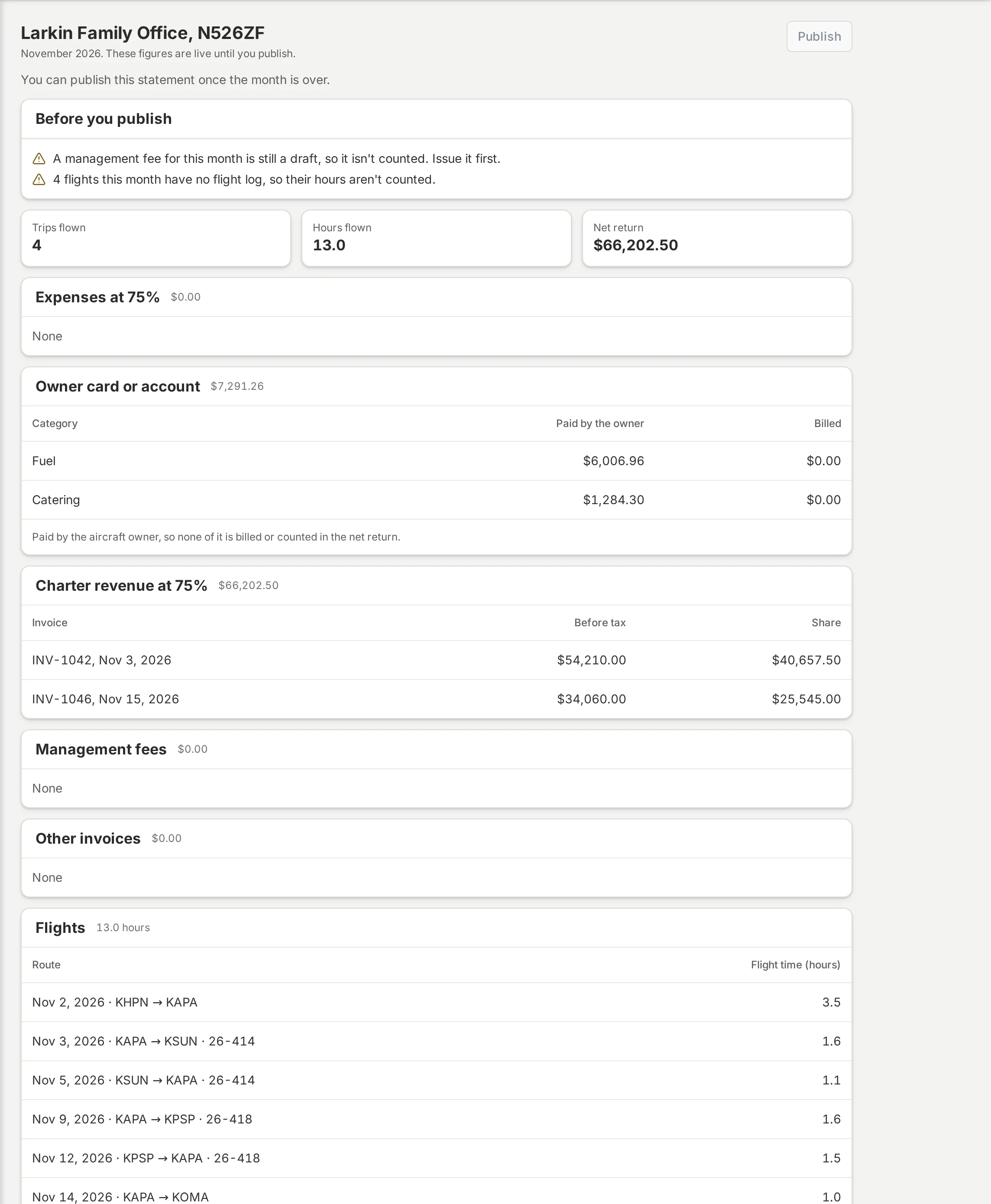
- Trips flown, Hours flown, and the net: Net cost when the owner owes, Net return when the aircraft earned more than it cost.
- Expenses at the owner's share: receipts on the aircraft, by category, leaving out receipts already billed to a client. The fixed monthly cost on the aircraft's Cost card isn't counted.
- Owner card or account: what the owner paid on their own card. Listed for their records, never billed and never in the net. Each co-owner's statement lists it in full, since a receipt doesn't say whose card it was.
- Charter revenue at the owner's share: invoices for charter flying on the aircraft, before tax. The charter client's name is never shown.
- Management fees and Other invoices billed to the owner.
- Flights: each flight's date, route and hours. The owner's own trips also show the trip number; other people's trips don't.
Receipts count on their date, invoices on their issue date and flights by when they left the blocks. A flight with no flight log isn't counted, and a warning says so.
Publish a statement
- Wait for the month to end. Until then the page says You can publish this statement once the month is over.
- Read Before you publish above the figures, if it shows. It flags a management fee still in draft, flights with no flight log and, for an owner of more than one aircraft, invoices not tied to an aircraft.
- Click Publish, then Publish again in the dialog. A message then names who is being emailed.
Publishing freezes a copy. The owner sees it in the client portal with a PDF while they still own the aircraft. Their portal contacts who can see prices and invoices get an email saying the statement is ready, with a link that opens it in the portal. The email holds no figures. If none of the owner's contacts can see prices and invoices, nobody is emailed, so tell the owner yourself. If figures change later, the row shows Out of date, publish again, and Publish Again replaces what the owner sees and emails them again. Every version stays under History, each with Download PDF. Publish stays grayed out when nothing changed since the last version.
- LiveDuring the month the figures move as receipts, invoices and logs come in.
- PublishedAfter month end the office publishes. The owner sees it in the portal and gets an email with a link.
- Out of dateA late receipt or a credit changes the figures. The owner's copy stays as it was.
- Published againThe office publishes the new version, and the owner is emailed again. The old one stays in History.
Management fees
Fees set under Management Fees on the aircraft's Owners & costs tab (Admin and Bookkeeping add and change them) make a draft invoice each month. Nothing goes to the owner until you issue it, and a draft fee isn't counted on the statement. The report Management fees shows whether every month's fee was drafted, issued and paid, and Owner statements at a glance shows every owner at once, with Check for Changes.
Send an owner what they paid on their card
When an owner keeps a card in the airplane for the crew, they want a list of what was charged to it each month. The statement shows it by category; the report lists each receipt.
- Open Reports. In the Reports menu at the left, open Owners and click Owner card (the report's full title is Owner card or account).
- Set the Period to the month, and pick the Aircraft, or the owner under Client.
- Check Waiting for review. Receipts the crew filed count only once the office has accepted them.
- Print it with the printer button, or click Export, and send the result to the owner.
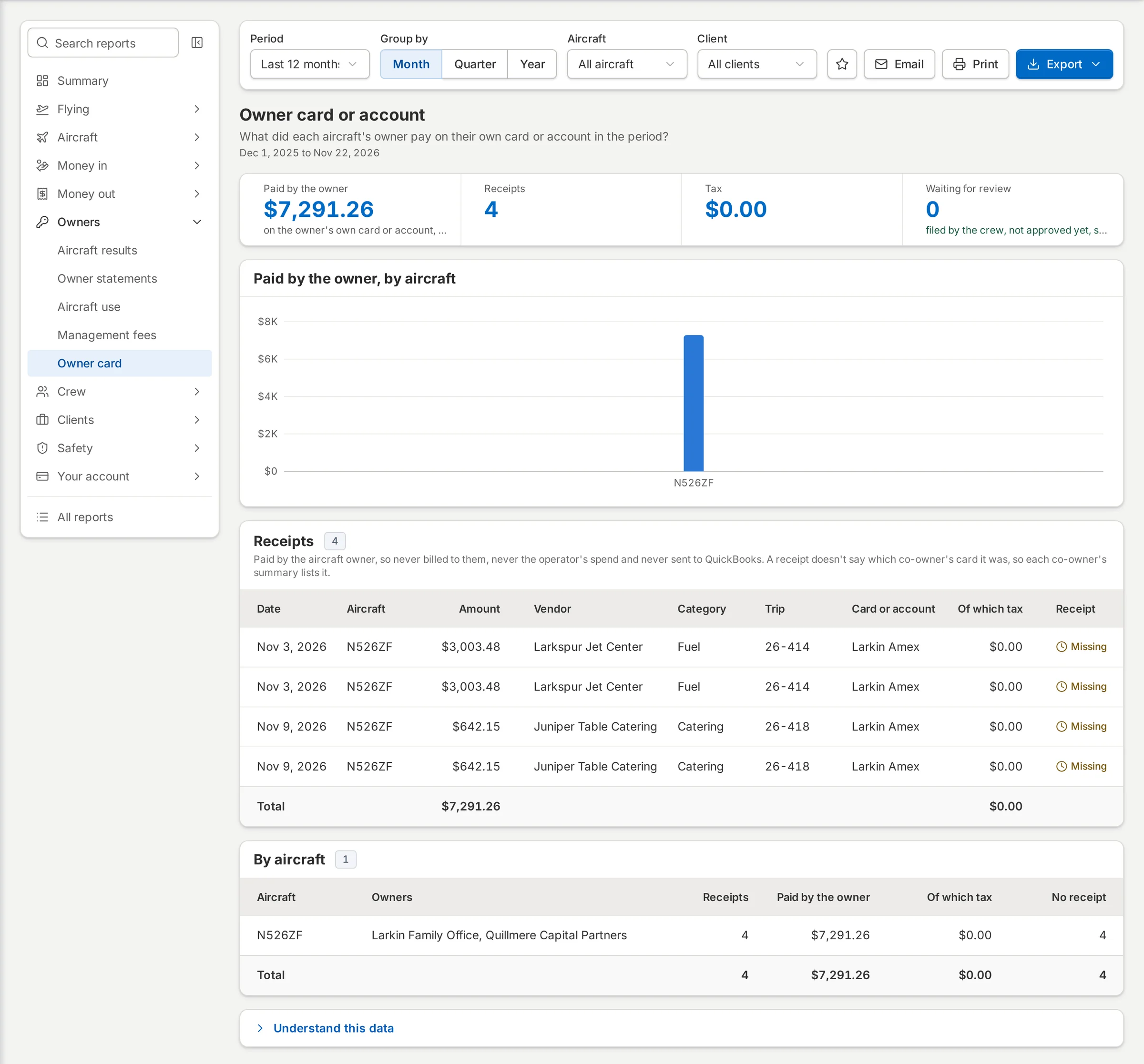
Admin, Scheduler and Bookkeeping can open it. Receipt says whether a photo is attached, so you can chase the missing ones before you send it.
The client portalHow owners sign in and find their statements.
ReportsThe Owners reports.
Can’t find what you need? Email [email protected] and a person will answer.