

People
People and crew
Everyone you fly, fly with or work for has one record in People: crew, office staff, passengers and the contacts at your clients. Trips, invoices and messages all point back to it.
Who can do what
| Role | In People |
|---|---|
| Admin | Sees everyone, adds and edits people and clients, and chooses who can sign in. |
| Scheduler | Sees everyone and adds and edits people and clients. Can invite a client's people to the client portal, but not someone to sign in to the app. |
| Trip builder, Bookkeeping | Sees everyone and their records. Can't change them. |
| Crew without an office role | Sees their own record and edits their own preferred name, phone and email, and their own certificates, medical and travel details. |
Read the People list
Open People in the sidebar. The section has four tabs: People, Groups, Clients and Training. The People tab lists everyone, with each person's role, whether they can sign in, their phone and the clients they belong to.
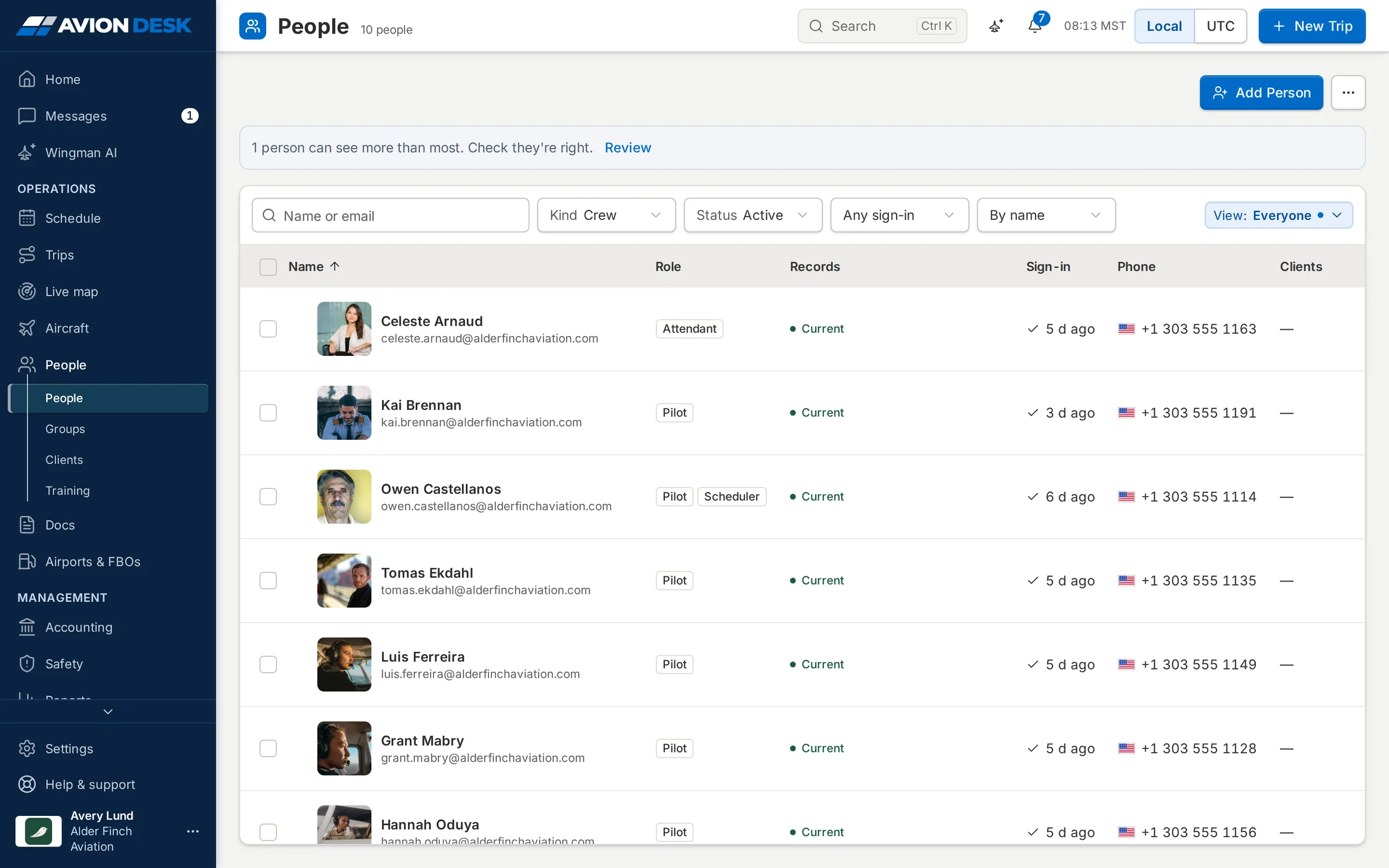
The filters above the list narrow it down:
- Kind: Crew, Staff, Passengers or Contacts. With Crew, a Records column shows whether each person's certificates and training are current, and the order can be set to Most urgent first. With Passengers, Admins and Schedulers also get a Passport filter for passports that are expired, expiring or missing.
- Status: Active or Include deactivated. Admins and Schedulers also get Needs attention: anyone with an expired or expiring record, or details missing for flying abroad.
- Sign-in: Can sign in, Invited, Deactivated or No sign-in.
- View: saved views such as Can sign in, Invited and Expiring in 30 days.
Admins sometimes see a note at the top: "1 person can see more than most. Check they're right." Click Review to confirm or change the access of anyone with a wide role.
Add a person
- On the People tab, click Add Person.
- Enter a first and last name. Email and phone are optional, but someone who will sign in needs an email: the invitation goes there.
- Under Who are they to you?, choose one answer (see the table below).
- Fill in what that answer asks for, such as crew positions or the client they belong to.
- Click the add button. Once a first name is typed it reads Add and that name, for example Add Jane.
| Choice | Use it for | What it asks |
|---|---|---|
| Works for us | Staff and crew who sign in to the app. Admins only. | Their office role and crew positions. An invitation goes to their email. |
| With a client | An owner, their family or their office. | The client, Contact or Principal, a title, whether they fly as a passenger, and whether to give them client portal access. |
| Just a passenger | Someone who flies with you and isn't tied to a client. | Nothing more. |
| Contract crew | Crew who fly for you without signing in. | Their crew positions. |
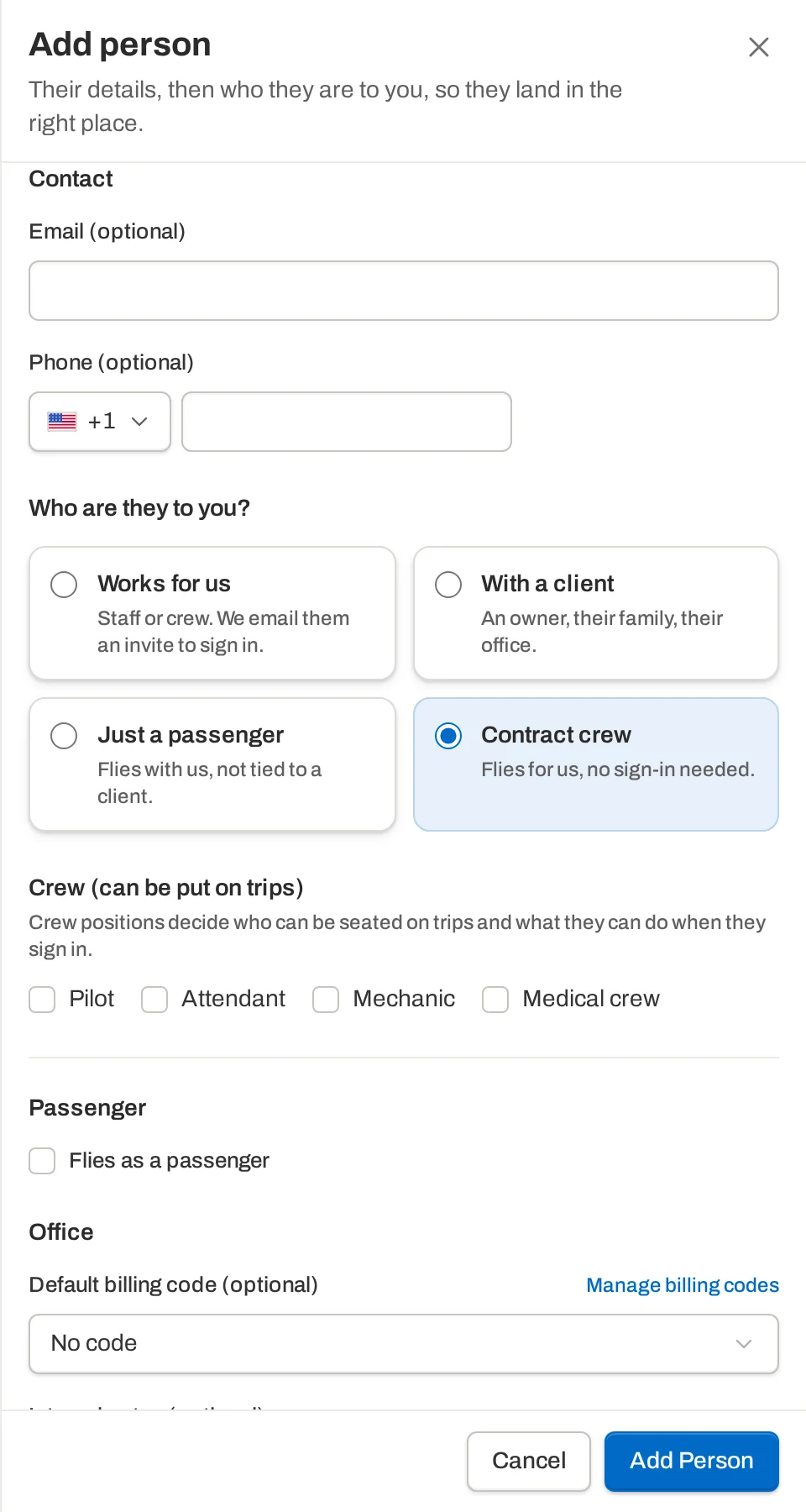
Crew positions are Pilot, Attendant, Mechanic and Medical crew. They decide who can be seated on a trip and what crew can do when they sign in.
A person's record
Click a name to open the record. The header shows the person's tags (Pilot, Passenger, Invited) and chips for their qualifications and medical. Under it, Key facts sums up qualifications, medical and sign-in. The tabs are Overview, Qualifications, Travel and History.
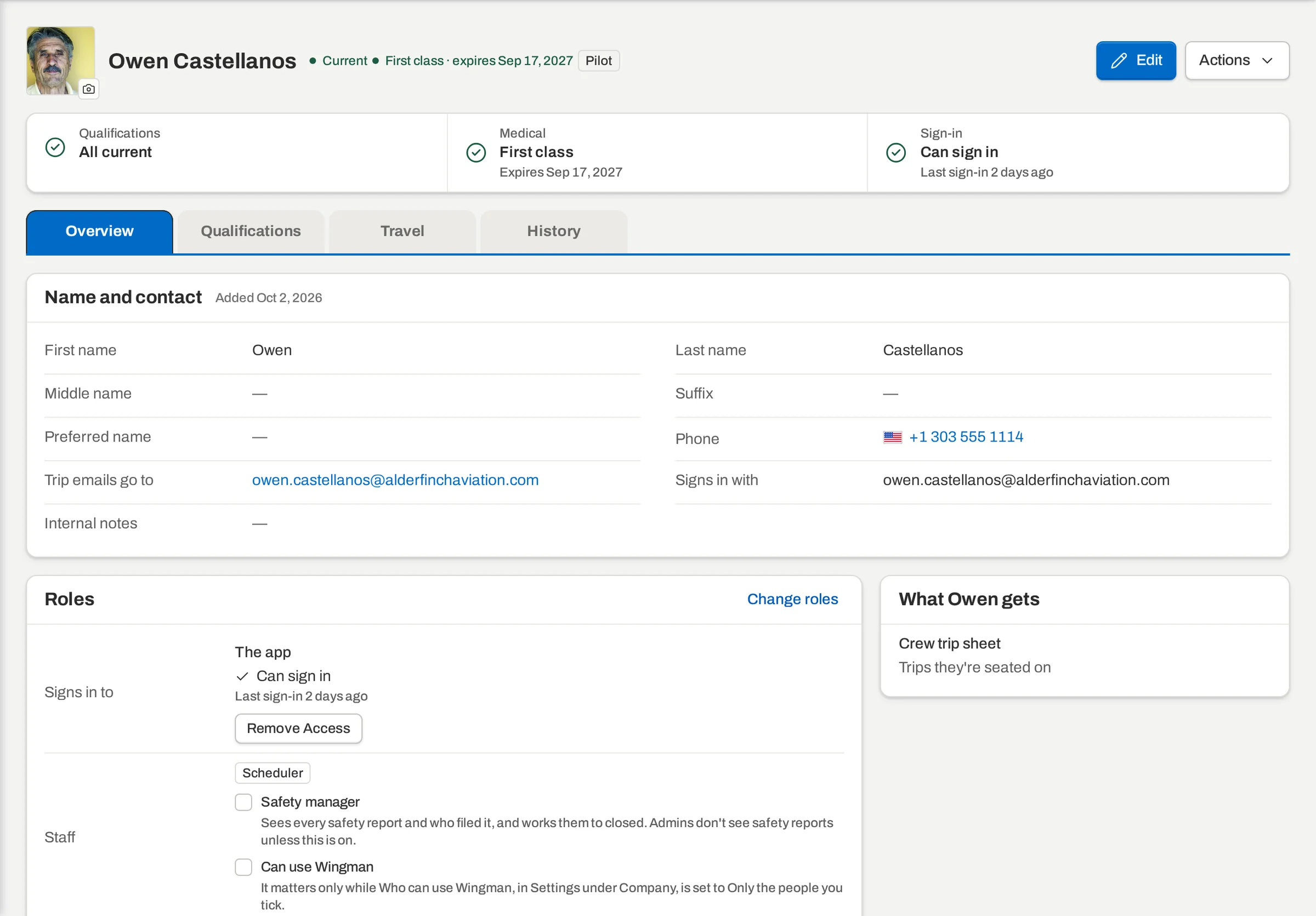
- Overview: name and contact, the Roles card, a card listing what the person is sent (such as the crew trip sheet), Messaging and apps (WhatsApp, video meeting ID and app user names) and Ready to fly abroad. Two more cards show only in some cases: Outside flying for crew, when your company has turned it on, and Owner card or account for Admins and Bookkeeping.
- Qualifications: certificates, medical, training, the aircraft they crew and, for pilots, currency. Shown for crew. See Qualifications and training.
- Travel: identity, US customs details, passports and visas, reward programs and passenger weight. Only Admins, Schedulers and the person themselves see it. Numbers and dates stay hidden until someone clicks Show Details, and they hide again after 5 minutes.
- History: every change to the record, who made it and when.
When someone signs in, Overview shows two addresses: Trip emails go to (the email on the record) and Signs in with. A note appears when they differ, so a typo is easy to spot before trip emails go astray.
Roles and sign-in
The Roles card holds everything a person is to you in one place: whether they sign in, their staff role, crew positions, clients and whether they fly as a passenger. Click Change roles to edit it. The sheet asks how the person signs in: Doesn't sign in, The app, as staff or crew or The client portal. Saving a switch to the app or the portal sends an invitation to the person's email.
For a member who signs in to the app, Admins also see two ticks on the Roles card: Safety manager (when your plan includes Safety) and Can use Wingman. Under Signs in to, Remove Access stops the person signing in, and Restore Access lets them back in. Neither shows on your own record.
Members and invitesInvitations, resending them and removing someone's access.
Deactivate, erase or export
Admins and Schedulers find the first two under Actions on a record, or on the People list.
- Deactivate Person takes someone off the People list and out of the pickers. Their records and history stay, and Reactivate Person brings them back. For someone who still signs in, an Admin confirms Deactivate and Remove Access, which also stops them signing in. Anyone else is told to ask an Admin.
- Erase Details is for a passenger who asks you to delete their data. Names, contact details, travel documents and scans are removed for good. The record stays on past trips as Erased, and invoices already issued keep their copy. It can't be undone. It isn't offered for crew, and it refuses anyone with a trip ahead or a sign-in. To confirm, you type the number of people being erased.
- The ... menu beside Add Person has Export to CSV (and Import from CSV). Export saves everyone the list shows, with your current search and filters. Tick Include protected fields to add birth date, nationality and passport, then click Download CSV. Each person's history records that they were exported.
- Print Profile under Actions opens a printable page of the person's record. Anyone who can see People can use it.
Crew and passengersPutting people on a trip.
Can’t find what you need? Email [email protected] and a person will answer.