

Getting started
Finding your way
Where things live in the app, what the top bar does, and how the layout changes on a phone.
Home
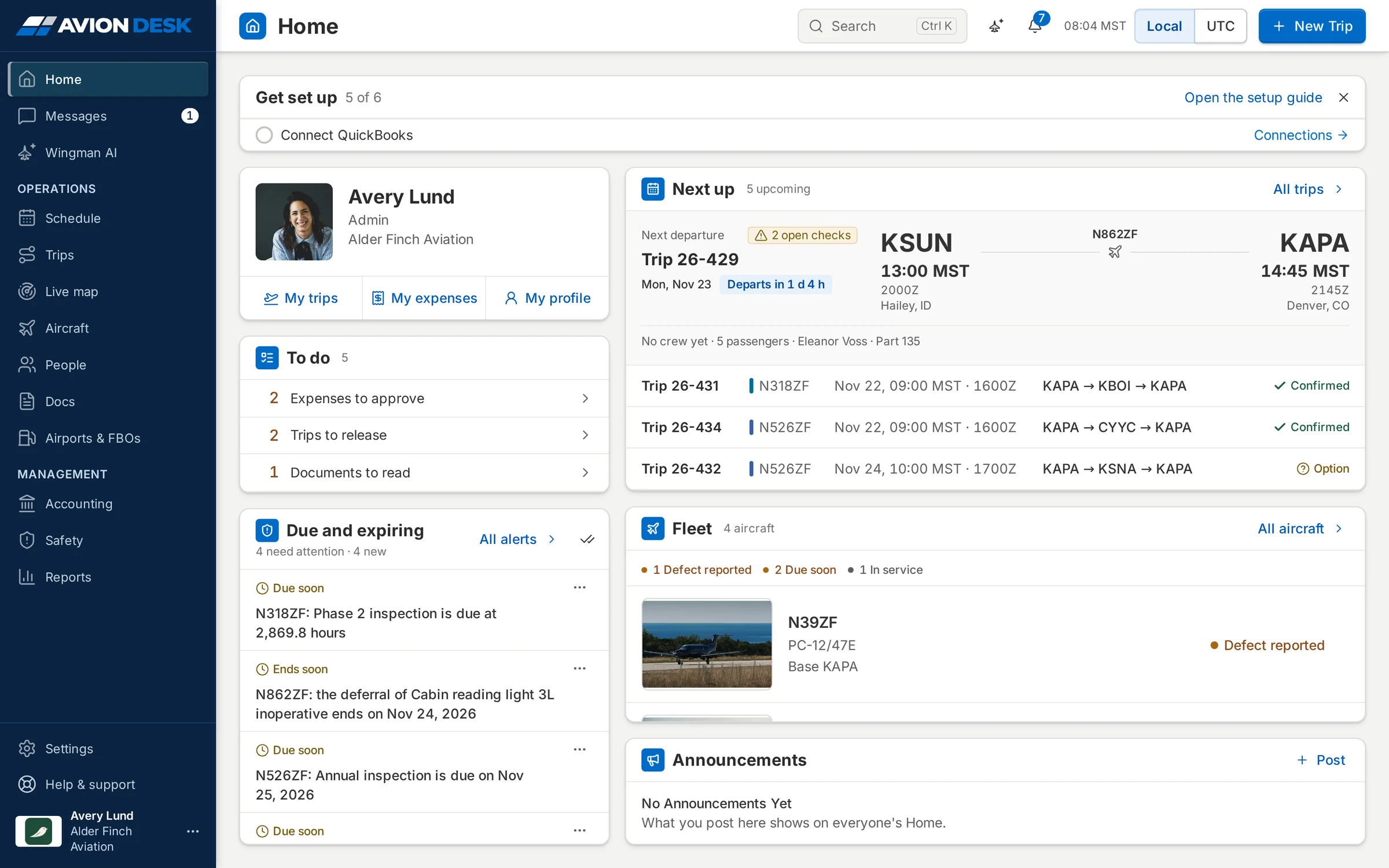
Home is the first page after you sign in for the office roles: Admin, Scheduler, Trip builder, Maintenance and Bookkeeping. Pilots, attendants, medical crew and View only people have no Home and open on the Schedule. Someone with an office role and a crew position keeps Home. Its cards depend on your roles and the sections your operator uses.
| Card | What it shows |
|---|---|
| Your card | Your name, roles and operator, with shortcuts to My trips, My expenses and My profile. |
| To do | Only what is waiting on you, with a count: expenses to approve, trip requests to answer, trips to release, legs to log, documents to read and more. When there is nothing: Nothing Waiting on You. |
| Due and expiring | Maintenance coming due, papers and certificates expiring, defects. All alerts opens the full list. |
| Next up | The next trips. Someone with a crew position sees Your next flights for the next 14 days. |
| Your duty today | For people with a crew position, when duty time is on: on or off duty, duty time so far and rest. |
| Fleet | Each aircraft and its status. |
| Announcements | Company posts. Admins can Post one. |
| Get set up | For admins of a new operator. See the setup guide. |
The sidebar
Home (office roles only), Messages and Wingman (when your company lets you use it) sit at the top. Under Operations are Schedule, Trips, Aircraft, People, Docs and Airports & FBOs. Under Management are Accounting, Safety and Reports. Settings and Help & support sit at the foot, above your name.
- You only see the sections your role can open and your operator has turned on. Safety is on the Charter plan.
- Open a section and its pages list under it: Trips shows Requests, Reservations and Board, then Tools with Crew duty, Calculator and more, for example. Pilots and attendants also get My trips first. Schedule is its own item, right above Trips.
- A number on Home counts urgent items. A number on Messages counts unread messages. A mark on Settings means a connection needs you.
- On a smaller window the sidebar shrinks to icons. Rest the mouse on it to open it.
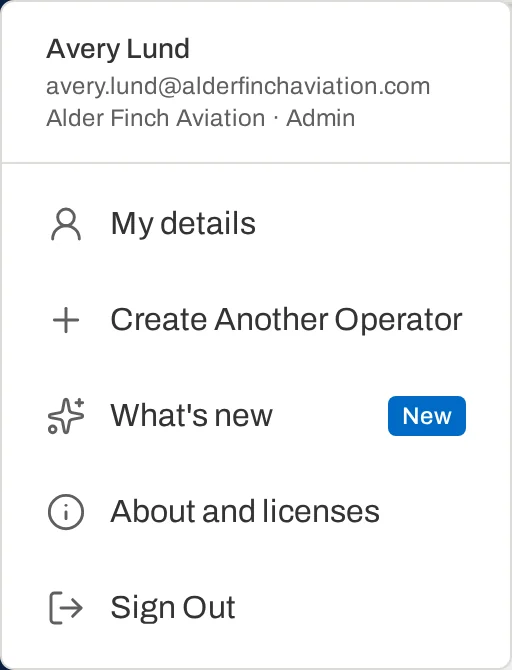
Click your name at the foot for My details, Create Another Operator, What's new, About and licenses and Sign Out. If you belong to more than one operator, pick one under Switch Organization, or open Manage Organizations. If you are also a client of another operator, Client portal opens their portal.
Search
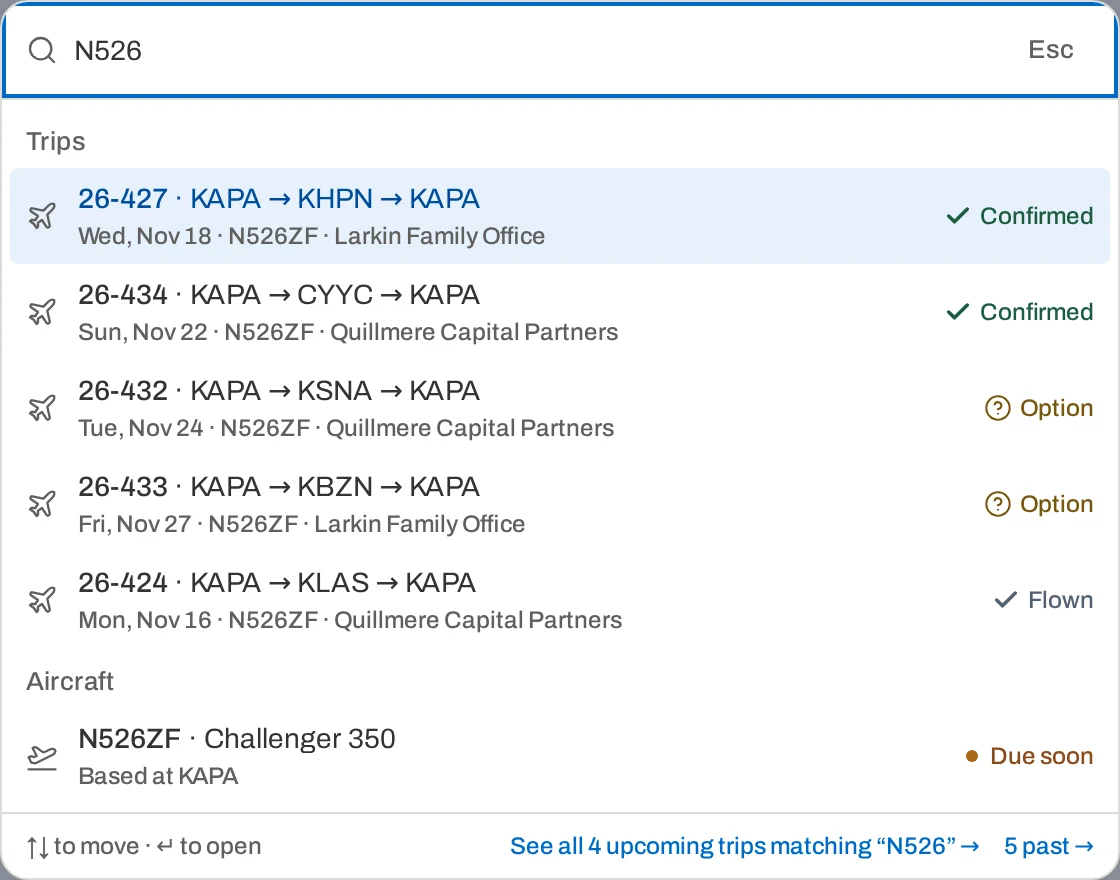
Click Search in the top bar, or press Ctrl K (⌘K on a Mac) from anywhere. Type two or more letters: a trip number, a tail, a name or an airport. Results are grouped into trips, aircraft, people, clients and airports, and you only find what you're allowed to open. Use the arrow keys and Enter, or click.
The small aircraft icon beside the search box opens Wingman in a panel next to the page, when your company lets you use it. It knows the page you opened it from. On a phone the top bar has no room for it: open Wingman from the menu instead.
Create: New Trip and Quick add
Anyone who can build trips has Create in the top bar. Click it and choose New Trip or Quick add (Beta). When Quick add isn't on for your operator, the button is New Trip itself. On the Trips pages, and on a phone, New Trip sits on the Trips page instead. With Quick add you paste a trip request from an email or text, or add a screenshot, and the trip form opens filled in for you to check and save. If a name could mean more than one person or place, Quick add asks which one you meant.
Local and UTC
The Local and UTC switch in the top bar changes every time on screen. Local shows each time in its airport's zone; UTC shows Zulu everywhere. Nothing stored changes. Your choice is yours alone and follows you to other devices. Until you pick, you see your company's default. If your calendar profile sets it for you, the switch is greyed out. The 12 or 24-hour clock is a separate choice under Settings, Preferences.
Alerts
The bell in the top bar opens Alerts from any page. Its number counts the open alerts you haven't read yet. All alerts on Home's Due and expiring card opens the same list. Alerts are grouped into Open, Snoozed, Dismissed and History. Each row's … menu offers Snooze until a day you choose, Dismiss and Message Someone. Snoozing and dismissing change your own list only. A dismissed alert comes back if anything about it changes, like a new due date. Mark All Read clears the New marks and the number on the bell.
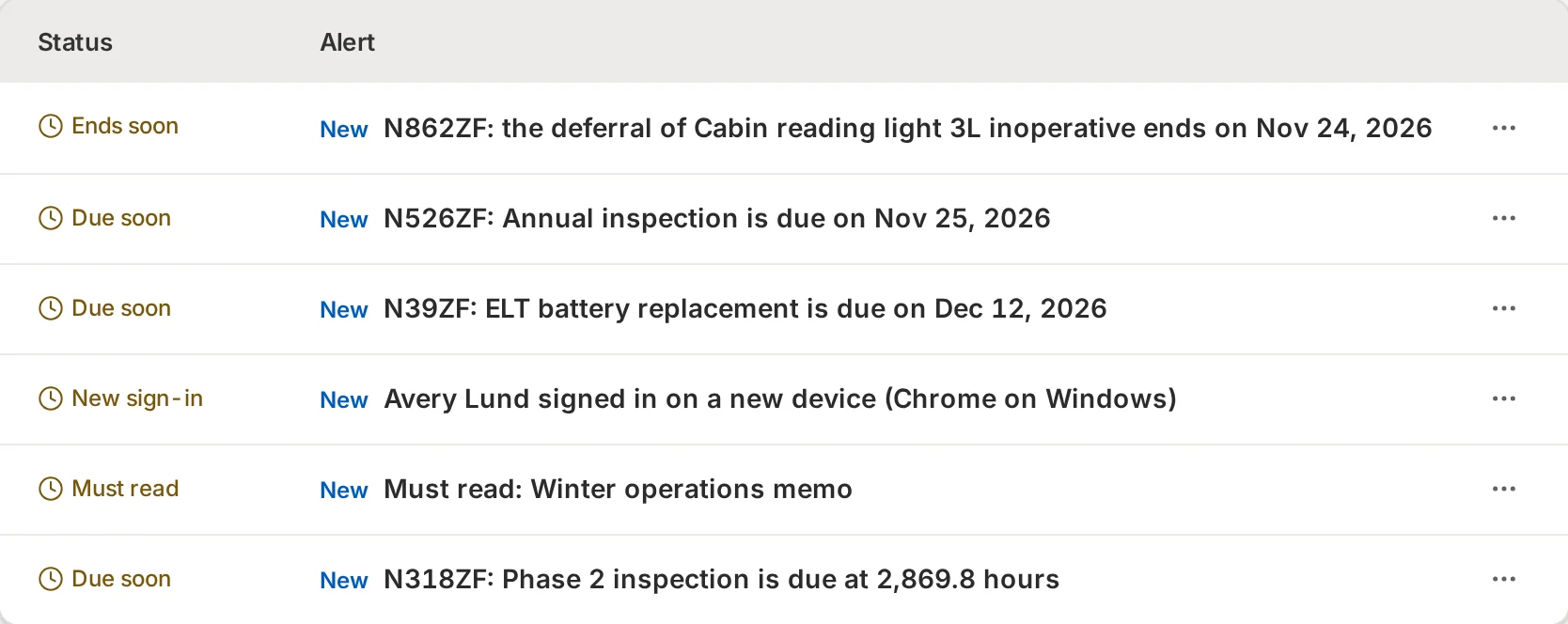
Notices of a sign-in from a new device or country also appear here, not on Home.
NotificationsChoose which alerts are also emailed to you.
What's new, help and support
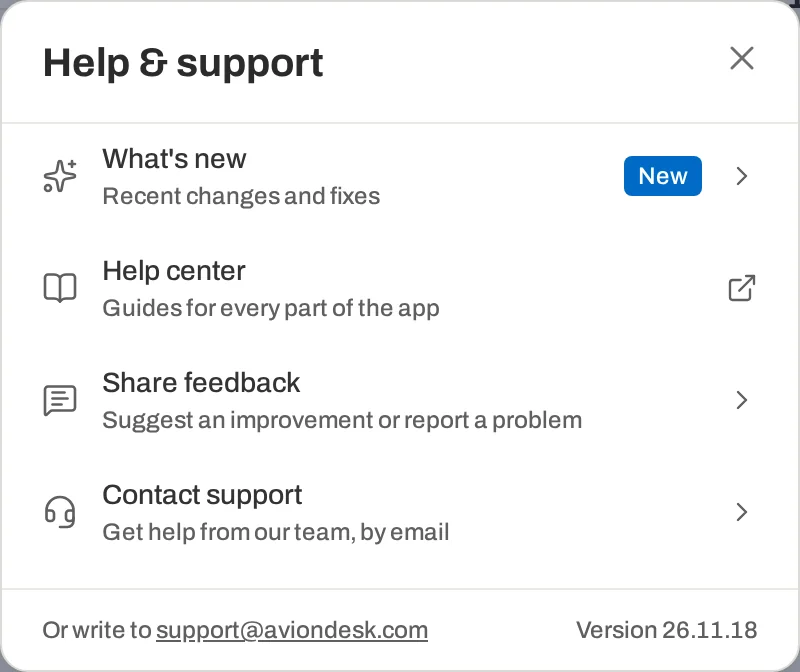
Click Help & support in the sidebar. What's new lists recent changes and fixes, newest first. Help center opens these guides in a new tab. Share feedback sends us an idea or a problem. Contact support writes to our team; pick Urgent: it's stopping our operation if it is. Replies come to your email. The dialog also shows the app version, which helps when you write to us. About and licenses, in the menu under your name, links to the help center too.
On a phone
On a phone the sidebar becomes a bar along the bottom: Home, Schedule, Messages and More. Pilots, attendants, medical crew and View only people have Schedule, Trips, Messages and More. More opens every other section, and so does the menu button at the top left. Search, the Alerts bell and the Local and UTC switch stay in the top bar. On a page that puts its own button up there, such as Messages, the bell steps aside; use All alerts on Home instead. Someone with a crew position and an office role sees their next flights near the top of Home.
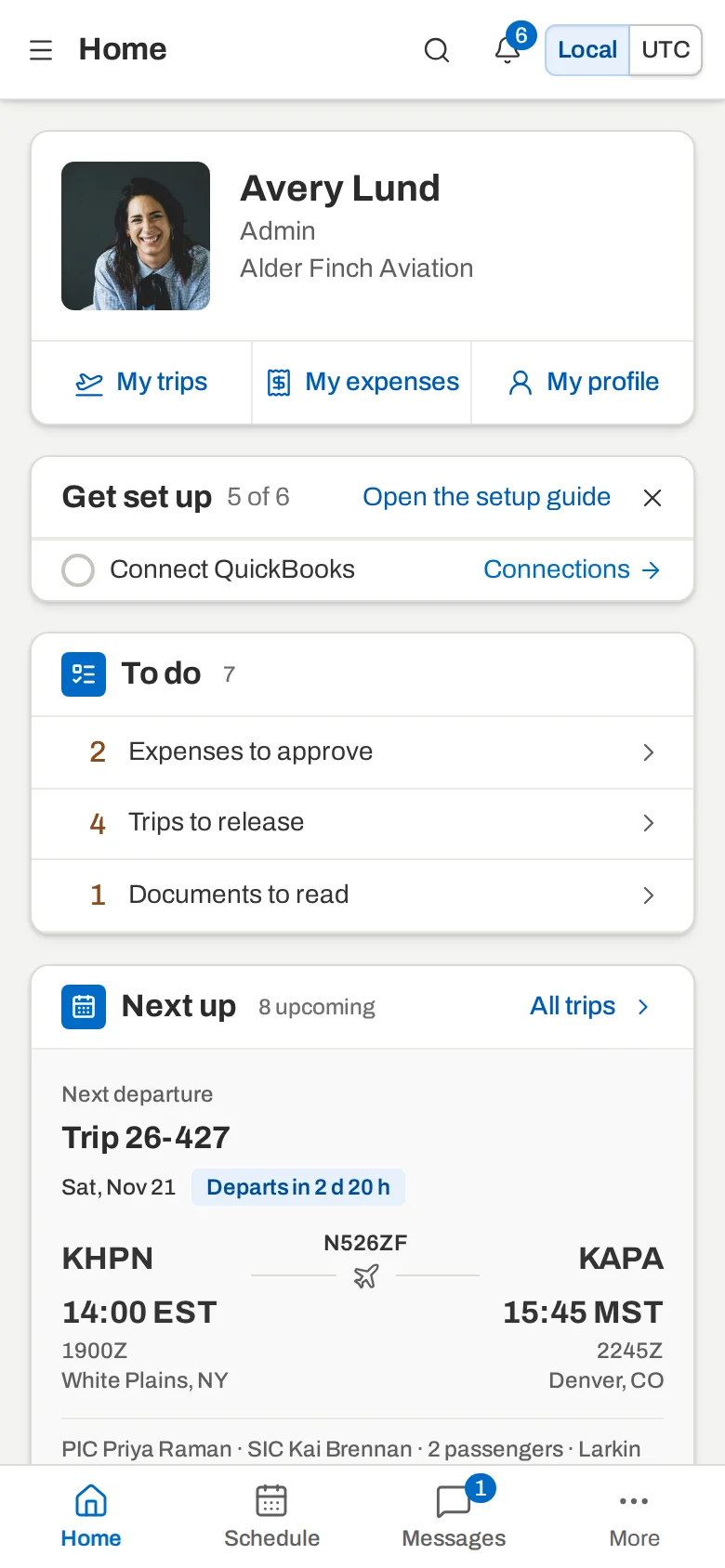
You can add the app to your home screen from your browser's share or install menu. Trips, trip sheets and flight logs you opened while online still work without a signal; logs saved offline are sent when you're back online.
Can’t find what you need? Email [email protected] and a person will answer.