

Accounting
Reimbursables
Receipts paid with a personal card or cash are claims: the company owes the money back once the office approves it. **Reimbursables** is where the office works through them.
Admin and Bookkeeping use the Reimbursables tab. It shows only while the Crew expenses section is on. Everyone else sees their own claims under My Reimbursements, in the … menu on the Expenses tab.
- WaitingThe person submitted it with Submit for Payback. The office is alerted, and the amount shows under To review.
- ReturnedThe office sent it back with a note, and it counts under Sent back. The person fixes it and sends it again.
- ApprovedThe office approved it. The company owes the amount, shown under To pay.
- Paid backThe office paid it back and recorded the reference.
The person is emailed when a claim is approved, sent back, rejected or paid back, unless they turned that email off in their notification settings.
Read the list
Open Accounting, then Reimbursables. The strip at the top totals Submitted, Approved and Paid, 30 days. Each row is a person, with what is To review, Sent back and To pay. When nobody is waiting, the page says Nobody to Pay Back.
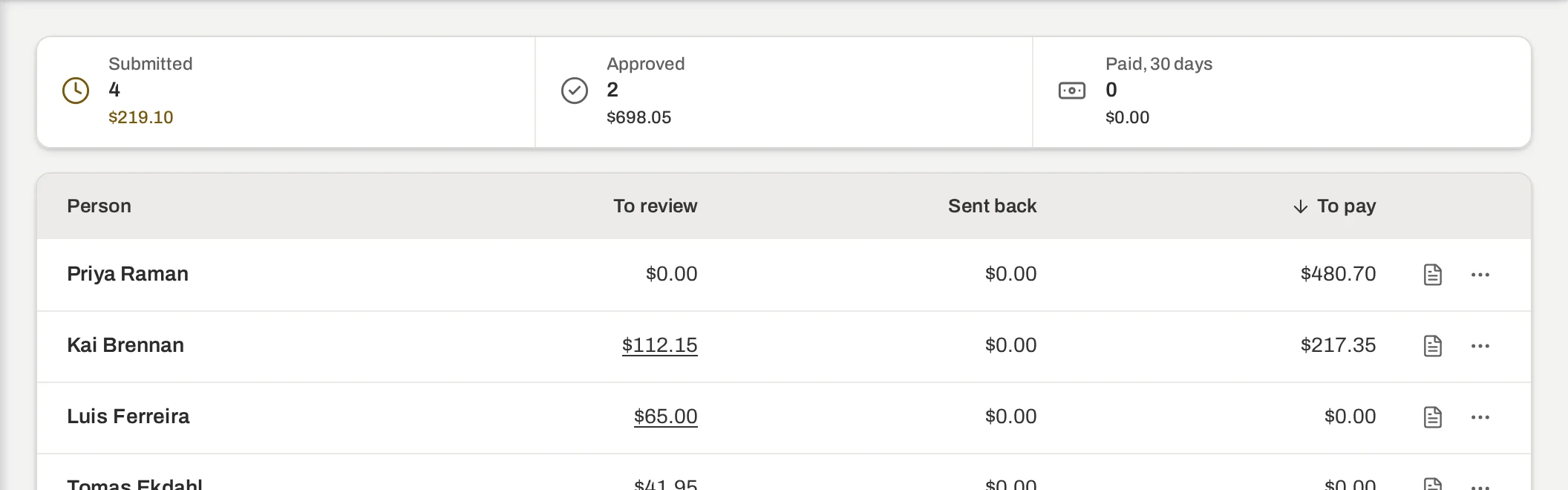
Receipts paid with the owner's card wait in the same review, counted apart as owner card receipts. They are reviewed but never paid back.
Review receipts
- Click the amount under To review, or open the person and click Review.
- Receipts are grouped by trip, each with a box. Those with a photo or file are already ticked; one marked No receipt waits for you to look.
- Select a receipt to check its lines, tax and files. You can add a photo here with Click to upload.
- Click Approve for the ticked receipts, or Send Back with a Note and say what needs fixing.
- Move to the next person with the arrows at the top.
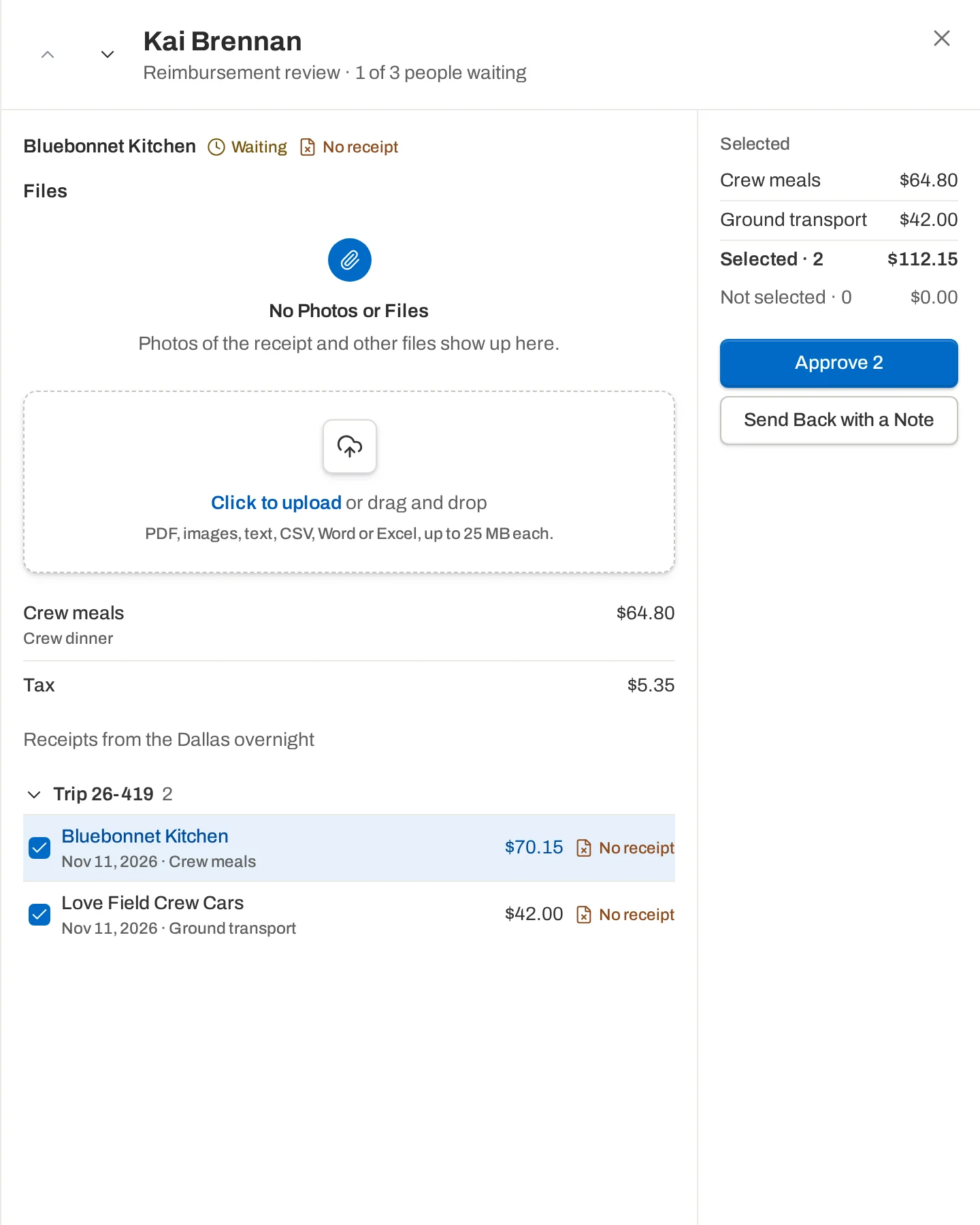
To reject a receipt outright, open it on its own and choose Reject with a reason. A rejected receipt is never paid back or billed.
Pay people back
- Open the person from the list.
- Under To pay, tick the receipts you are paying.
- Click Pay Back.
- Check Paid back on (it starts at today). A Payment reference, such as the payroll run or transfer number, is optional.
- Click Pay Back again to confirm. The button shows how many receipts you are paying.
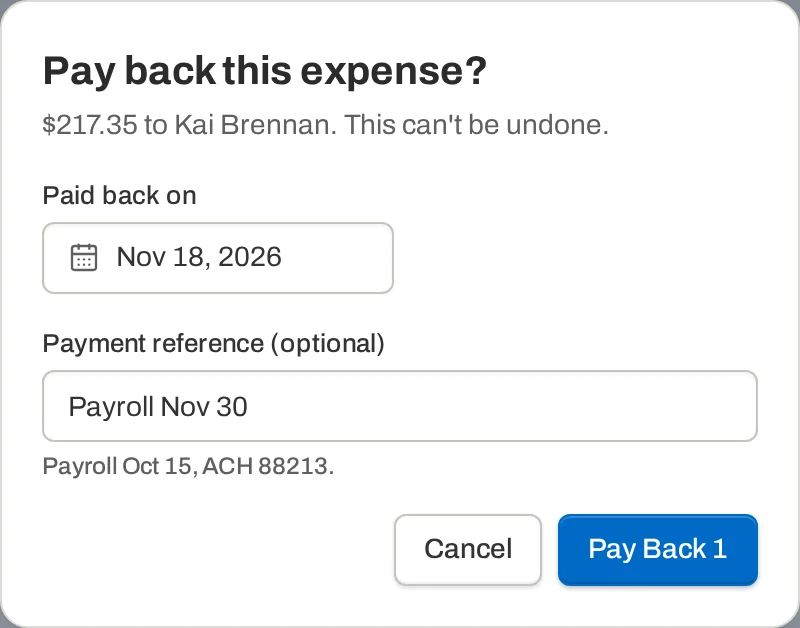
Pay one person and one currency at a time. To pay a single receipt from its own page, use Mark Paid Back. If an approval was a mistake, Take Approval Back returns the receipt to review, with a reason.
Reimbursement statements
On a person's page, or from the row's menu, Statement makes a PDF of their claims: everything still to review, sent back or to pay, plus what was paid back between the dates you choose. Use it for payroll records or to answer a pilot's question. People can make their own from My Reimbursements. Paid on the page shows this year so far; change Paid from and Paid to to look further back.
The report Expenses to pay back, for Admin and Bookkeeping, shows what the company owes its people and how long each has waited, counted from the receipt's date.
ExpensesHow a receipt is recorded and paid.
Roles and accessWho can review.
NotificationsChoosing which expense emails you get.
Can’t find what you need? Email [email protected] and a person will answer.