

Settings
Subscription and billing
Admins manage the plan and payment under Settings, Billing. Your plan is billed per active aircraft, with unlimited users.
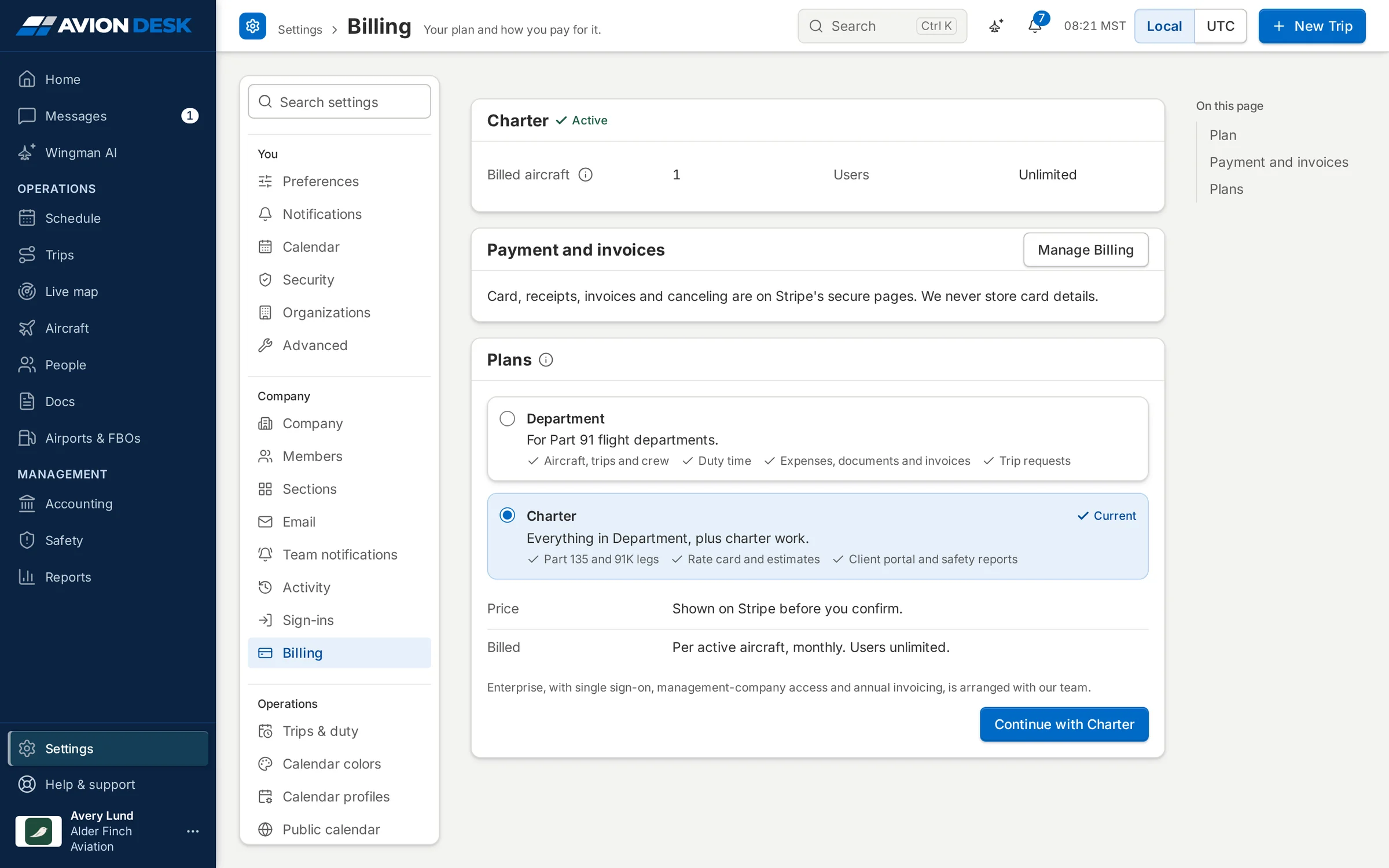
Your plan
The top card shows your plan, its status, and Billed aircraft: the active aircraft you pay for. Deactivated aircraft aren't billed. Users are unlimited.
| Plan | For |
|---|---|
| Department | A Part 91 flight department: aircraft, trips, crew, duty time, expenses, documents, invoices and trip requests. |
| Charter | Everything in Department, plus Part 135 and 91K legs, rate cards and quotes, the client portal and safety reports. |
To choose or change your plan, pick one under Plans and click Continue with and its name, like Continue with Charter. The price shows on Stripe's page before you confirm.
The free trial
A new operator starts on a free trial of the plan picked when it was created. A banner counts down the days left. Choose a plan any time during the trial to keep going without a break.
Statuses
- TrialEverything works.
- Trial endingA few days left. Choose a plan.
- Trial endedA short grace period before read-only.
- ActivePaid and current.
| Status | Means |
|---|---|
| Trial extended | Your trial was extended. |
| Past due | A payment failed. Update the card with Manage Billing before the account goes read-only. |
| Ending | The plan is canceled and runs to the end of the paid period. |
| Read-only | The trial or payment lapsed. |
| Complimentary | No charge. |
Pay, see invoices or cancel
Click Manage Billing under Payment and invoices. It opens Stripe's secure pages, where you change the card, download receipts and invoices, or cancel. We never store card details. Manage Billing works in read-only too, so you can always pay.
Need single sign-on, management-company access or annual invoicing? That is arranged with our team: write to support from Help & support.
Can’t find what you need? Email [email protected] and a person will answer.