

Trips
Crew duty
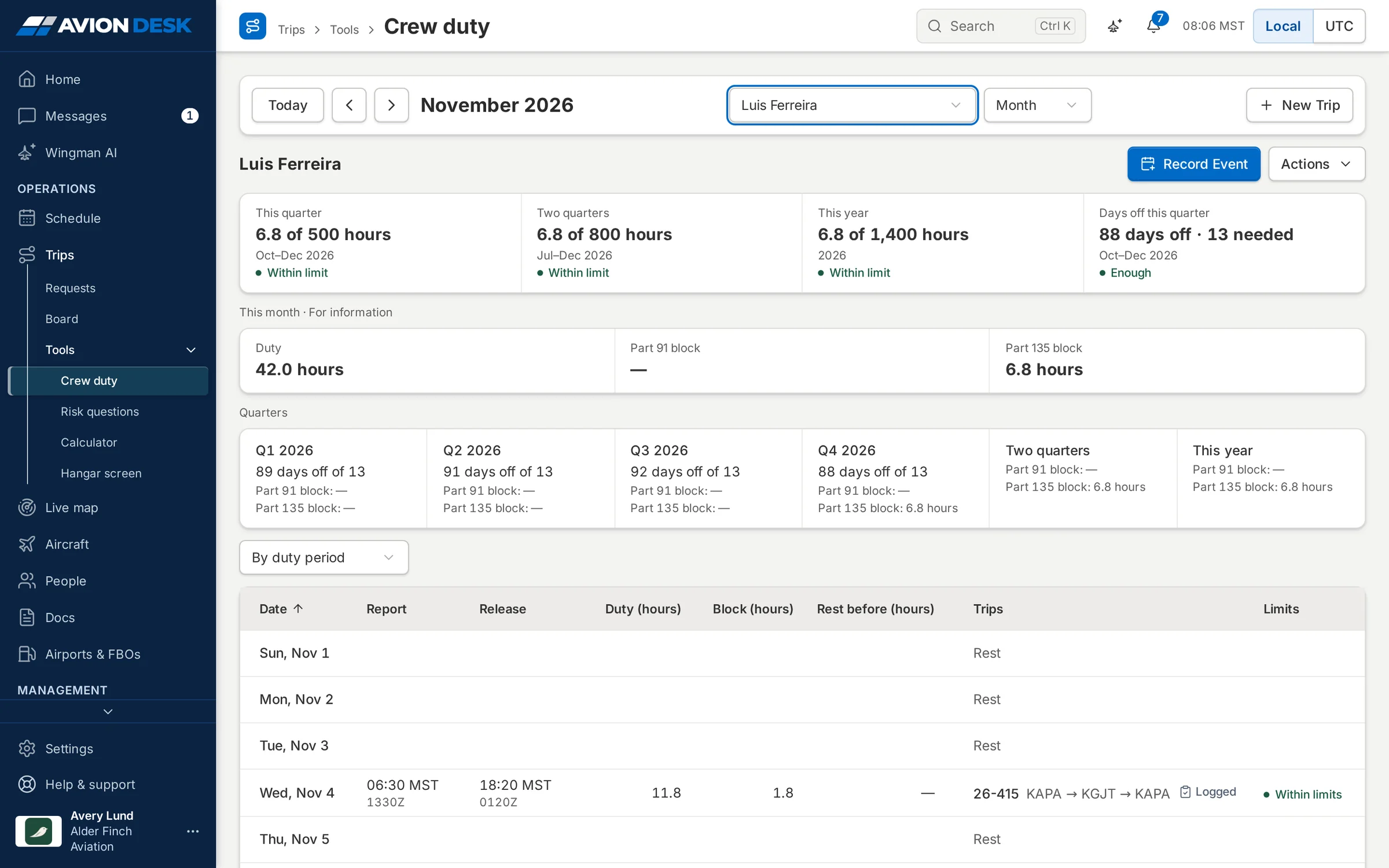
Trips > Tools > Crew duty shows one person's duty for a month: the totals against the limits at the top, then every duty period and rest day.
The office can open anyone's page. Pilots and attendants see only their own. An Admin can turn duty time off for the whole company; the page then disappears.
Read someone's duty
- Go to Trips, open Tools and click Crew duty.
- Choose the person in the picker at the top. Crew see their own page straight away.
- Use Today and the arrows to change the month.
- Choose By duty period or By day above the table.
The tiles
The top row compares block time with the limits for the quarter, two quarters and the year, and counts the days off this quarter against the number needed. Each tile reads Within limit or Enough when all is well. This month shows duty and block time for information. Quarters breaks block time down by quarter and by rule.
The table
Each duty period shows Report and Release times (local, with Zulu beneath), Duty (hours), Block (hours), Rest before (hours), the Trips flown and the Limits result. Days with no duty read Rest. A logged leg is marked Logged; until then the times come from the schedule.
Record a day off or another event
- On the person's page, click Record Event.
- Choose the Day type, for example Day off, Standby or Training.
- Tick All day, or set the times under From and To. Times are in the company's time zone.
- For flying with another operator, choose Flying elsewhere and enter the Block time so it counts toward the limits.
- Add a Note (optional) and click Save.
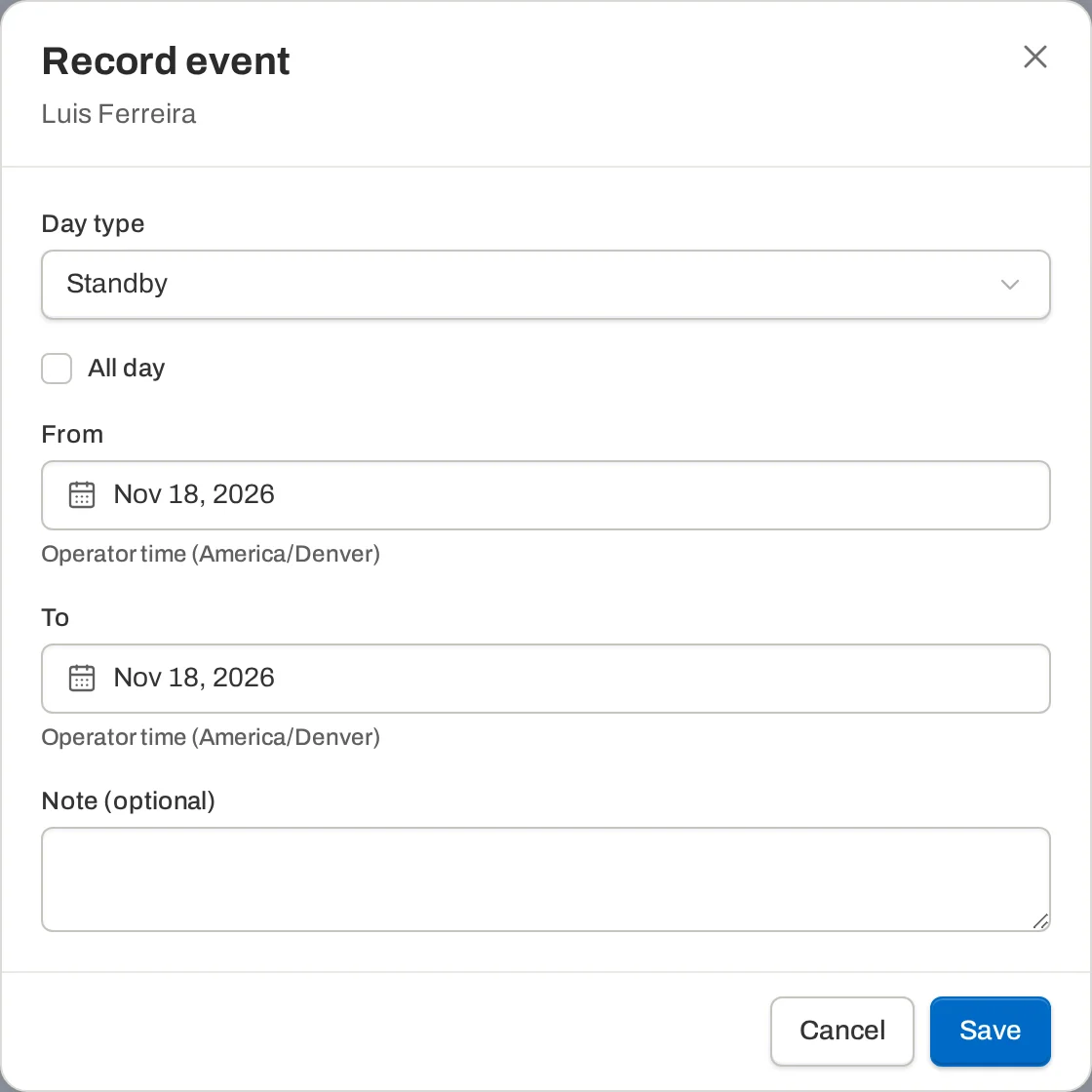
The office can record any day type for anyone. Crew can record Flying elsewhere on their own page. If an event clashes with a trip the person is seated on, This breaks a limit explains it before anything is saved. To change or remove an event, use the menu on its row.
Download the figures
Click Actions, then Download CSV, for the rows on screen in a spreadsheet file.
The scheduleThe crew board, which shows everyone's duty days side by side.
Company settingsThe duty and rest rules your company flies under.
Can’t find what you need? Email [email protected] and a person will answer.