

Accounting
Rate cards and billing codes
Three things under **Settings** shape every quote and invoice: each aircraft's rate card, the billing codes your clients use, and the accounting settings.
Rate cards
Each active aircraft has one rate card, and quotes are built from it. Rate cards come with the Charter plan. Admin, Scheduler and Bookkeeping can read them; Admin and Bookkeeping change them.
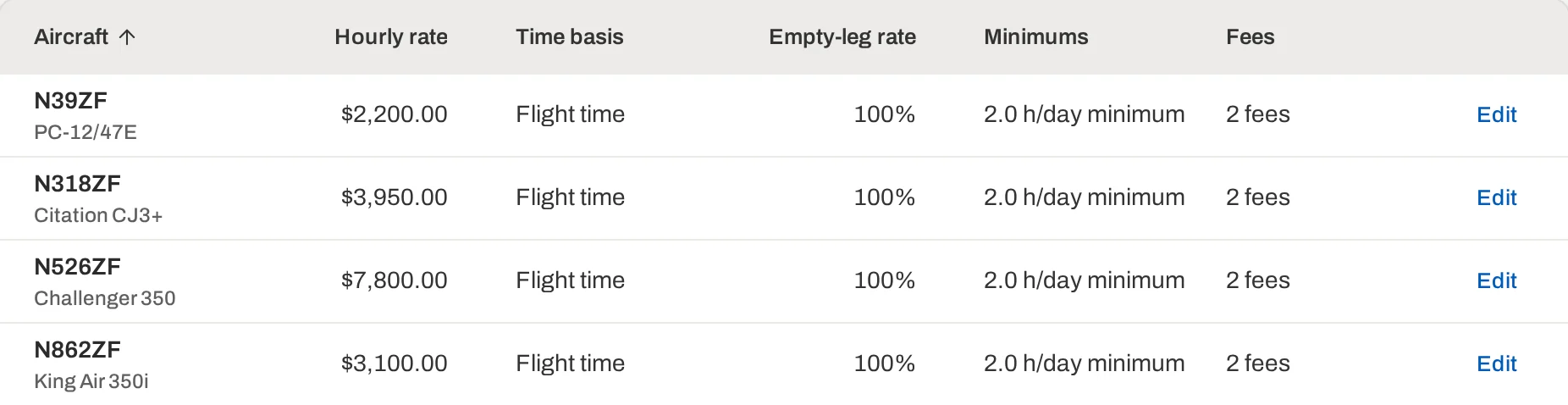
- Open Settings, then Rate cards, and click Set Up or Edit beside the aircraft.
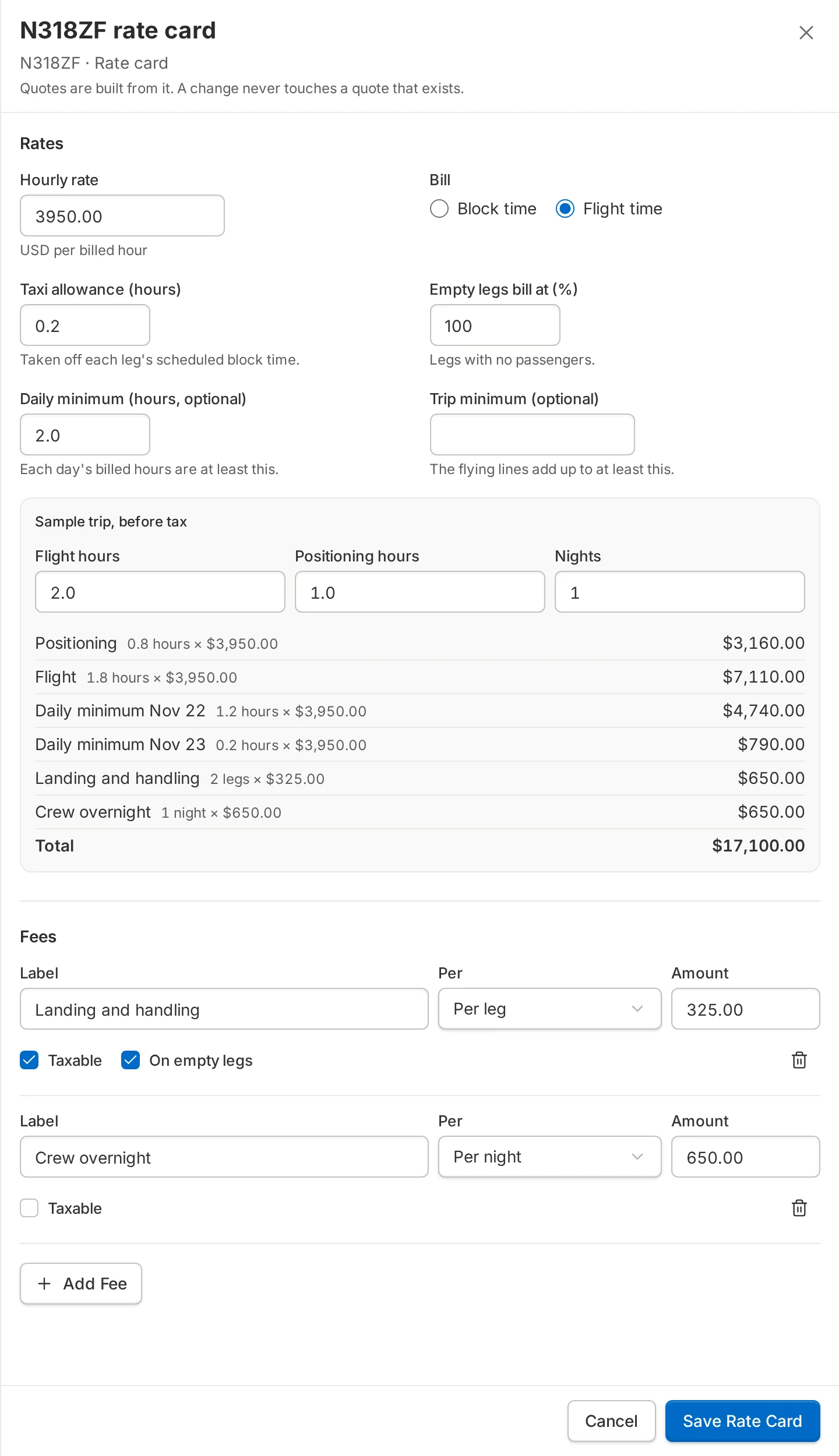
- Enter the Hourly rate and choose to Bill Block time or Flight time. For flight time, set the Taxi allowance (hours) taken off each leg's scheduled block time.
- Set what Legs with no passengers bill at (%). 100 bills an empty leg like any other.
- Add a Daily minimum (hours, optional) and a Trip minimum (optional) if you use them.
- Under Fees, click Add Fee for each charge: a Label, what it is charged Per (leg, passenger per leg, night, day, billed hour or trip), the Amount, and whether it is Taxable. A fee per leg or per billed hour also has On empty legs; the others always apply to empty legs.
- Watch Sample trip, before tax: it prices a trip with the flight hours, positioning hours and nights you enter, as you type.
- Click Save Rate Card.
Billing codes
A billing code is a client's own cost code, such as a project or department, so you can say who a passenger's leg or a receipt line is for. Admin, Scheduler and Bookkeeping see the list; only an Admin adds, edits or deactivates codes.
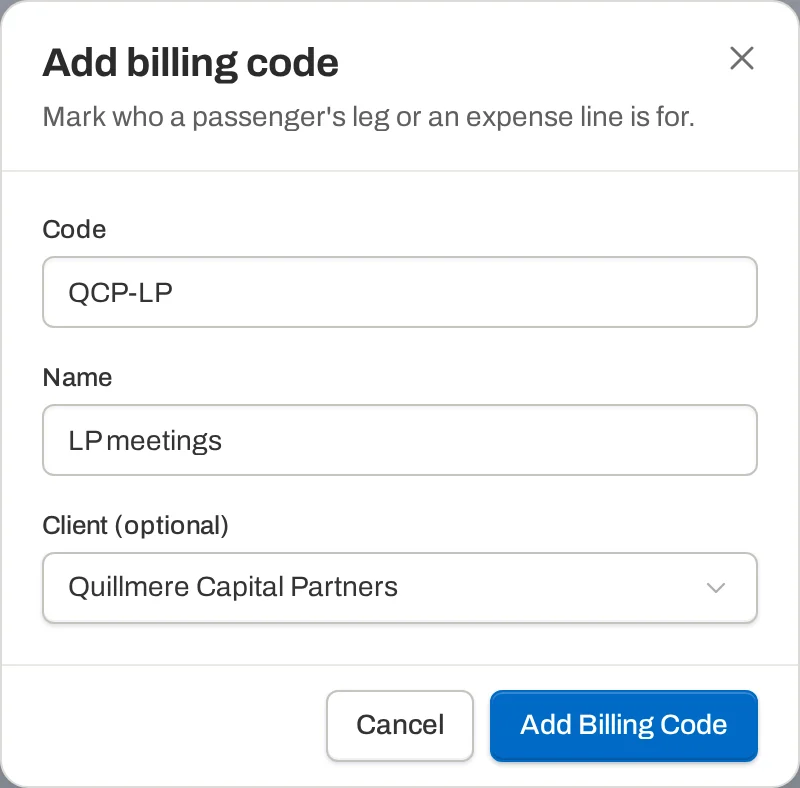
- Open Settings, then Billing codes, and click Add Billing Code.
- Enter the Code (letters, digits and hyphens, up to 20, starting with a letter or digit; it is saved in capitals) and a Name.
- Choose the Client (optional) it belongs to, then click Add Billing Code.
- On a trip, a passenger's Billing Codes sets a code for each leg they ride.
- A person can have a Default billing code on their record.
- A receipt line can carry a Billing code, and the Expenses filters can find it.
- An issued invoice lists the trip's codes, and the report By tag and by billing code splits flying and spending by code.
A code that is no longer used can be deactivated. Passengers and lines that have it keep it.
Accounting settings
Only an Admin changes Settings, Accounting. Click Save Settings after any change; the History at the foot lists every change and who made it.
| Group | What it sets |
|---|---|
| Currency | The operator's currency. It locks once any money is recorded or a segment or international fee is entered. |
| Numbers | The Invoice prefix, Credit note prefix and Quote prefix, and the next invoice and credit note numbers. A counter locks once its first document is issued. |
| Payment | Payment terms (days), Remit to printed on invoices, and a Pay link to your own payment page. On the Charter plan the client portal shows Pay Online while an invoice is owed; otherwise the link prints on the invoice. |
| Letterhead | Text for the top of quotes and invoices. |
| Tax | FET rate (%), Figures for (the year the fees below apply to), and the Segment fee and International fee per passenger. Draft invoices warn when the year's segment fee is missing. |
| Quotes | How many days a quote is Valid for, its terms and a default message. |
| Invoices | Invoice terms and a default message. |
QuotesHow a quote is built from the rate card.
Company settingsThe rest of the company's settings.
Can’t find what you need? Email [email protected] and a person will answer.