

Trips
Crew and passengers
Crew and passengers are set per leg on the trip's **Crew & Pax** tab, one card for each leg. You can also seat crew from the Overview or from step 4 of New Trip.
Admins, Schedulers and Trip builders can change crew and passengers. Crew seated on the trip see who else is on it.
How the tab is laid out
- A strip of figures across the top: the trip's Dates, how many Legs, how many Crew and how many Passengers.
- Same crew on every leg, above the legs, when the trip has more than one.
- A card for each leg, headed with its number, its airports and its day, with the leg's crew status at the right. Inside, three parts side by side on a wide screen and stacked on a smaller one: Crew (the PIC and SIC), Passengers and Attendants / Other Crew, each with how many people it holds. Click the arrow beside a leg's heading to fold a leg you are done with.
- Passenger Details under the legs: the full table of everyone on the trip.
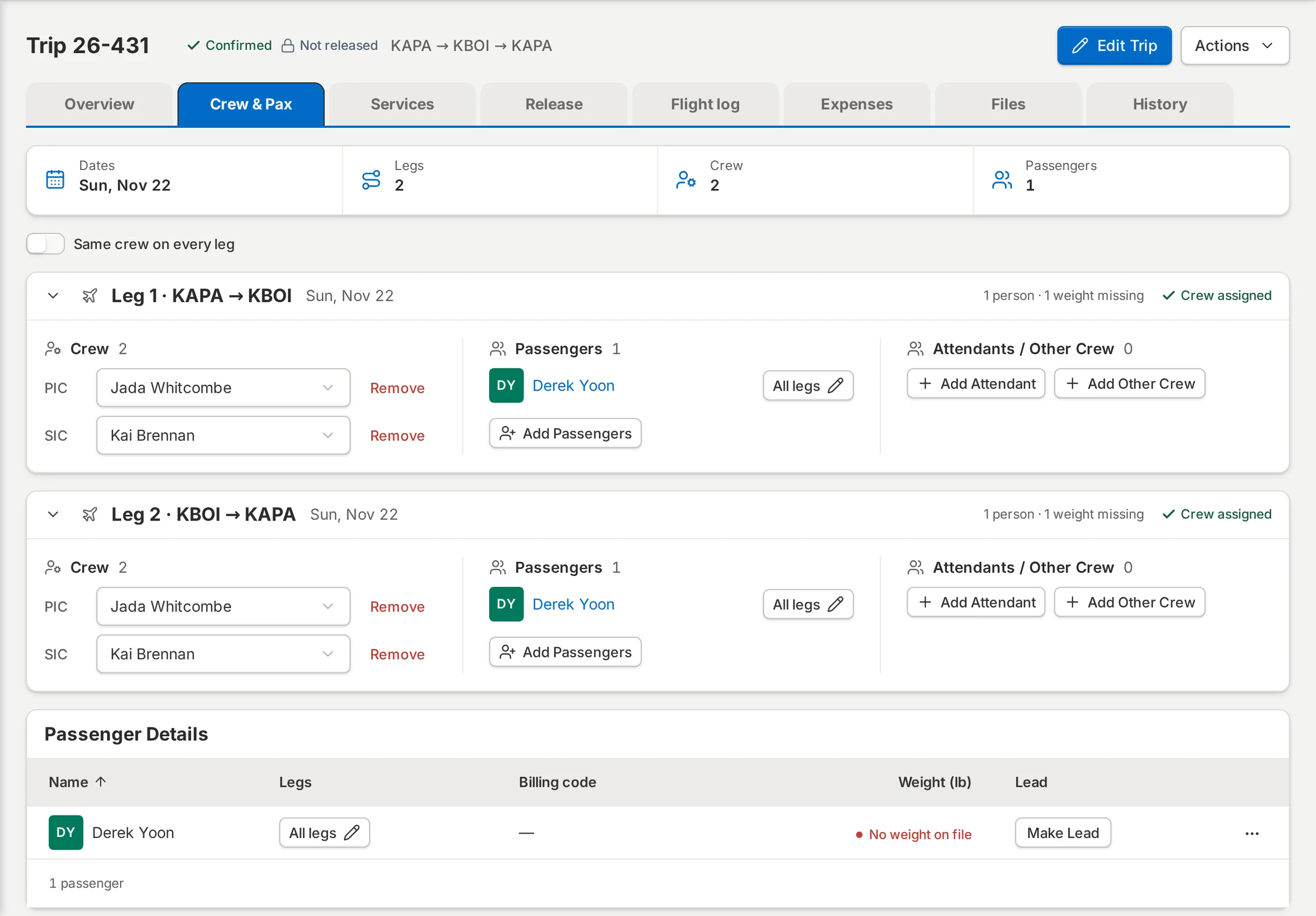
A note such as "1 weight missing" beside a passenger means they have no weight on file.
Seat crew on a leg
- Open the trip and click the Crew & Pax tab.
- Turn on Same crew on every leg first if every leg flies with the same crew.
- Pick the PIC, then the SIC, under Crew in the leg's card. Each pick is saved as you make it.
- Under Attendants / Other Crew, Add Attendant and Add Other Crew add a seat. Other crew is for a mechanic or medical crew flying as crew.
- To take someone off a leg, click Remove beside their seat and confirm.
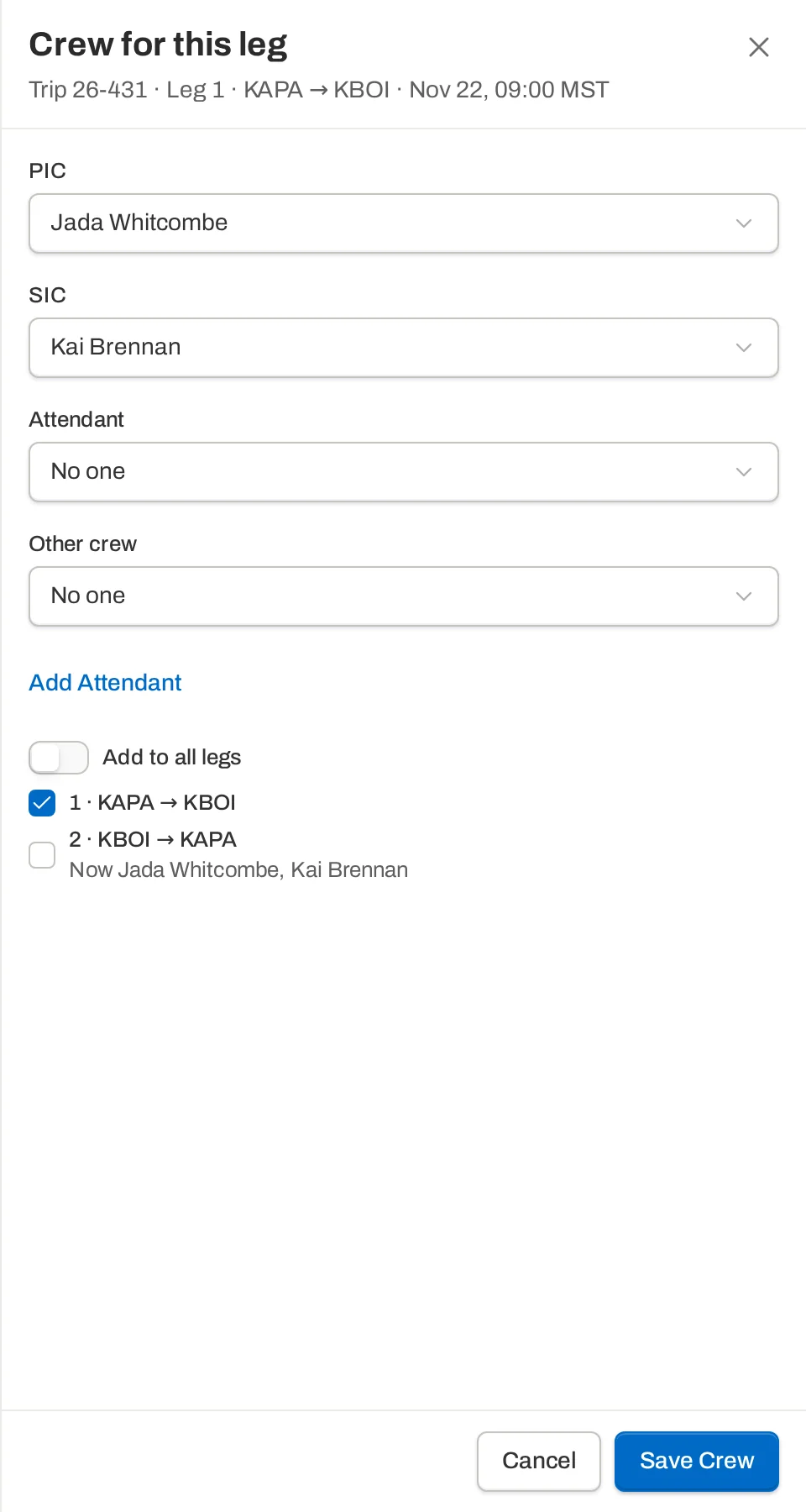
On the Overview, Edit Crew on the Crew card (or in a leg's Actions menu) opens the same seats in a panel, with Add to all legs or the legs you tick, and Save Crew saves them together.
When a seat breaks a limit
Every save runs the checks for duty time, rest and qualifications. When a choice breaks a limit, This breaks a limit opens with the reason and nothing is saved. Pick someone else, or, if you are an Admin and the exception is genuinely acceptable, explain Why is this acceptable? and click Accept and Save. The reason is kept with the trip.
Add passengers
- On Crew & Pax, click Add Passengers under Passengers in the leg's card.
- Search by name or email, or tick people from the client's list. Add a group adds one of the client's passenger groups at once.
- Turn on Add to all legs, or tick the legs they fly.
- Click Add Passengers.
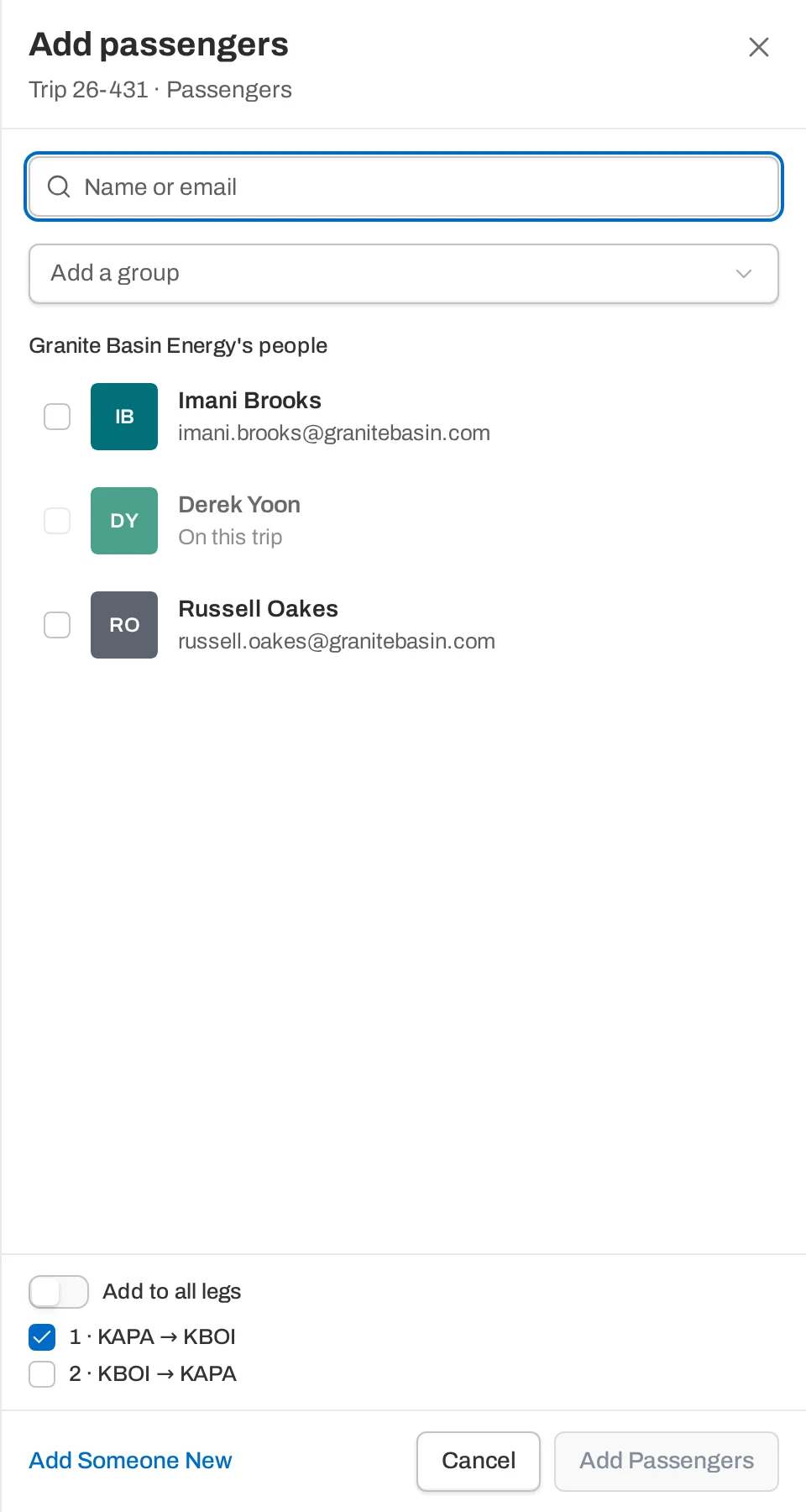
Someone who isn't in the app yet: click Add Someone New, enter their details and add them in one go. They become a person you can pick next time.
Passenger details
The Passenger Details card under the legs is the table of everyone on the trip: Name, Legs, Billing code, Weight (lb), Passport and Lead. A row's menu offers Make Lead (the passenger the itinerary and contact go to), Billing Codes and Remove. Click All legs beside a leg to change which legs a passenger flies.
People and crewCrew positions, contact details and passenger records.
Qualifications and trainingThe records the crew checks read.
Can’t find what you need? Email [email protected] and a person will answer.