

Aircraft
Defects and deferrals
Anyone who finds something wrong with an aircraft reports it. An Admin or mechanic then defers it or clears it, and the aircraft's condition follows each step.
- ReportedA pilot, attendant or office member reports what they found. The aircraft shows Defect reported until an Admin or mechanic acts on it.
- Grounds aircraftIf the defect stops the aircraft flying, the reporter ticks the box, or anyone who can report a defect marks it as grounding later. The aircraft shows Grounded everywhere.
- DeferredAn Admin or mechanic carries it under an MEL item with a date it runs until. The aircraft can fly; when the date passes the aircraft shows Overdue.
- ClearedAn Admin or mechanic records what was done and the certificated person who signed for it. The defect moves to Cleared defects.
Report a defect
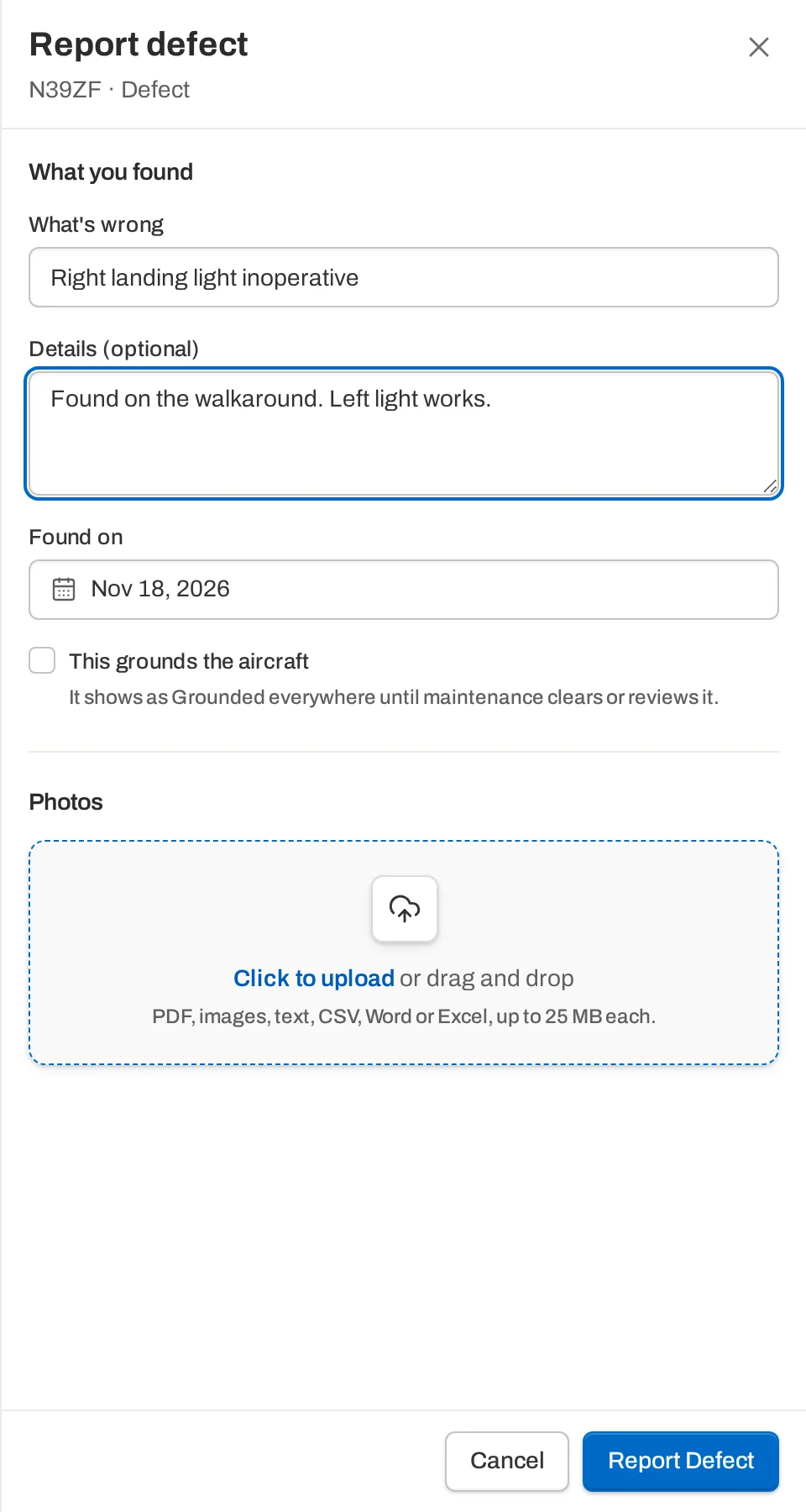
Every role except View only can report a defect, from any aircraft page or from the aircraft's Maintenance tab.
- Open the aircraft and click Report Defect.
- Under What's wrong, say what you found in a line. Add Details if they help.
- Check Found on. It can't be in the future.
- If the aircraft must not fly, tick This grounds the aircraft.
- Add photos under Photos if you have them.
- Click Report Defect.
Read the defects list
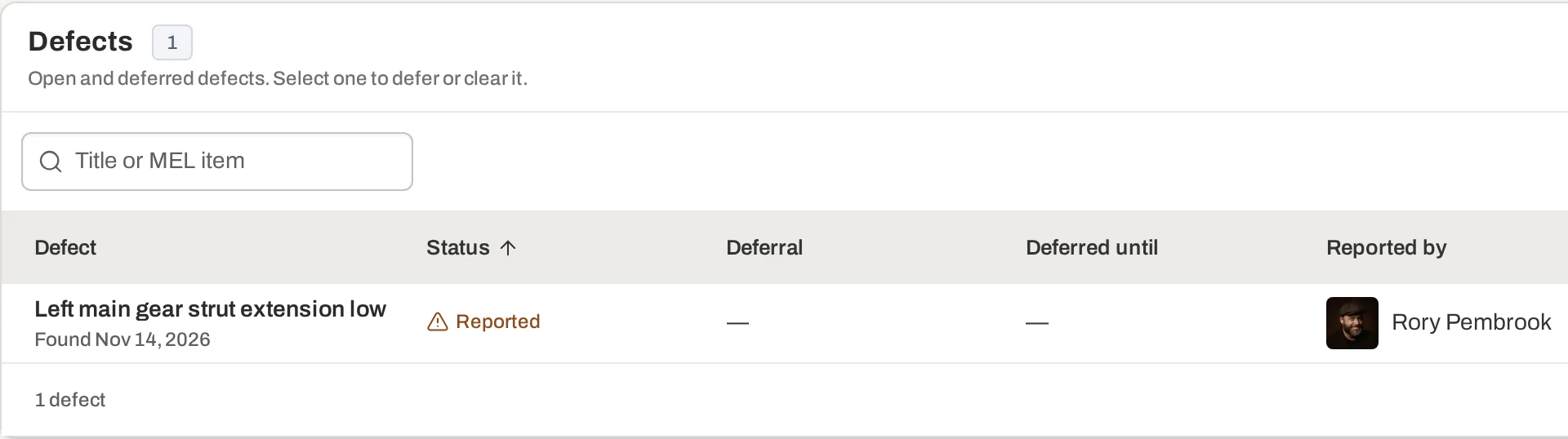
The Defects section on the aircraft's Maintenance tab lists open and deferred defects with their status, the deferral, the date it runs until and who reported it. Search by title or MEL item. Below it, Cleared defects keeps every cleared defect with the date, the signer and the reference.
| Status | What it means |
|---|---|
| Reported | Waiting for maintenance to decide. |
| Grounds aircraft | The aircraft shows Grounded until the defect is deferred, cleared or moved back to reported. |
| Deferred | Carried under a deferral. Shown as "runs out in" a number of days as the date nears. |
| Deferral ran out | The runs-until date has passed. The aircraft shows Overdue. |
| Cleared | Fixed and signed for. |
Act on a defect
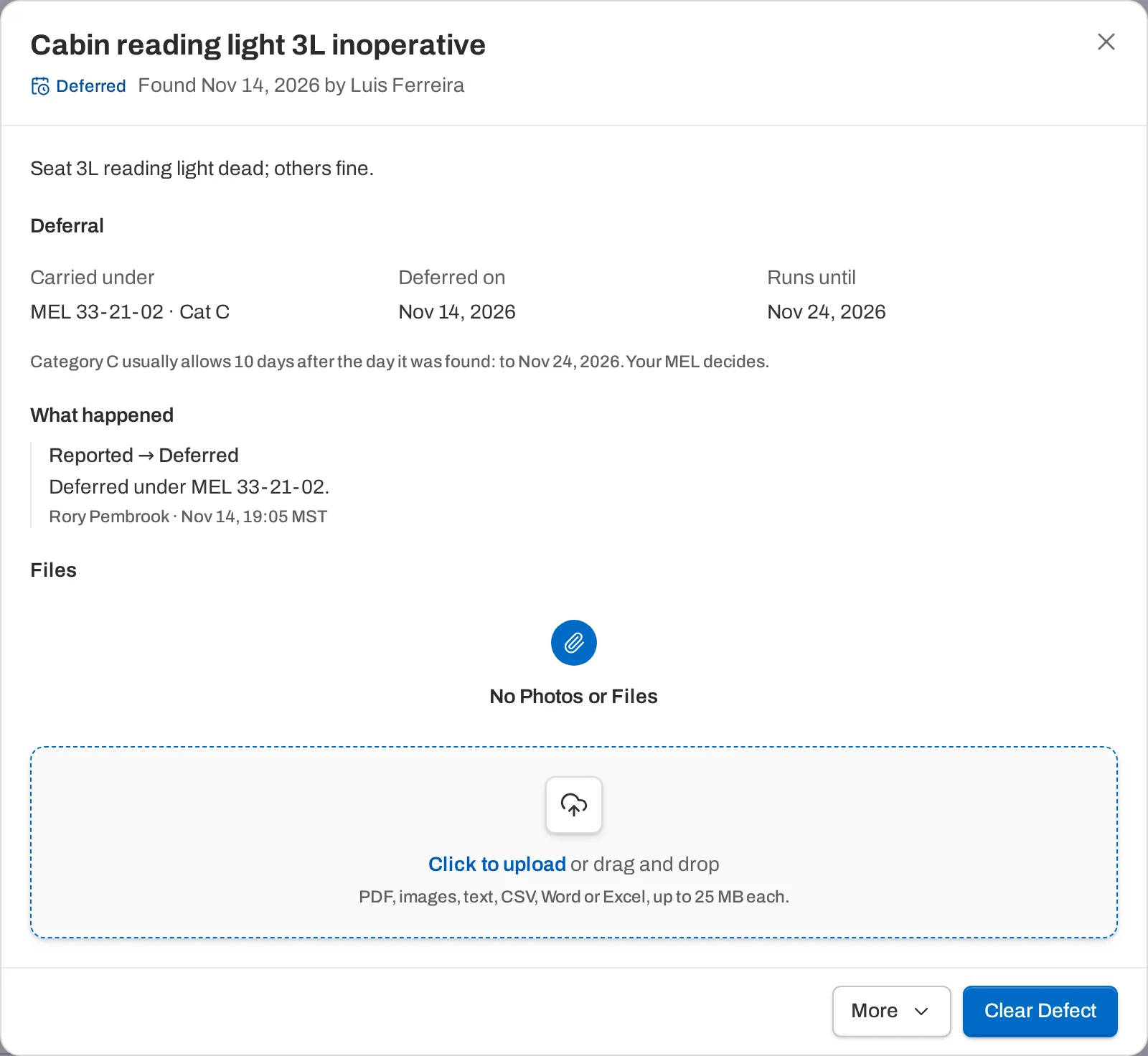
Click a defect to open it. The sheet shows the details, any deferral, a What happened list of every move with who made it and why, and its files. The buttons at the bottom depend on its status and your role.
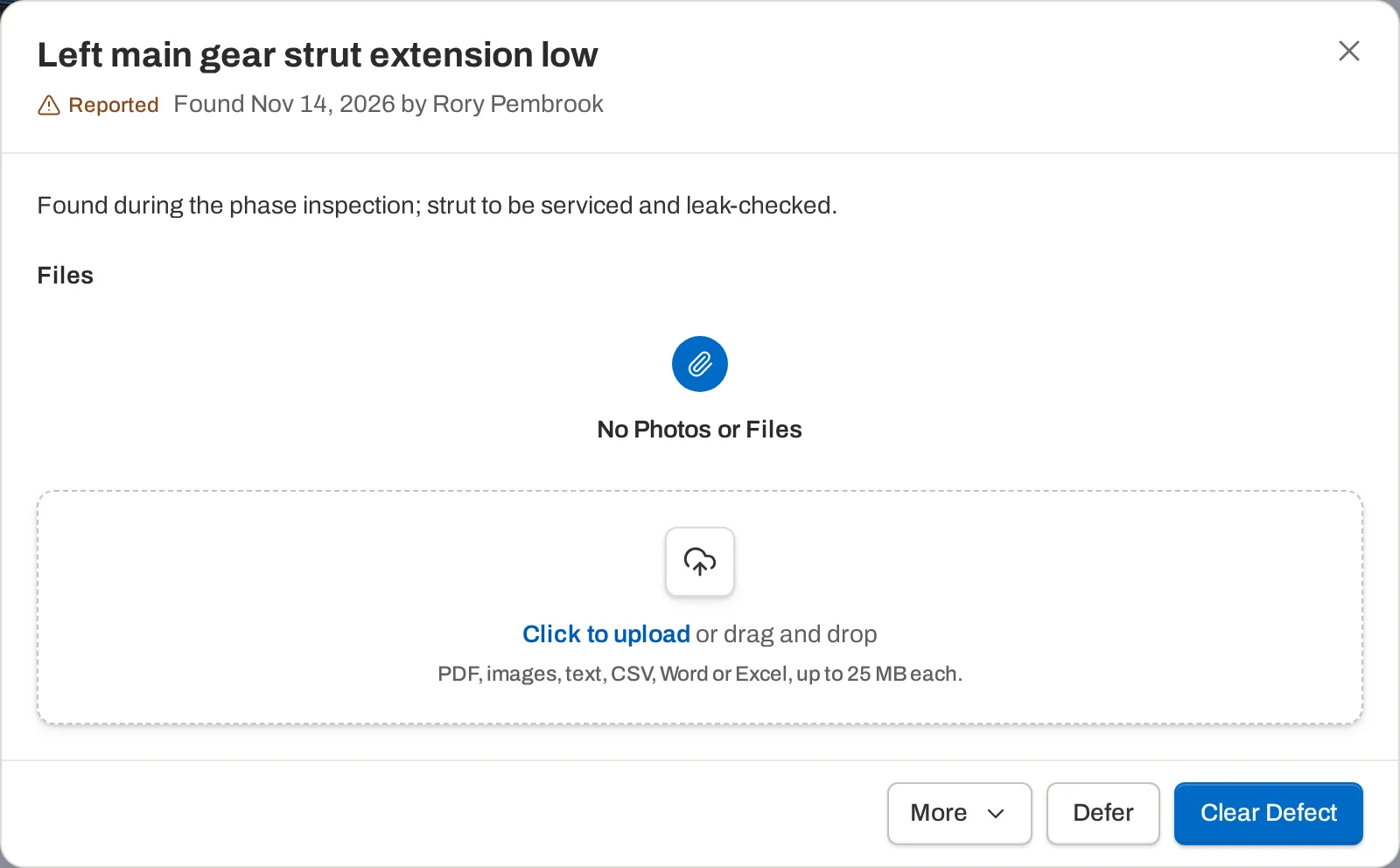
- Defer and Clear Defect: Admins and mechanics.
- Mark as Grounding: anyone who can report a defect. It asks for a note.
- Back to Reported: Admins and mechanics, when a grounding or deferral no longer applies. It asks for a note.
- Edit: Admins and mechanics, to correct the details or the deferral. It asks for a reason.
- Withdraw: Admins and mechanics, for a report made by mistake or twice. Only a reported defect can be withdrawn; it leaves the list and stays in History.
Defer a defect
- Open the defect and click Defer.
- Enter the MEL item if there is one, and choose its Category: A, B, C, D or None.
- Set Deferred on, then check Runs until. For categories B, C and D it fills in the usual limit counted from the day the defect was found; for category A, take the limit from the MEL item's remarks.
- Write a Note saying why it is deferred, then click Defer.
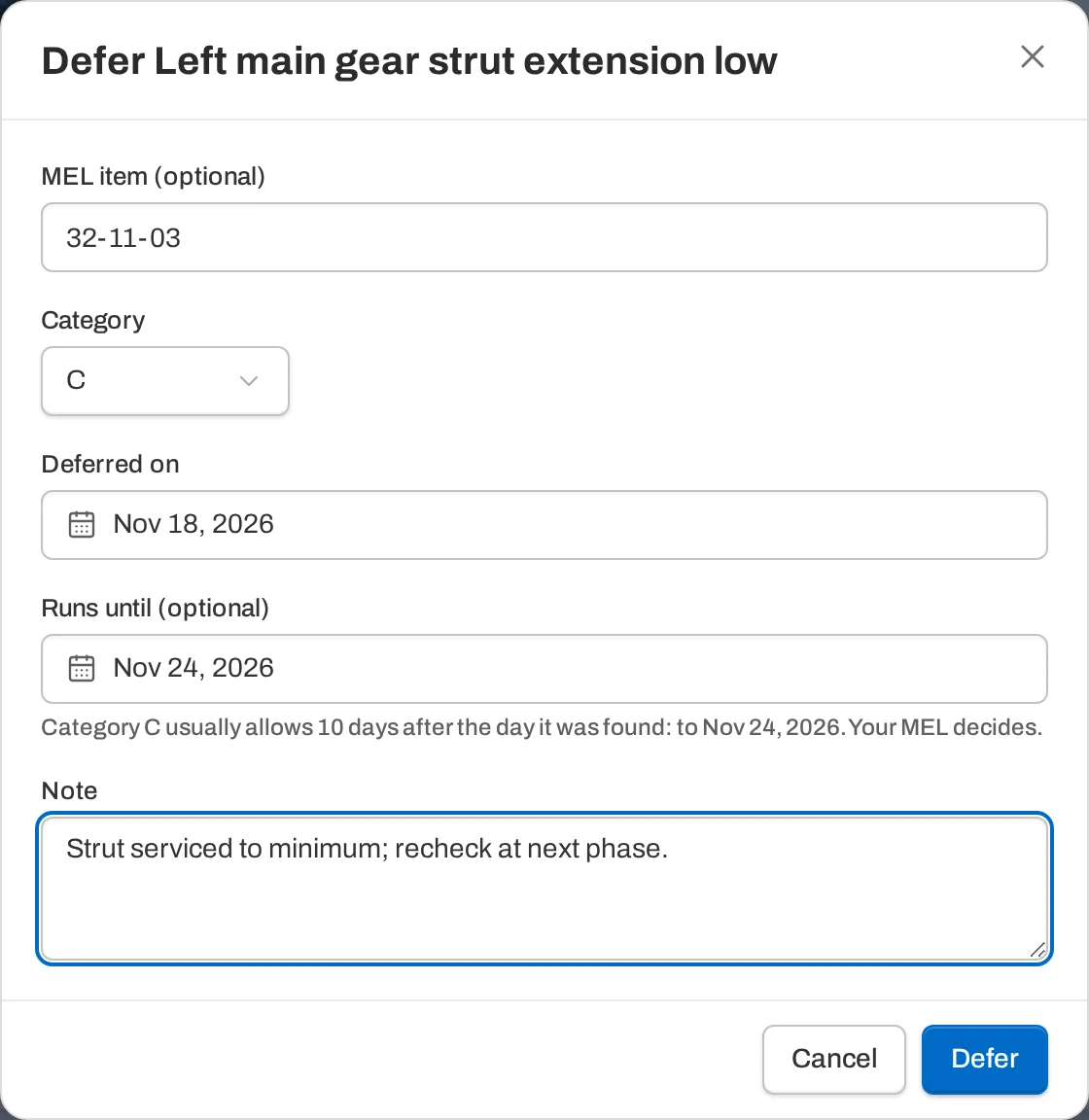
The suggestion never stops you saving a different date. A deferred defect shows what it is carried under, when it was deferred and when it runs until.
Clear a defect
- Open the defect and click Clear Defect.
- Say What was done and set Cleared on.
- Name the Certificated person who did the work or signed for it, inside or outside your operator, choose their Certificate and enter the Certificate number. If you hold a certificate yourself, Use My Certificate fills these in.
- Add a Work order or logbook reference if you have one, then click Clear Defect.
Maintenance items and sign-offMaintenance items, downtime and counters.
Can’t find what you need? Email [email protected] and a person will answer.