

Flying
Release a trip
Releasing a trip says it's ready to fly. The crew see it, everyone on its list is emailed their trip sheet, and the checks at that moment are kept with the trip.
- OptionHeld for a client, not promised. It can't be released.
- ConfirmedBooked. A scheduler works through the Release tab until nothing holds it.
- ReleasedAn Admin or Scheduler releases it. Crew and passengers get their sheets.
- FlownEvery leg has landed or been logged, but something is still open.
- CompletedEvery leg is logged, no receipt is waiting, and any invoice is paid.
Trip statusesOption, Confirmed and Canceled in full.
Who can release
- Admin and Scheduler release trips and take a release back.
- A Trip builder opens the Release tab and sees what holds the trip, but has no Release Trip button.
- Crew seated on the trip see the tab too, as Your checks, with the risk questions. They can't release.
- Only an Admin can accept a crew or duty finding that breaks a limit, or approve a high risk score.
Release a trip
- Open the trip. Its Overview shows Release pending until it's released; click Review Release there, or the Release tab.
- Read the Release panel on the right. Ready to release means nothing holds the trip. Not released yet says how many reasons are left, like "2 reasons it can't be released yet".
- Work down the Readiness card. Each open item has a link to where it's fixed, such as Crew for Leg 1. If the trip isn't confirmed yet, click Confirm Trip right there.
- Answer the risk questions in the Risk card if nobody has yet.
- Click Release Trip, check the dialog, and click the button at its foot. It counts the people and FBOs who get an email, like Release and Send to 3 People and 2 FBOs. With nobody ticked it reads Release Trip. It starts with Accept when you also accept something by releasing: findings an Admin accepts, or items you ticked as checked yourself.
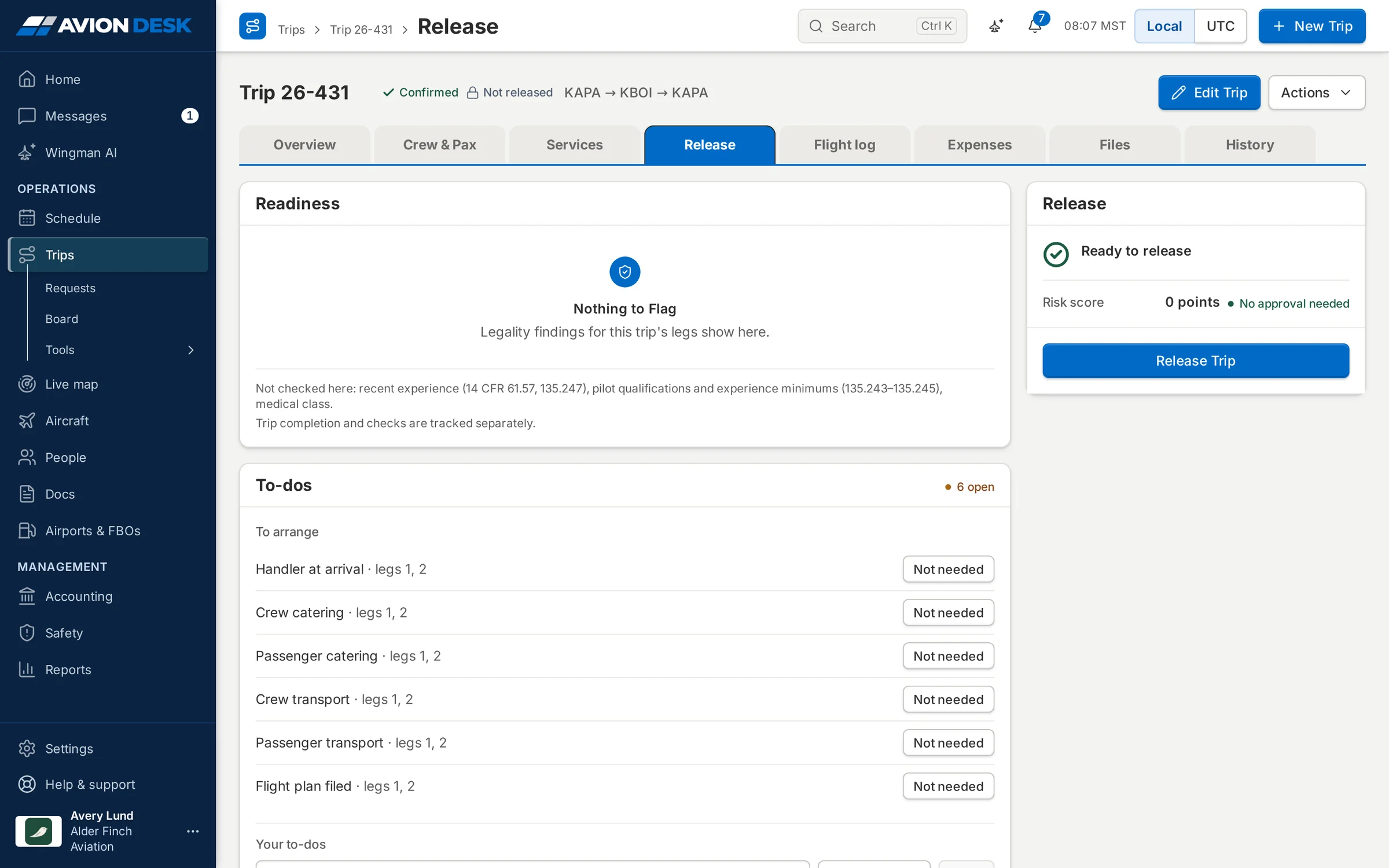
What holds a release
| Reason | What to do |
|---|---|
| Not confirmed | Click Confirm Trip on the tab. An option can't be released. |
| No aircraft, or the aircraft is grounded, down for maintenance, inactive or booked on another confirmed trip | Pick another aircraft, or clear the aircraft's status. |
| No PIC, or no SIC where the leg needs one | Seat the crew on the Crew & Pax tab. |
| A crew or duty finding that breaks a limit | Change the crew or the times. An Admin can accept it instead (below). |
| The risk questions haven't been answered | Answer them in the Risk card. |
| The risk score needs an Admin's approval | An Admin clicks Approve in the Risk card. |
| The risk score is too high | Change the trip so fewer answers are Yes. A trip at or over the refusal score can't be released. |
| No risk questions | An Admin adds at least one under Trips, Tools, Risk questions. |
Readiness groups what it finds under Trip, Aircraft, Crew and passengers and Risk, with whatever holds the release first. Under Not checked sit things the app can't judge from what's on file, like an attendant's duty limits. They don't hold the release, but you tick that you checked them when you release. The foot of the card names what is never checked here: recent experience and medical class, plus the Part 135 pilot minimums on a 135 trip.
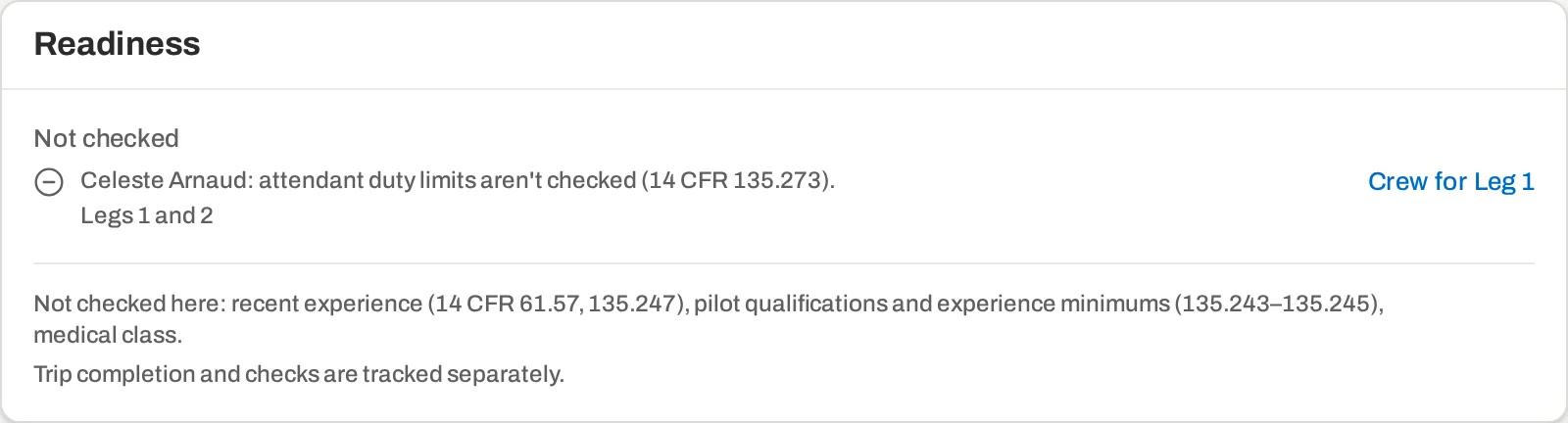
When a crew finding breaks a limit
If the only things left are crew or duty findings, an Admin sees Accept and Release… instead of Release Trip. A Scheduler sees An Admin can accept these. The Admin gets a This breaks a limit dialog listing each finding, writes Why is this acceptable?, and clicks Accept and Release. The reason stays in the trip's History.
The release dialog
- Worth a look: warnings that don't hold the release.
- Expired by the end of this trip: aircraft papers that run out before the trip ends.
- Can't be checked from what's on file: tick I've checked these myself to go on.
- These people are sent their trip sheet: who gets an email, what they get and why. Crew get the Crew trip sheet, passengers the Passenger sheet with directions, and the client contact or aircraft owner the Owner's trip sheet. Untick anyone, or click Add someone else. A person with No email on file can't be ticked until you Add one.
- FBOs: each FBO on the trip gets your arrival and departure times there, the tail and type, and how many people are aboard. No names are sent. Untick any you'd rather call.
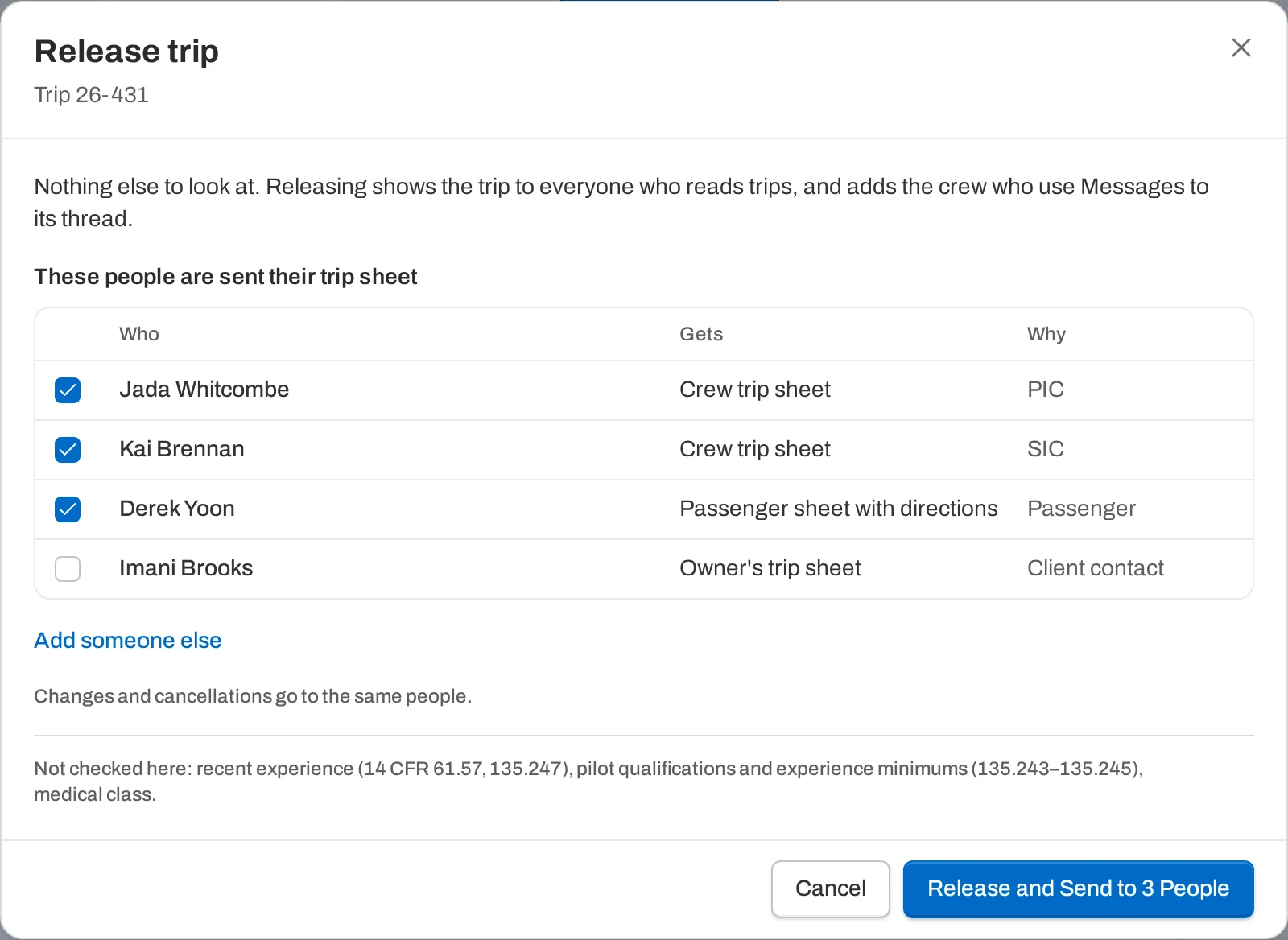
Releasing also shows the trip to everyone who reads trips and adds the crew who use Messages to the trip's chat.
After the release
The panel reads Released, with Released by, When and Signature. To sign your releases, save a signature in My details (the panel offers Add Your Signature). Released with issues means something has come up since the release that would hold it now, such as the aircraft being grounded. Readiness lists it. Before release, a trip whose risk score waits for an Admin shows Needs approval in place of Not released.
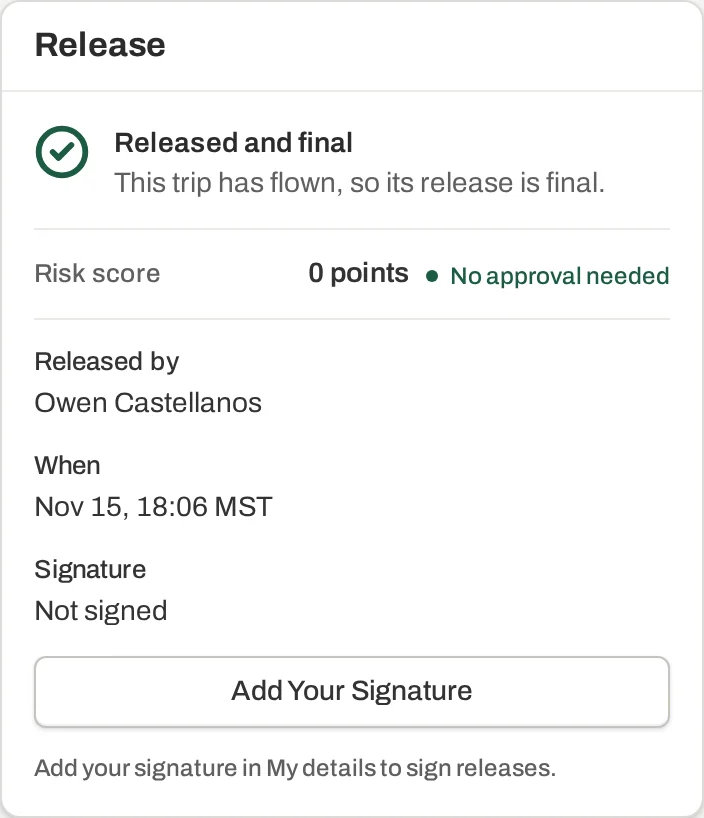
When a released trip changes
Changing the aircraft, times, airports, crew, passengers or risk answers of a released trip asks an Admin or Scheduler first, in a This trip is released dialog. Keep Released keeps it (tick anything the change left unchecked), Take It Back takes the release back, and Don't Save drops the change. Either way, everyone on the trip's list gets the updated trip. A change by anyone else takes the release back, and a Trip builder can't change a released trip at all.
To take a release back by hand, click Take Back Release. A reason is optional and kept in the trip's History.
Flown and Completed
Once the last leg has left, the release can't change: the panel reads Released and final. A trip that flew without a release reads Flown, not "Not released". The trip's chip then reads Flown until every leg is logged and no receipt is waiting for review, and the invoice is paid if you use Accounting and the trip has one. Then it reads Completed.
To-dos
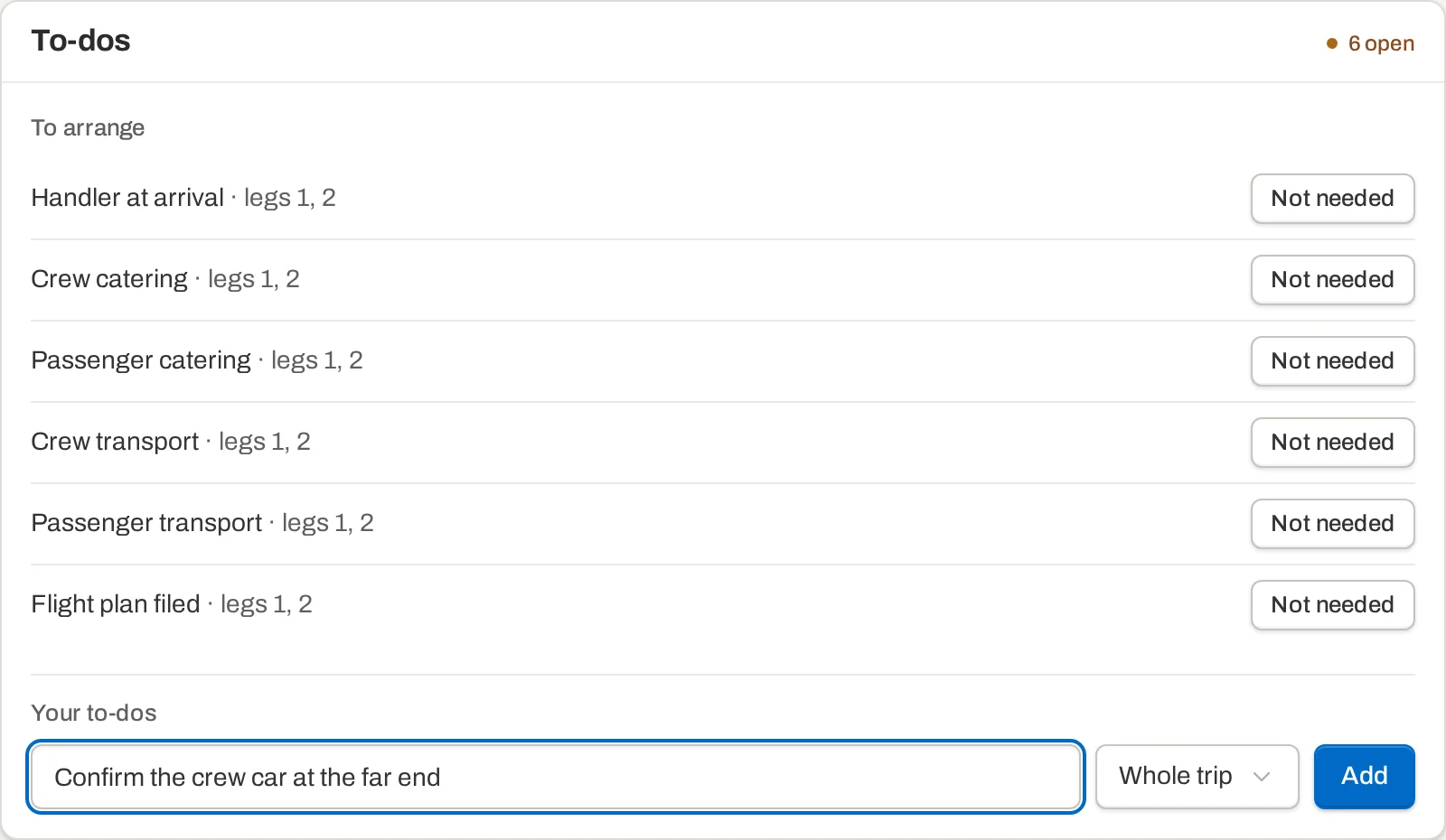
The office sees a To-dos card on the Release tab. To arrange lists each leg service still open. Click Not needed on one and pick Not needed on this trip, or, for catering, hotels and cars on a client's trip, Never for that client, so none of their trips ask again. Your to-dos holds your own notes: type one, pick Whole trip or a leg, and click Add. Tick it off when it's done. To-dos show in the trip's Pre-flight list and never hold up the release.
Trip sheets, itineraries and recapsThe trip sheets the release sends.
Can’t find what you need? Email [email protected] and a person will answer.